- Carry out a live transaction test once all event setup and payment configurations are completed.
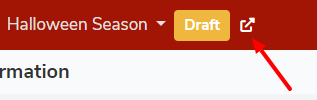
- Visit the event page to select tickets and place an order.
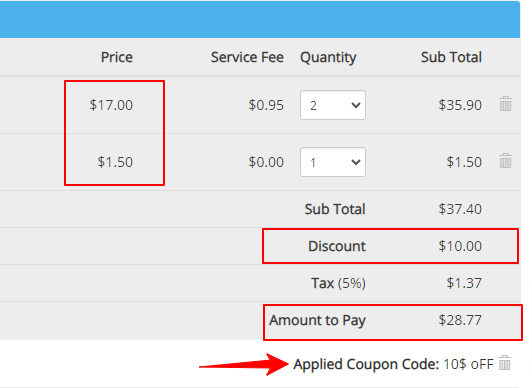
- Can create discount code to minimize test transaction amount on actual ticket price.
- Can apply this code for test transactions (e.g. reduce the transaction by applying a discount code on the payment page) See the below image for an example.
- Enter buyer information and email ID where the ticket is being sent in PDF format to the buyer.
- Enter card payment information and billing information.
- Make a payment via credit card for this order.
- Once payment is made, will have "Email" and "Text Message" options to “Print” or “Download” ticket
- If all goes good can continue with live mode or in case of any issue in the test transaction may check you your payment gateway processor for help. Also, take a message screenshot and send it to the FEARTICKET support team.
How to submit a help ticket?
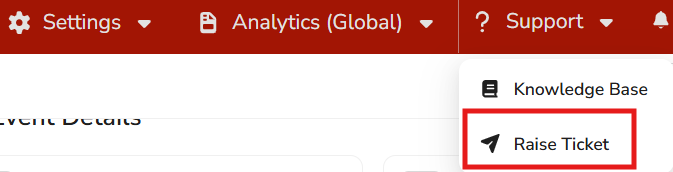
Click on the “Support” menu and select “Raise Ticket” as shown in the below image
Raise a Support Ticket
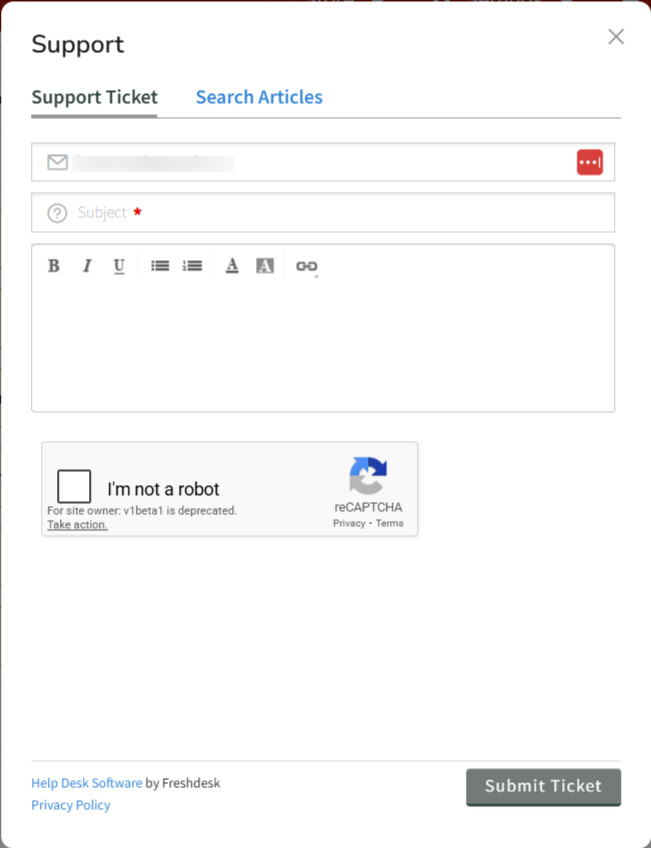
After clicking Raise Ticket, a support form will open where you can submit your request to the FEARTICKET support team.
Enter a Subject describing your issue and provide detailed information in the message box so our team can better understand your request. If needed, you can format the message using the available text tools.
Before submitting the ticket, verify the “I’m not a robot” checkbox for security. Once completed, click Submit Ticket. Our support team will review your request and respond to the registered email address.
Was this article helpful?
That’s Great!
Thank you for your feedback
Sorry! We couldn't be helpful
Thank you for your feedback
Feedback sent
We appreciate your effort and will try to fix the article