PayPal Integration with Hytix / FEARTICKET Account :
Must Require to get: 1. Client ID & 2. Secret Key to integrate your PayPal Account.
Know how to get your app "Client ID" and "Secret Key" to integrate with your ticketing account for online card payment processing.
First, log in to your PayPal account using your Login email ID and Password, click on the below links to log in now.
https://www.paypal.com/us/signin
After logging in to your PayPal Account :
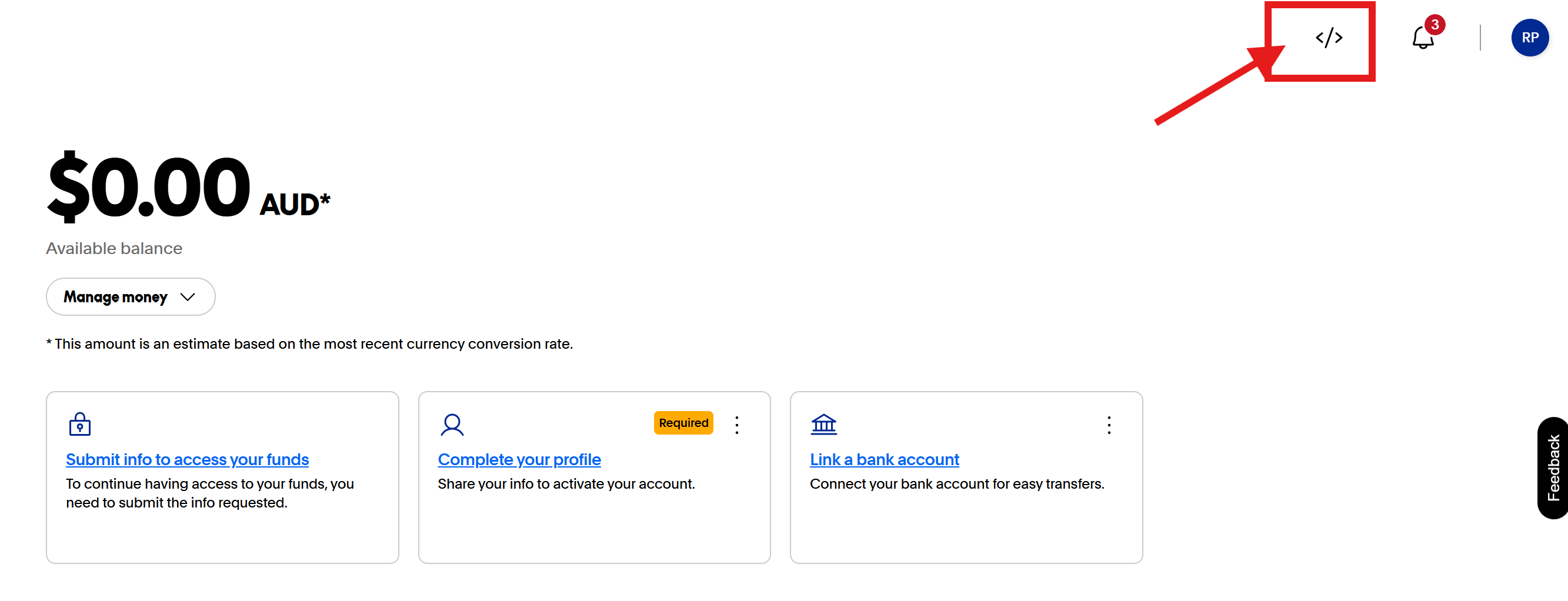
- Click on the "Developer Icon" from the top right side.
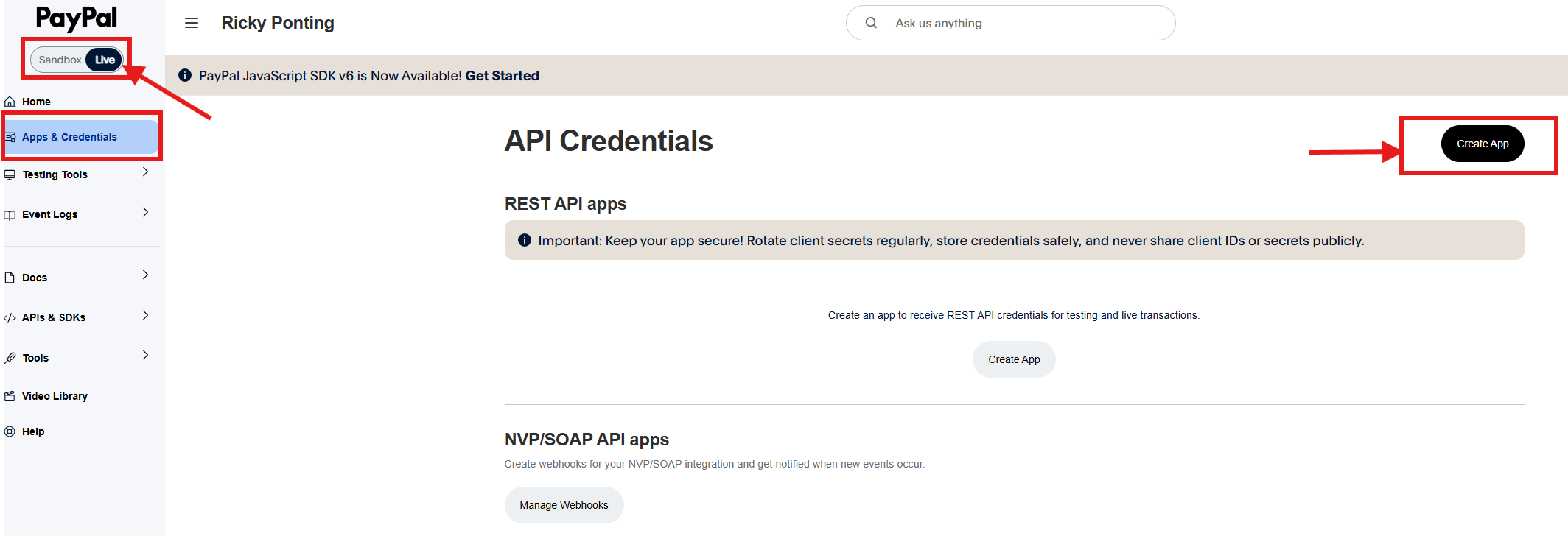
Now, click on "Apps & Credentials" from the left menu and toggle the switch to "Live" following the below image.
Now, click on "Create App" button to get the "Client ID" and "Secret Key".
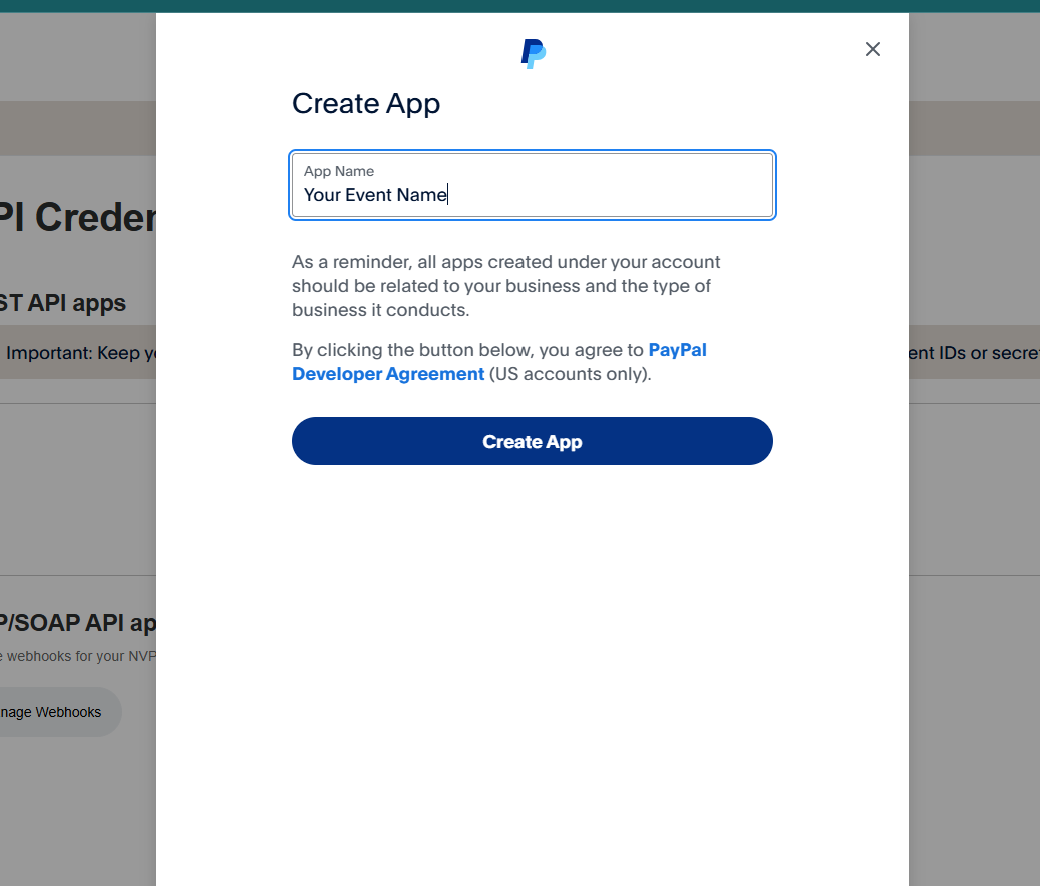
Write your company/ event name under the "App Name" field and click on "Create App" button.
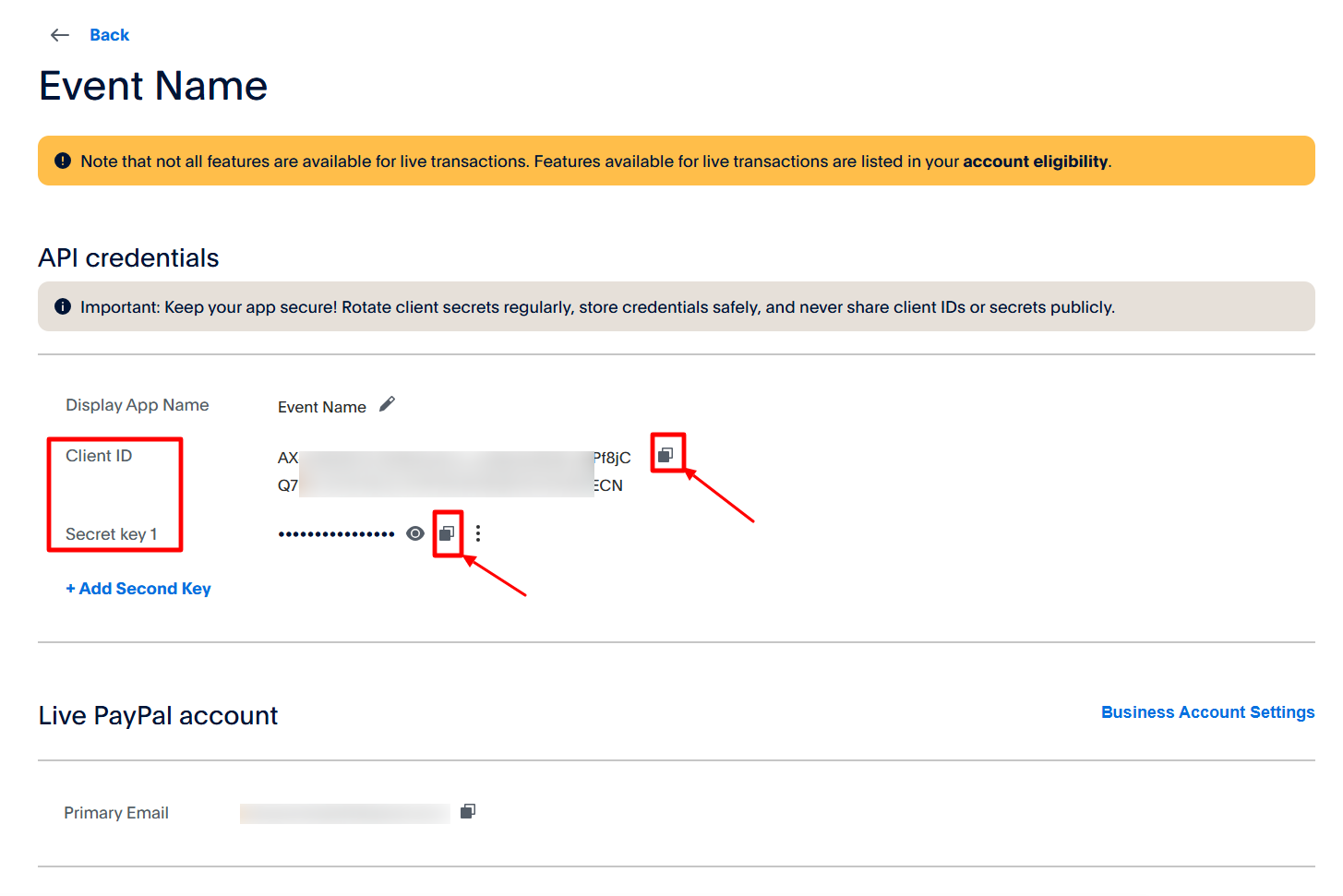
Now, as the App is created you will be able to see "Client ID" and "Secret Key" which are required to integrate with the Hytix/ FEARTICKET account.
Copy "Client ID" from here to place this client ID on the Paypal setup page on the FEARTICKET Account. Similarly, copy "Secret Key" to place it on the Paypal setup page on the FEARTICKET Account.
Login to your Hytix/ FEARTICKET Account >
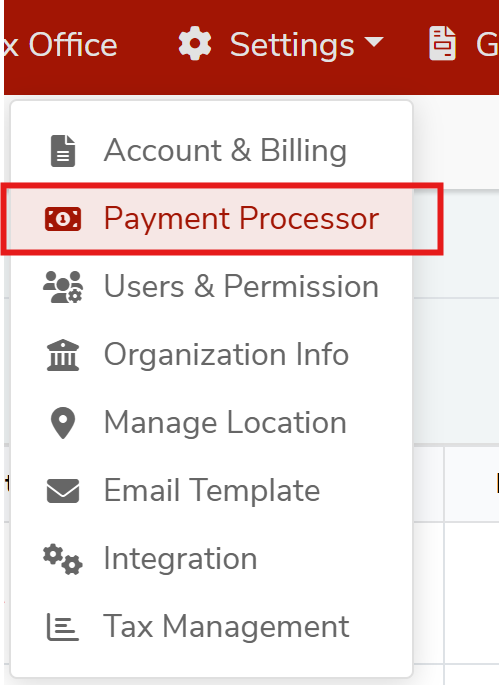
Click on "Payment Processor" from the top "Settings" menu located on the top right as shown in the below screenshot.
Now, on payment processor screen, click on "Add New" button (top right) and then scroll down to "Still looking for other payment gateway's? Click here.." link. There, you will get the option to add the "PayPal" payment gateway as shown in the below screenshot.
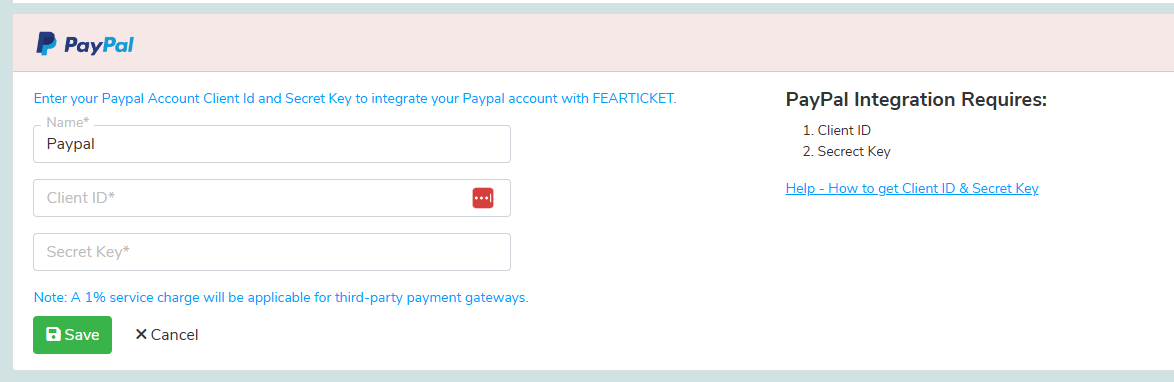
Enter( Paste) your PayPal "Client ID" and "Secret Key" that got it from your PayPal Account.
Click on "SAVE" to save your payment processor in the Hytix/ FEARTICKET System.
Once integration setup is done, it is highly recommended to test your first live transaction like a buyer to make sure that your PayPal Integration works successfully and you must receive online card payment directly into your PayPal account.
Was this article helpful?
That’s Great!
Thank you for your feedback
Sorry! We couldn't be helpful
Thank you for your feedback
Feedback sent
We appreciate your effort and will try to fix the article