Customer Insights is a powerful analytics tool within FEARTICKET that allows event organizers to view, filter, and export detailed information about their customers across all events.
How to Access Customer Insights
To access Customer Insights:
- Log in to your FEARTICKET account as an Event Organizer.
- Click on Analytics (Global) in the top navigation bar.
- From the dropdown menu, select Customer Insights.
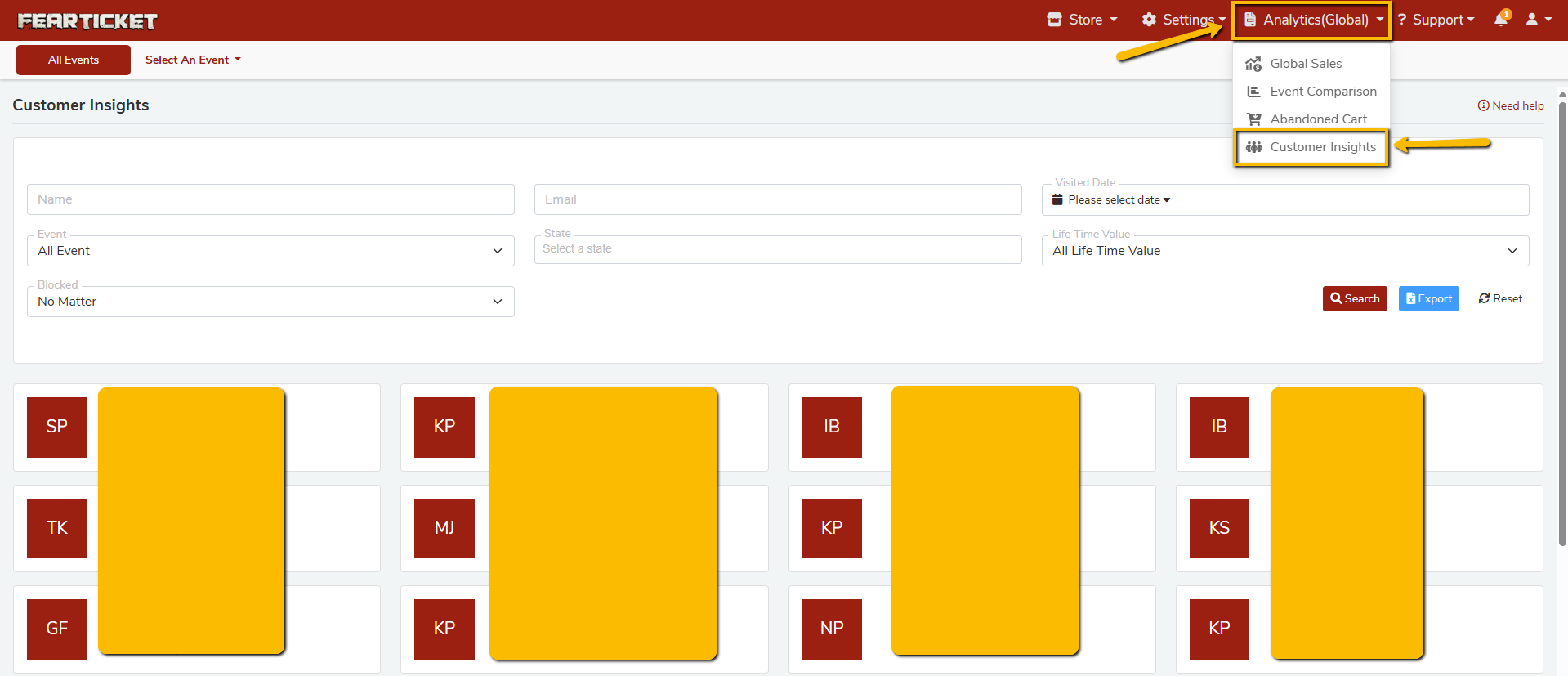
You will find Customer Insights listed alongside other analytics options such as Global Sales, Event Comparison, and Abandoned Cart.
Frequently Asked Questions
What is Customer Insights?
Customer Insights is a section under the Analytics (Global) menu that gives event organizers a consolidated view of their customer base. It allows you to search, filter, and export customer data based on a variety of criteria such as name, email, event, state, visited date, lifetime value, and blocked status.
What filters are available in Customer Insights?
You can filter your customer data using the following fields:
- Name - Search by the customer's name.
- Email - Search by the customer's email address.
- Visited Date - Filter customers by the date they visited an event.
- Event - Filter by a specific event or view all events at once.
- State - Filter customers by their geographic state.
- Life Time Value - Filter customers based on their total spending. Options include All Life Time Value ranges.
- Blocked - Filter to show blocked customers, unblocked customers, or all (No Matter).
How do I search for a specific customer?
To search for a specific customer:
- Enter the customer's Name or Email in the respective search fields at the top of the Customer Insights page.
- Apply any additional filters as needed (Event, State, Visited Date, etc.).
- Click the Search button to retrieve results.
Can I export customer data?
Yes. FEARTICKET allows you to export customer data directly from the Customer Insights page.
- Apply your desired filters to narrow down the customer list.
- Click the Export button.
- Your customer data will be downloaded for offline use or reporting purposes.
What does "Life Time Value" mean in Customer Insights?
Life Time Value (LTV) refers to the total amount a customer has spent across all events on your FEARTICKET account. You can use this filter to identify your highest-value customers or segment your audience by spending level.
What does the "Blocked" filter do?
The Blocked filter allows you to identify customers who have been flagged or blocked from purchasing tickets. You can filter to show:
- No Matter - Displays all customers regardless of blocked status.
- Blocked (Yes)- Displays only customers who have been blocked.
- Not Blocked (No) - Displays only active, unblocked customers.
This is useful for managing customer access and resolving disputes.
What information is shown in the customer cards?
Each customer is displayed as a card showing their initials and key information. The cards give you a quick visual overview of your customer base. You can click on individual cards to view more detailed information about a specific customer.
Can I filter customers by a specific event?
Yes. Use the Event dropdown filter to select a specific event. By default, it is set to All Event, which shows customers across all your events. Selecting a specific event will narrow the results to customers who purchased tickets for that event only.
Is Customer Insights available for all events or only selected ones?
By default, Customer Insights shows data across all events. You can use the Select An Event option at the top of the page or the Event filter within Customer Insights to narrow the view to a specific event.
Who can access Customer Insights?
Customer Insights is available to users logged in as Event Organizers. It is located under the Analytics (Global) section, which is accessible from the top navigation bar of your FEARTICKET dashboard.
Tips for Using Customer Insights Effectively
- Use the Life Time Value filter to identify your most loyal customers and consider offering them early access or discounts.
- Export customer lists before and after each event season to track growth in your customer base.
- Use the Blocked filter regularly to keep your customer records clean and up to date.
- Combine the State and Event filters to understand the geographic reach of specific events.
- Use the Visited Date filter to identify customers who attended recent events and follow up with post-event communications.
Was this article helpful?
That’s Great!
Thank you for your feedback
Sorry! We couldn't be helpful
Thank you for your feedback
Feedback sent
We appreciate your effort and will try to fix the article