Customer Insights gives you a consolidated view of your customer base across all events. You can search, filter, and export customer data from one place.
How to Access
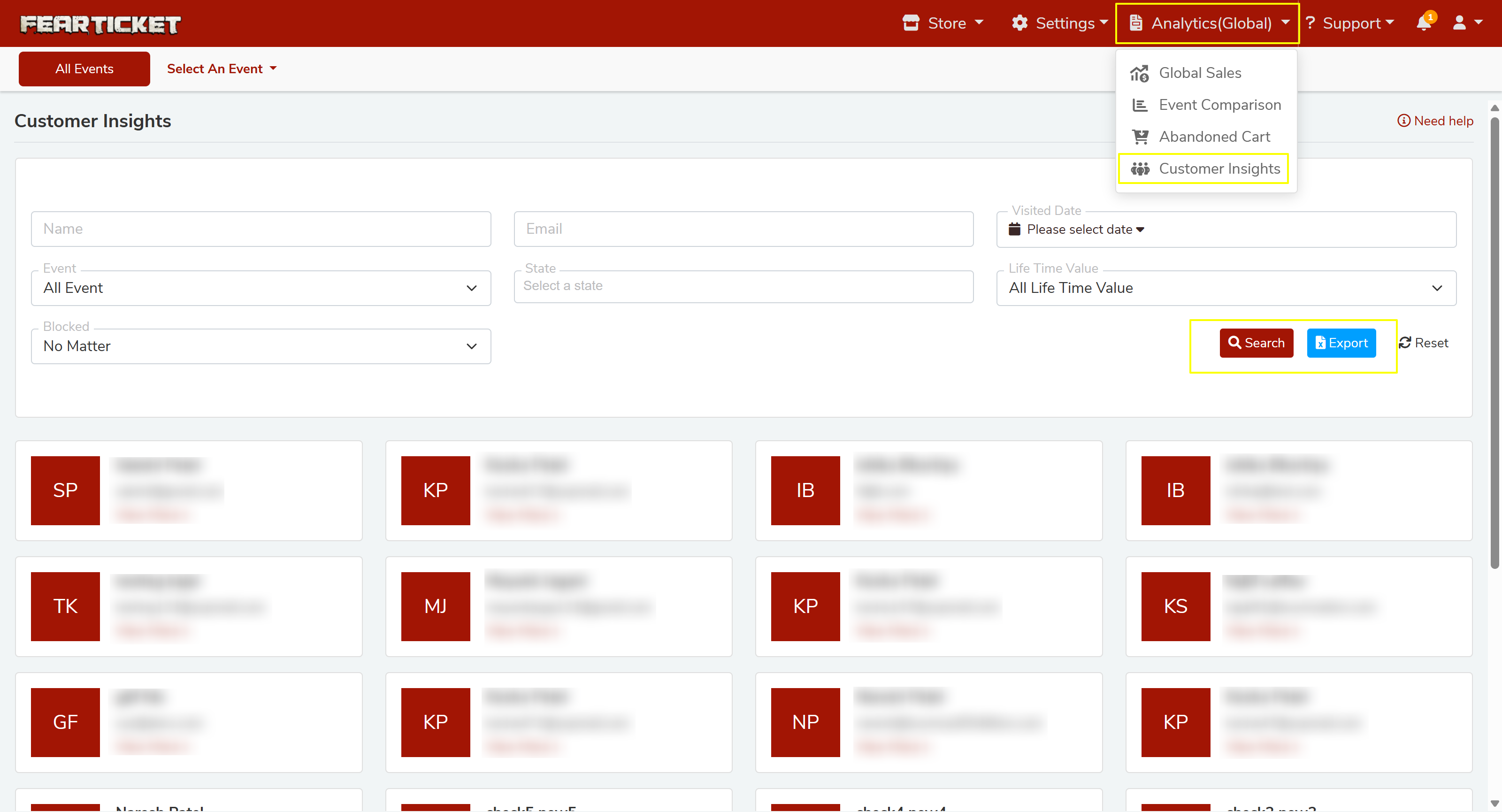
- Click Analytics (Global) in the top navigation bar.
- Select Customer Insights from the dropdown.
How to Search and Filter Customers
Use the following filters to find specific customers:
- Name / Email — Search by customer name or email address.
- Visited Date — Filter by the date they attended an event.
- Event — Filter by a specific event or view all events.
- State — Filter by geographic state.
- Life Time Value — Filter by total amount spent across all events.
- Blocked — Show blocked, unblocked, or all customers.
After setting your filters, click Search to retrieve results. Click Reset to clear all filters.
How to Export Customer Data
- Apply your desired filters.
- Click the Export button.
- Your customer list will download for offline use or reporting.
Understanding Customer Cards
Each customer appears as a card showing their initials and key details. Click any card to view full information for that customer.
Notes
Life Time Value (LTV) shows the total a customer has spent across all your events, useful for identifying your most loyal buyers. The Blocked filter helps you manage customer access and keep records clean.
Was this article helpful?
That’s Great!
Thank you for your feedback
Sorry! We couldn't be helpful
Thank you for your feedback
Feedback sent
We appreciate your effort and will try to fix the article