Connect third-party tools to your account to streamline email marketing, waiver collection, event promotion, and social media. To access integrations, click Settings in the top navigation bar, then select Integrations.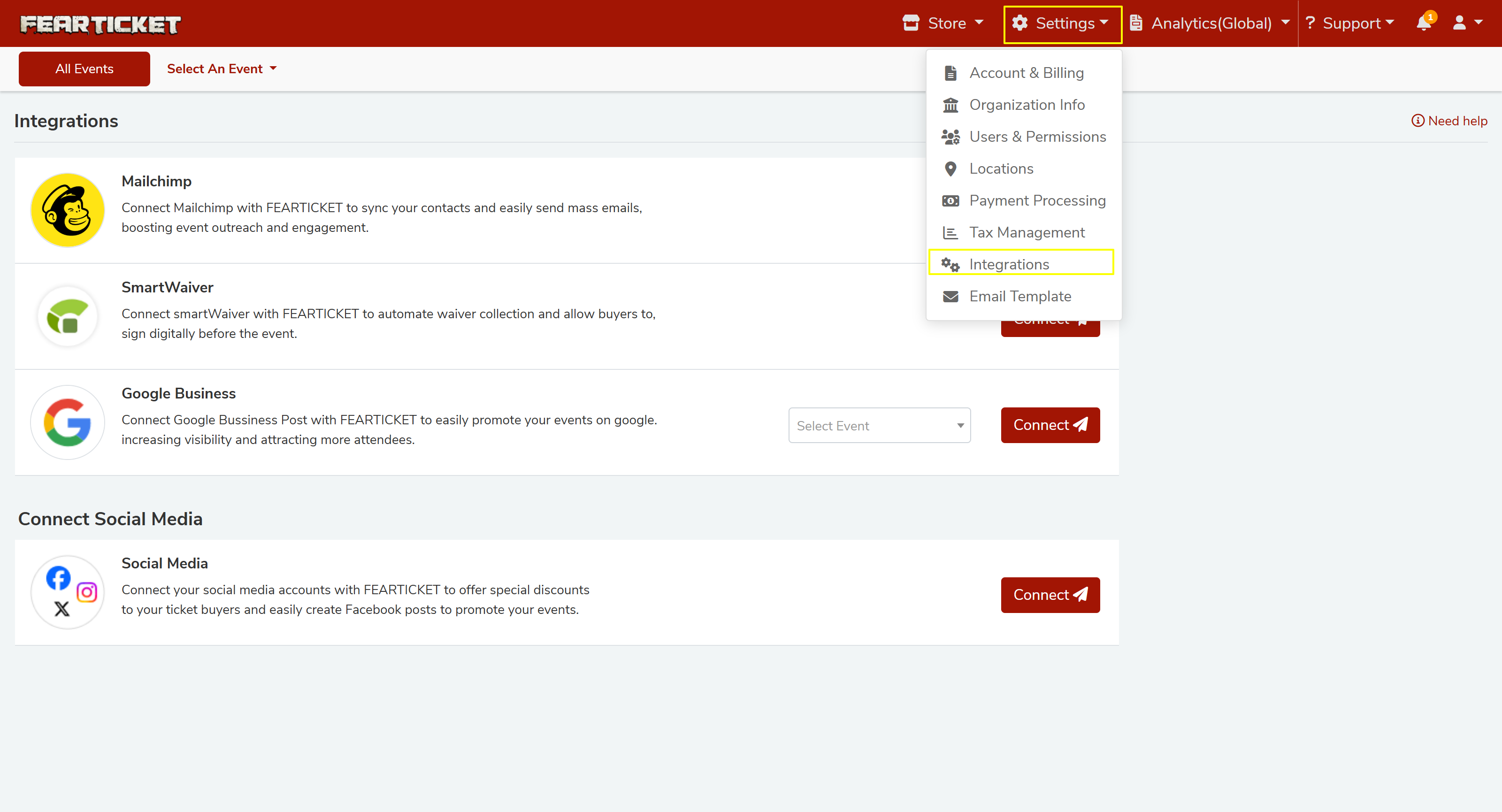
Mailchimp
Sync your ticket buyers to Mailchimp to send mass emails and boost event outreach.
- Go to Settings > Integrations and click Connect next to Mailchimp.
- Log in to your Mailchimp account and go to API Keys.
- Click Create A Key, give it a name, and copy the generated key.
- Paste the API key into FEARTICKET and click Connect with Mailchimp.
- Select the past events you want to sync contacts for, and whether to sync all future events automatically.
- Choose your Mailchimp audience list from the dropdown.
- Click Sync Contact.
SmartWaiver
Automate digital waiver collection and allow buyers to sign before the event.
- Go to Settings > Integrations and click Connect next to SmartWaiver.
- Log in to your SmartWaiver account and go to My Account > API Keys.
- Click Create New Key, copy it immediately, and paste it into FEARTICKET.
- Click Connect with SmartWaiver.
- From the event list, click Connect Now next to the event you want to link.
- Enable SmartWaiver settings for that event.
- Select your Waiver Template from the dropdown.
- Select which Tickets require a waiver signature.
- Choose who must sign — Ticket Buyer only, or Ticket Buyer and all Attendees.
- Click Save.
Buyers will receive a waiver signing email along with their order confirmation. You can view signed and unsigned waivers under Manage Attendees > Orders.
Google Business
Promote your events directly on Google to increase visibility and attract more attendees.
- Go to Settings > Integrations.
- Select the event from the dropdown next to Google Business.
- Click Connect.
Social Media (Facebook, Instagram, X)
Connect your social media accounts to offer special discounts to ticket buyers and create Facebook posts to promote your events.
- Go to Settings > Integrations.
- Under Connect Social Media, click Connect next to Social Media.
- Follow the prompts to link your Facebook, Instagram, or X account.
Was this article helpful?
That’s Great!
Thank you for your feedback
Sorry! We couldn't be helpful
Thank you for your feedback
Feedback sent
We appreciate your effort and will try to fix the article