What is the Ticket Design page?
The Ticket Design page controls what your printed and PDF tickets look like, from the overall layout down to the images, fields, and extra text shown on each ticket type. It also covers the receipt and ticket layouts used at the Box Office.
How do I access Ticket Design?
1. Log in to your FEARTICKET organizer account.
2. Navigate to your event.
3. In the left sidebar, click Tickets & Pricing.
4. Select Ticket Design from the dropdown.
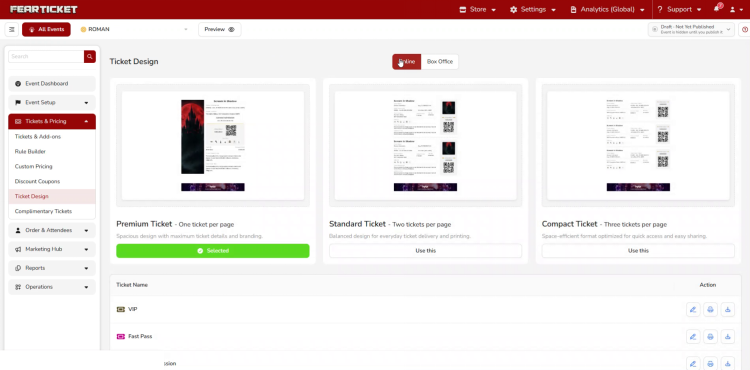
Choosing a Ticket Layout
What layout options are available?
Template | Layout | Best for |
Premium Ticket | One ticket per page | Spacious design with maximum ticket details and branding |
Standard Ticket | Two tickets per page | Balanced design for everyday ticket delivery and printing |
Compact Ticket | Three tickets per page | Space-efficient format optimized for quick access and easy sharing |
The template that is currently active is marked Selected. Click Use this under a different template to switch to it.
Why am I seeing a "Template Change Confirmation" warning?
Switching templates can change the required image dimensions. The warning lets you know the new template needs a different image size and that your current Event and Sponsor images may not display correctly after switching, so you can decide whether to continue.
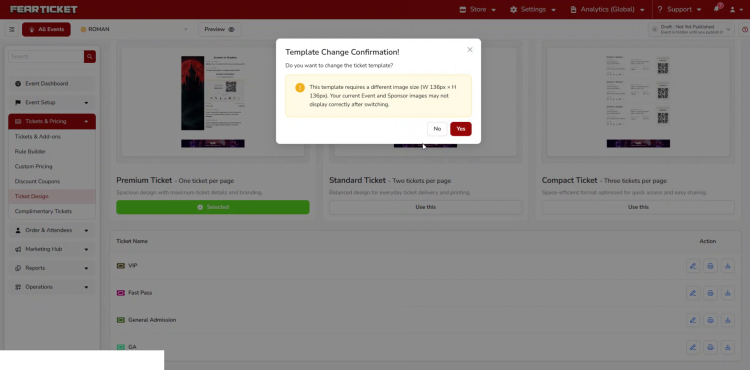
Click Yes to switch templates, or No to keep your current template and images unchanged.
What do the icons next to each ticket type do?
In the ticket list at the bottom of the page, each row has a preview icon and an edit icon. The preview icon opens a read only sample of that ticket as it will print. The edit icon opens the full ticket design editor described below.
Customizing an Individual Ticket Design
How do I edit the design of a specific ticket type?
Click the edit icon next to the ticket type in the list. This opens Edit Ticket Design & Download Sample, with your settings on the left and a live preview of the ticket on the right.
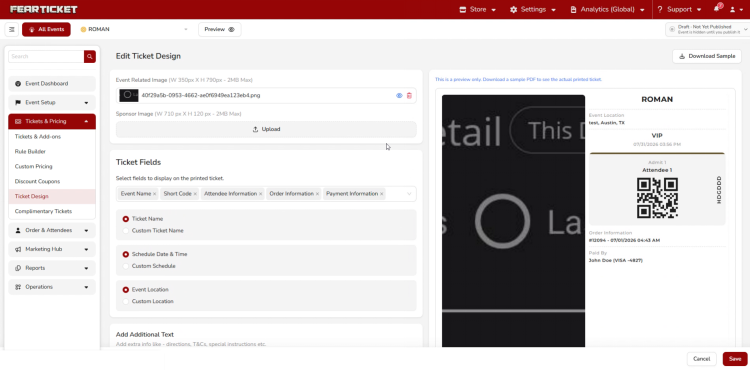
What images can I upload here?
Image | Recommended size |
Event Related Image | W 350px x H 790px, 2MB max |
Sponsor Image | W 710px x H 120px, 2MB max |
What are Ticket Fields?
Ticket Fields control which pieces of information print on the ticket. By default this includes Event Name, Short Code, Attendee Information, Order Information, and Payment Information, each shown as a removable tag. Remove the x on a tag to stop printing that field.
Can I override the ticket name, schedule, or location text?
Yes. Below the field tags you'll find Ticket Name, Schedule Date & Time, and Event Location, each with a Custom option so you can print your own wording instead of the system default.
What is Add Additional Text for?
This adds your own custom message, such as directions, terms and conditions, or special instructions. It uses a rich text editor with bold, italic, underline, alignment, and list formatting, and prints on a separate page along with the ticket.
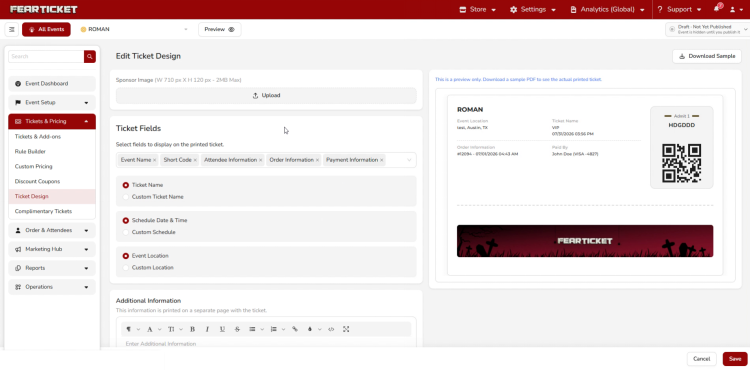
Can I see what the ticket will look like before saving?
Yes. The right side of the editor always shows a live preview as you make changes. You can also click Download Sample at the top of the page to generate a sample PDF, since the on screen preview is for layout reference only and may not exactly match the final print output.
Box Office Print Templates
Where do I edit what prints at the Box Office?
From the Ticket Design page, click the Box Office tab at the top. This lists two item types, Receipt and Ticket, each with a preview and an edit icon.
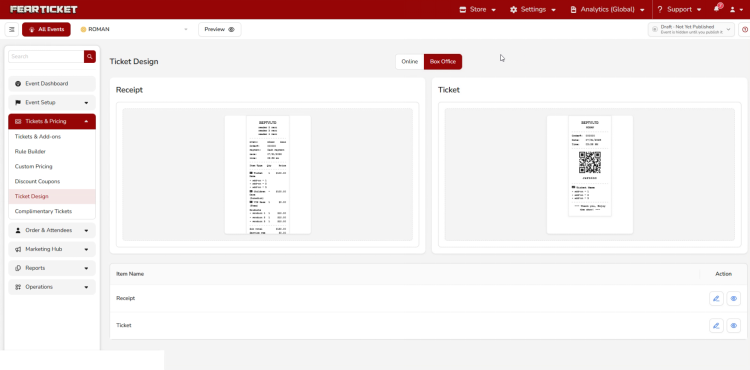
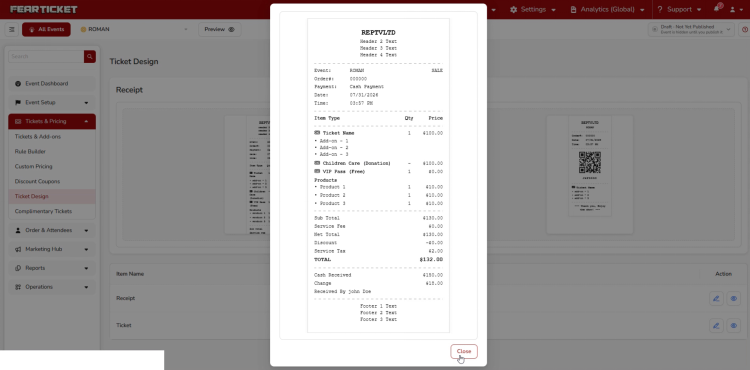
What does the Receipt preview show?
The preview icon on the Receipt row opens a full sample receipt, including your header text, the itemized list of tickets, add-ons, and products, subtotal, service fee, discount, service tax, total, cash received, change, and footer text.
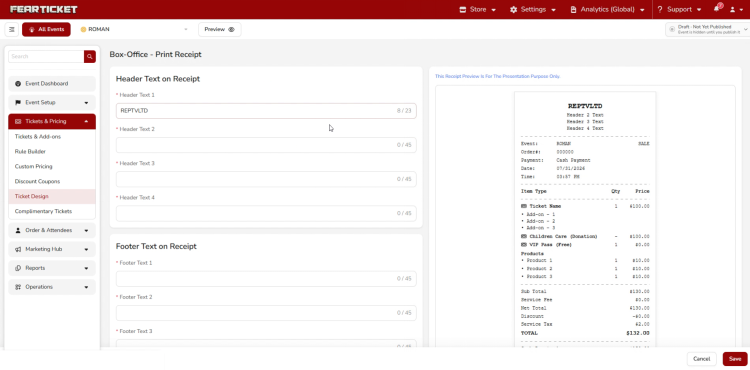
How do I customize the Receipt layout?
Click the edit icon on the Receipt row to open Box-Office - Print Receipt. You can set Header Text 1 through Header Text 4, and Footer Text 1 through Footer Text 3. Each field has a character limit shown as a counter, for example 0/45. A live preview on the right updates as you type, labeled to remind you it is for presentation purposes only.
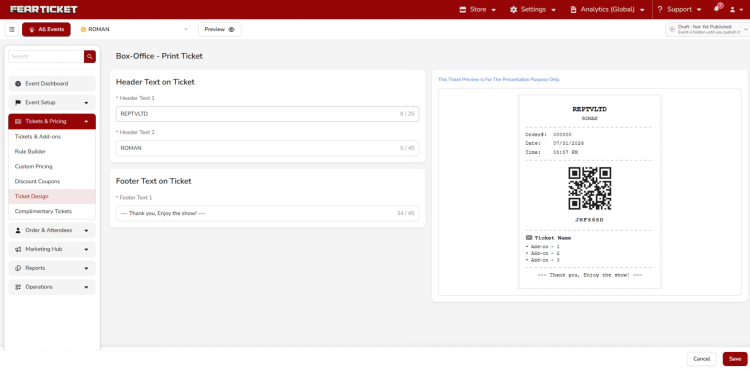
How do I customize the Ticket layout at the Box Office?
Click the edit icon on the Ticket row to open Box-Office - Print Ticket. This has fewer fields than the Receipt: Header Text 1, Header Text 2, and a single Footer Text 1, each with its own character limit and a live preview.
Troubleshooting
I switched templates and now my images look wrong. What happened?
Each template has its own required image dimensions. If you clicked Yes on the Template Change Confirmation warning, your existing Event or Sponsor image may no longer fit correctly. Re-upload the image at the size recommended for your new template to fix this.
My changes aren't showing on the printed ticket or receipt.
The on screen preview is for layout reference only and can differ slightly from the final print. Use Download Sample on the ticket editor to generate an actual sample PDF, and make sure you clicked Save rather than Cancel after making changes.
Why can't I type more text into a Header or Footer field?
Each Header and Footer field has a fixed character limit shown next to it, for example 0/45. Once you reach that limit the field will stop accepting new characters. Shorten your text or split it across another available Header or Footer field.
Was this article helpful?
That’s Great!
Thank you for your feedback
Sorry! We couldn't be helpful
Thank you for your feedback
Feedback sent
We appreciate your effort and will try to fix the article