GA4 introduces significant improvements and capabilities that will allow you to gain deeper insights into user behaviour, optimize your marketing efforts, and make informed business decisions. By migrating to GA4, you will benefit from enhanced cross-platform tracking, advanced machine learning models, improved event measurement, and a more streamlined and flexible reporting interface.
GA4 Setup Guide
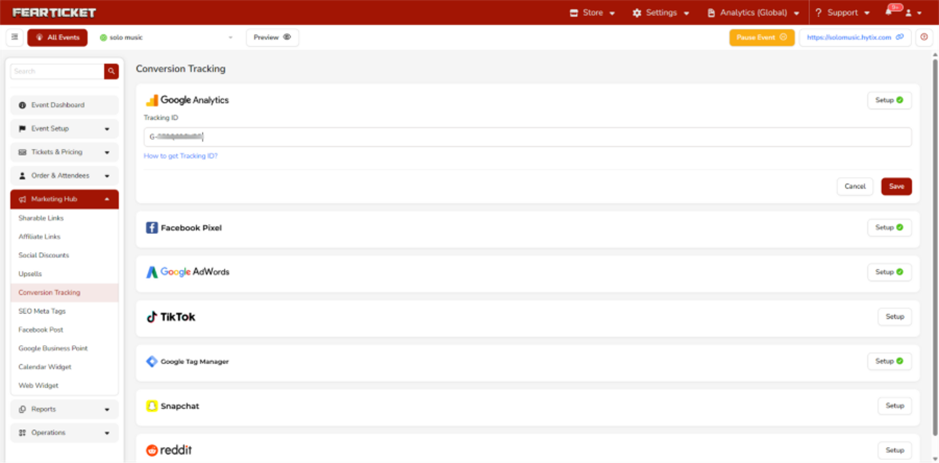
Go to your FEARTICKET/Hytix Event Dashboard > Marketing Hub > Conversion Tracking> Google Analytics and click ‘Setup’. Add Your Google Analytics GA4 Tracking ID and save.
To find Tracking ID: Go to your Google Analytics Account. Go To Admin (left below corner of your GA4 account) > Data streams > Select your data stream domain > Copy Measurement Id.
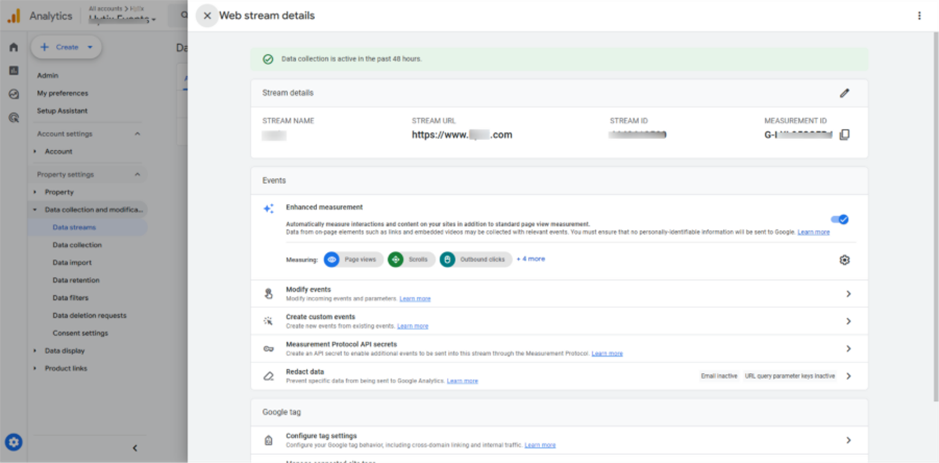
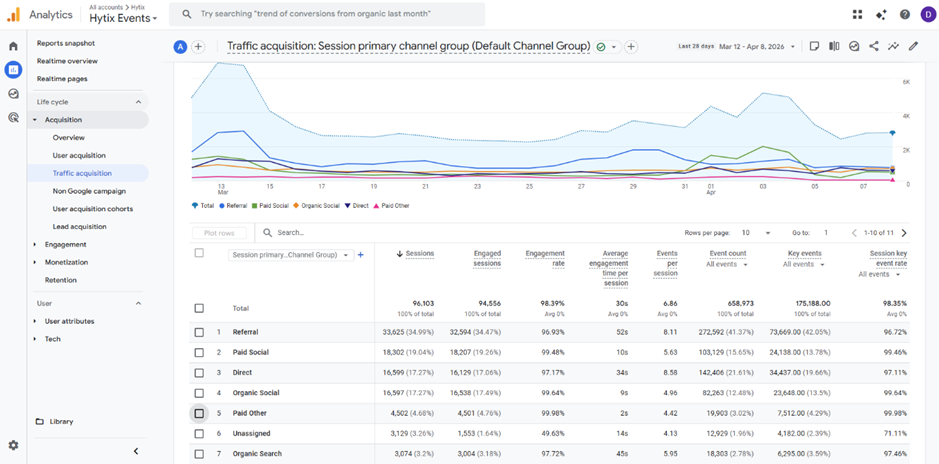
Google Analytics Dashboard:
To view traffic: Go to Report > Life Cycle > Acquisition > Traffic Acquisition.
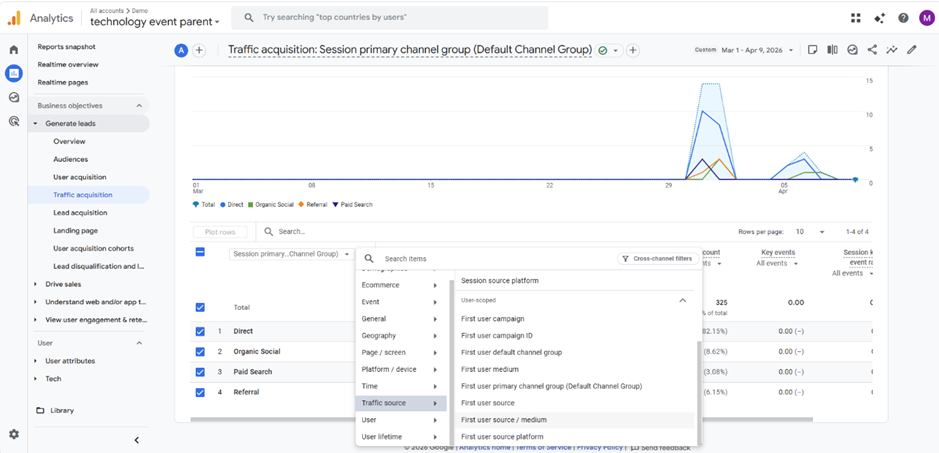
To view Traffic source: Click [+] at the below search column select Traffic Source > Session source/medium
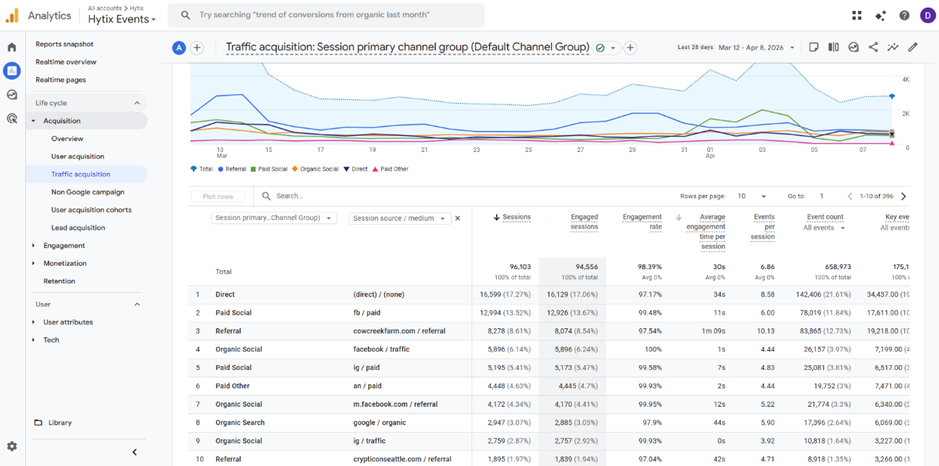
To view Events: Go to Engagement > Events
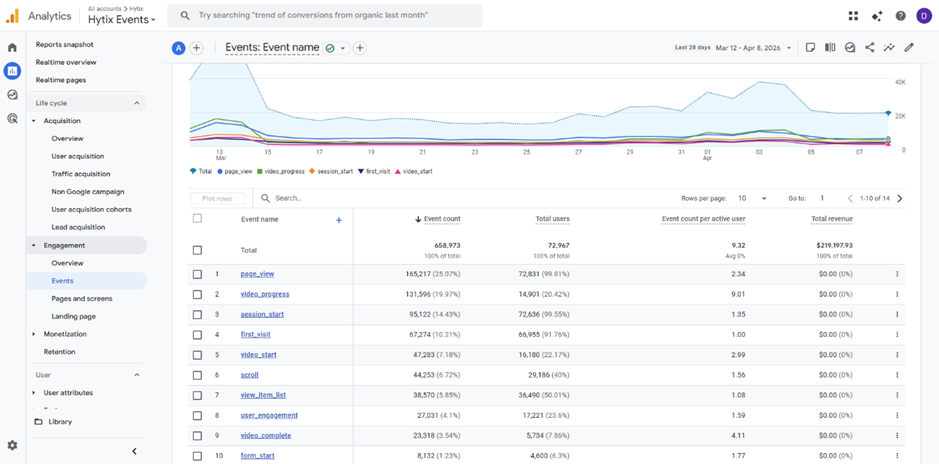
You can also view event source/medium same as above mentioned traffic source /medium
To view Transaction: Go to Monetization > Transection
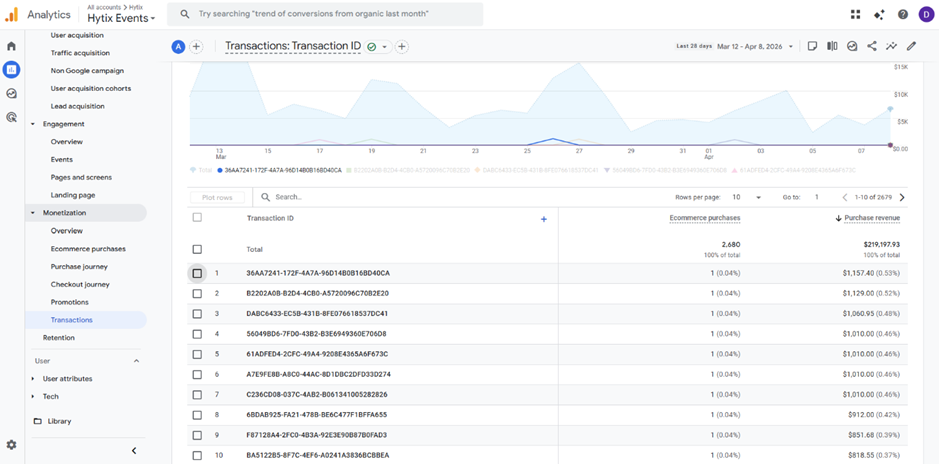
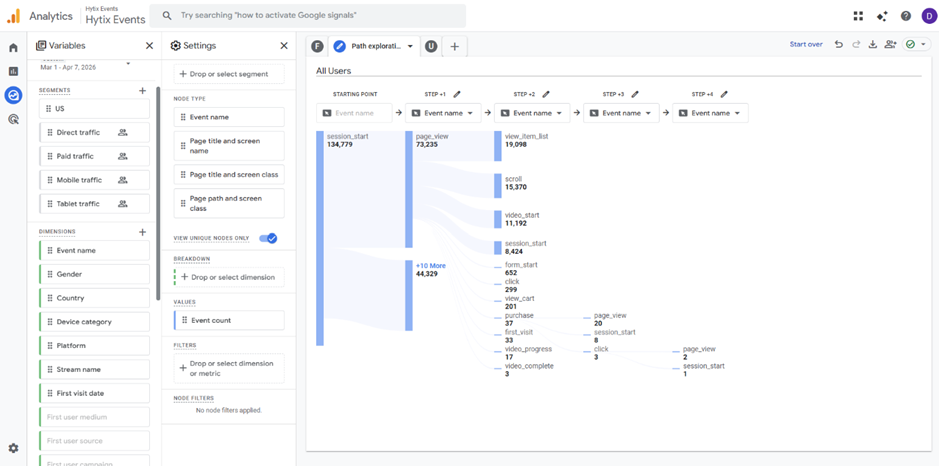
To view GA4 path/funnel report:
Go to Explore > select free Form OR Funnel exploration OR Path exploration. Choose Data from Metric section.
Google Tag Manager Event Tag DataLayer
GTM Tag Setup
1. GA4 Configuration Tag
- Type: GA4 Configuration
- Measurement ID: G-XXXXXXX
- Trigger: All Pages
2. Event Tags (One per Funnel Step)
Example: Add to Cart Tag
- Tag Type: GA4 Event
- Event Name: add_to_cart
- Parameters:
- currency → {{currency}}
- value → {{value}}
- items → {{items}}
- Trigger:
- Click trigger OR Custom Event = add_to_cart
Example: Purchase Tag
- Event Name: purchase
- Trigger: Thank You Page OR Custom Event
- Parameters:
- transaction_id
- value
- currency
- items
GTM Triggers Setup
1. Click Trigger (Ticket Selection)
- Trigger Type: Click - All Elements
- Condition: Click Text contains “Buy Ticket”
2. Custom Event Trigger
Use dataLayer events like:
- select_item
- add_to_cart
- begin_checkout
- Purchase
To ensure a seamless transition, here are the events FEARTICKET will fire and deliver the parameter, so you can generate the report based on that.
On the landing page of your event, it will fire the "view_item_list" with all the ticket on the page, fired when a user lands on the ticketing page. Below parameters will be sent when the event fires.
/*
 This event fires when someone land on the ticketing page.
*/
gtag("event", "view_item_list", {
  currency: 'USD',
  screenName: 'Event List Page',
  eventName: '{Event Name}'
  items: [
    {
      item_id: '{Ticket Id}',
      item_name: '{Ticket Name}',
      price: 9.99,
      quantity: 1
    },
    {
      item_id: '{Ticket Id}',
      item_name: '{Ticket Name}',
      price: 9.99,
      quantity: 1
    }
  ]
});
On the checkout page, it fires "view_cart" events with following parameters.
gtag("event", "view_cart", {
  currency: 'USD',
  screenName: 'View Cart Page',
  eventName: '{Event Name}'
  items: [
    {
      item_id: '{Ticket Id}',
      item_name: '{Ticket Name}',
      price: 9.99,
      quantity: 1
    },
    {
      item_id: '{Ticket Id}',
      item_name: '{Ticket Name}',
      price: 9.99,
      quantity: 1
    }
  ]
});
On the page of order completion, it fires "purchase" event with below parameters.
gtag("event", "purchase", {
    value: 25.42, // Total Order Amount
    tax: 4.90,
    currency: "USD",
    transaction_id: '1212121',
    discount: 0.00,
    insurance: 0.00,
    items: [
     {
      item_name: "Stan and Friends Tee",
      price: 9.99,
      quantity: 1
    },
    {
      item_name: "Google Grey Women's Tee",
      price: 20.99,
      quantity: 1
    }]
});
Please review the instructions carefully and follow the outlined process.
Was this article helpful?
That’s Great!
Thank you for your feedback
Sorry! We couldn't be helpful
Thank you for your feedback
Feedback sent
We appreciate your effort and will try to fix the article