What is the Calendar Widget in FEARTICKET?
The Calendar Widget is an embeddable, publicly shareable calendar that displays your event dates to potential ticket buyers. It can be embedded on your website or shared via a direct link or QR code, giving visitors a visual overview of your upcoming event schedule.
How do I access the Calendar Widget?
- Log in to your FEARTICKET organizer dashboard.
- Navigate to Marketing Hub in the left sidebar.
- Click on Calendar Widget.
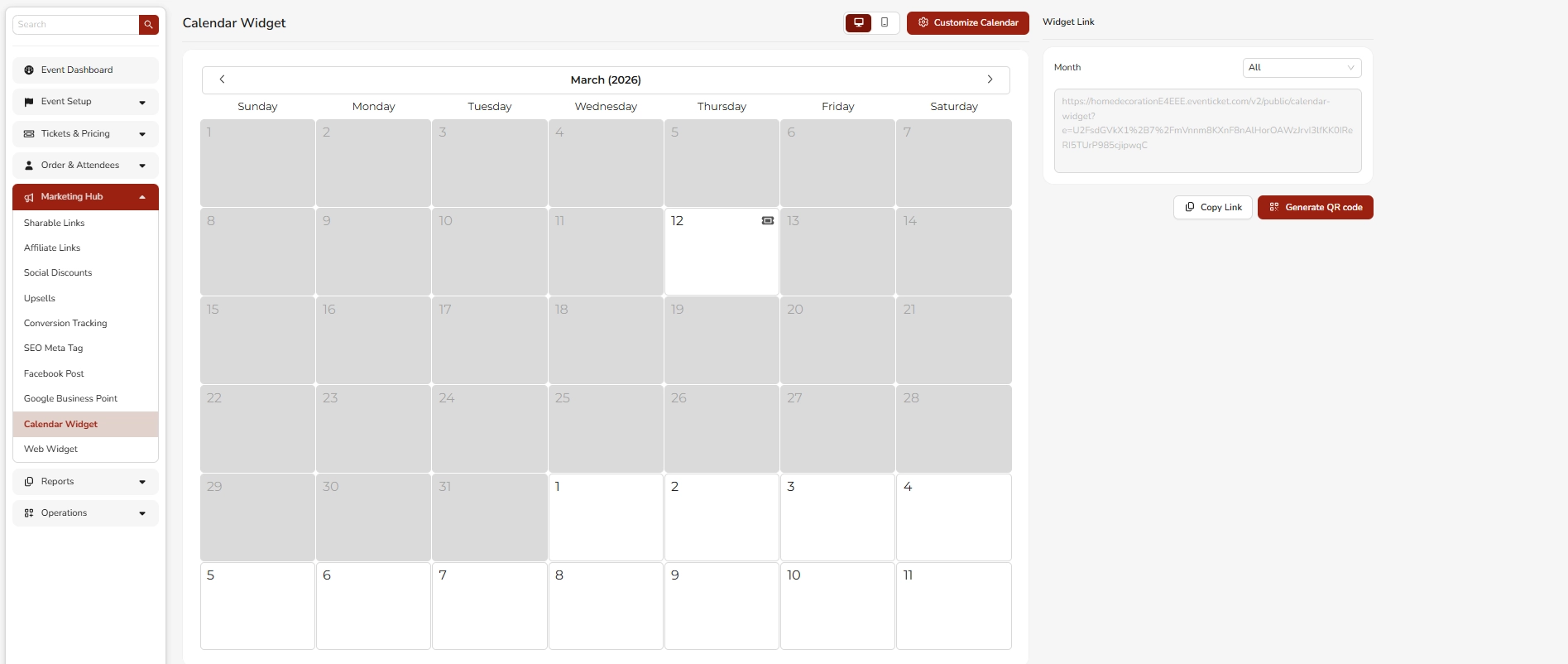
You will see a live preview of your calendar along with widget link options on the right-hand side.
How do I share my Calendar Widget?
FEARTICKET gives you two ways to share your Calendar Widget:
- Copy Link - Click the Copy Link button to copy the widget URL to your clipboard. You can paste this link anywhere, including your website, social media bio, or email campaigns.
- Generate QR Code - Click Generate QR Code to create a scannable QR code that visitors can use to view your event calendar on their mobile devices.
What does the Calendar Widget look like on different devices?
The Calendar Widget has two display modes you can preview before sharing:
- Desktop view - A full-sized, traditional calendar layout.
- Mobile view - A compact, condensed layout optimized for smaller screens.
Use the toggle icons at the top of the Calendar Widget page to switch between these previews.
How do I customize my Calendar Widget?
To customize your Calendar Widget:
- Go to Marketing Hub and then Calendar Widget.
- Click the Customize Calendar button at the top right.
- This opens the Customize Calendar Widget panel on the right side.
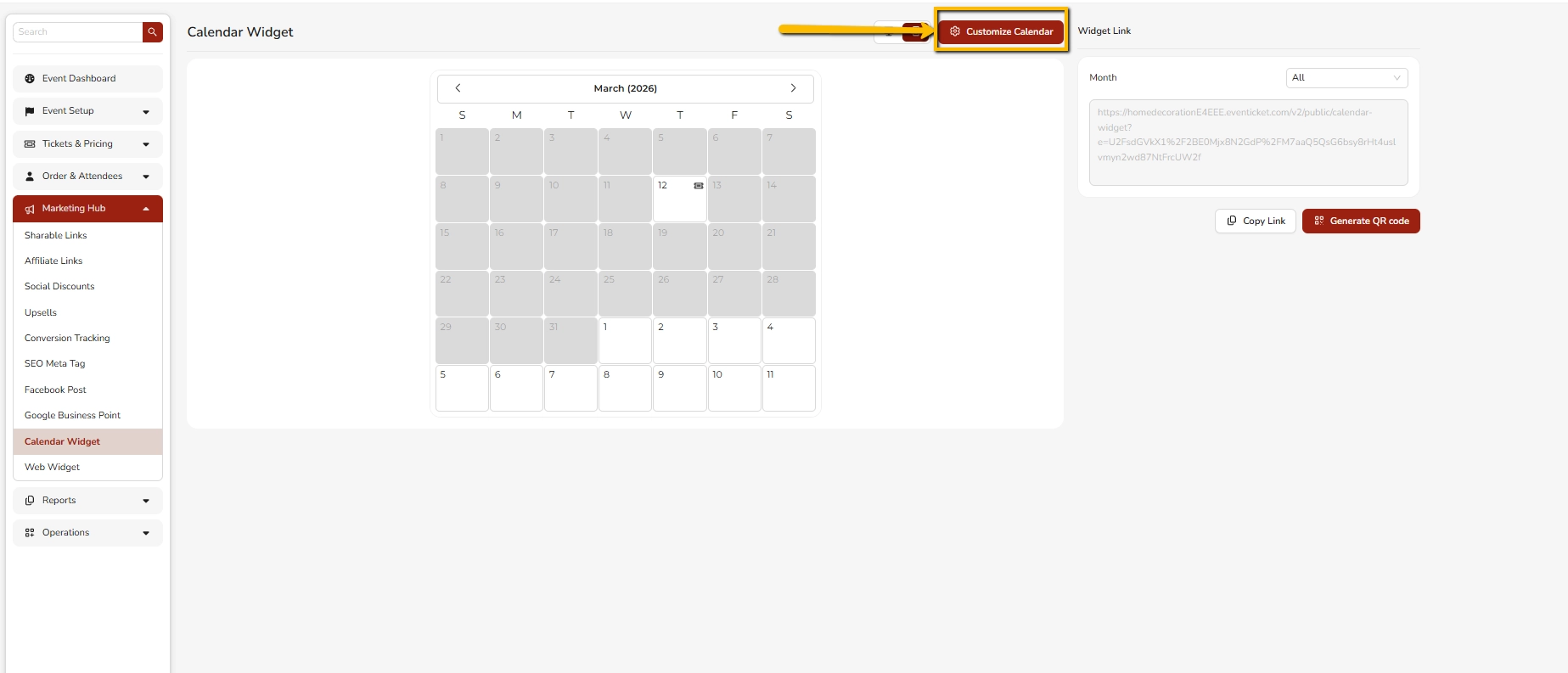
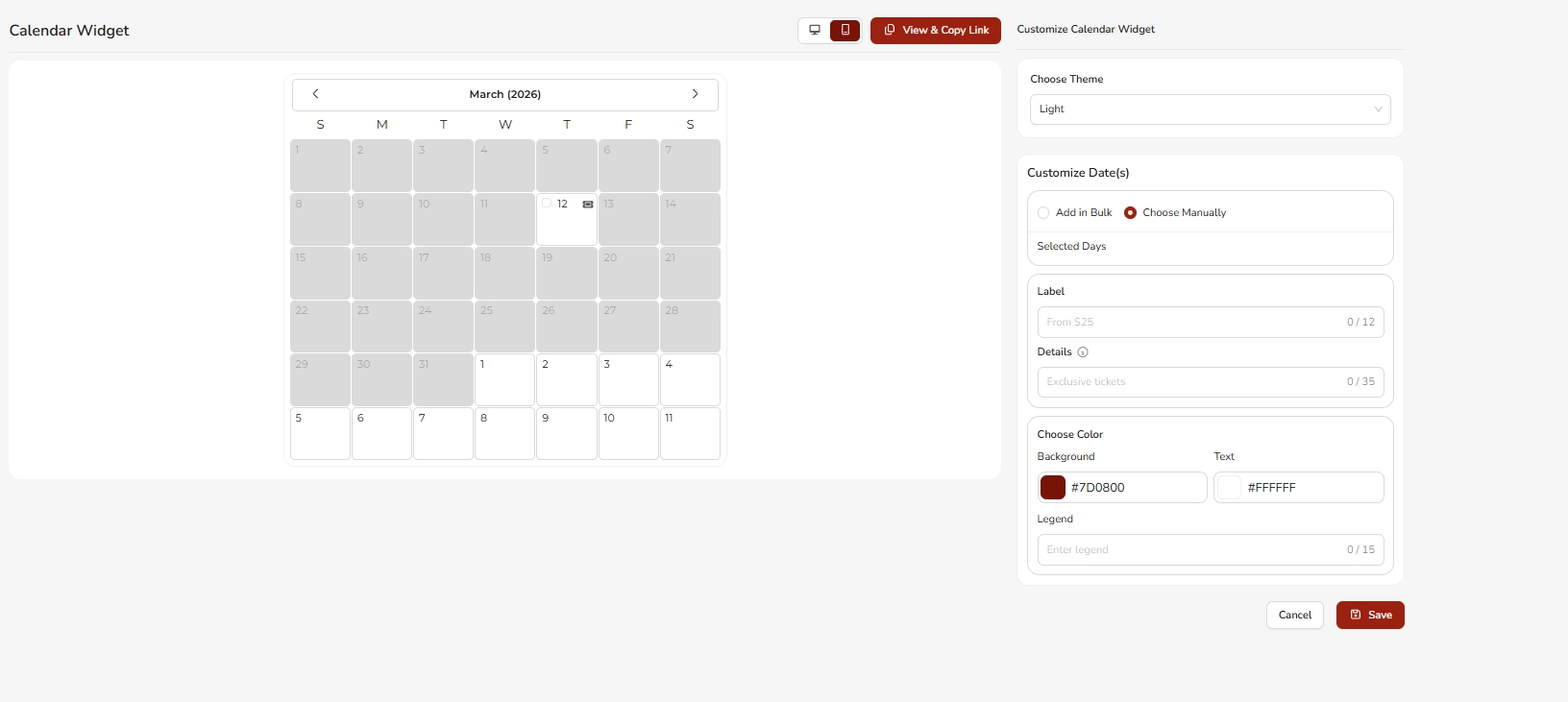
From here you can configure the following:
| Setting | Description |
|---|---|
| Theme | Choose between Light or other available themes |
| Customize Date(s) | Highlight specific dates on the calendar |
| Label | Add a short label to highlighted dates (up to 12 characters) |
| Details | Add a brief description to highlighted dates (up to 35 characters) |
| Background Color | Set the highlight color for selected dates (default: #7D0800) |
| Text Color | Set the text color on highlighted dates (default: #FFFFFF) |
| Legend | Add a legend label to explain the highlighted dates (up to 15 characters) |
Click Save to apply your changes, or Cancel to discard them.
How do I add highlighted dates to my Calendar Widget?
When customizing the Calendar Widget, you can highlight specific event dates in two ways:
- Add in Bulk - Select multiple dates at once. Ideal when you have many event days to mark.
- Choose Manually - Pick individual dates one by one from the calendar. Best for events with specific or scattered dates.
After selecting dates, assign a Label, Details, and a Color to make them visually distinct and informative for your audience.
Can I filter the Calendar Widget by month?
Yes. On the Calendar Widget page, there is a Month filter on the right-hand side set to All by default. You can filter the widget view to display a specific month, making it easier to manage and preview your event dates for a particular time period.
Can I embed the Calendar Widget directly on my website?
Yes. Use the Widget Link provided on the Calendar Widget page to embed or link the calendar on your own website. You can also use the QR code option to let visitors access the calendar instantly from printed materials or signage.
What is the "View and Copy Link" button on the Customize screen?
When you are inside the Customize Calendar Widget panel, the View and Copy Link button at the top allows you to preview your calendar widget and copy its shareable URL without leaving the customization screen.
Best Practices for Using the Calendar Widget
- Match your brand colors - Use your event's signature colors for the background and text to keep the calendar on-brand.
- Keep labels concise - With only 12 characters for labels and 35 for details, use short, clear text like "From $25" or "Exclusive tickets".
- Always preview the mobile view - Many of your buyers will access the calendar on their phones, so check the mobile preview before publishing.
- Share everywhere - Paste the widget link in your social media bio, email newsletters, and event pages to maximize visibility.
- Use QR codes for print - If you advertise at physical locations such as flyers, posters, or banners, generate a QR code so walk-by visitors can instantly see your schedule.
Was this article helpful?
That’s Great!
Thank you for your feedback
Sorry! We couldn't be helpful
Thank you for your feedback
Feedback sent
We appreciate your effort and will try to fix the article