The Invoices section under Account & Billing gives event organizers a complete picture of their billing history, payment statuses, and transaction records, all in one place.
To access it, navigate to: Account & Billing > Invoices
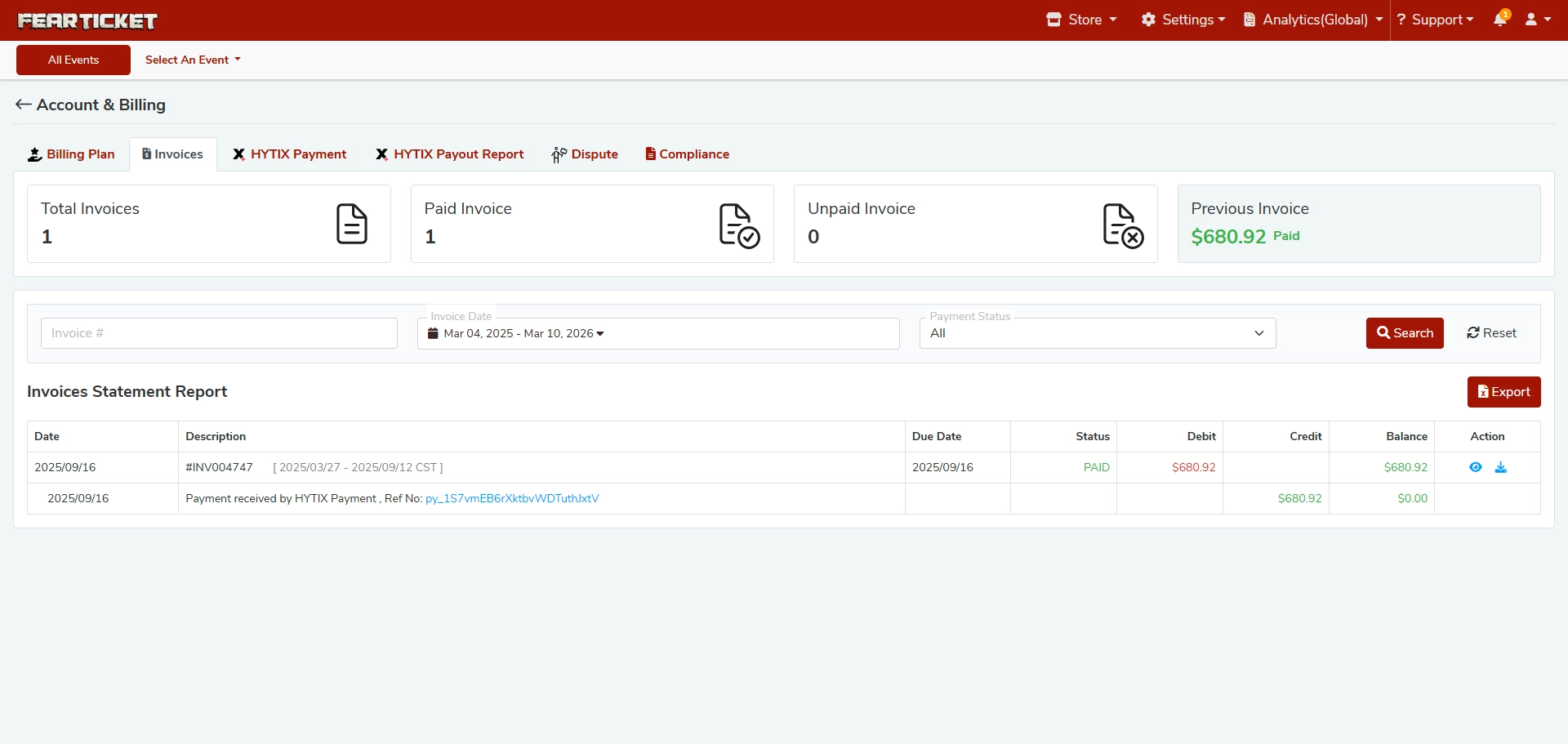 Invoice Summary Cards
At the top of the Invoices page, you'll see four summary cards:
| Card | What It Shows |
|---|---|
| Total Invoices | The total number of invoices generated on your account. |
| Paid Invoice | The number of invoices that have been successfully paid. |
| Unpaid Invoice | The number of invoices that are currently outstanding or pending payment. |
| Previous Invoice | The amount and status of your most recent invoice (e.g., $680.92 - Paid). |
FAQs
How do I find a specific invoice?
Use the search and filter bar above the Invoices Statement Report:
- Enter the Invoice # in the search field (e.g.,
#INV004747). - Set a date range using the Invoice Date picker (e.g., Mar 04, 2025 – Mar 10, 2026).
- Filter by Payment Status: choose from All, Paid, or Unpaid.
- Click the red Search button to apply your filters.
- To clear all filters, click Reset.
What information does the Invoices Statement Report show?
The Invoices Statement Report table includes the following columns:
| Column | Description |
|---|---|
| Date | The date the invoice was generated or the payment was received. |
| Description | Invoice number and the billing period it covers, or a note about the payment received (including the HYTIX Payment reference number). |
| Due Date | The date by which the invoice must be paid. |
| Status | Current payment status: PAID (green) or UNPAID (red). |
| Debit | The amount charged to your account for the invoice. |
| Credit | The amount credited to your account upon payment. |
| Balance | The running balance after each transaction. A $0.00 balance means the invoice is fully settled. |
| Action | Quick action icons to view or download the invoice. |
What does the invoice Description column contain?
The Description field contains two types of entries:
- Invoice entry - Shows the invoice number (e.g.,
#INV004747) along with the billing period it covers (e.g.,2025/03/27 - 2025/09/12 CST). - Payment entry - Shows a confirmation message such as "Payment received by HYTIX Payment" along with a Reference Number (e.g.,
py_1S7vmEB6rXktbvWDTuthlxtV). This reference can be used to track the transaction with your payment provider.
How are payments processed in FEARTICKET?
FEARTICKET processes billing payments through HYTIX Payment, its integrated payment system. When a payment is successfully received, a corresponding credit entry is automatically recorded in your Invoices Statement Report with the HYTIX Payment reference number for your records.
How do I export my invoice records?
Click the red Export button on the top-right corner of the Invoices Statement Report. This will download your filtered invoice data for record-keeping or accounting purposes.
What does a $0.00 balance mean?
A $0.00 balance in the Balance column means that the invoice has been fully paid and there is no outstanding amount. Your account is up to date.
Where can I find other billing-related information?
The Account & Billing section contains several tabs beyond Invoices:
- Billing Plan - View and manage your current subscription plan.
- HYTIX Payment - Manage your connected payment method.
- HYTIX Payout Report - View your payout history from ticket sales.
- Dispute - Raise or track billing disputes.
- Compliance - Review compliance-related documents and information.
Was this article helpful?
That’s Great!
Thank you for your feedback
Sorry! We couldn't be helpful
Thank you for your feedback
Feedback sent
We appreciate your effort and will try to fix the article