FEARTICKET/ Hytix allows you to create and manage digital waivers directly within the platform, eliminating the need for third-party tools.
These waivers help you collect participant consent, capture required information, and ensure compliance for your events.
Step 1: Create a Waiver
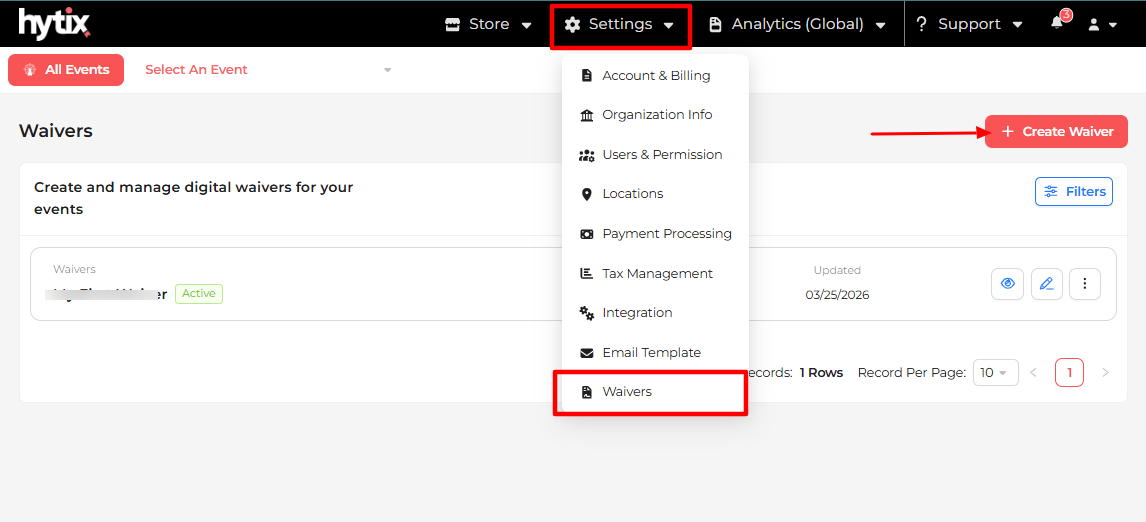
- Go to Settings (top right corner)
- Click on Waiver
- Click Create a Waiver
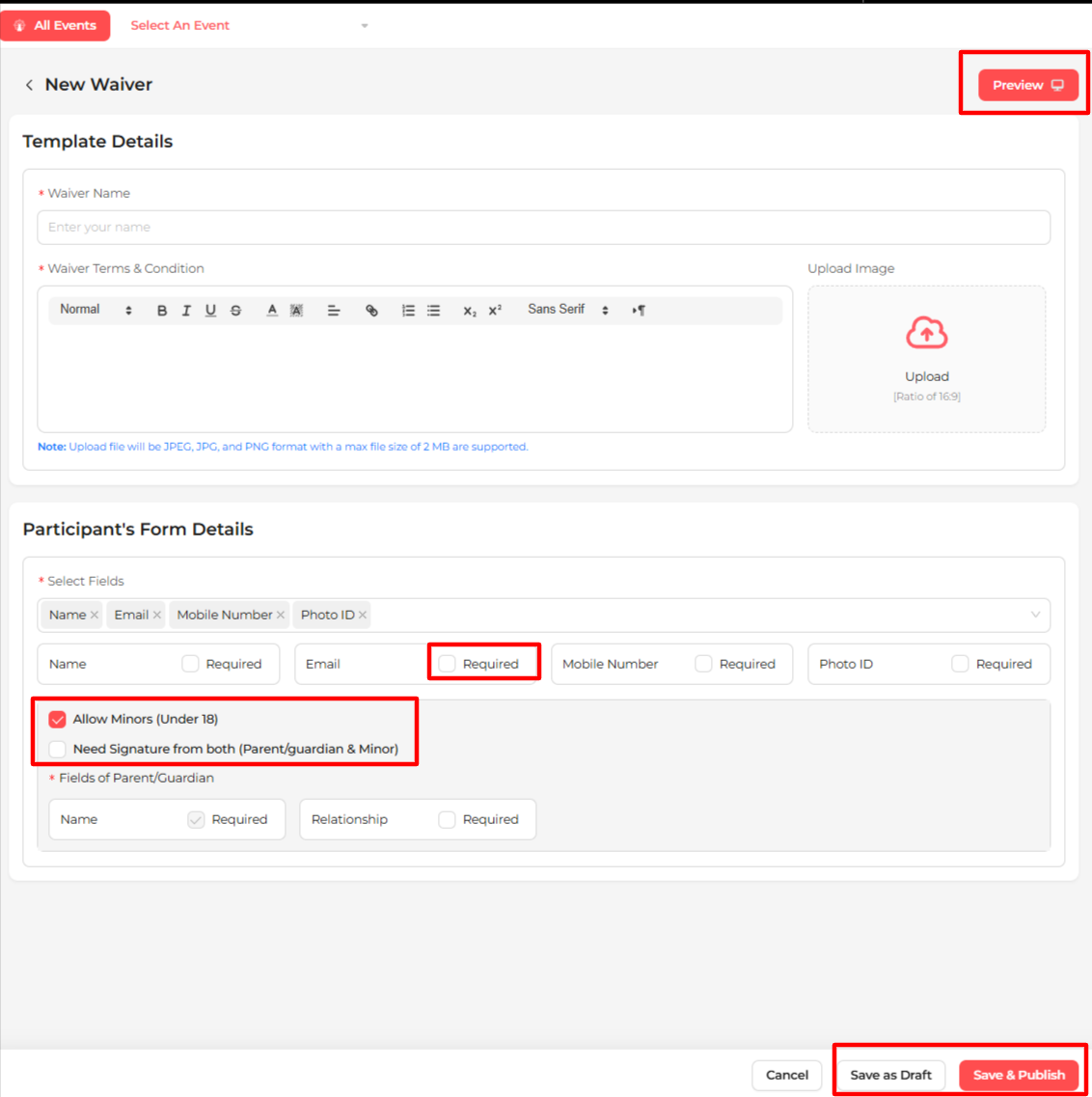
Add Waiver Details
- Enter Waiver Name
- Add your terms & conditions / waiver content
- Upload an image (optional)
Configure Form Fields
Select the information you want to collect from participants:
- Name
- Contact Number
- Photo ID
- Gender
- Date of Birth
Note:
- The Signature field is mandatory and included by default
- Enable Allow Minor if your event includes minors
- This will require parent/guardian signature
Preview & Publish
- Click Preview to review the waiver
- Click Publish to make it available for use
Step 2: Assign Waiver to an Event
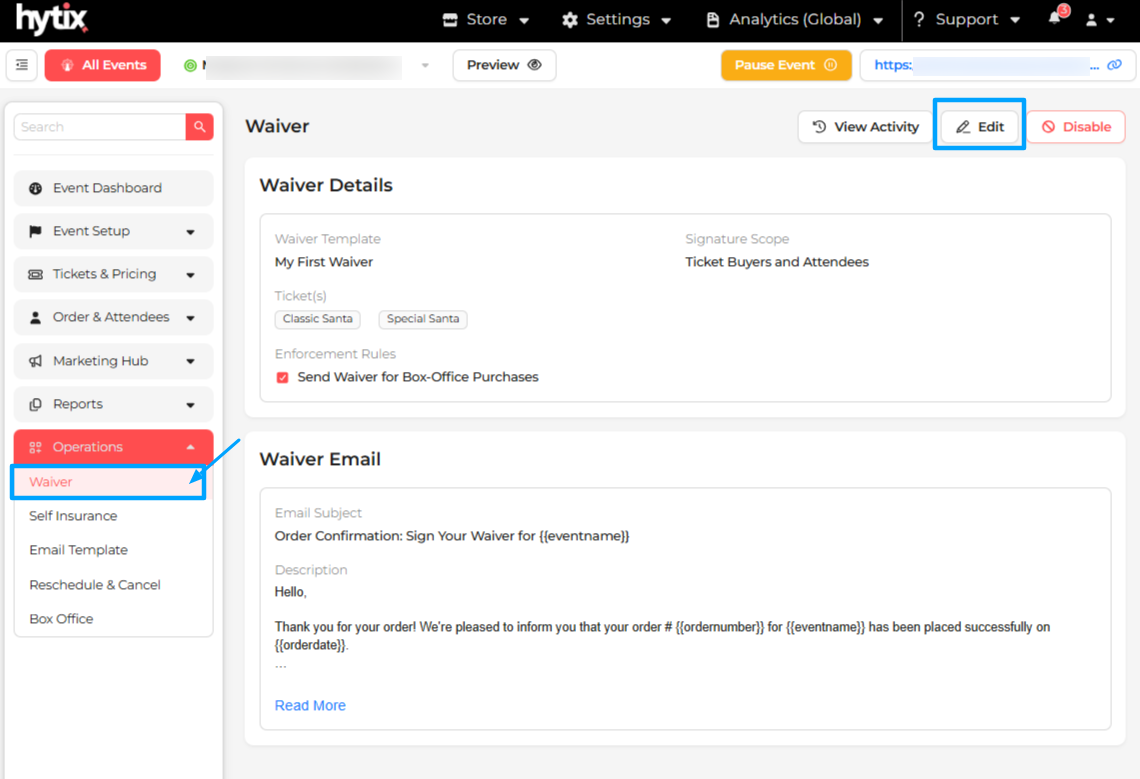
- Select your event for which you want waiver functionality
- Navigate to Operations → Waiver
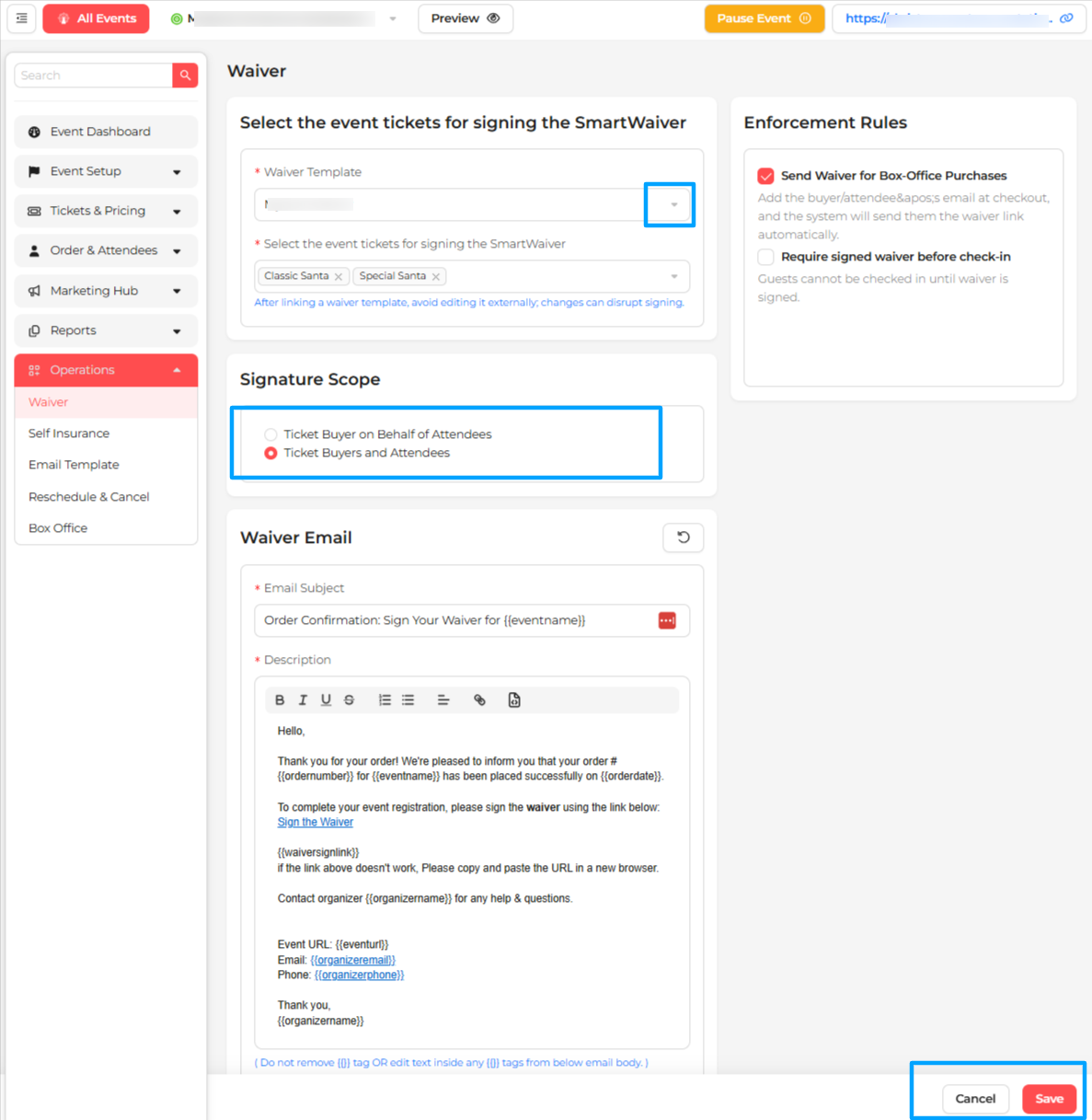
- Select the waiver you created
- Choose the ticket types where the waiver is required
- Click Save
Step 3: Customer Waiver Experience
Once a waiver is assigned:
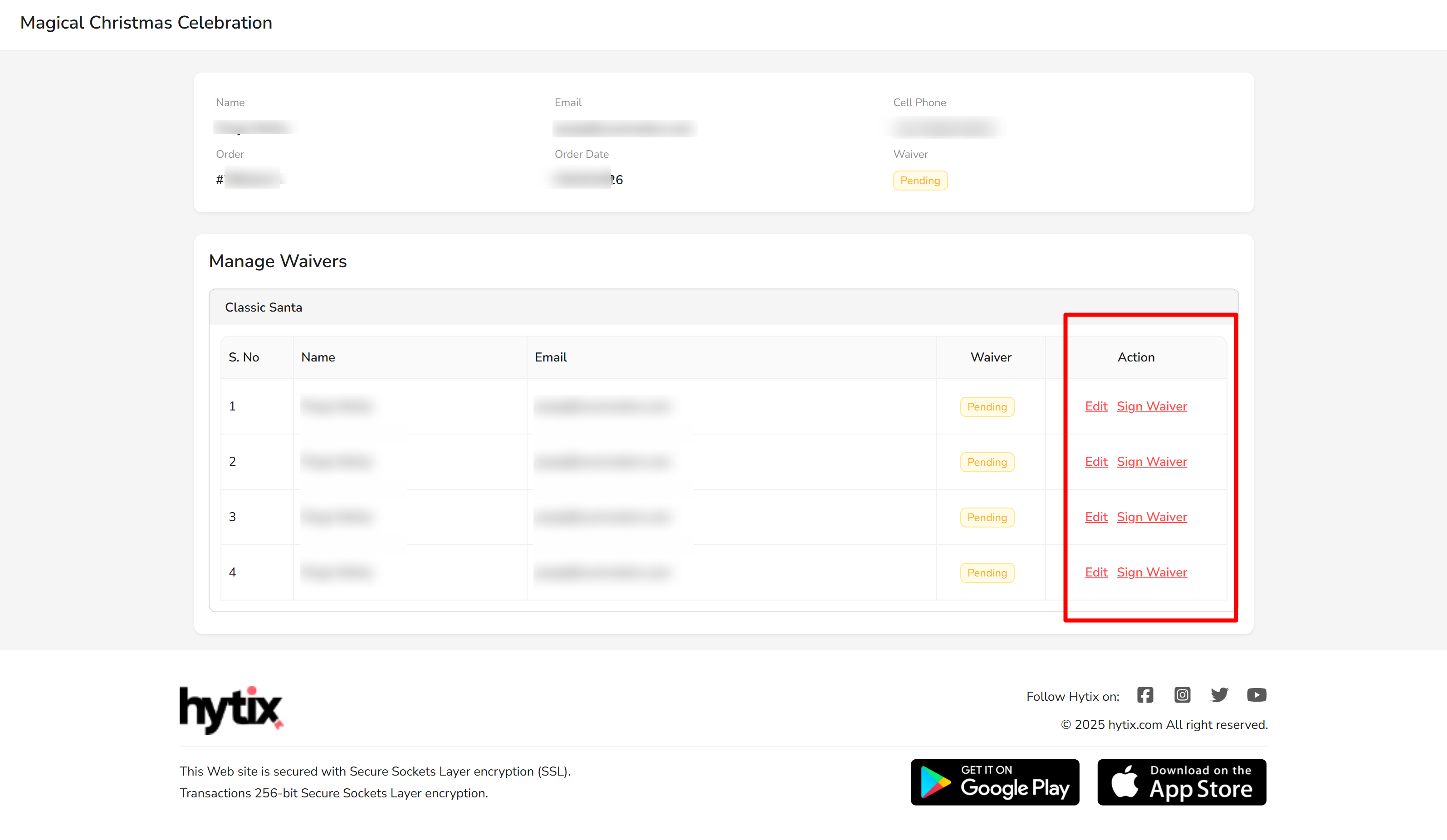
- Customers can see the "Manage Waiver" button on the thank you page
- Customers will receive an order confirmation email after booking
- The email includes a “Manage Waiver” option
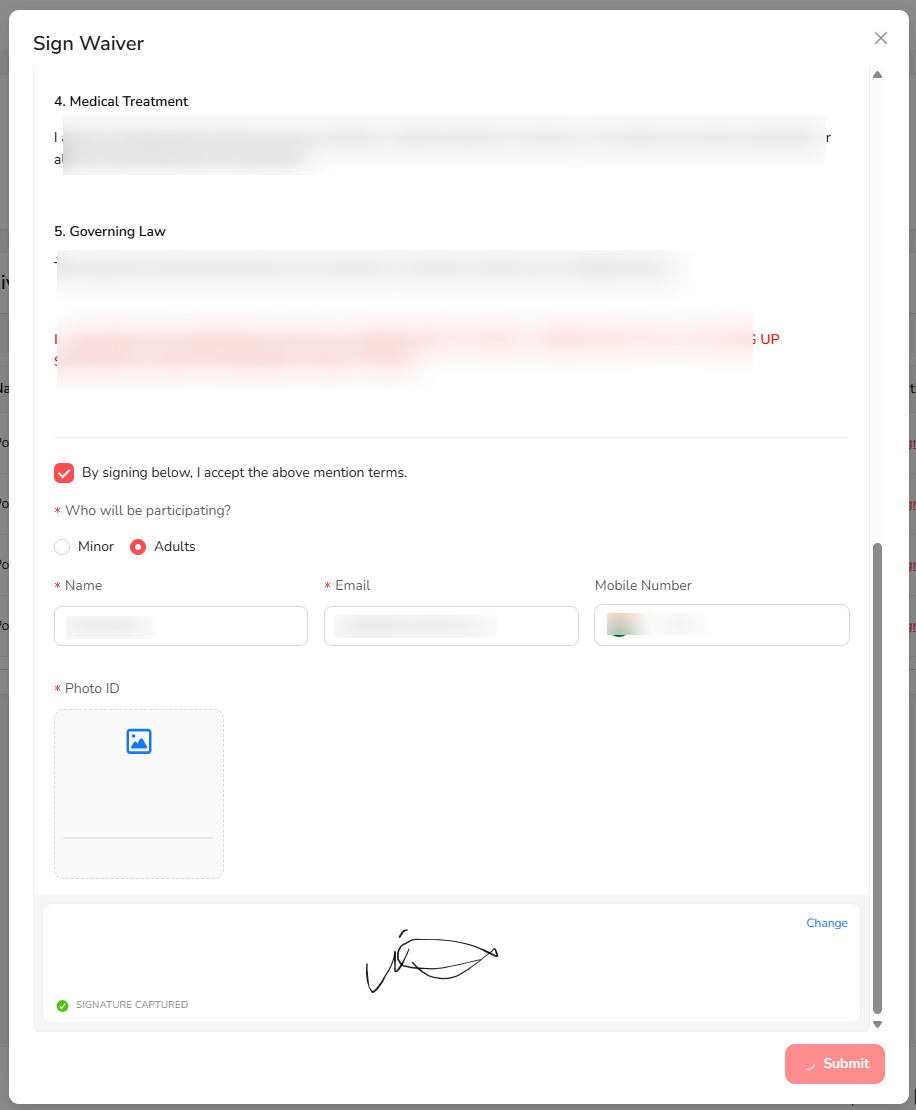
- Customers can:
- Open the waiver on their device
- Fill in required details
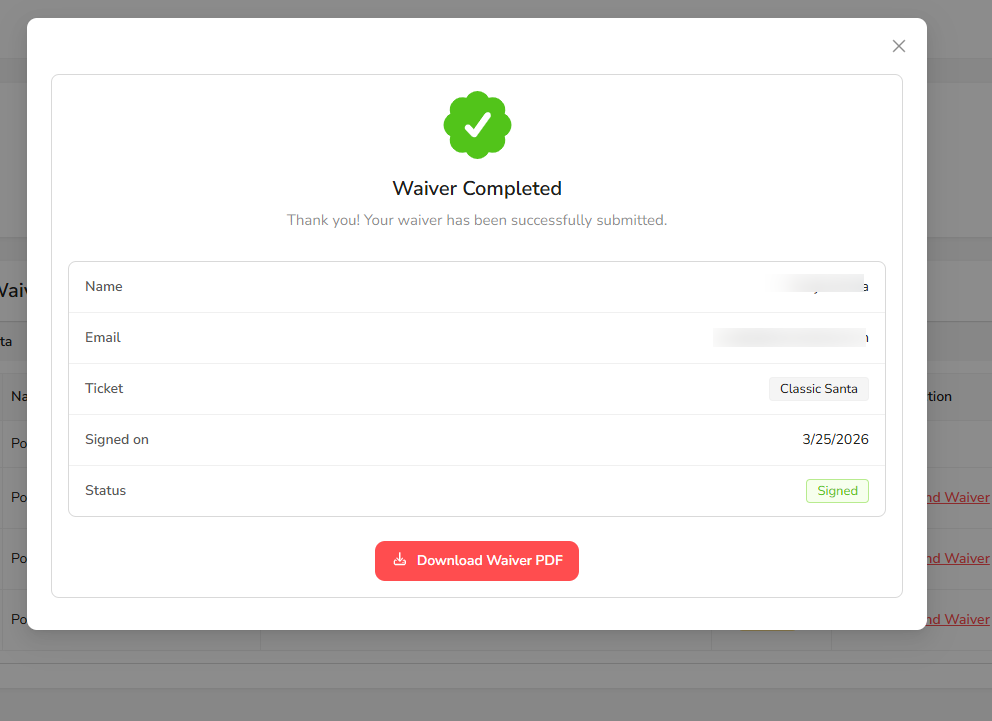
- Sign digitally
The completed waiver is linked to the order and participant.
Step 4: View Signed Waivers
You can view signed waivers in two ways:
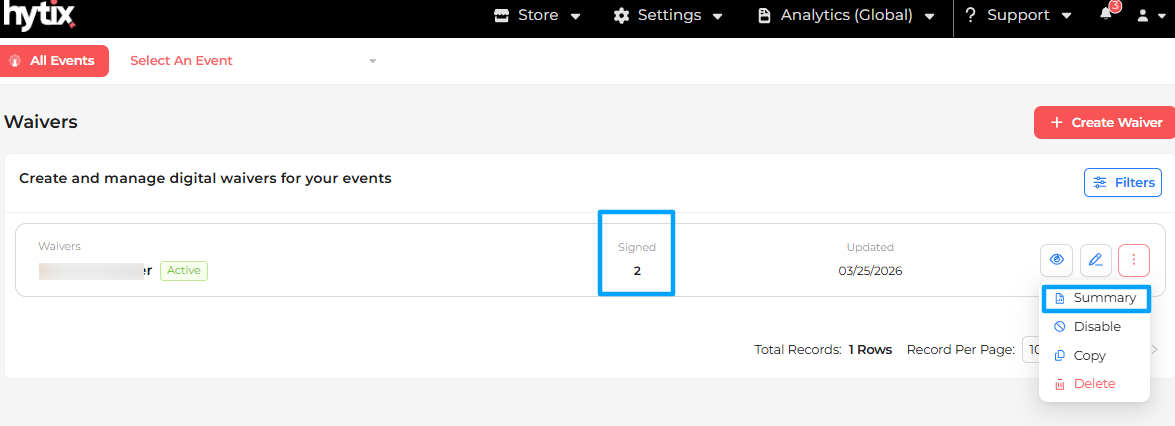
- First: Go to Settings → Waiver (Top Right)
- You will see a list of all waiver templates
- Each waiver shows the number of signed waivers beside it
- Click the three dots (⋯) and select Summary
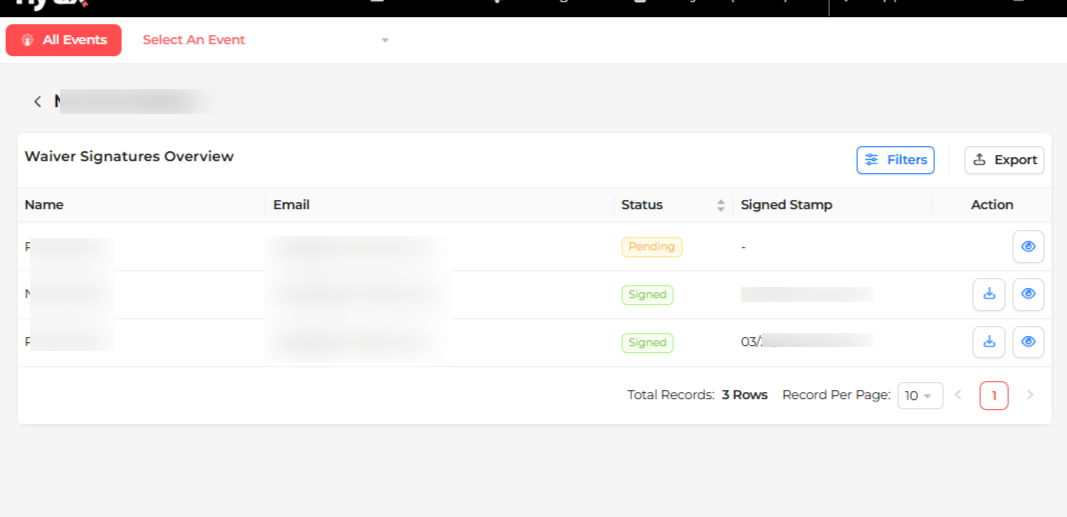
- This will open a page where you can:
- View the list of participants who signed the waiver
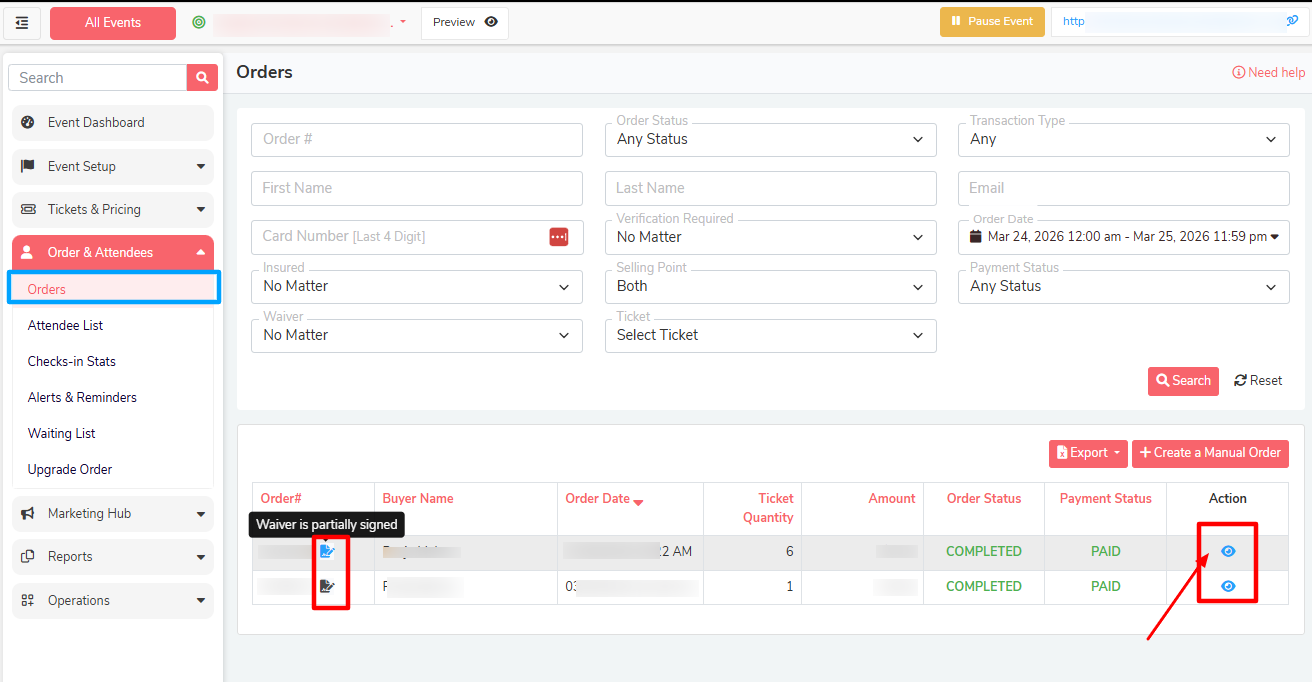
- Second: For each event, go to Orders & Attendees → Orders
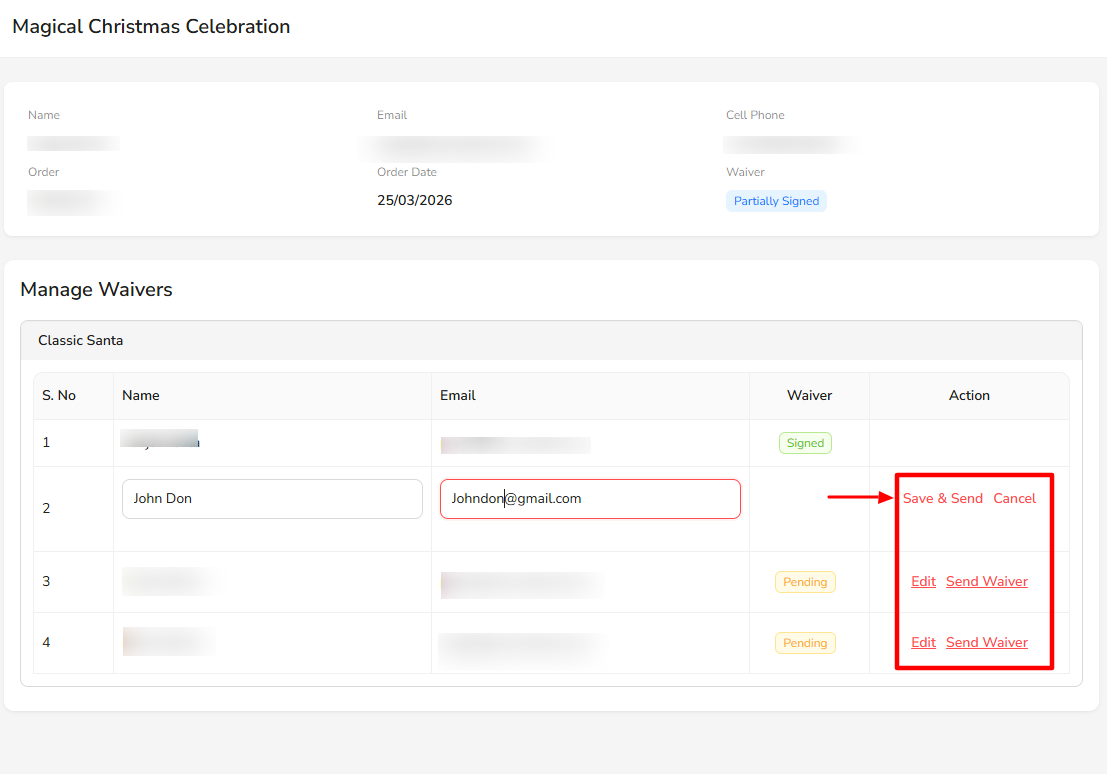
- Each order will display a waiver status: Signed, Partially Signed, and Not Signed
- Click on an order to view details
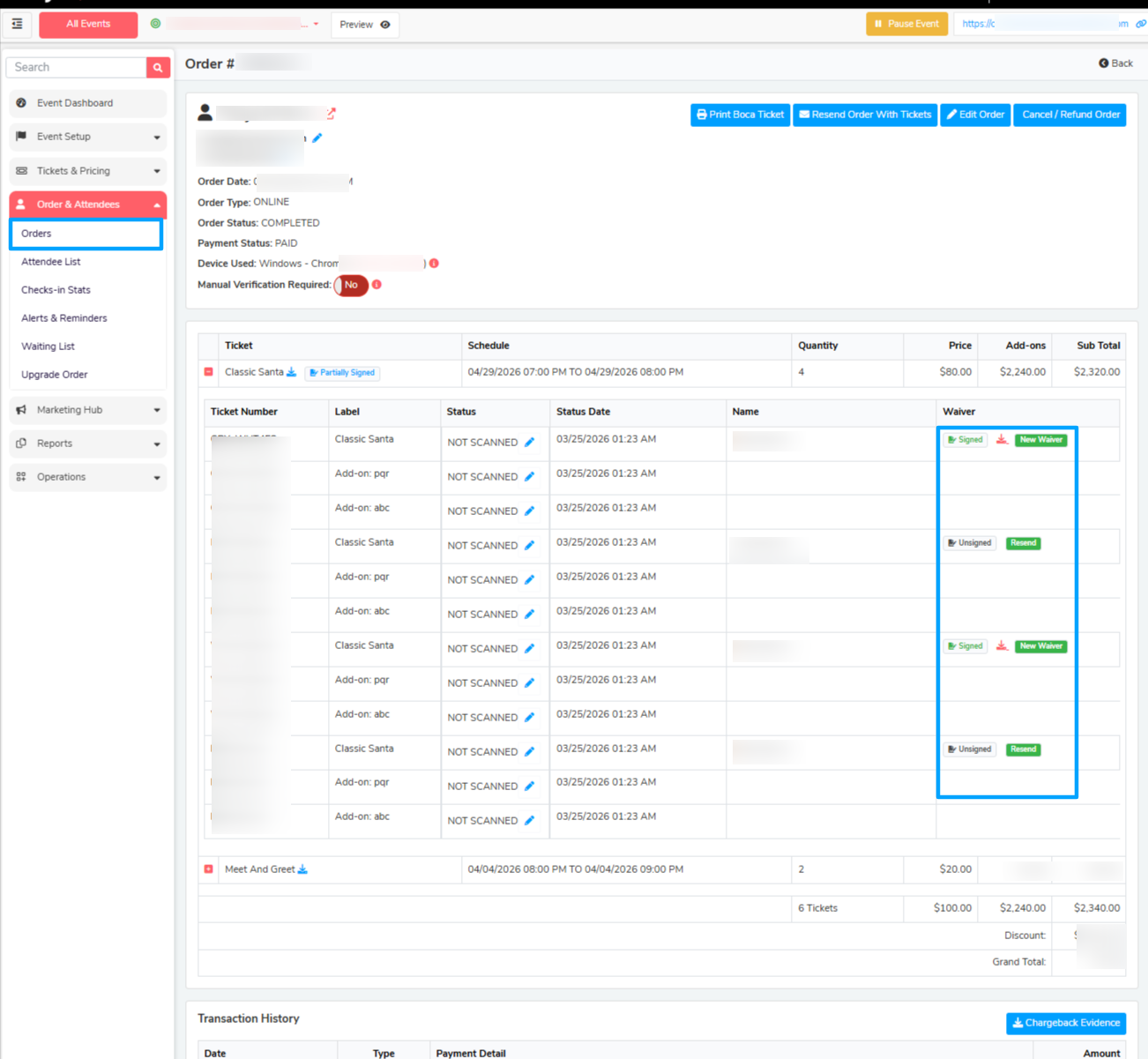
- Inside the order, you can:
- See which participants have signed the waiver
- Identify pending signatures
- Resend the waiver link if needed
Key Notes
- Waivers are ticket-specific (can be applied to selected tickets)
- Signature collection is mandatory
- Minor consent can be enabled when required
- All waivers are managed within Hytix/ Fearticket
Was this article helpful?
That’s Great!
Thank you for your feedback
Sorry! We couldn't be helpful
Thank you for your feedback
Feedback sent
We appreciate your effort and will try to fix the article