To create a ticket, go to your event and click Tickets & Pricing in the left menu, then select Tickets & Add-Ons.
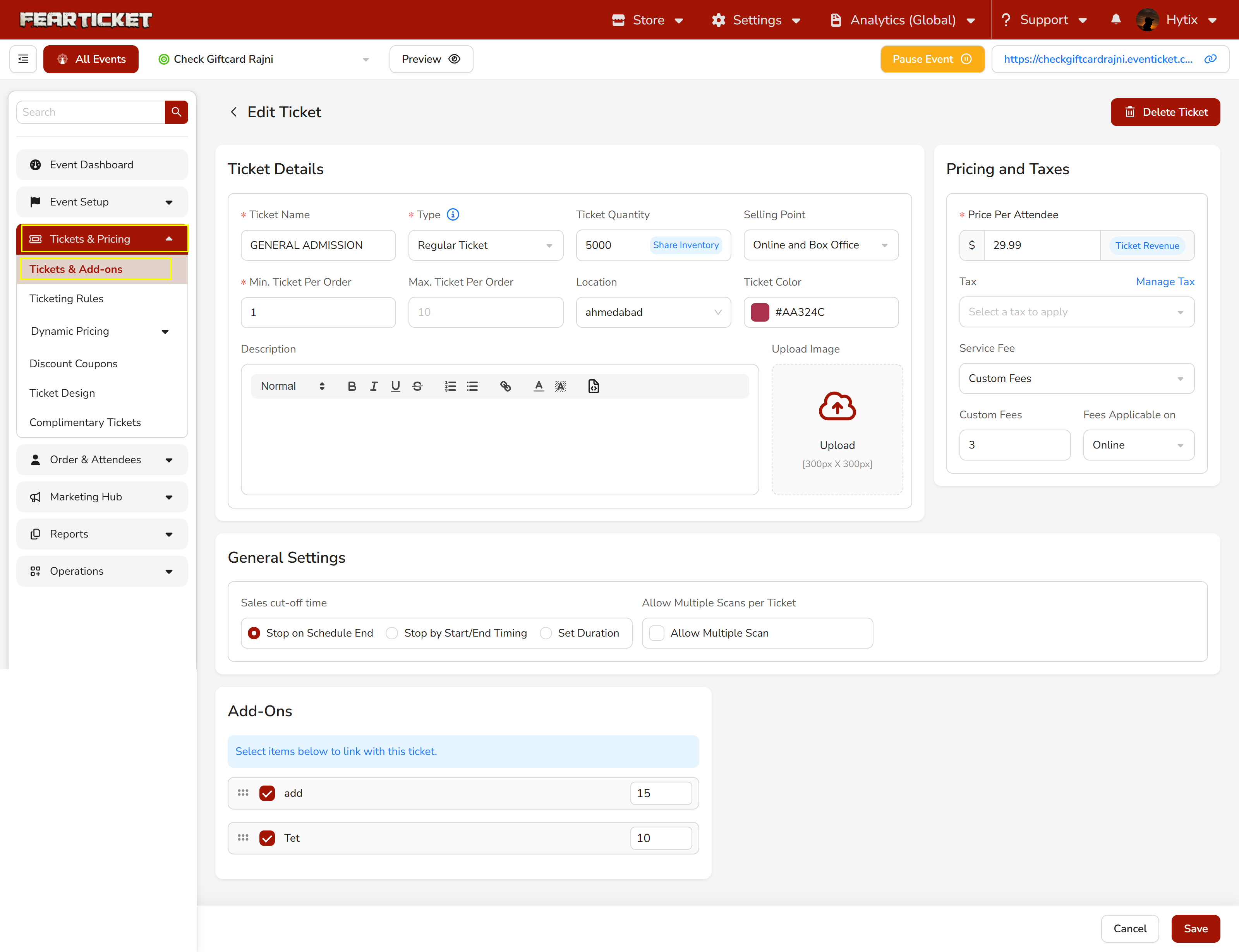
Ticket Details
Fill in the following fields:
Ticket Name Enter a name for the ticket (e.g. General Admission, VIP).
Type Select the ticket type. Options include Regular Ticket and others based on your setup.
Ticket Quantity Enter the total number of tickets available. Use Share Inventory if multiple ticket types share the same pool of tickets.
Selling Point Choose where the ticket will be sold. Options are Online, Box Office, or Online and Box Office.
Min. Ticket Per Order Set the minimum number of tickets a buyer must purchase in one order.
Max. Ticket Per Order Set the maximum number of tickets a buyer can purchase in one order.
Location Select the venue location for this ticket.
Ticket Color Choose a color to visually identify this ticket type.
Description Add any details or information buyers should know about this ticket.
Upload Image Upload a ticket image (300px x 300px).
Pricing and Taxes
Price Per Attendee Enter the ticket price. Click Ticket Revenue to see a breakdown of expected earnings.
Tax Select a tax to apply to this ticket. Click Manage Tax to set up tax rates.
Service Fee Choose Custom Fees if you want to add a specific service fee on top of the ticket price.
Custom Fees Enter the fee amount and select whether it applies Online, at Box Office, or Both.
General Settings
Sales Cut-Off Time Choose when ticket sales stop:
Stop on Schedule End :Sales stop when the event schedule ends.
Stop by Start/End Timing: Set a specific start and end time for sales.
Set Duration:Define a custom sales window duration.
Allow Multiple Scans per Ticket Enable this if the same ticket can be scanned more than once at entry.
Once all details are filled in, click Save to create the ticket.
Was this article helpful?
That’s Great!
Thank you for your feedback
Sorry! We couldn't be helpful
Thank you for your feedback
Feedback sent
We appreciate your effort and will try to fix the article