The Upsell Items feature allows event organizers to offer additional products, add-ons, or tickets during the checkout process. These items are displayed to customers after selecting a ticket and help increase revenue by offering optional upgrades such as merchandise, fast passes, parking passes, or additional experiences.
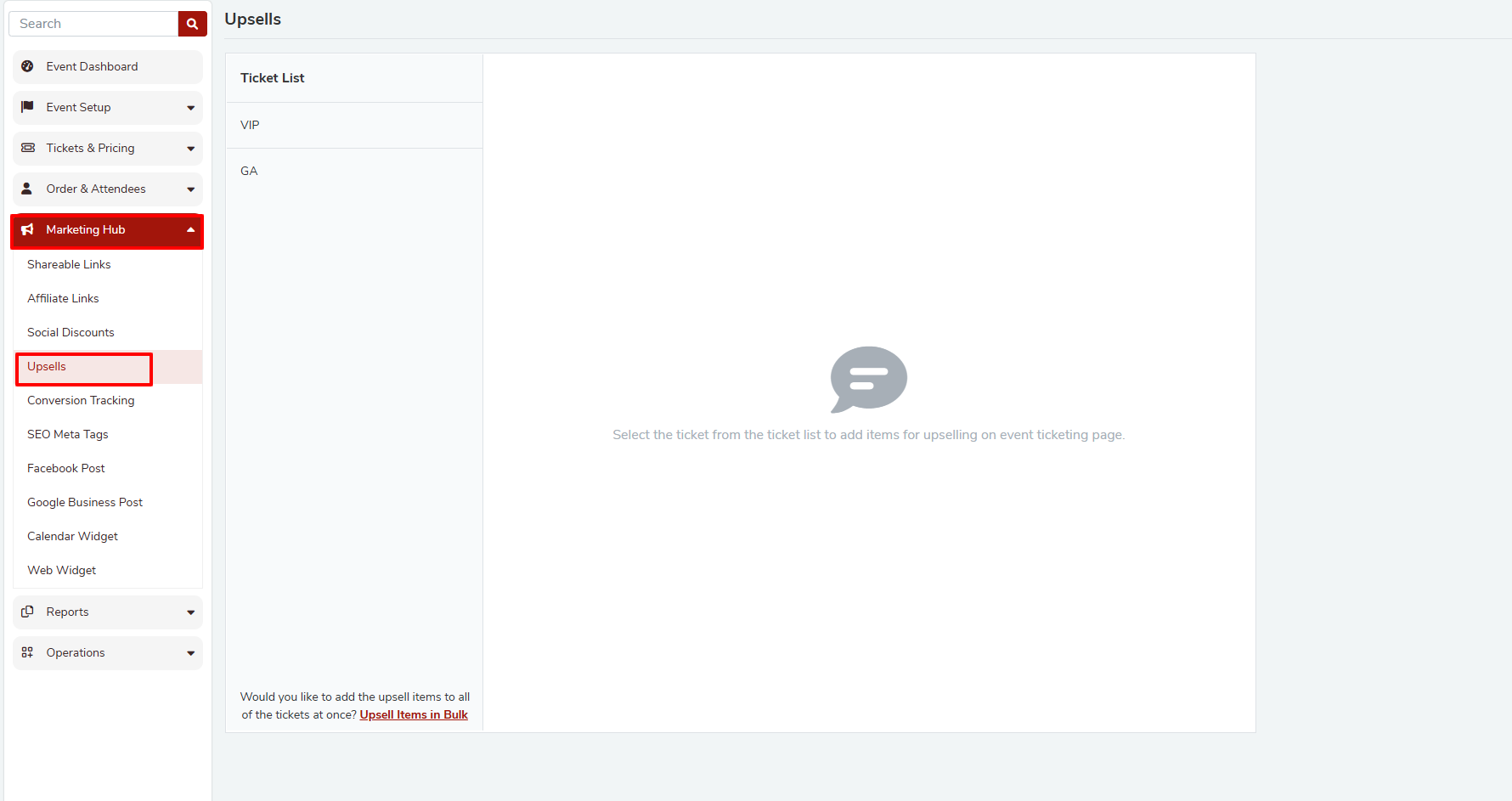
Navigating to Upsell Items
To access and manage upsell items:
Go to Marketing Hub → Upsells from the left-side menu.
The Ticket List will appear on the left panel.
Select the ticket for which you want to configure upsell items.
Select the ticket for which you want to configure upsell items.
Adding Upsell Items for a Specific Ticket
Select the Ticket: Click on the ticket from the Ticket List panel.
Edit Upsell Options: Click the Edit icon next to the selected ticket to open the upsell configuration panel.
Choose Upsell Type: You can configure upsell items under two categories:
Add-ons – Products or services related to the event (e.g., merchandise, speed passes).
Tickets – Additional tickets that customers may purchase along with their primary ticket.
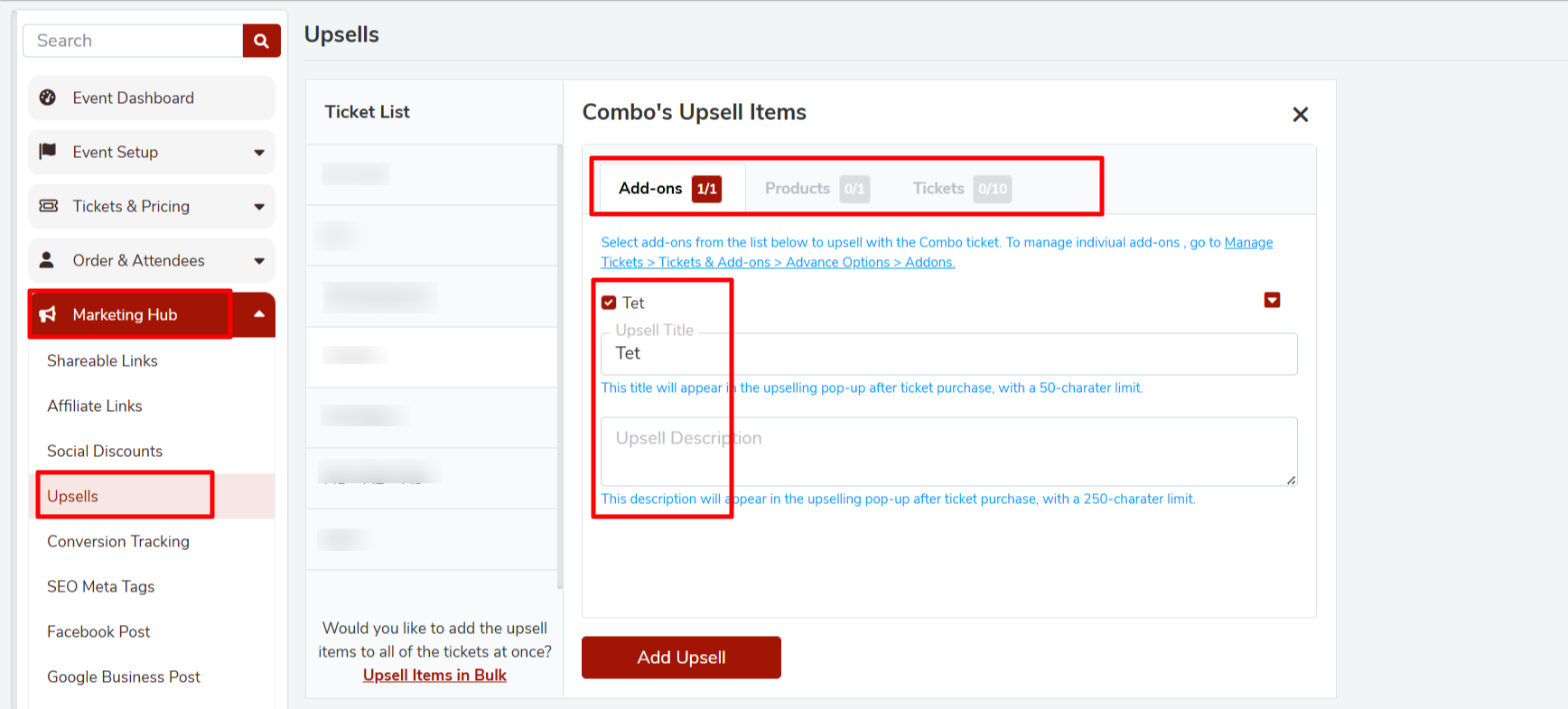
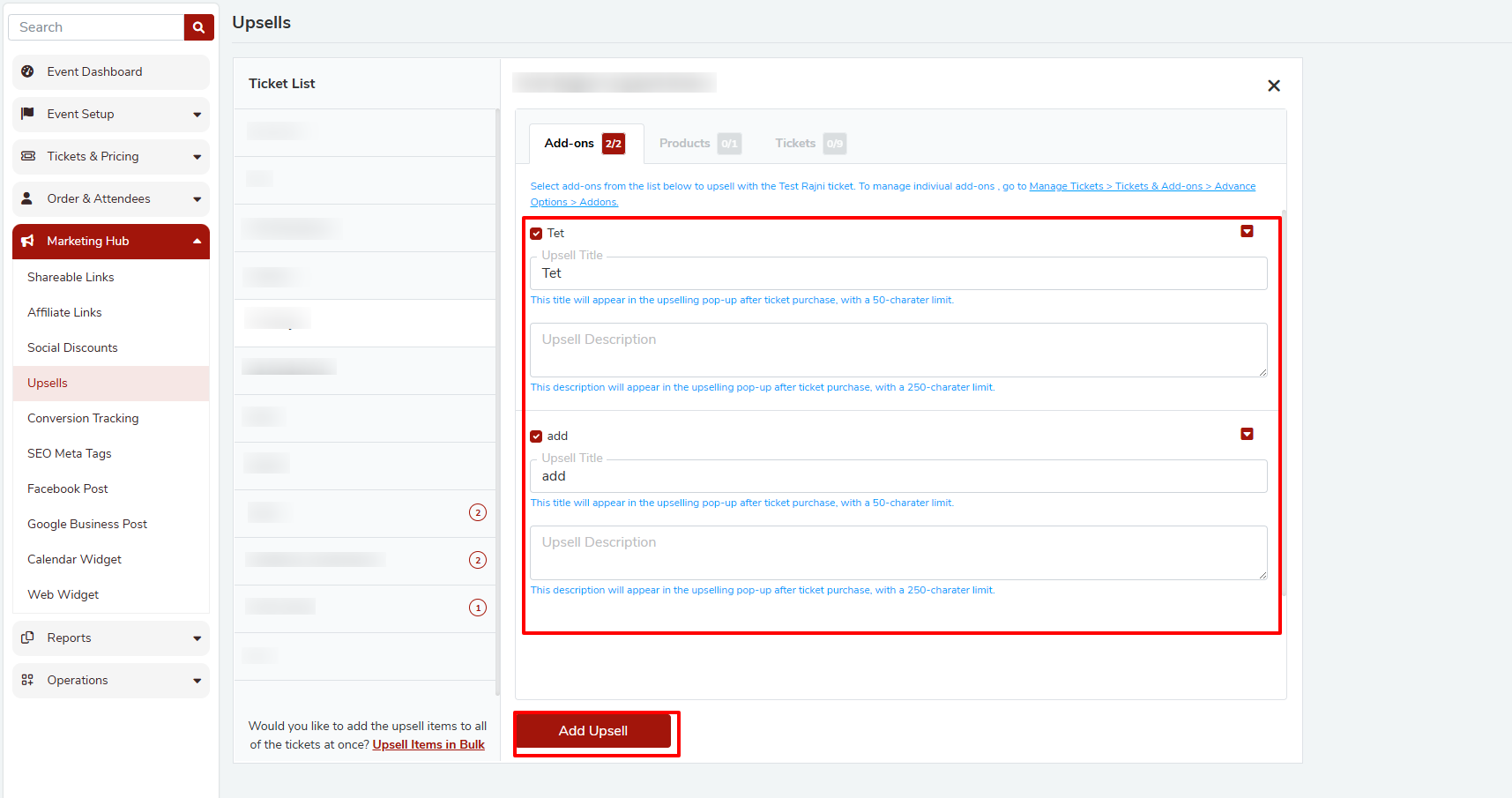
Select Items: For each add-on, check the box next to the item you want to offer as an upsell.
Customize Details: After selecting an add-on, you can configure:
• Upsell Title – Displayed to customers during checkout (50-character limit).
• Upsell Description – Additional details about the upsell item (250-character limit).
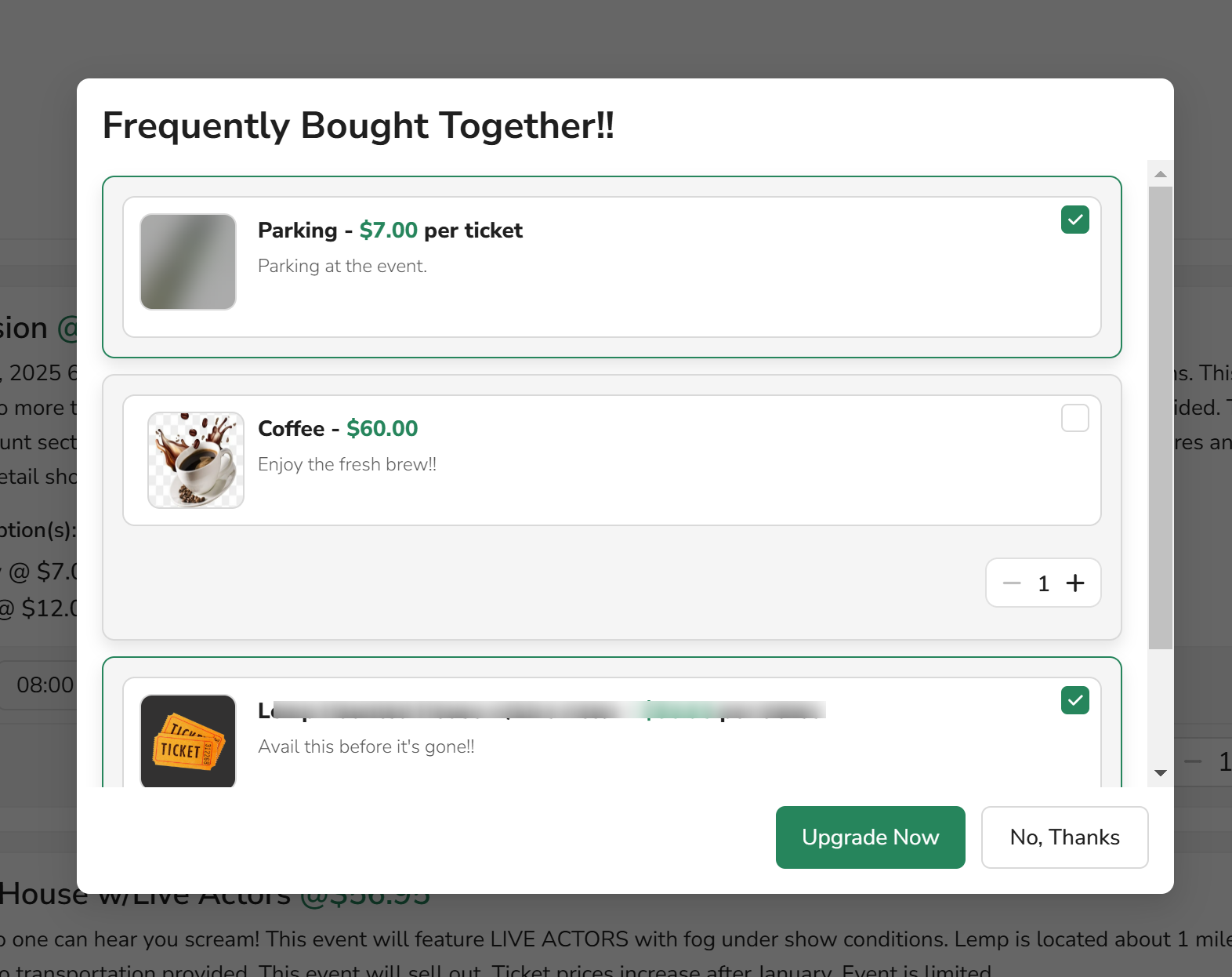
These details appear in the upsell pop-up when customers add a ticket to their cart.Save Changes: After completing the upsell configuration, click Update Upsell to save your changes.
 Adding Upsell Items for Multiple Tickets
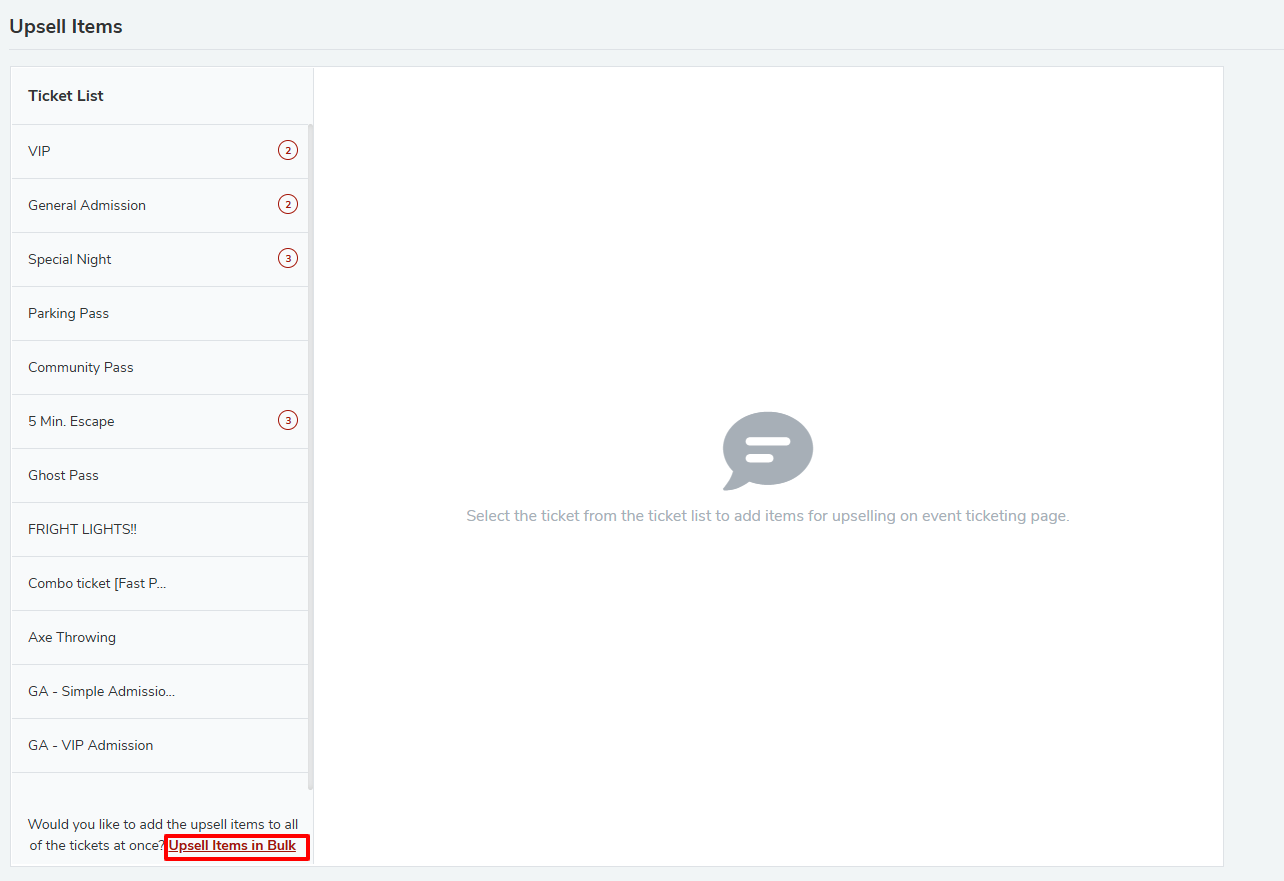
If you'd like to apply upsell items to all tickets at once, you can do so:
Click Upsell Items in Bulk located at the bottom of the ticket list.
Select the tickets for which you want to apply upsell options.
Configure the upsell items as required.
Click Save to apply the changes.
 Ticket Upsell Options
Upselling Additional Tickets
You can also offer other tickets as upsell options.
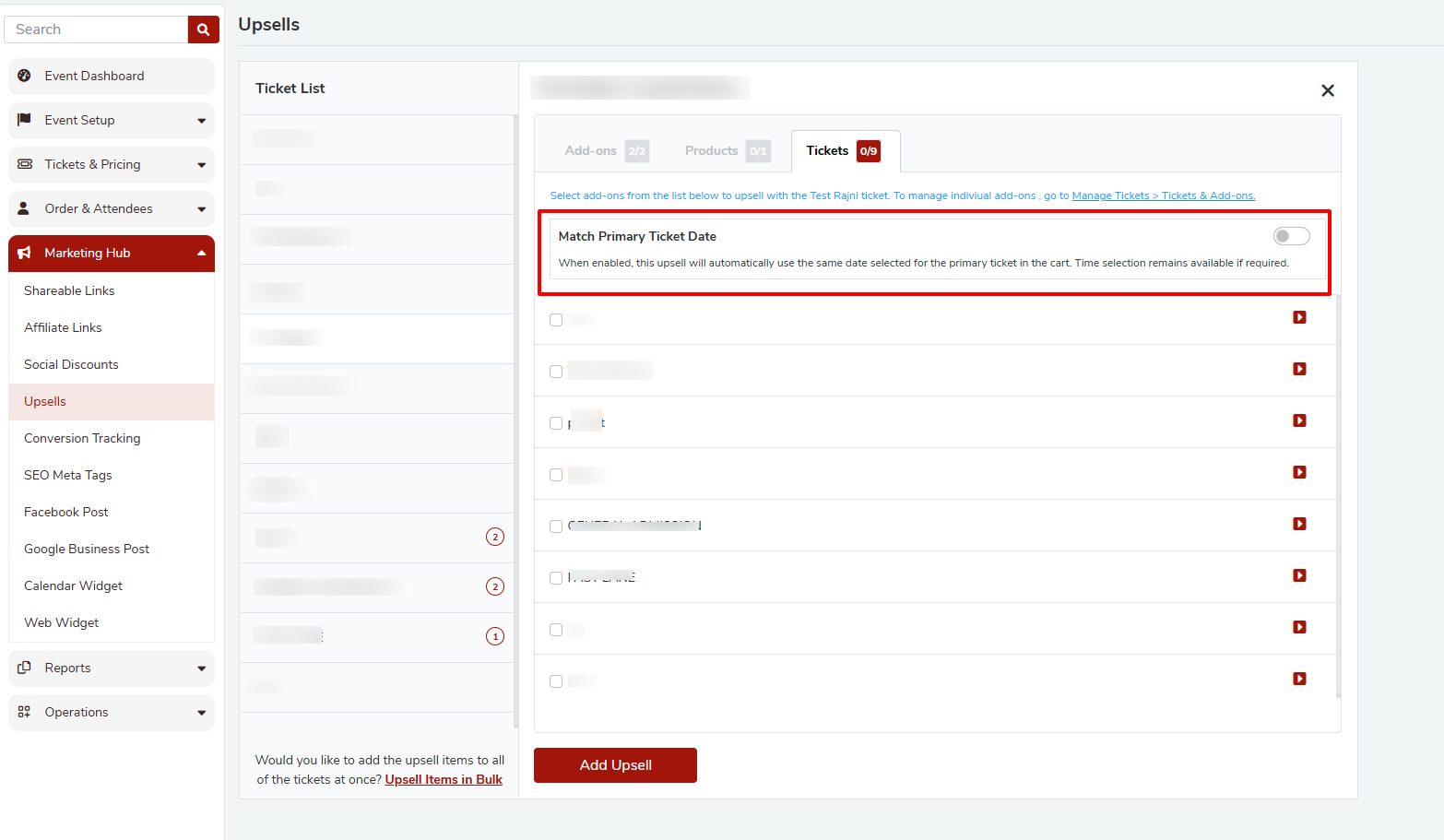
Open the Tickets tab in the upsell configuration panel.
Select the tickets you want to offer as upsell options.
Optionally enable Match Primary Ticket Date to automatically match the event date of the main ticket.
Click Add Upsell to save the configuration.
Confirmation Message
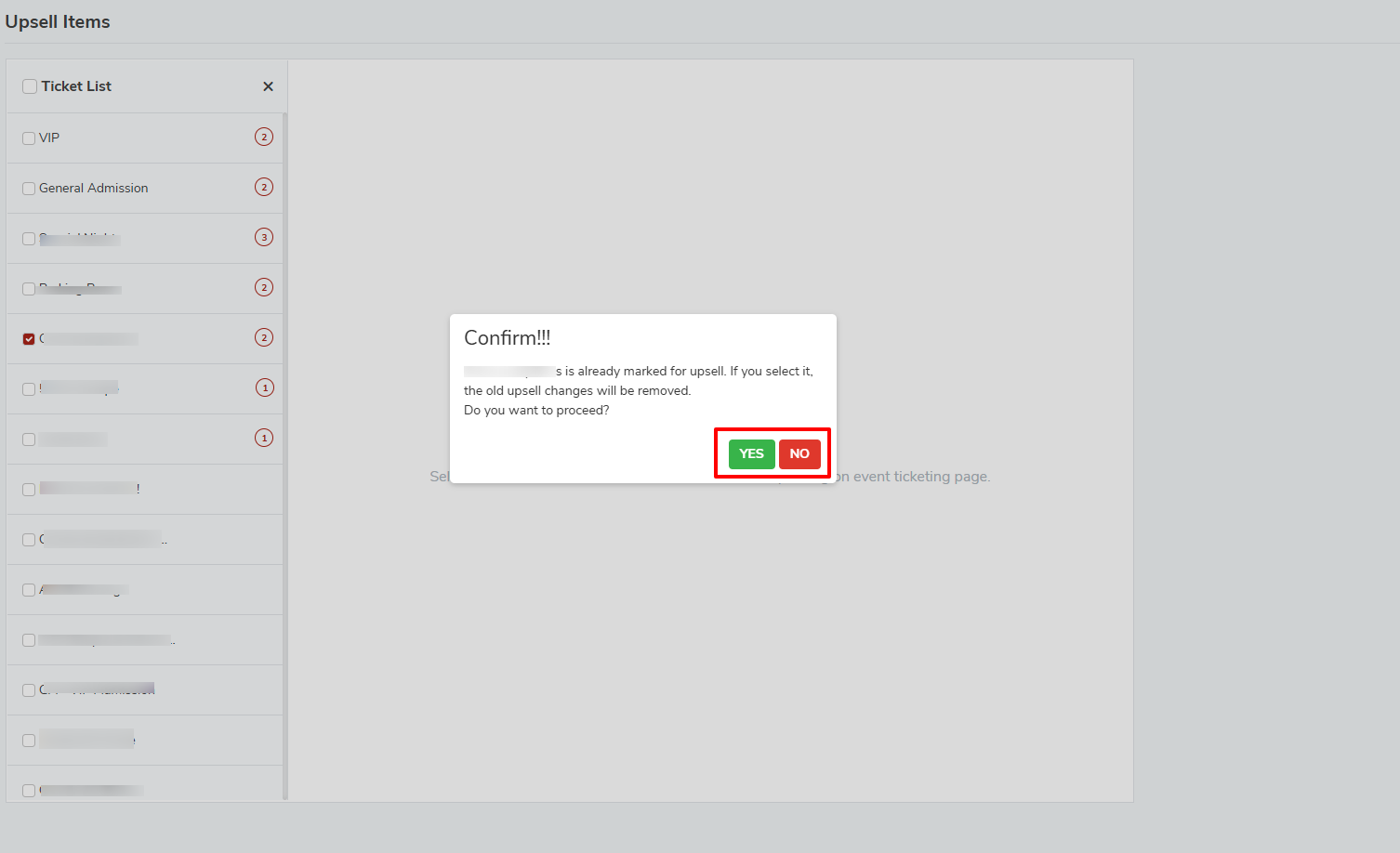
If a ticket is already configured for upsell and you attempt to apply new upsell settings, the system will display a confirmation message.
This message informs you that the existing upsell configuration will be replaced.
Select:
• Yes – to proceed and overwrite the previous upsell configuration
• No – to cancel the action
The ticket buyers will be able to see the items you added for upsell, once the ticket is added to the cart.
Important Notes:
Scheduled Tickets Only: Only tickets with an assigned schedule can be selected for upsell in bulk.
Review & Save: Always ensure that you save your changes after modifying any upsell details to avoid losing your updates.
Was this article helpful?
That’s Great!
Thank you for your feedback
Sorry! We couldn't be helpful
Thank you for your feedback
Feedback sent
We appreciate your effort and will try to fix the article