What is Event Comparison in FEARTICKET?
The Event Comparison feature is a reporting tool found under Analytics (Global) that allows event organizers to compare the performance of two different events side by side. It displays key metrics such as orders, tickets sold, discounts applied, social discounts, and total revenue, broken down by date.
How do I access Event Comparison?
- Log in to your FEARTICKET organizer account.
- From the top navigation bar, click Analytics (Global).
- In the dropdown menu, select Event Comparison.
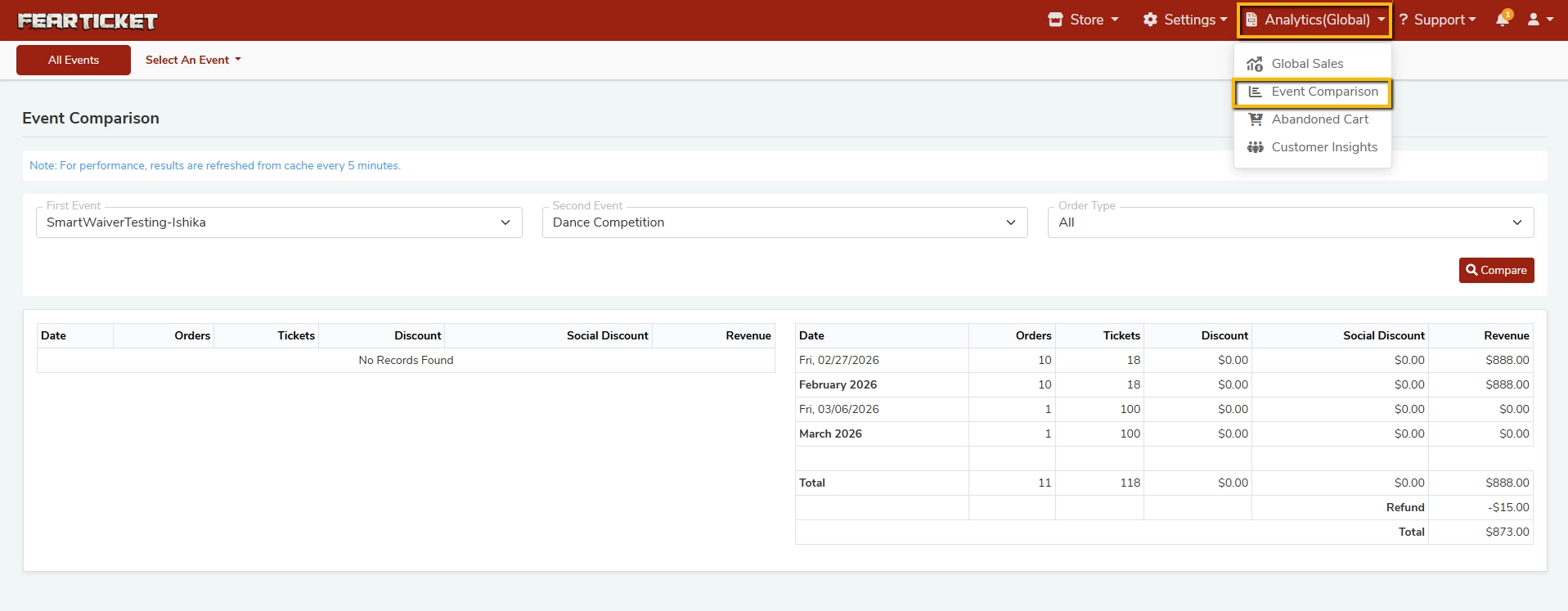
You will also see other analytics options in this menu: Global Sales, Abandoned Cart, and Customer Insights.
How do I compare two events?
- On the Event Comparison page, use the First Event dropdown to select your first event.
- Use the Second Event dropdown to select the event you want to compare it against.
- Optionally, filter results by Order Type (e.g., All, Online, Box Office).
- Click the Compare button to generate the side-by-side report.
What metrics are shown in the Event Comparison report?
The report displays the following columns for each event:
| Metric | Description |
|---|---|
| Date | The specific date or month of the sales activity |
| Orders | Total number of orders placed |
| Tickets | Total number of tickets sold |
| Discount | Total discount amount applied via promo/discount codes |
| Social Discount | Total discount amount applied via social sharing discounts |
| Revenue | Total revenue generated (before refunds) |
At the bottom of the report, a Total row summarizes all figures. If any refunds were issued, a Refund line and an adjusted Total will also be displayed.
What does "No Records Found" mean for one of the events?
If one of the selected events shows "No Records Found", it means that event has no sales data for the selected time period or order type. This is common for:
- Events that have not yet gone on sale.
- Events filtered by an Order Type that had no activity.
- Test events with no completed transactions.
How is data grouped in the report?
Sales data is grouped by date and by month. For example:
- Individual dates (e.g., Fri. 02/27/2026) are listed for days with activity.
- A monthly subtotal row (e.g., February 2026) is shown below each month's entries.
How often is the Event Comparison data refreshed?
For performance reasons, results in the Event Comparison report are refreshed from cache every 5 minutes. If you have just made a sale or processed a refund, wait up to 5 minutes before the data appears in the report.
Can I filter Event Comparison by Order Type?
Yes. The Order Type filter lets you narrow results to a specific sales channel:
- All: Shows both online and box office orders.
- Online: Shows only tickets purchased through the online store.
- Box Office: Shows only tickets sold at the physical box office.
What is a "Social Discount" in the report?
A Social Discount is a discount automatically applied when a ticket buyer shares your event on social media and qualifies for a social sharing reward. The Event Comparison report tracks this separately from standard promo code discounts so you can evaluate your social marketing performance.
Can I export the Event Comparison report?
Currently, the Event Comparison view is an on-screen analytics tool. For detailed export options, visit the Global Sales report under Analytics (Global), which provides downloadable data.
Why do the totals include a separate "Refund" line?
When refunds have been issued for an event, the report breaks out:
- Revenue: Gross revenue before refunds.
- Refund: Total amount refunded (shown as a negative value).
- Total: Net revenue after deducting refunds.
This helps you clearly see the impact of refunds on your bottom line.
Who can access Event Comparison?
Event Comparison is available to event organizers with access to the Analytics (Global) section of their FEARTICKET account. If you do not see this option, contact FEARTICKET support to verify your account permissions.
Was this article helpful?
That’s Great!
Thank you for your feedback
Sorry! We couldn't be helpful
Thank you for your feedback
Feedback sent
We appreciate your effort and will try to fix the article