The Donation Ticket feature allows event organizers to collect donations directly through their event page.
This is useful for charity events, fundraising campaigns, non-profit organizations, or any event where you want attendees to contribute an additional amount.
How to Create a Donation Ticket
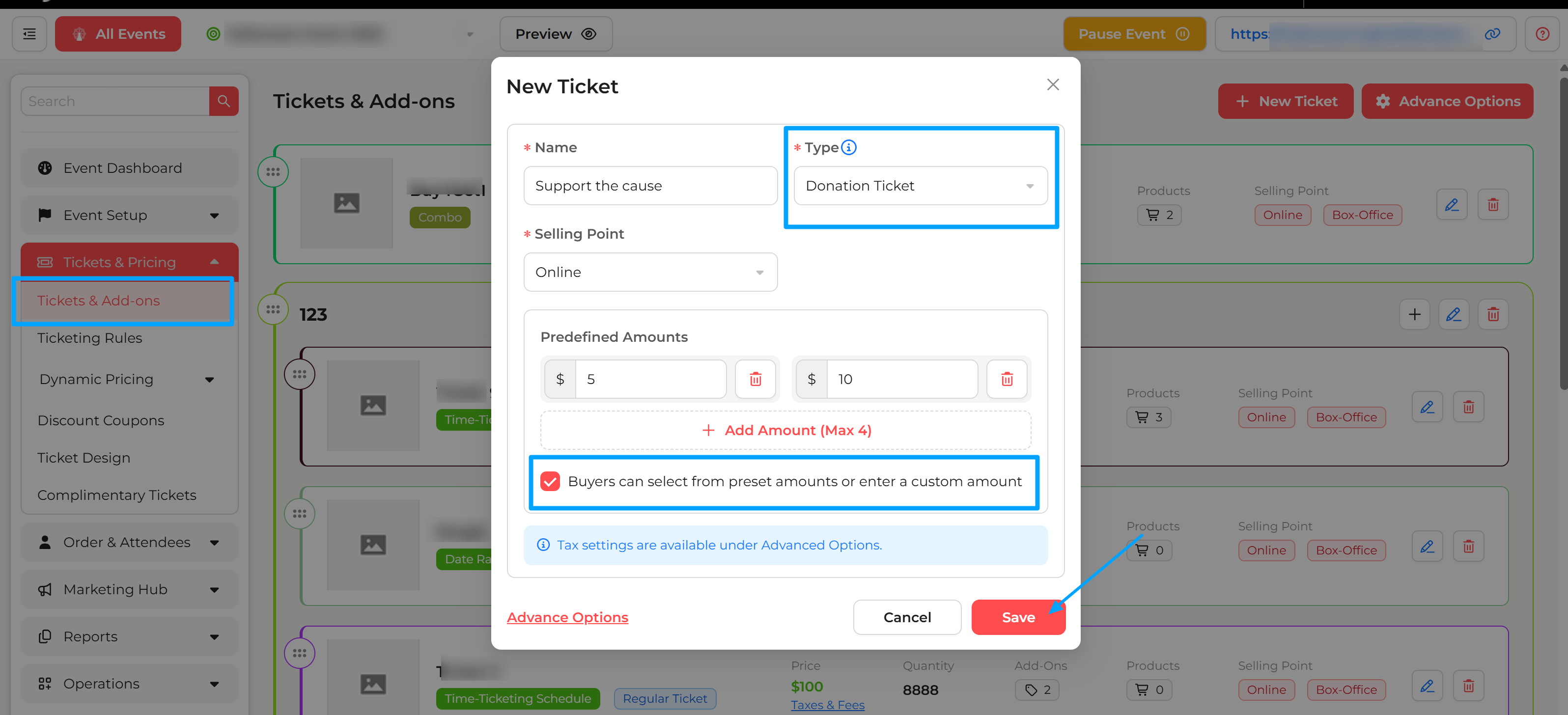
Go to Tickets & Pricing
Click on Tickets & Add-ons
Click on the “New Ticket” button
Configure the Donation Ticket
Enter a Ticket Name (for example: Support the Cause, Make a Donation, Make an Impact)
In the Type field, select “Donation Ticket”
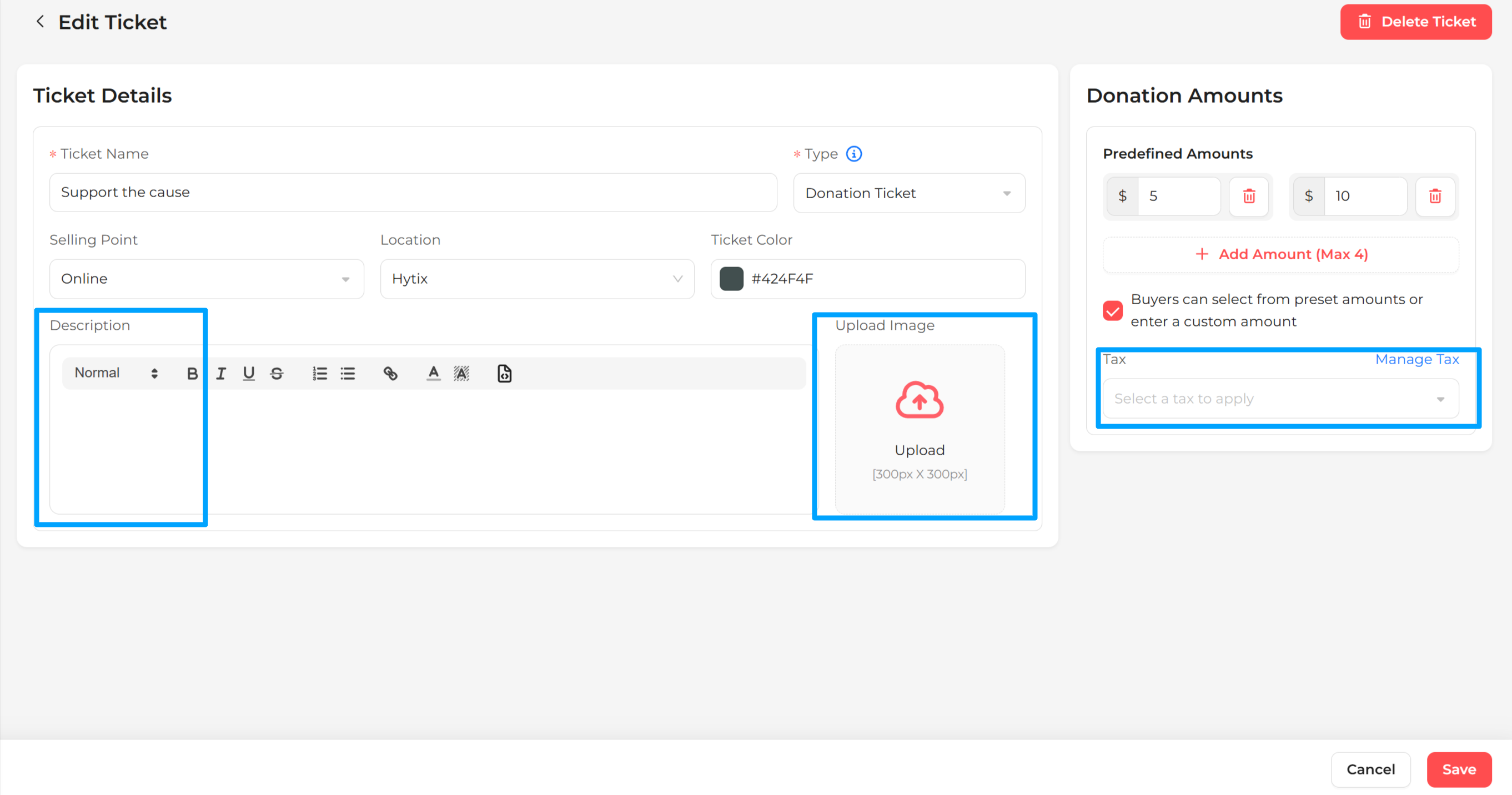
Once selected, additional options will appear:
Add up to 4 predefined donation amounts
Enable Custom Amount to allow buyers to enter their own donation value.
Click Save
 How It Works
The donation ticket will appear on your event ticketing page
Buyers can select one of the predefined amounts or enter a custom amount (if enabled)
The donation is added during the ticket purchase process
Viewing Collected Donations
You can view and track the total donation amount collected using reports. To access this data:
Go to Reports
Select Ticket Report
Use the filter and set Ticket Type to Donation Ticket
This will display all donation-related tickets and the total amount collected.
You can also include the donation ticket as an upsell with other tickets from the "Marketing Hub> Upsells" option. This allows buyers to contribute while purchasing their main ticket.
Was this article helpful?
That’s Great!
Thank you for your feedback
Sorry! We couldn't be helpful
Thank you for your feedback
Feedback sent
We appreciate your effort and will try to fix the article