What is the Orders page?
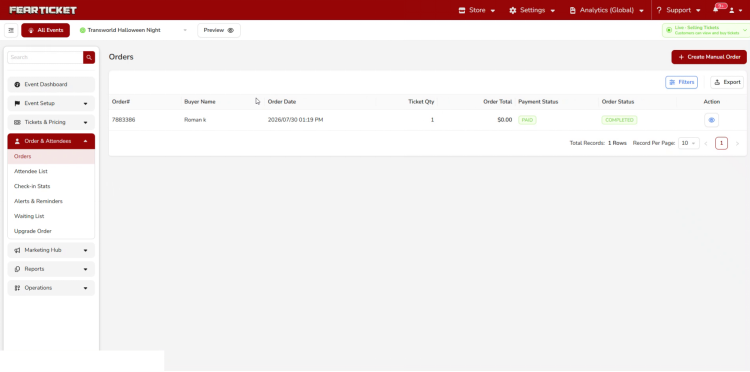
The Orders page lists every order placed for your event, whether it came in online or was entered manually at the box office. From here you can review order details, edit an order, filter the list down to what you need, or create a new manual order.
How do I access Orders?
1. Log in to your FEARTICKET organizer account.
2. Navigate to your event.
3. In the left sidebar, click Order & Attendees.
4. Select Orders from the dropdown.
Each row shows the Order#, Buyer Name, Order Date, Ticket Qty, Order Total, Payment Status, and Order Status, with a view action on the right. The Export button in the top right downloads the current order list, and + Create Manual Order starts a new order from scratch.
Viewing an Order
What do I see when I open an order?
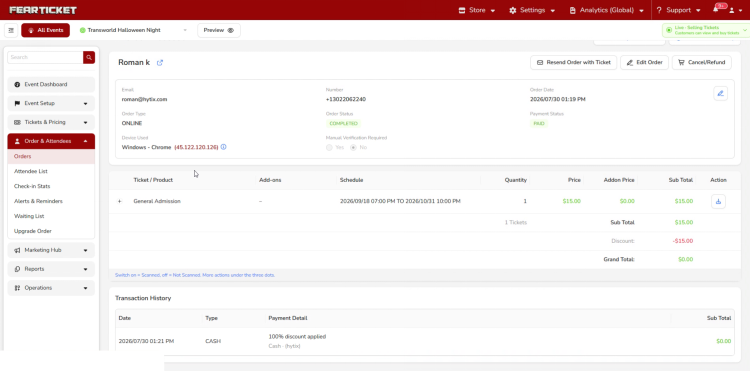
Clicking the view icon on an order opens the order detail page, showing the buyer's email, phone number, order date, order type, order status, payment status, device used, and whether manual verification is required.
What actions are available on an order?
Action | What it does |
View Questionnaire | Shows any questionnaire answers submitted with the order |
View Order Activity | Shows a log of changes made to the order |
Resend Order with Ticket | Re-sends the confirmation email and tickets to the buyer |
Edit Order | Opens the order for editing |
Cancel/Refund | Cancels the order or issues a refund |
What does the Ticket/Product table on an order show?
It lists each ticket or product on the order along with its schedule, quantity, price, add-on price, and sub total, followed by the tickets sub total, any discount applied, and the grand total. Each ticket line also has a scan toggle, so you can see or set whether a ticket has been scanned at the door.
What is Transaction History?
This section at the bottom of the order lists every payment transaction tied to the order, including the date, payment type, payment detail, and sub total for each transaction, such as a discount applied or a cash payment received.
Editing an Order
How do I edit an existing order?
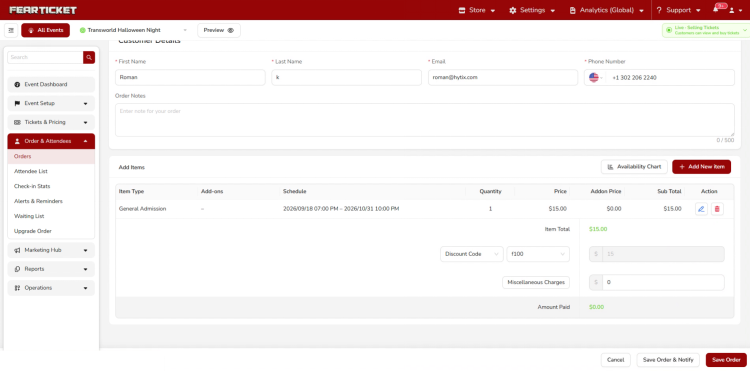
Open the order and click Edit Order. This opens the order for editing, with the buyer's Customer Details (First Name, Last Name, Email, Phone Number) and an Order Notes field at the top.
How do I add or check availability for tickets on an edited order?
Use Add Items to add another ticket or product to the order, or Availability Chart to check remaining capacity before adding more. The existing items table shows Item Type, Add-ons, Schedule, Quantity, Price, Addon Price, and Sub Total for everything already on the order.
What do Item Total, Discount Code, and Miscellaneous Charges do?
Item Total shows the running total of items on the order. You can apply a Discount Code directly on the edit screen, and add any extra Miscellaneous Charges. The Amount Paid field reflects what has actually been collected for the order.
What is the difference between "Save Order" and "Save Order & Notify"?
Both save your changes to the order. Save Order & Notify also sends the buyer an updated confirmation email, while Save Order saves silently without notifying them.
Filtering Orders
How do I filter the Orders list?
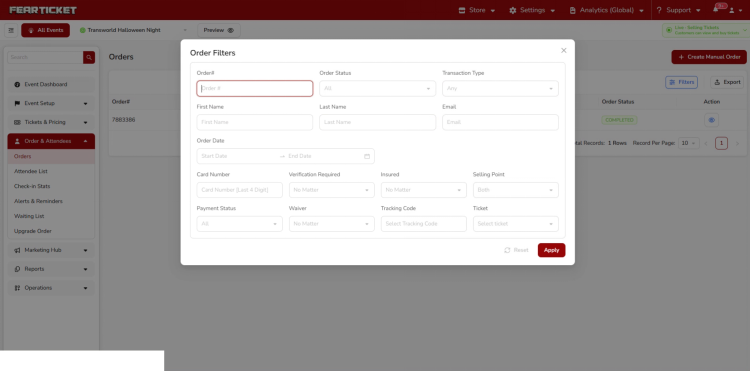
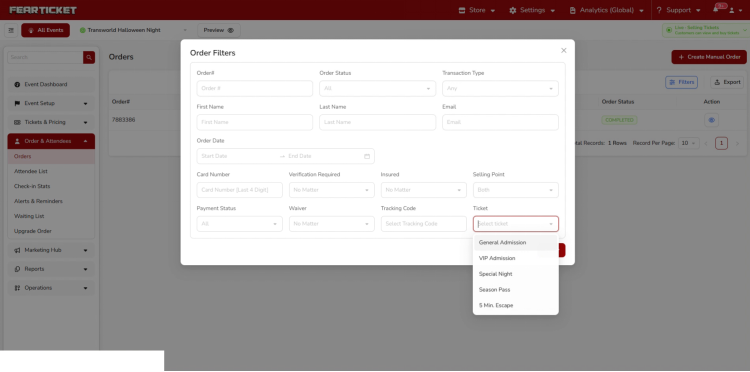
Click the filter icon above the orders table to open the Order Filters panel.
What can I filter by?
Filter | Options |
Order Status | Completed, Cancelled, In Review |
Transaction Type | Cash, Card, CC Offline, Check, Gift Voucher, Google Pay |
Order Date | Today, Yesterday, Last 7 Days, Last 30 Days, Last Month, or a Custom Range |
Verification Required | Yes, No |
Insured | Yes, No |
Payment Status | Hold, Not Paid, Paid, Partially Paid, Refunded |
Waiver | Signed, Partially Signed, Unsigned, Not Required |
Ticket | Your event's ticket types, for example General Admission, VIP Admission, Special Night, Season Pass, 5 Min. Escape |
You can also filter by Order#, First Name, Last Name, Email, Card Number, Selling Point, and Tracking Code.
Creating a Manual Order
How do I create a manual order?
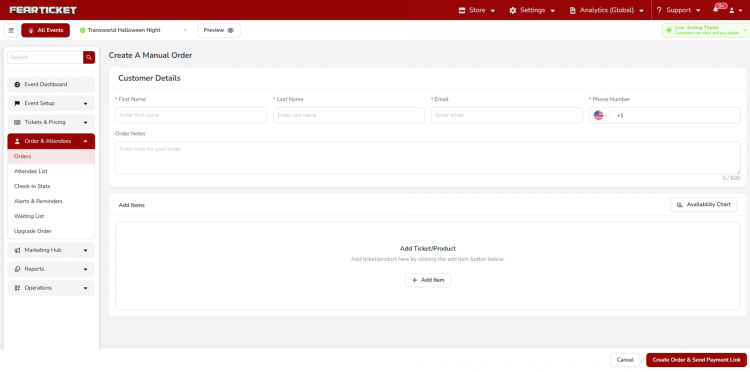
From the Orders list, click + Create Manual Order. Fill in the buyer's Customer Details (First Name, Last Name, Email, Phone Number) and optional Order Notes, then click + Add Item to add tickets or products to the order.
What do I fill in when adding an item?
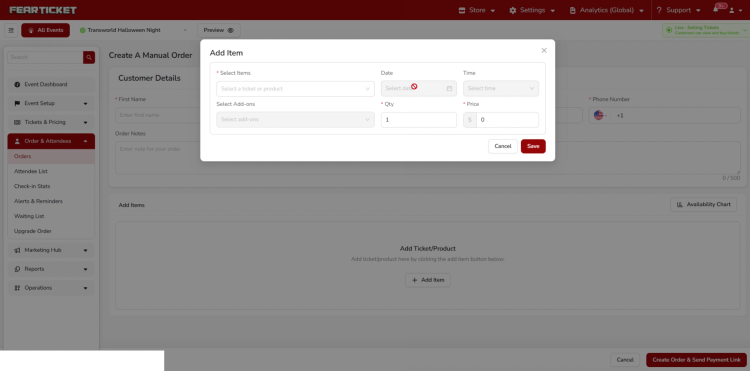
The Add Item window lets you select the ticket type from Select Items, along with the Date and Time, plus any Select Add-ons, Quantity, and Price.
Troubleshooting
I don't see an Edit Order option on an order. Why not?
Editing may not be available depending on the order's current status, for example if it has already been cancelled or refunded. Check the order's Order Status and Payment Status at the top of the order detail page.
I saved changes on an order but the buyer says they didn't get an update.
Make sure you clicked Save Order & Notify rather than Save Order. Save Order saves your changes without emailing the buyer.
My filters aren't returning the orders I expect.
Filters are combined together, so setting several filters at once narrows the results to orders matching all of them. Clear filters you don't need and try narrowing one at a time to see which one is excluding the orders you're looking for.
Was this article helpful?
That’s Great!
Thank you for your feedback
Sorry! We couldn't be helpful
Thank you for your feedback
Feedback sent
We appreciate your effort and will try to fix the article