The Hytix Payment page is your main dashboard for payouts and earnings. Here you can see how much you have earned, how much has been paid out to your bank, what is pending, and if there are any disputes or holds on your funds.
This guide explains every section so you can understand your payouts without needing to contact support.
How to Access Hytix Payment
- Log in to your FEARTICKET account.
- Click Account & Billing in the top navigation.
- Click the Hytix Payment tab.
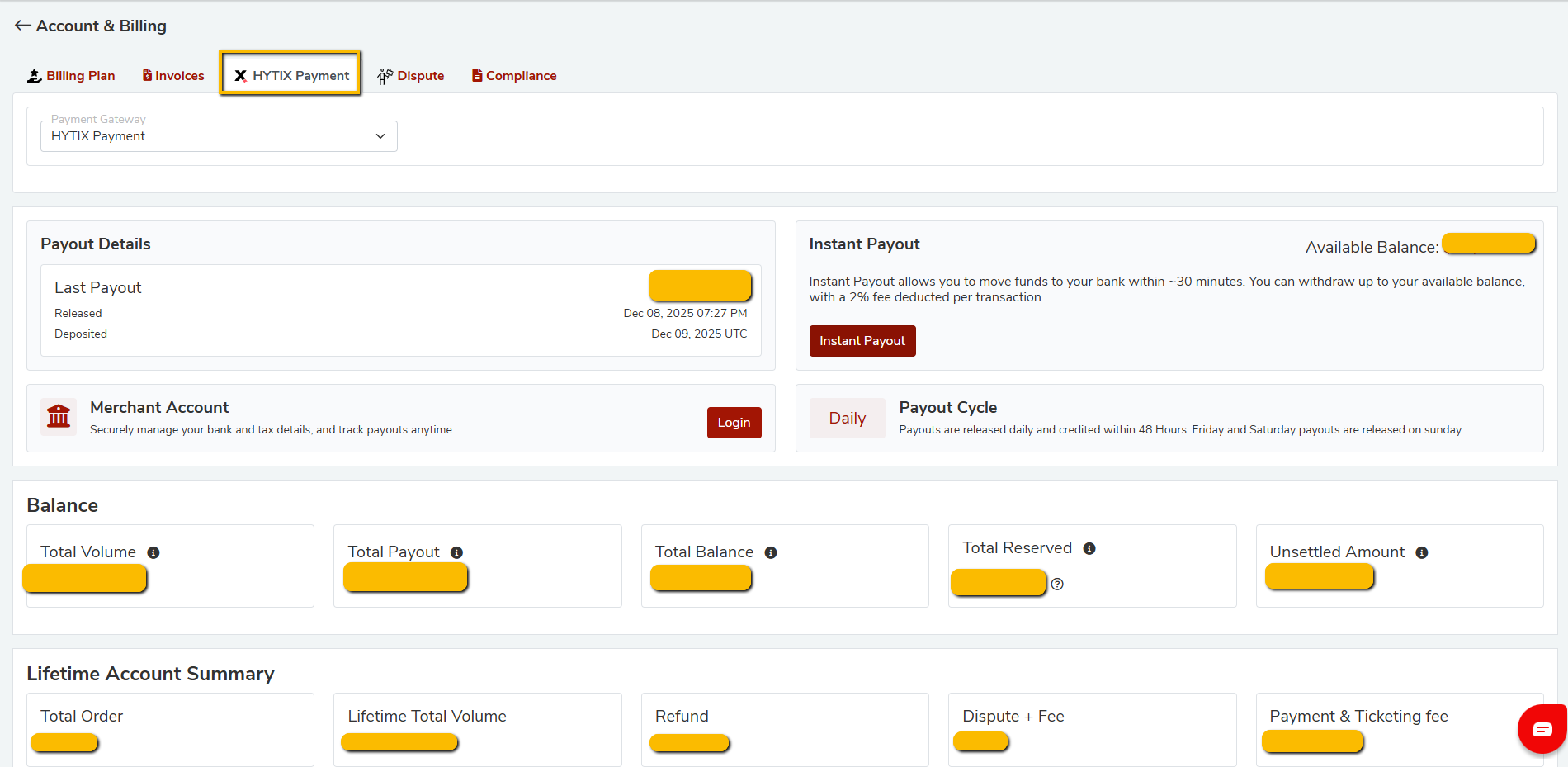
Account Selector
Location: Top of the Hytix Payment page.
You will see something like:
Hytix Payment | XYZ▼]
What it does:
- Shows which organizer or business account data you are viewing.
- If you manage multiple accounts, use the dropdown to switch between them.
How to use:
- Click the dropdown arrow.
- Select the organizer or event account you want to view.
- All numbers on the page will update to match the selected account.
Always check the selected account before reviewing payouts or answering finance questions.

Payout Details – Your Latest Payout
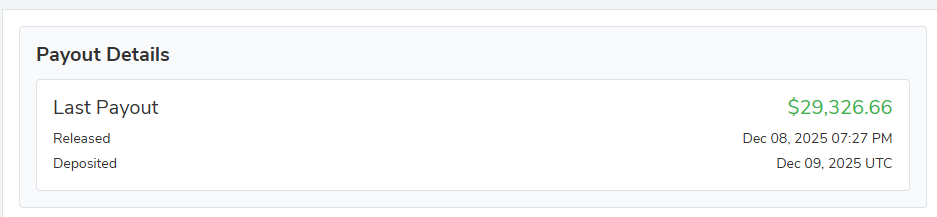
This box shows the details of your most recent payout.
You will usually see:
- Amount: For example $29,326.66 (in green).
- Released date and time: For example Dec 08, 2025 07:27 PM.
- Deposited date: For example Dec 09, 2025 UTC.
What each value means:
- Amount
- The money that was actually sent to your bank.
- This is the net value after fees, refunds, and disputes.
- Released
- The date and time when FEARTICKET sent the payout to the banking system.
- Deposited
- The date when your bank finished processing the payout and the funds arrived.
- There is usually a 1 to 2 business day gap between Released and Deposited.
If the organizer asks "Did my payout go through", this is the first place to look.
Merchant Account – Managing Bank Details
This area is usually labeled Merchant Account and has a Login button with a small lock icon.
What you can do here:
- Update your bank account number.
- Change routing number or IBAN depending on region.
- Update account holder name and business details.
- Adjust payout frequency if your account supports this.
Why it matters:
- If bank details are wrong or out of date, payouts can fail or be delayed.
- You should always update this section if you change banks or business details.
How to access safely:
- Click the Login button in the Merchant Account section.
- A secure window or link will open where you enter your updated details.
- Save your changes.
All information is encrypted and stored securely.

Instant Payout – Get Money Within About 30 Minutes
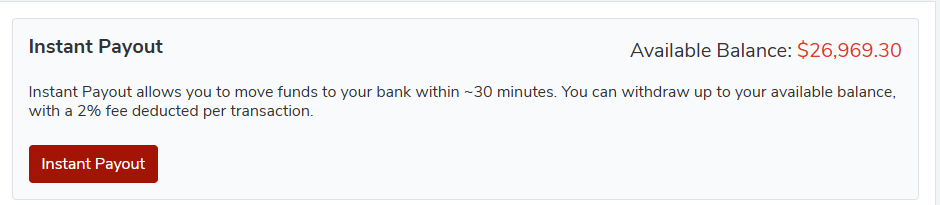
On the right side of the page, you will see Available Balance and an Instant Payout button.
- Available Balance: For example $26,969.30
- This is the amount you can transfer instantly to your bank account at that moment.
How Instant Payout works:
- Funds arrive in your bank in about 30 minutes.
- A 2 percent fee is applied to the amount you withdraw.
Example:
- If you withdraw $1,000, fee = $20, so you receive $980.
How to request Instant Payout:
- Click Instant Payout.
- Enter the amount you want to withdraw (up to your Available Balance).
- Review the fee shown on screen.
- Confirm the withdrawal.
- You will receive a confirmation and the money should show in your bank soon after.
When to use Instant Payout:
- When you need funds quickly for payroll, event expenses, or emergencies.
When not to use:
- For regular payouts, it is better to wait for your automatic payout cycle, since those do not have the 2 percent instant payout fee.
Payout Cycle – Your Automatic Payout Schedule
Near the Instant Payout box, you will see info about your Payout Cycle, for example:
- "Payouts are released daily and credited within 8 hours. Friday and Saturday payouts are released on Sunday."
What this means:
- Payouts are processed every day.
- Once processed, they are usually credited to your bank within 8 hours, depending on your bank.
- Payouts for Friday and Saturday are grouped and released on Sunday.
This section explains your standard payout timing so you know when to expect funds without using Instant Payout.

Balance Metrics – Key Account Figures
Below Payout Details, you will see important financial metrics such as:
- Total Volume
- Total Payout
- Total Balance
- Total Reserved
- Unsettled Amount
Definitions:
- Total Volume
- Total value of all tickets sold through your account over time.
- This is the gross amount before any fees or refunds.
- Total Payout
- Total amount of money that has been paid out to your bank.
- This is your cumulative earnings already received.
- Total Balance
- Money currently in your Hytix account that is not yet paid out.
- This may include amounts that are in the process of being settled.
- Total Reserved
- Money that is temporarily on hold.
- Common reasons: disputes, chargebacks, or refunds that are still pending.
- Unsettled Amount
- Money that is still being processed by the system and is not yet ready to be included in a payout.
- Once it settles, it moves into your Total Balance and then into a payout.
If your balance looks different from what you expect, check Reserved and Unsettled to understand why.

Lifetime Account Summary – All Time Activity
In the Lifetime Account Summary area, you will see numbers that cover the entire history of your account, such as:
- Total Orders
- Lifetime Total Volume
- Refund
- Dispute + Fee
- Payment & Ticketing Fee
What these tell you:
- Total Orders
- How many ticket orders have ever been processed.
- Lifetime Total Volume
- Total revenue from all ticket sales before deductions.
- Refund
- Total amount refunded to customers.
- Dispute + Fee
- Total cost of all chargebacks and dispute fees.
- Payment & Ticketing Fee
- Total amount you have paid in platform and processing fees over time.
These numbers help you understand your long term performance and costs.

Payouts Table – Full Payout History
Further down, you will see a Payouts table listing each payout sent to your bank.
Columns usually include:
- Released Date
- Arrival Date
- Amount
- Payout ID
- Status (Paid or Pending)
Uses:
- Verify a payout date if your bank questions it.
- Match payout amounts with your bank deposits.
- Export payouts for accounting.
You can click Export to download this data as a file.

Disputes Tab – Chargebacks and Claim Management
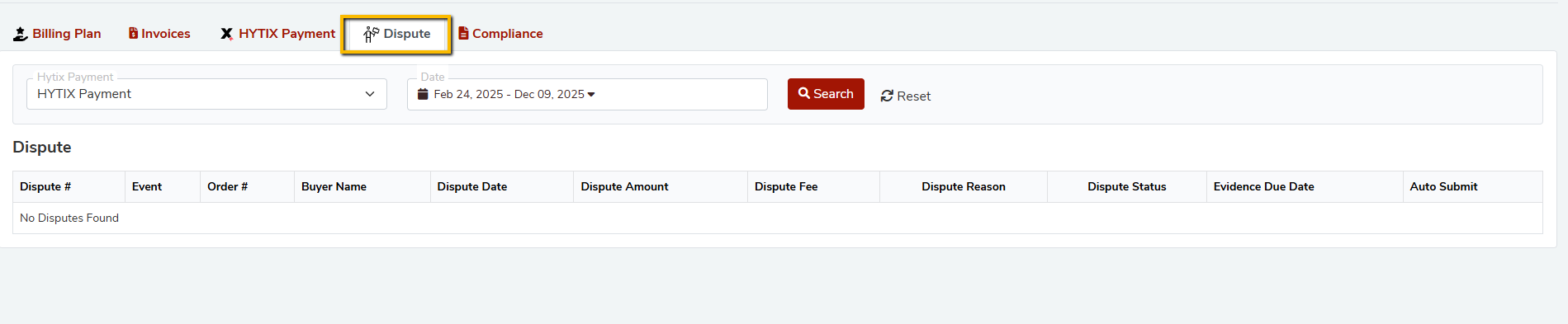
At the top of Hytix Payment, you may also see a Dispute tab. Click it to view payment disputes.
The table normally shows:
- Dispute ID
- Order Number
- Buyer Name
- Dispute Date
- Dispute Amount
- Dispute Fee
- Dispute Reason
- Dispute Status (Won, Lost, Under Review)
- Evidence Due Date
- Auto Submit Status
You can usually click View Order or View Ticket for more details.
How to use this section:
- Check why money was taken out of your account due to a dispute.
- See when evidence needs to be submitted.
- Track whether disputes were won or lost.
Always submit any requested evidence before the Evidence Due Date shown.
Tips For Using Hytix Payment Smoothly
- If you think a payout is missing, first check Payout Details and the Payouts Table.
- If your Available Balance is lower than expected, look at Reserved and Unsettled amounts.
- Use Export buttons regularly to save payout and dispute data for your own records.
- Always keep your Merchant Account bank information up to date.
Was this article helpful?
That’s Great!
Thank you for your feedback
Sorry! We couldn't be helpful
Thank you for your feedback
Feedback sent
We appreciate your effort and will try to fix the article