How to Create an Event on FEARTICKET.
Follow the 3-step setup wizard to get your event live. Each step can be edited later just focus on getting the basics in first.
Event Details
Enter the basic information about your event name, date, time, location, and organizer.
Overview
When you start creating a new event, you'll land on the Event Details page. The left side of the screen shows a live preview card of how your event will appear to buyers. Fill in the fields on the right and your preview updates in real time.
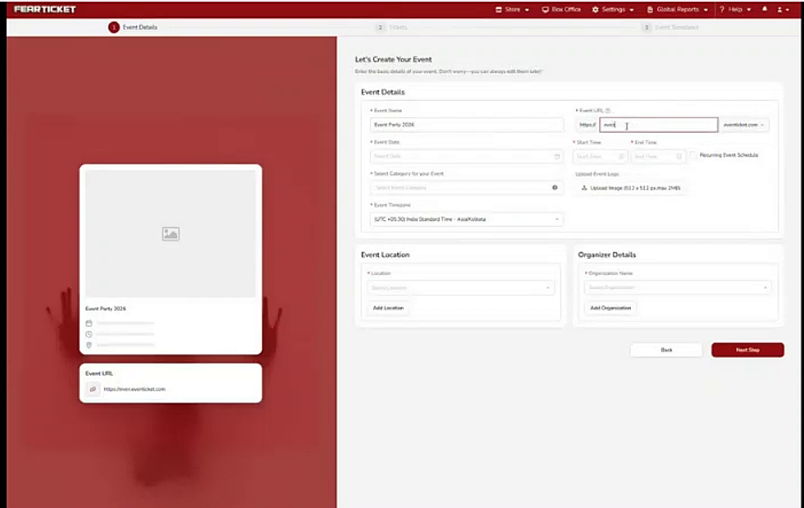
Event Name & URL
https://[slug].eventticket.com. You can customize the slug if needed.Event Date & Time
Set when your event starts and ends. A time picker will appear when you click the Start Time or End Time fields.
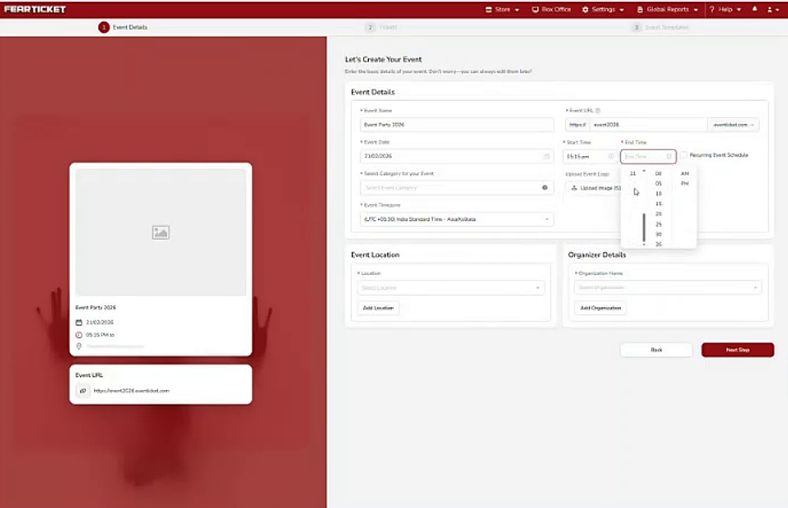
Event Category
Click the Select Category for your Event field to open a category picker. Choose the category that best describes your event. Available top-level categories include:
- Adventure & Amusement Parks
- Attractions
- Concerts / Shows (Music, Comedy, Cinema Club, Other)
- Conferences & Tradeshows
- Escape Games
- Festivals
- Holiday Events
- Parties
- Sports
- Other
- Workshop
Each category may have sub-options. Click a parent category to expand it and choose the most specific match.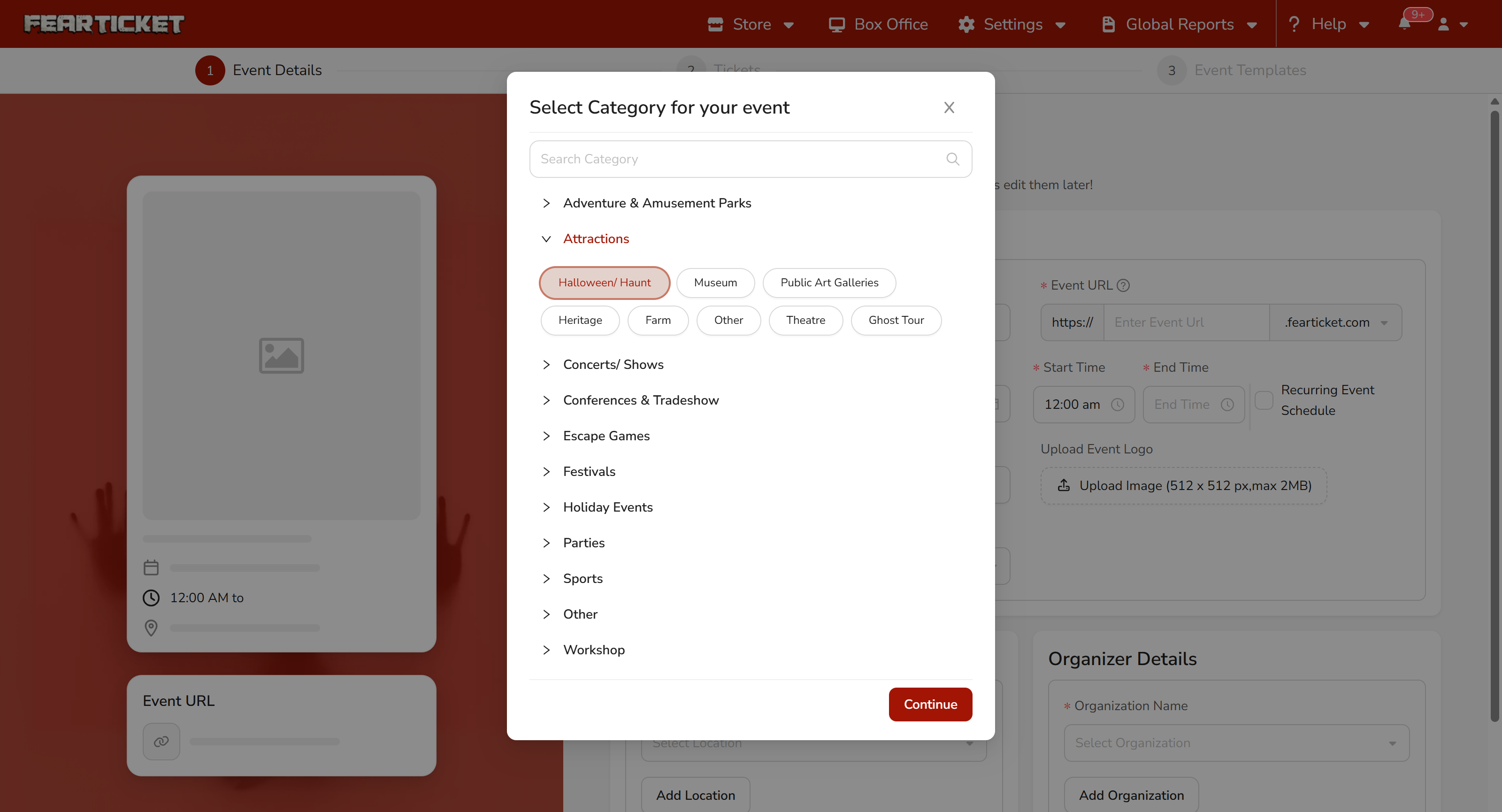
Tip: Selecting the right category improves how your event is discovered on the platform. For haunted attractions, select Holiday Events or Attractions.
Event Logo
Event Location
Organizer Details
This section links the event to an organizer profile. The organizer name and contact appear on the event page and buyer confirmation emails.
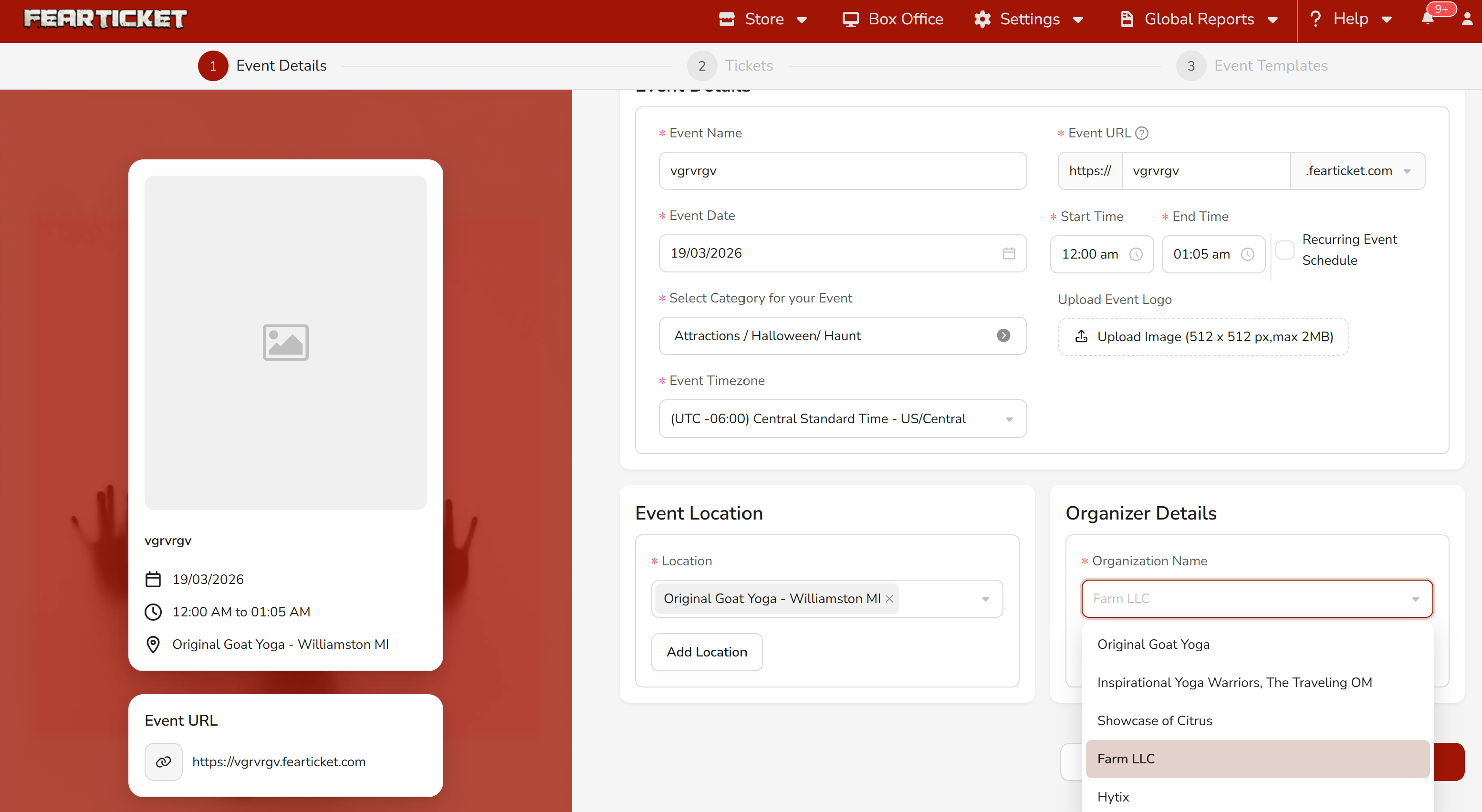
Don't worry all fields can be edited later.
Tickets
Create the ticket types buyers will see and purchase. You can add multiple ticket types with different prices, quantities, and settings.
Overview
On the Create Tickets page, you'll see a "New Ticket" form on the right and a buyer-facing preview on the left. As you save each ticket, it appears on the page. You can add as many ticket types as needed using the Add New Ticket button.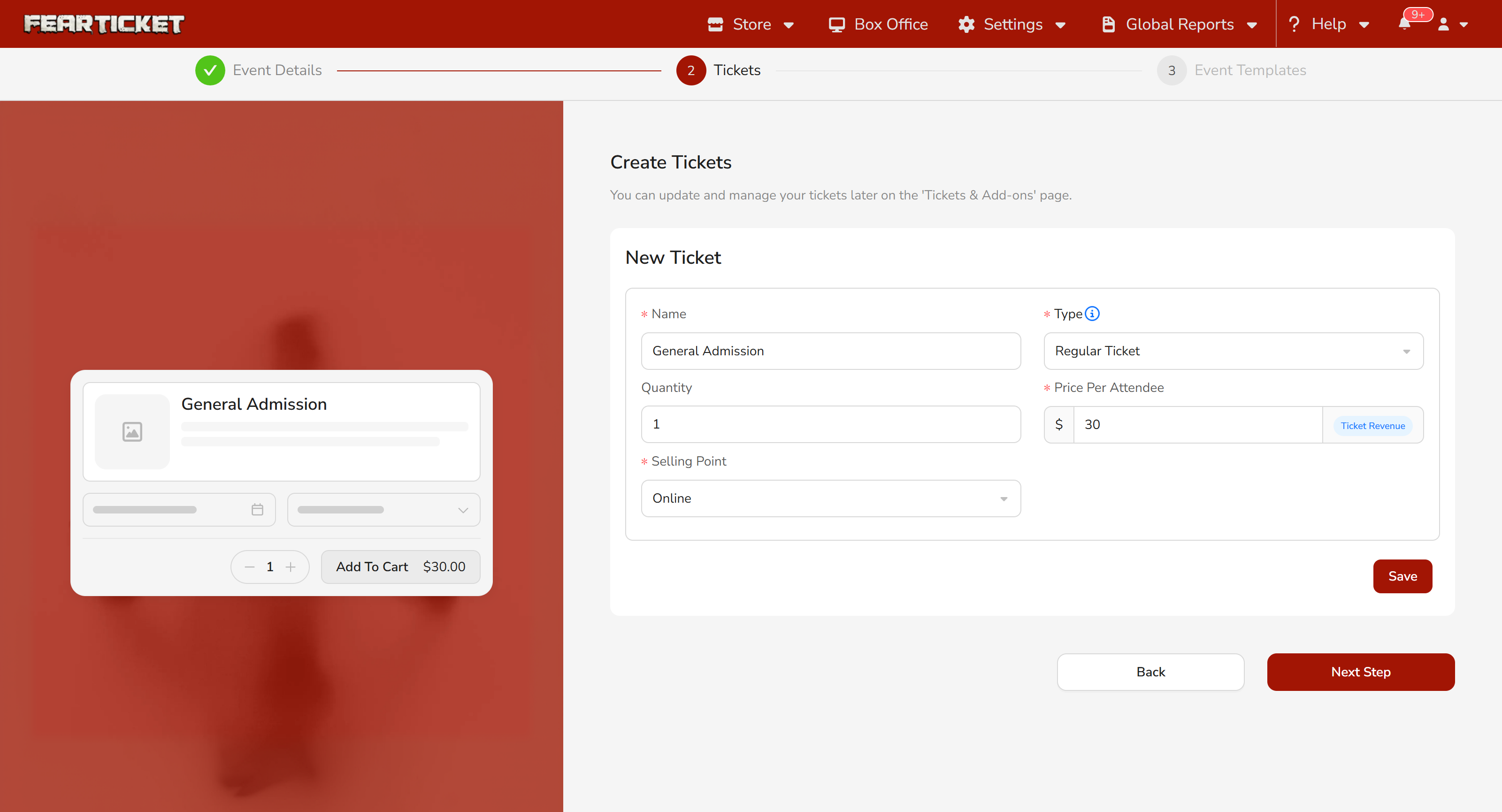
Ticket Fields
Each ticket you create has the following fields:
Here's an example of adding a VIP ticket:
- Name: VIP
- Type: Regular Ticket
- Quantity: 20
- Price Per Attendee: $250.00
- Selling Point: Online
Click Save and the ticket is added to your list. Repeat for each ticket tier.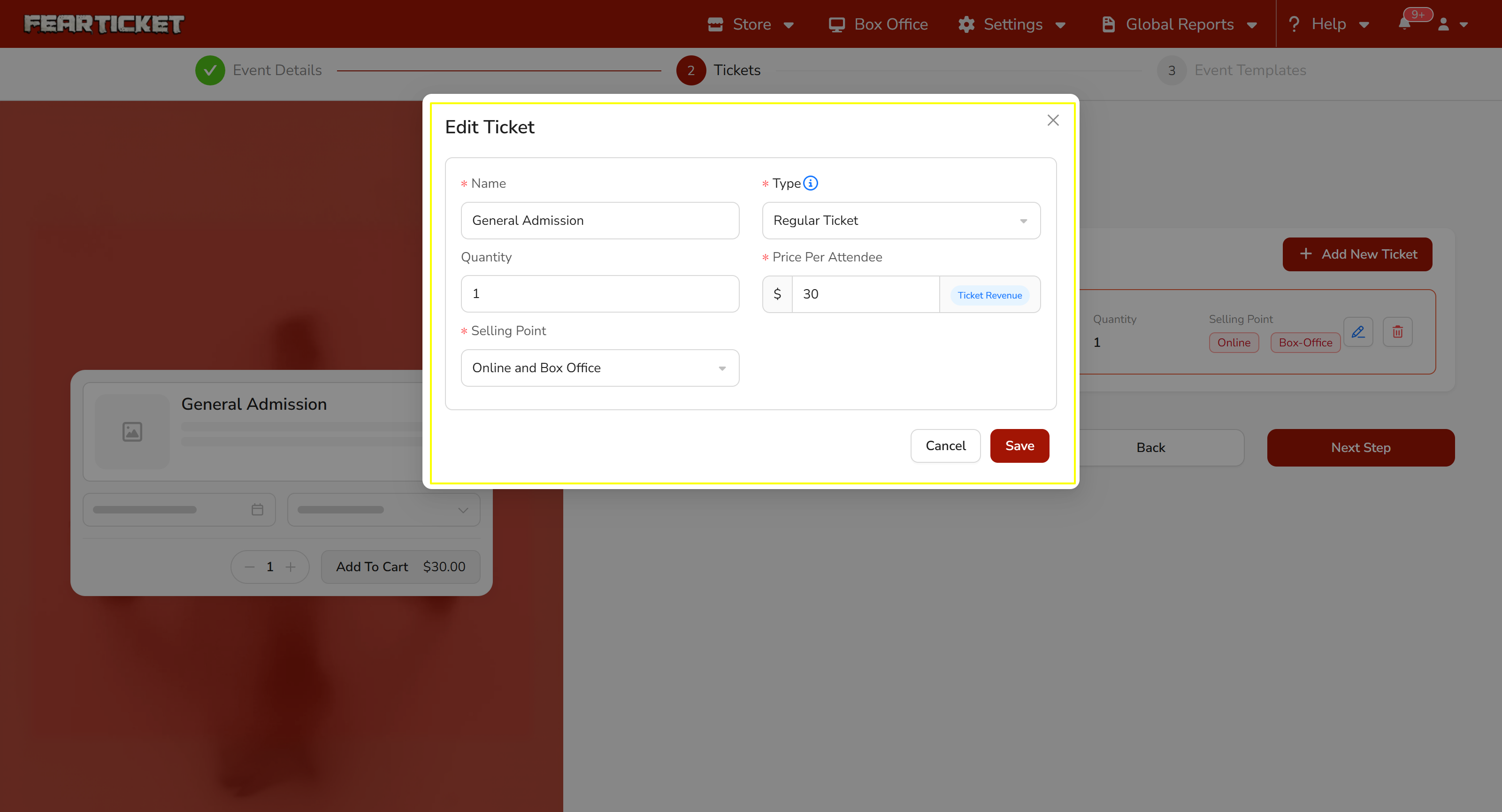
Adding a Free Ticket
Select Free Ticket from the Type dropdown. The price field will disappear automatically since free tickets have no cost. Enter a name (e.g., "Free") and quantity, then click Save.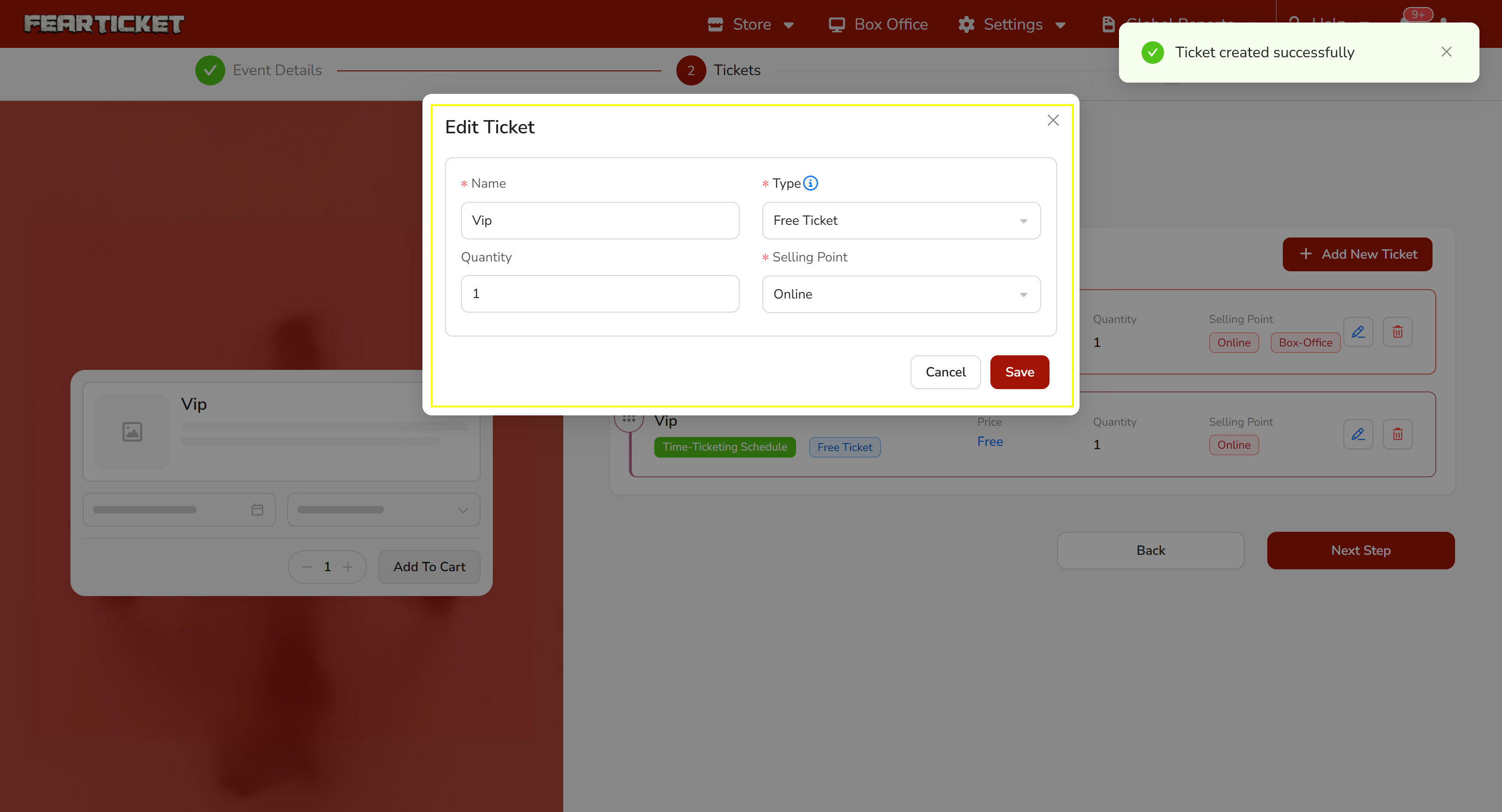
Adding a Donation Ticket
Select Donation Ticket from the Type dropdown. You'll see a Predefined Amounts section appear where you can enter suggested donation values (e.g., $5, $10). Buyers can choose from these amounts or enter their own custom amount. Click Save when done.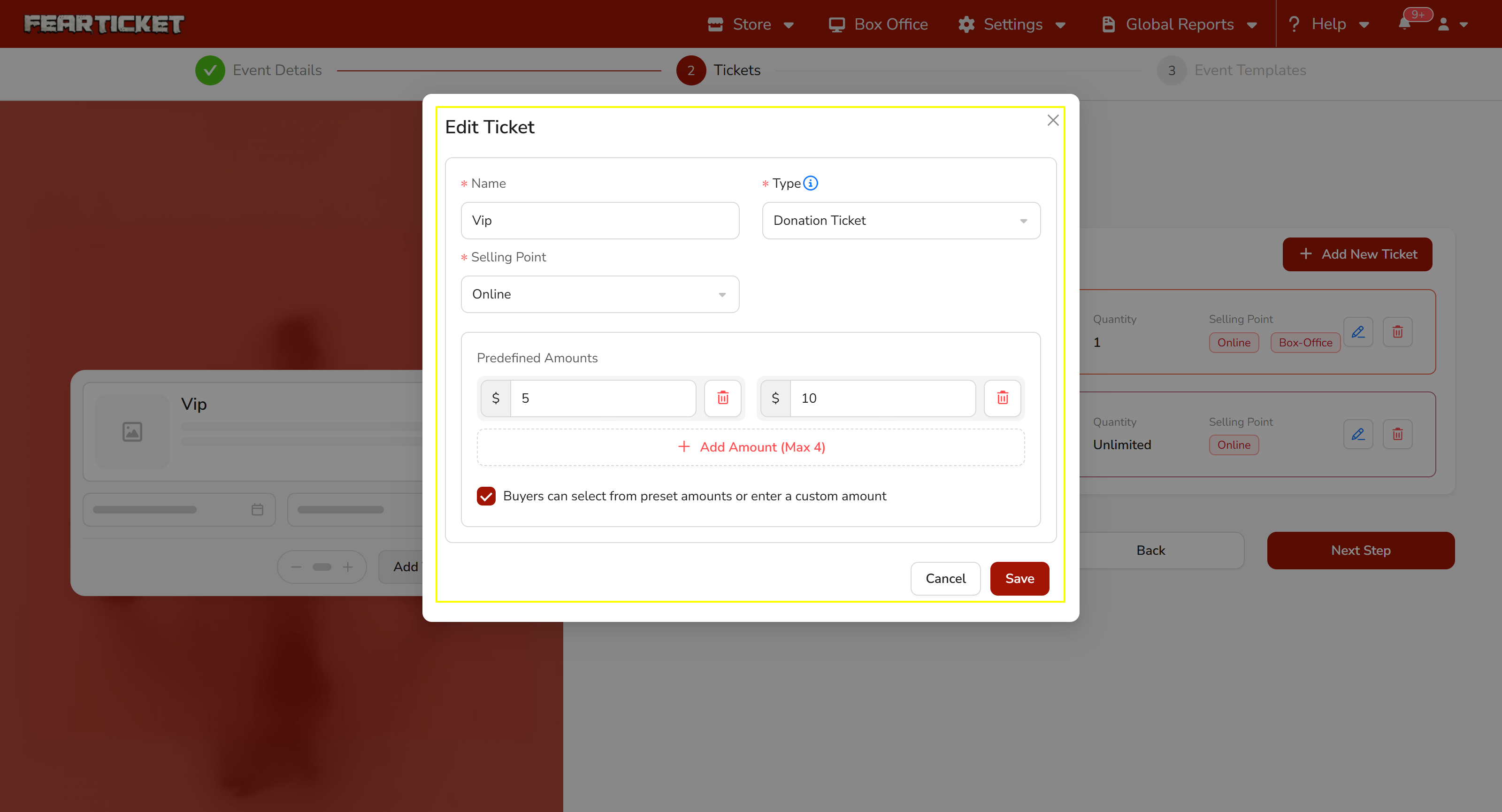
Event Template
Customize how your event page looks. Add a banner image, event gallery photos, and finalize your event's public-facing page design.
Overview
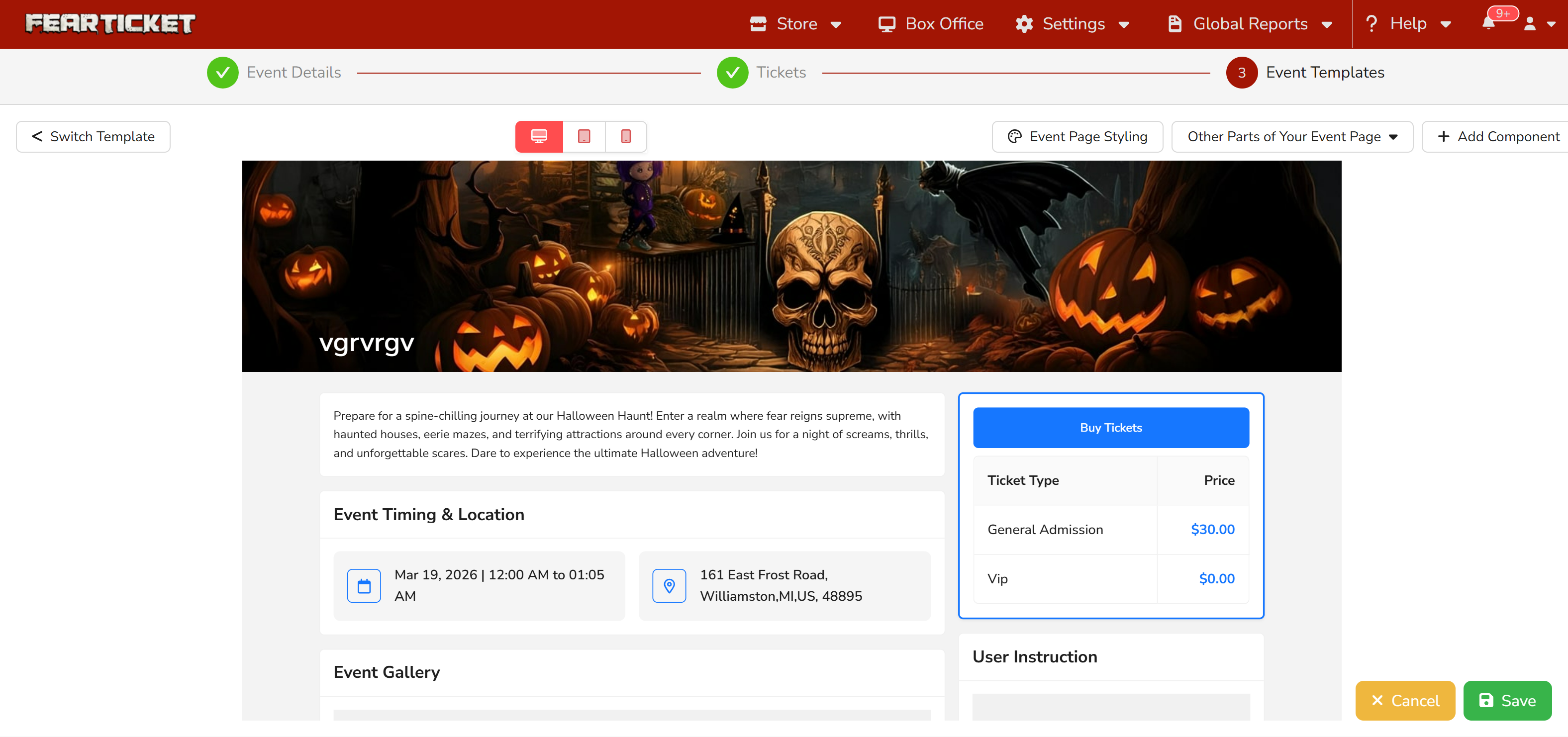
The Event Templates step is where you customize your event's public page. The system will load a default template that automatically pulls in all the information you entered in Steps 1 and 2 event name, dates, location, ticket types, and organizer details.
What the Default Template Includes
Once loaded, the template preview shows your complete event page including:
- Header banner: with event name and a placeholder or uploaded background image
- Event Organizer section: pulled from the organizer profile you selected
- Event Duration & Location: date, time, and venue address
- Ticket Types & Prices: a Buy Tickets button and price list for all tickets you created
- Event Gallery: image upload area for promotional photos
- User Instructions: an image/info section for buyer instructions
- Other Events from the Organizer: auto-populated if your organizer has other events
Adding Gallery Images.
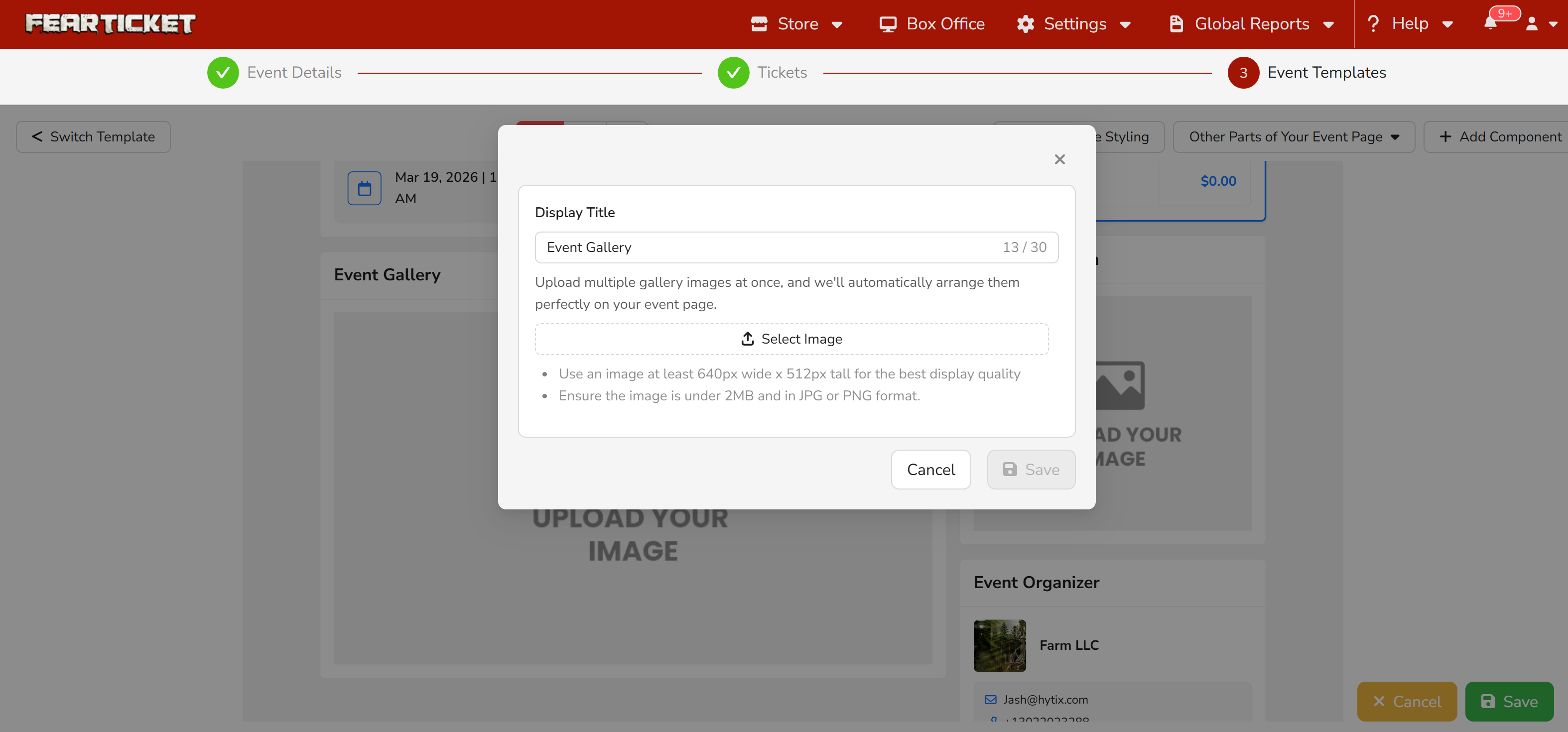
The Event Gallery section in the template lets you upload promotional images for your event. To add photos:
- Click on the Event Gallery placeholder area in the template
- A Gallery popup will appear with an Upload button
- Click Upload and select your image file (supported formats: PNG, JPG, max 5MB)
- Once uploaded, click Save in the popup
- The image will appear in the Event Gallery section of your event page
Tip: Use high-quality landscape images for the gallery (1200px wide or larger works best). For haunted attractions and seasonal events, event atmosphere photos dramatically increase buyer confidence.
Final Preview Before Publishing
Before you finish, review the full event page preview. Confirm that the following all look correct:
- Event name and banner are displaying correctly
- Date, time, and location show the right information
- All ticket types and prices are listed accurately
- Organizer name and contact info are correct
- Gallery images are showing if uploaded
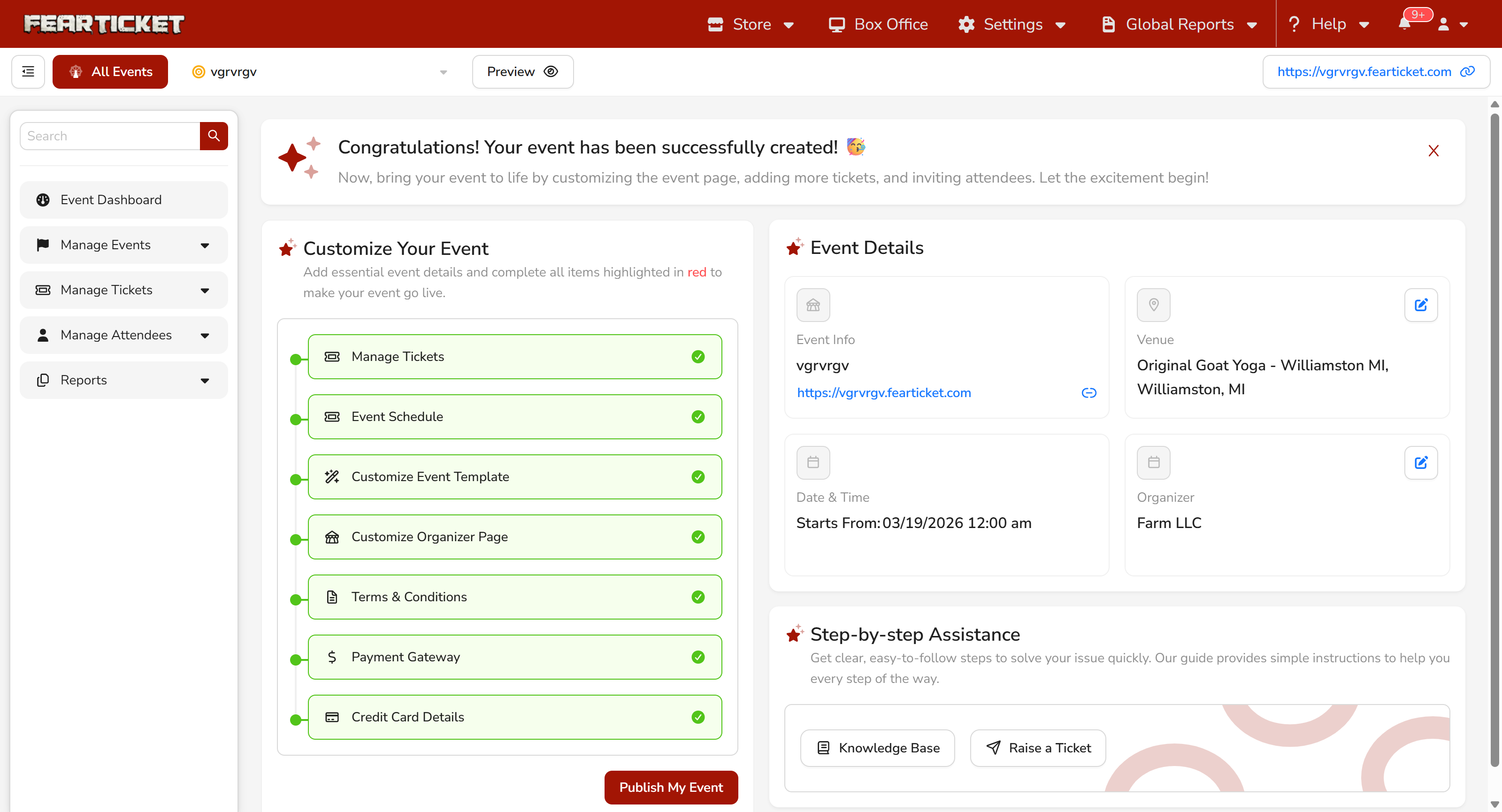
Your Event is Ready!
Was this article helpful?
That’s Great!
Thank you for your feedback
Sorry! We couldn't be helpful
Thank you for your feedback
Feedback sent
We appreciate your effort and will try to fix the article