The Waiting List feature in FEARTICKET allows potential attendees to register their interest in a ticket even when no seats are currently available. When a spot opens up, FEARTICKET automatically sends a notification email to registered customers, giving them the opportunity to complete their booking.
This ensures you never lose a potential sale due to a sold-out event.
Frequently Asked Questions
1. Where can I find the Waiting List feature?
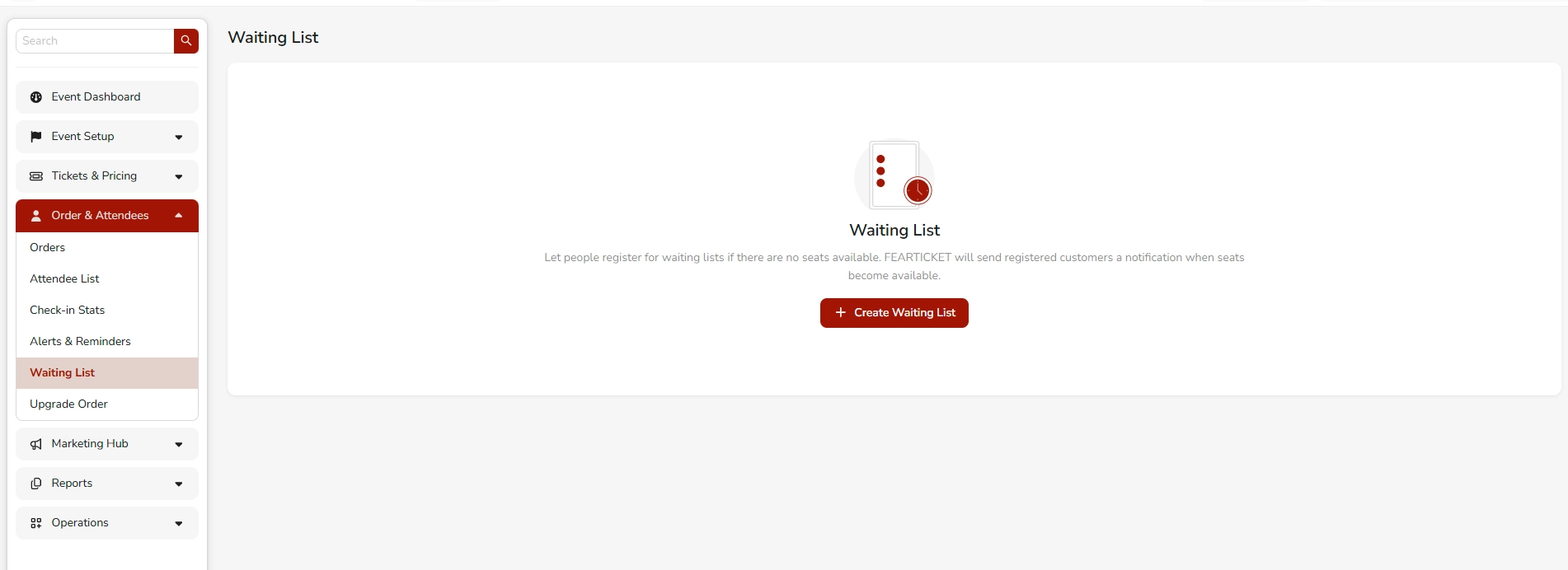
You can access the Waiting List from your event's management console:
- Open your event from the Event Dashboard
- Navigate to Order & Attendees in the left sidebar
- Click on Waiting List
2. How do I create a Waiting List?
If no waiting list exists yet, you will see an empty state screen with a "+ Create Waiting List" button.
Steps to create:
- Go to Order & Attendees > Waiting List
- Click + Create Waiting List
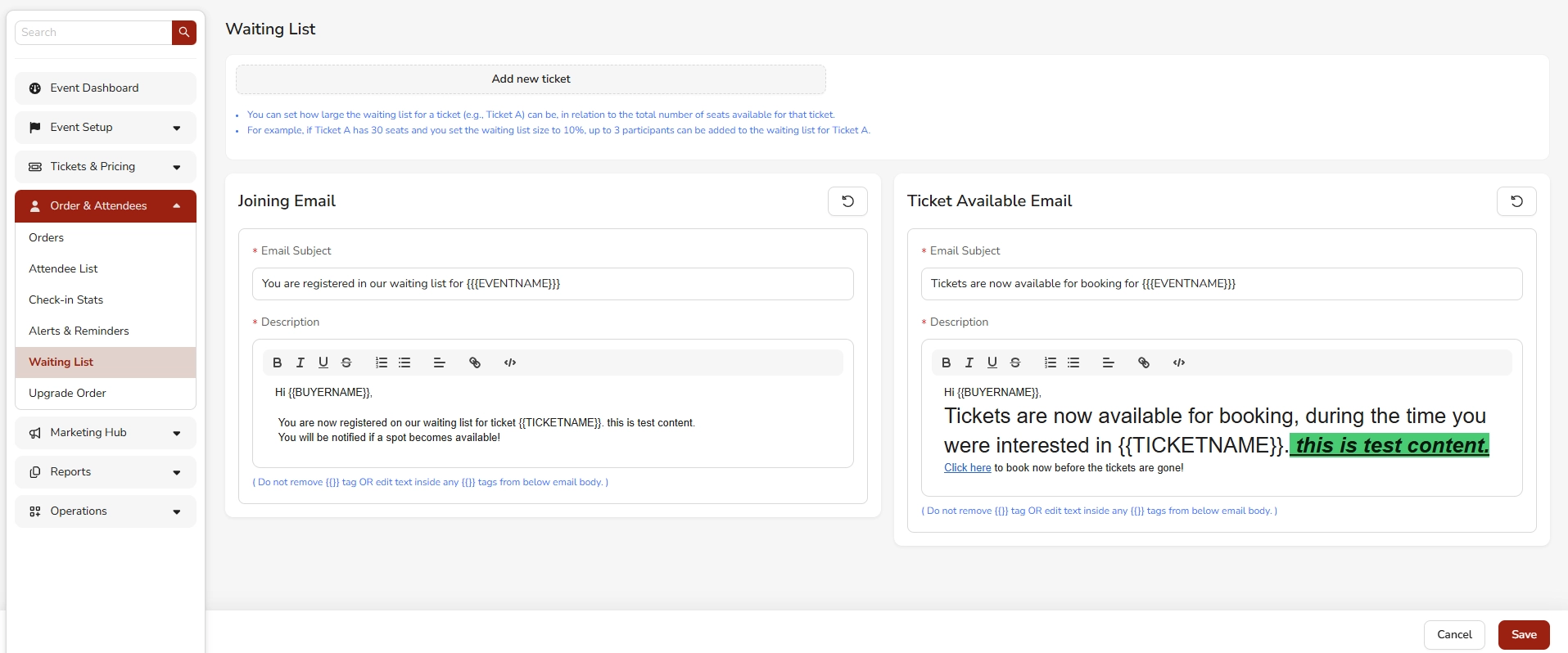
- Select the ticket(s) you want to add to the waiting list using "Add new ticket"
- Configure the waiting list size (as a percentage of total ticket capacity)
- Customize the Joining Email and Ticket Available Email
- Click Save
3. Can I set a limit on how many people can join the Waiting List?
Yes. You can control the size of the waiting list per ticket type using a percentage-based setting.
Example: If Ticket A has 30 seats and you set the waiting list size to 10%, then up to 3 participants can be added to the waiting list for Ticket A.
This prevents an unmanageable overflow of waiting list registrants.
4. What emails are sent to Waiting List registrants?
FEARTICKET sends two automated emails as part of the Waiting List workflow:
| Email Type | When It's Sent | Default Subject Line |
|---|---|---|
| Joining Email | When a customer successfully joins the waiting list | You are registered in our waiting list for {EVENTNAME} |
| Ticket Available Email | When a seat becomes available for a ticket they registered for | Tickets are now available for booking for {EVENTNAME} |
5. Can I customize the Waiting List emails?
Yes. Both the Joining Email and the Ticket Available Email are fully customizable from the Waiting List settings page.
You can edit:
- Email Subject - The subject line displayed in the recipient's inbox
- Email Description - The body of the email, with rich text formatting (bold, italic, underline, lists, links, and inline code)
<aside>
Important: Do not remove or edit the dynamic tags (e.g., BUYERNAME, TICKETNAME, EVENTNAME). These tags are automatically replaced with real data when the email is sent. Only edit the surrounding text.
</aside>
6. What dynamic tags are available in Waiting List emails?
The following dynamic tags can be used in both the Joining Email and Ticket Available Email:
BUYERNAME- The name of the person who joined the waiting listTICKETNAME- The name of the specific ticket type they registered forEVENTNAME- The name of your event
These tags are populated automatically by FEARTICKET when the email is delivered.
7. What does the default Joining Email say?
The default Joining Email body reads:
Hi {{BUYERNAME}],
You are now registered on our waiting list for ticket TICKETNAME.
You will be notified if a spot becomes available!
You may customize this message to match your event's brand tone.
8. What does the default Ticket Available Email say?
The default Ticket Available Email body reads:
Hi {{BUYERNAME}],
Tickets are now available for booking, during the time you were interested in TICKETNAME.
[Click here] to book now before the tickets are gone!
The Click here link directs the customer to your event's booking page.
9. Is the Waiting List available for all ticket types?
Yes. You can set up a separate waiting list for each ticket type within your event. Simply use the "Add new ticket" option in the Waiting List settings to include additional ticket types.
10. What happens if I don't want a Waiting List?
The Waiting List is entirely optional. If you choose not to create one, sold-out tickets will simply show as unavailable to buyers, with no waiting list registration option presented.
Best Practices
- Set a reasonable waiting list size - A 10-20% cap is typically enough to gauge real demand without overwhelming your team.
- Personalize your emails - Use the buyer's name and ticket type in your messaging for a more engaging experience.
- Create urgency in the Ticket Available Email - Remind buyers that availability is limited and they should act fast.
- Test your emails before going live - Review both email templates before activating the waiting list to ensure the messaging is accurate and on-brand.
- Monitor your waiting list - Regularly check the Waiting List section under Order & Attendees to see how many people are registered.
Was this article helpful?
That’s Great!
Thank you for your feedback
Sorry! We couldn't be helpful
Thank you for your feedback
Feedback sent
We appreciate your effort and will try to fix the article