FEARTICKET lets you require that buyers pick from a set of related tickets once they've purchased a specific one. With a Conditional Buy Tickets rule, buying one ticket unlocks the option to add one of several others, without forcing a single specific add on the way Must Buy does. This is useful for attractions with add-on experiences, for example anyone who buys an Easy Escape ticket can then choose either an Axe Throwing or a Paint Ball ticket.
If this is your first rule for the event, Rule Builder opens on an empty state first.
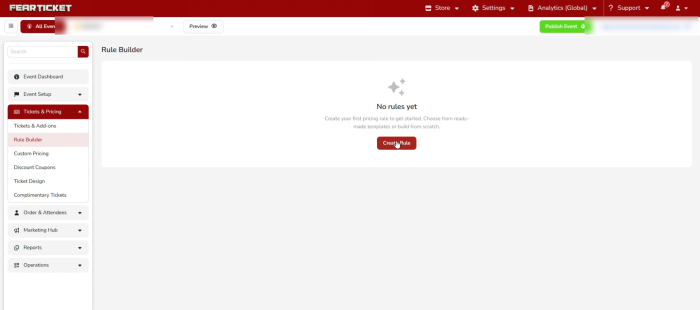
The Rule Builder empty state, shown before any rules have been created. Click Create Rule to see the template list.
In Tickets & Pricing, click on Rule Builder. Under the template list, find Conditional Buy Tickets and click Use this rule, as shown in the image below.

The Conditional Buy Tickets template, found in the Rule Builder template list.
Setting the Condition
At the top you can still name the rule, and there's a checkbox for Stop processing further rules if this matches if you don't want other rules to run once this one applies.
This template starts with a single condition row. It lets you pick which ticket triggers the rule, using an Is or Any of operator and a Select a ticket dropdown of your event's ticket types.
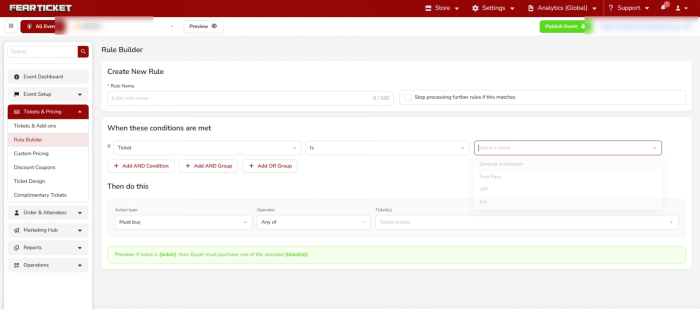
Choosing the operator and which ticket triggers the rule.
If you need to check something else alongside the ticket, use Add AND Condition to add another row, and the same field dropdown you'll see throughout Rule Builder opens up, with options like Day of week, Days Before Event, Ticket Quantity, Cart Quantity, Ticket Sold, and Ticket Sold (%).
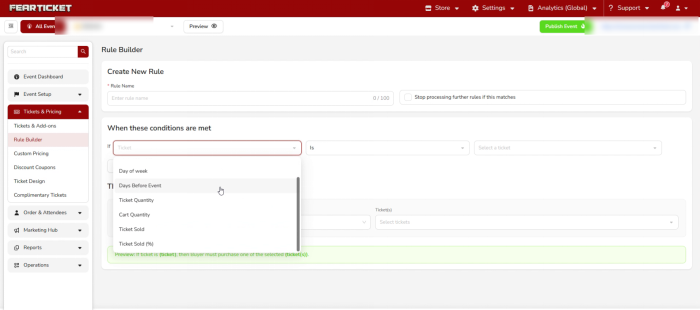
The field dropdown shown after adding another condition row.
Use Add AND Group or Add OR Group below the condition rows if you need to branch the logic further.
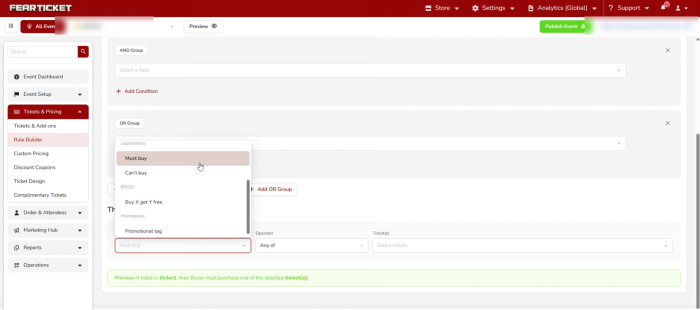 AND Group and OR Group blocks, used to combine or branch conditions further.
Setting the Action
Everything for what happens next lives in the Then do this section. The Action type is already set to Must buy for you, the same dependency action used by the Must Buy Ticket template, but this rule pairs it with an extra Operator field.
The Operator gives you Is or Any of. Is requires a single specific ticket, while Any of lets the buyer choose from several, which is what makes this rule conditional rather than fixed.
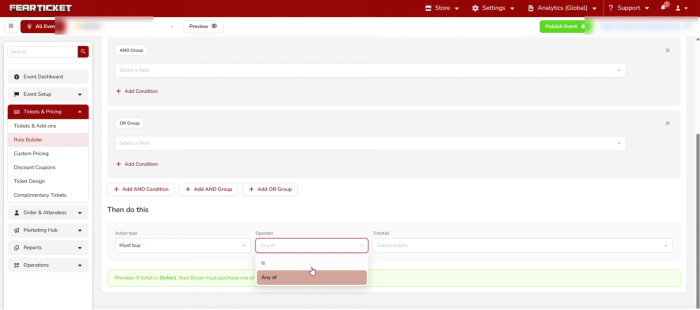
The Operator dropdown for the action, with Any of selected to let the buyer choose.
Next to it, the Ticket(s) field lets you select every ticket you want to offer as a valid option.
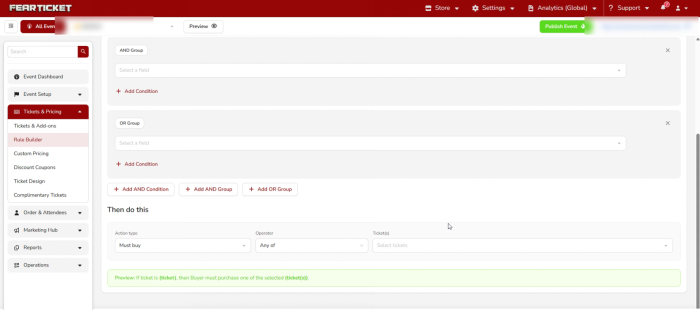
The Ticket(s) field, where you select the tickets the buyer can choose from.
Reading the Preview Before You Save
FEARTICKET writes a plain English summary of the rule right above the Save button, and it updates automatically as you make your selections. For a basic Conditional Buy Tickets rule it would read:
If ticket is (ticket), then Buyer must purchase one of the selected (ticket(s)).
Once the preview matches what you intended, click Save.
Example
If someone buys an Easy Escape ticket, they must also purchase either an Axe Throwing ticket or a Paint Ball ticket. Either one satisfies the rule, the buyer isn't locked into a single required add on.
Note: Setting the action Operator to Is instead of Any of turns this into a single required ticket, functionally the same as a Must Buy rule, so Any of is what makes the "conditional choice" behavior work.
Was this article helpful?
That’s Great!
Thank you for your feedback
Sorry! We couldn't be helpful
Thank you for your feedback
Feedback sent
We appreciate your effort and will try to fix the article