FEARTICKET gives you a Can't Buy Tickets rule for the times when a ticket should be blocked from being purchased in an order. When a buyer reaches the ticket you choose, this rule stops it from being bought, so two tickets that should never go together cannot end up in the same checkout. It is useful when two experiences run at the same time, when one ticket already covers what another offers, or when a package and its individual parts should not be combined.
In Tickets & Pricing, click on Rule Builder. Under the template list, find Can't Buy Tickets and click Use this rule, as shown in the image below.
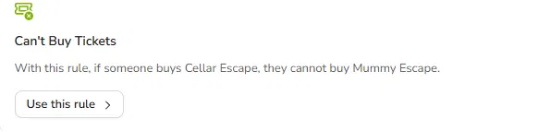 The Can't Buy Tickets template, found in the Rule Builder template list.
What Happens When You Open This Rule
Clicking Use this rule opens the rule builder on the Create New Rule screen. At the top you name the rule in the Rule Name field, which is required and holds up to one hundred characters, with a counter on the right showing how many you have used. Next to it is a checkbox for Stop processing further rules if this matches, which you can tick if you want this to be the last rule that runs on a matching order. Below the name is the conditions area, and beneath that is the Then do this area, where you set the action and pick the ticket to block. A live preview sits under everything and updates as you make your choices.
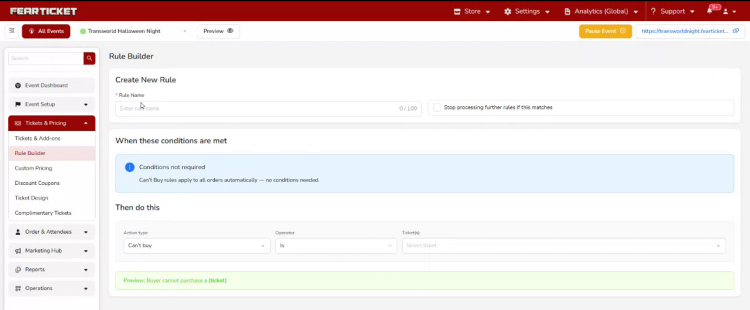 The rule builder screen that opens when you select Can't Buy Tickets, with no conditions to set and the action ready in the Then do this area.
Why There Are No Conditions to Set
The middle section is headed When these conditions are met, but for a Can't Buy rule you will see a blue notice telling you that conditions are not required. This is normal. A Can't Buy rule looks at every order on its own, so there is nothing for you to set here. You can read the notice and move straight down to the action.
Setting the Action
The action lives under the Then do this heading and reads like a short sentence built from three fields. The first field is Action type. Opening it shows the pricing actions at the top, then a Dependency group holding Must buy and Can't buy, followed by the BOGO and Promotional options further down. Choose Can't buy. The second field is Operator, and it stays on Is, which simply means the rule applies to the ticket you are about to pick, so there is nothing to change here.
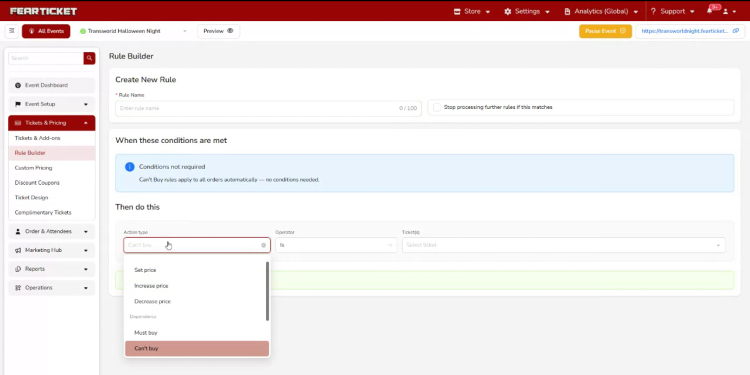 Choosing Can't buy from the Action type list.
Choosing the Ticket
The third field is Ticket(s). Opening it shows every ticket that exists for this event, such as General Admission, VIP Admission, Special Night, Season Pass, and your escape tickets. Pick the ticket that should be blocked. This is the ticket a buyer will not be allowed to purchase once the rule applies, so choose it carefully, because this single choice is what the whole rule depends on.
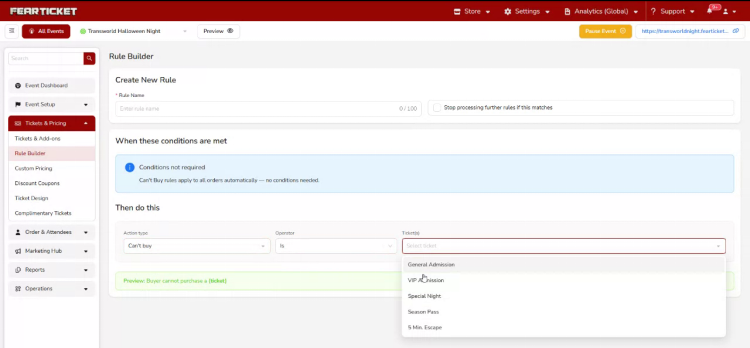
Selecting the ticket that should be blocked from the Ticket dropdown.
Reading the Preview Before You Save
FEARTICKET writes a plain English summary of the rule right above the Save button, and it updates automatically as you change the action or the ticket. For the setup described above, it would read:
Buyer cannot purchase a (ticket).
It's worth reading this line before saving, since it's the easiest way to catch a mistake. The rule will not save until you have given it a name and chosen a ticket, so fill in both before you press Save.
Example
Say the ticket you want to block is Mummy Escape. You would name the rule something clear like Block Mummy Escape, leave the conditions notice as it is, set the Action type to Can't buy, leave the Operator on Is, and choose Mummy Escape as the ticket. The preview then reads that the buyer cannot purchase a Mummy Escape, and once saved, that ticket can no longer be added to an order at checkout.
Note: This rule applies to every order automatically and blocks only the ticket you select in it. Other tickets stay available for purchase unless a separate rule is created for them.
Was this article helpful?
That’s Great!
Thank you for your feedback
Sorry! We couldn't be helpful
Thank you for your feedback
Feedback sent
We appreciate your effort and will try to fix the article