FEARTICKET lets you build a pricing or access rule completely from scratch when none of the ready-made templates fit your situation. With a Custom Conditions rule, you combine any of the available fields, operators, and actions yourself, including nested AND and OR logic, so you have full control over exactly when a rule fires and what it does. This is useful for scenarios that mix multiple factors together, for example raising the price of General Admission only when it's a weekend AND at least 50 tickets have already sold.
Where to find it
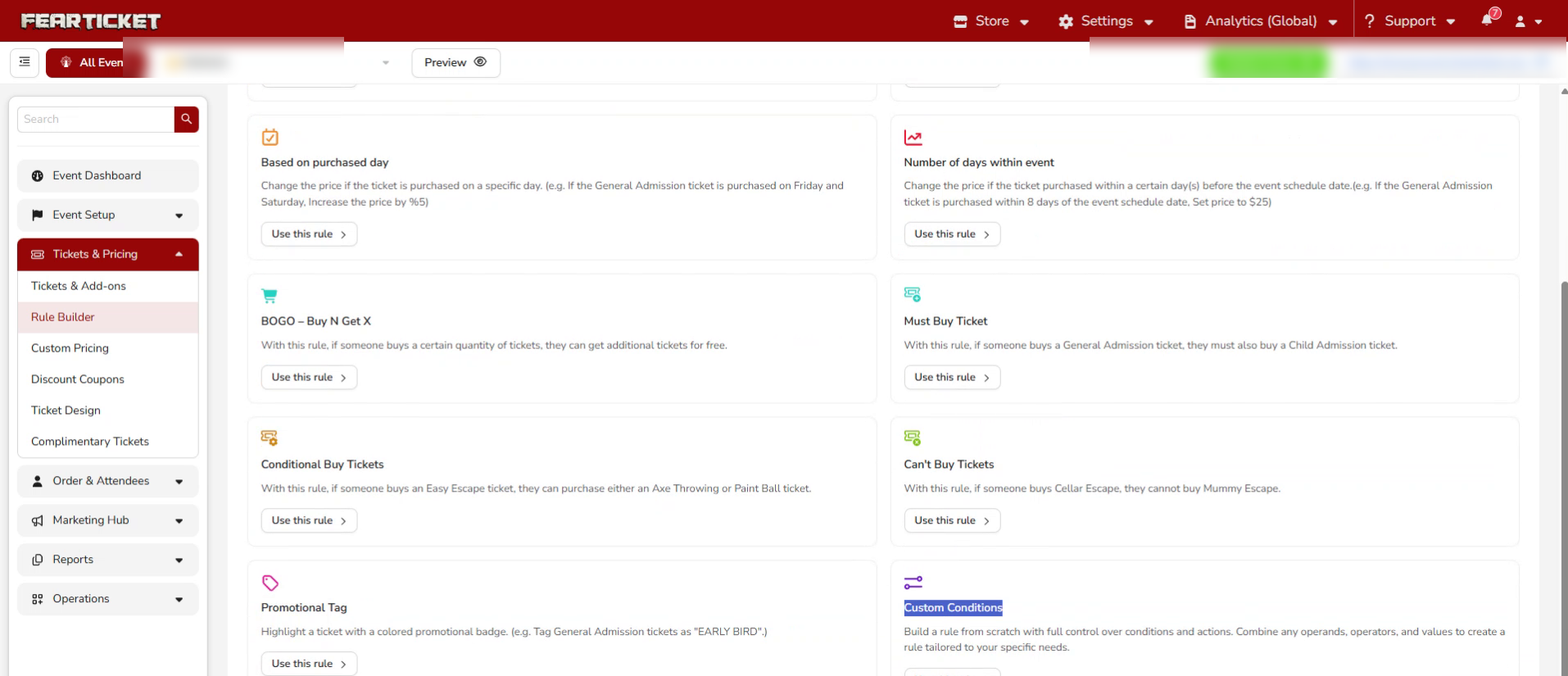
In Tickets & Pricing, click on Rule Builder. Under the template list, find Custom Conditions and click Use this rule, as shown below.
Naming the Rule
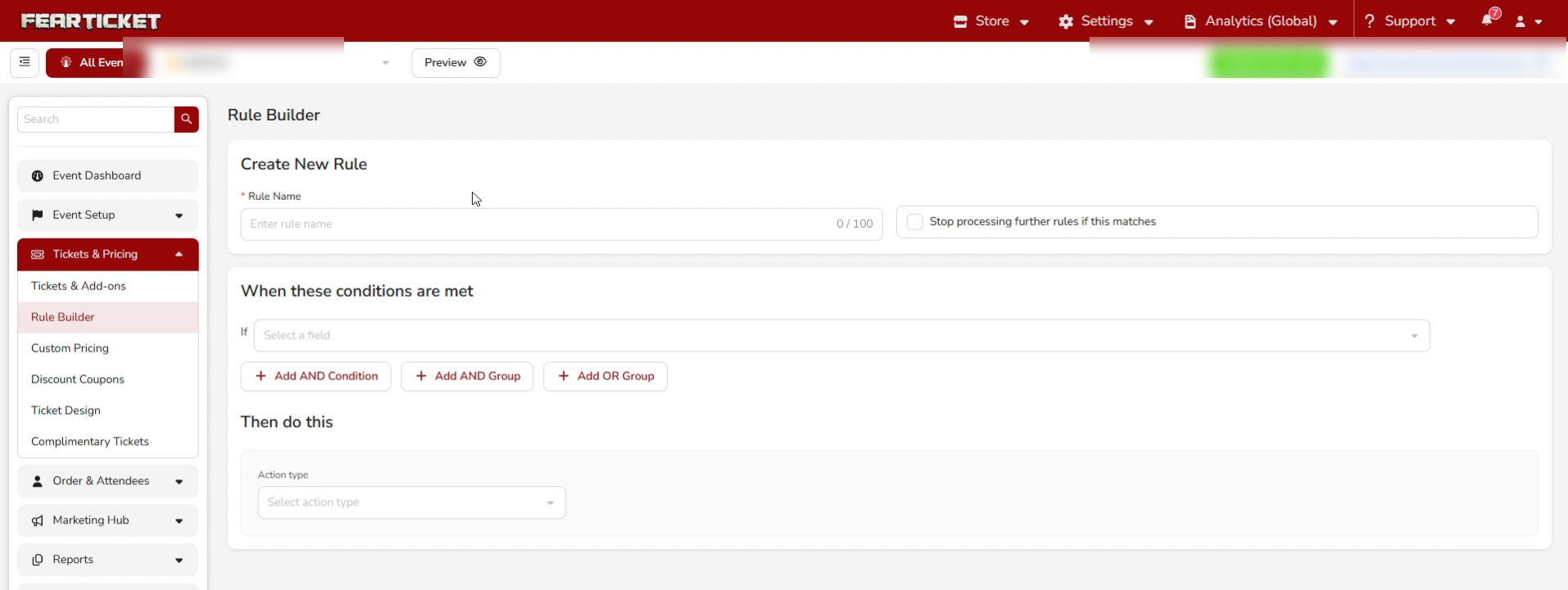
At the top of the builder, give the rule a name in the Rule Name field, up to 100 characters. There's also a checkbox for Stop processing further rules if this matches, which you can check if you want this rule to be the final word once its conditions are met, so no rule listed after it gets evaluated.
Setting the Condition
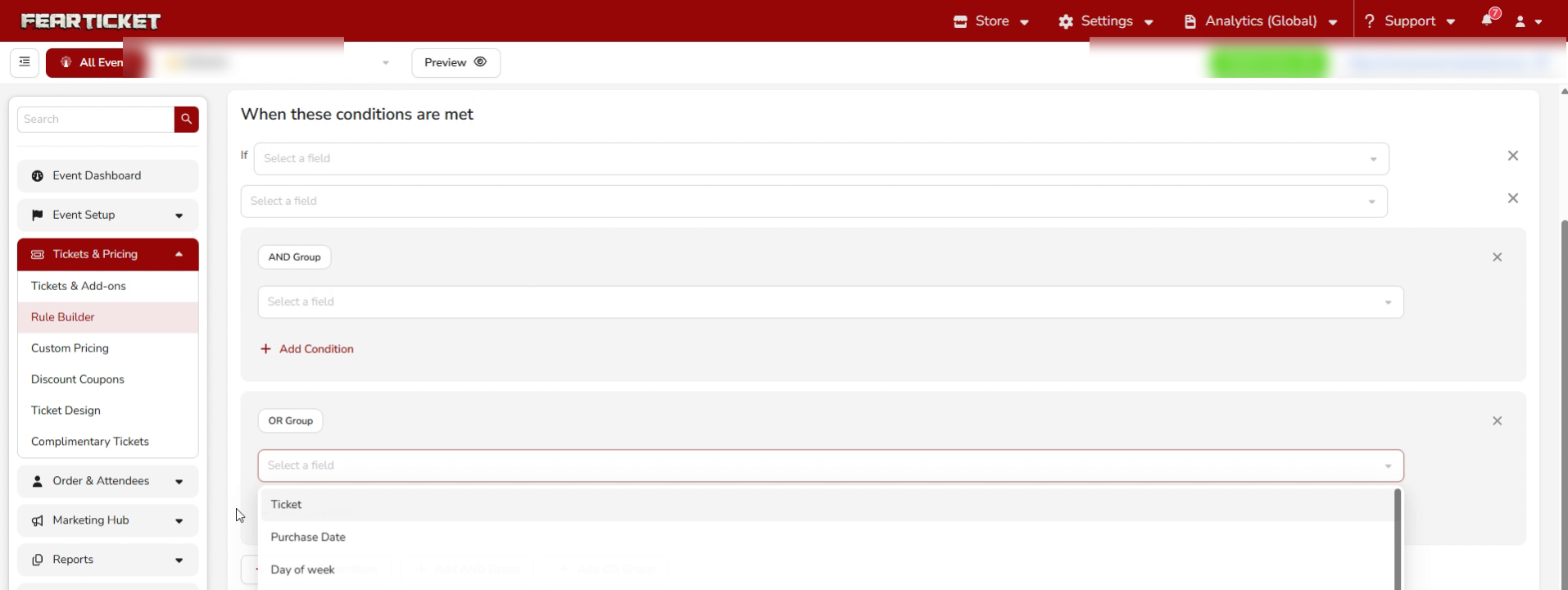
The condition section starts with a single If row and a Select a field dropdown. Clicking it opens the full list of fields you can build a condition around:
- Day of week
- Days Before Event
- Ticket Quantity
- Cart Quantity
- Ticket Sold
- Ticket Sold (%)
- Ticket
- Purchase Date
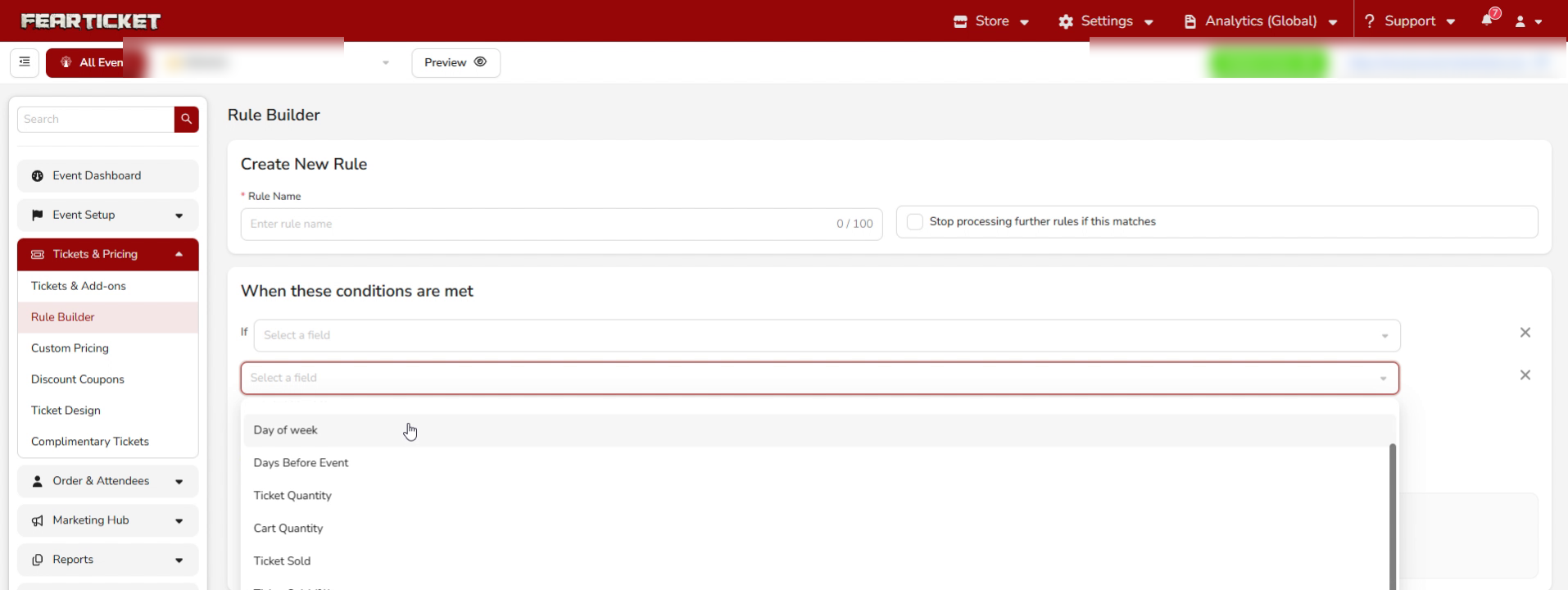
Once you pick a field, the row fills out with an operator and a value, for example Ticket, Is, and a ticket picker.
Combining conditions
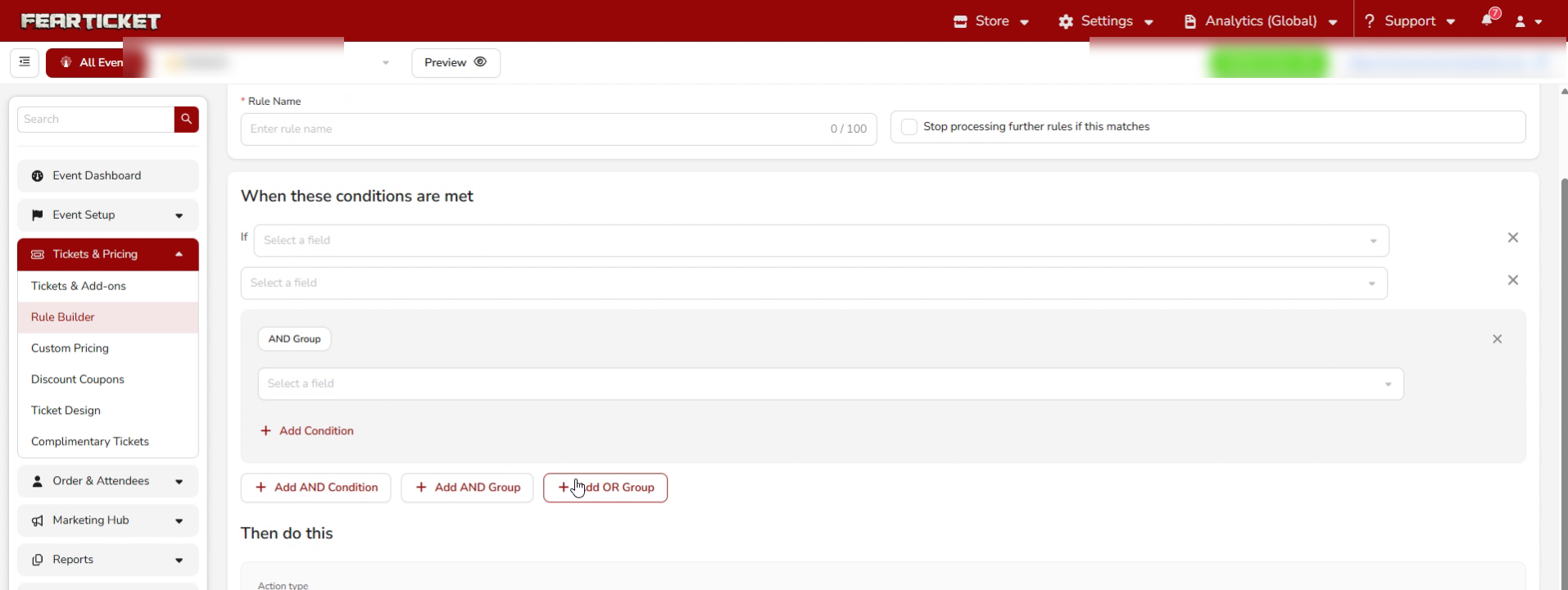
Below the first condition row, three buttons let you add more logic:
| Button | What it does |
|---|---|
| + Add AND Condition | Adds another row that must also be true, alongside the first. |
| + Add AND Group | Adds a boxed group of conditions that must all be true together. |
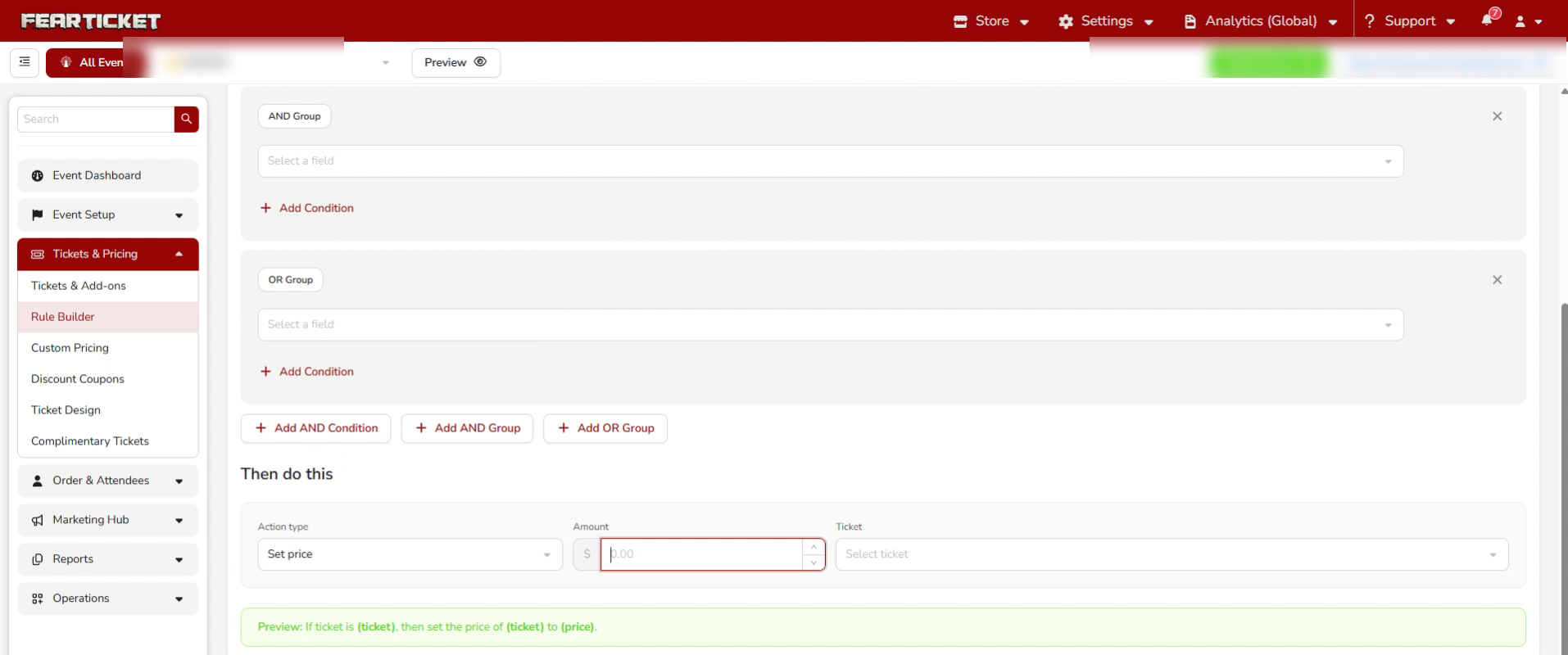
| + Add OR Group | Adds a boxed group of conditions where the rule fires if this group matches instead of the original conditions. |
Each AND Group or OR Group gets its own Add Condition link, so you can stack several conditions inside that one group before it's combined with the rest of the rule.
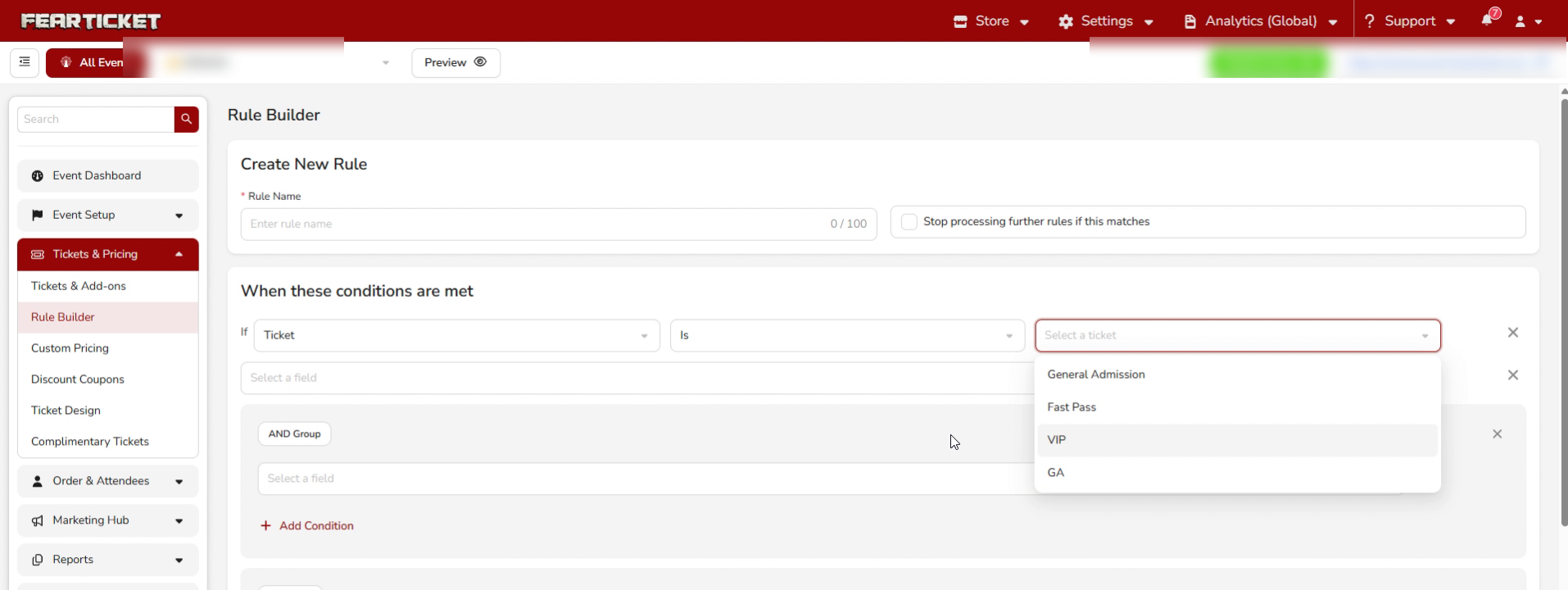
Picking a ticket
When a condition uses the Ticket field, you get an operator (Is or Any of) and a Select a ticket dropdown listing the actual ticket types on your event, such as General Admission, Fast Pass, VIP, or GA.
Setting the Action
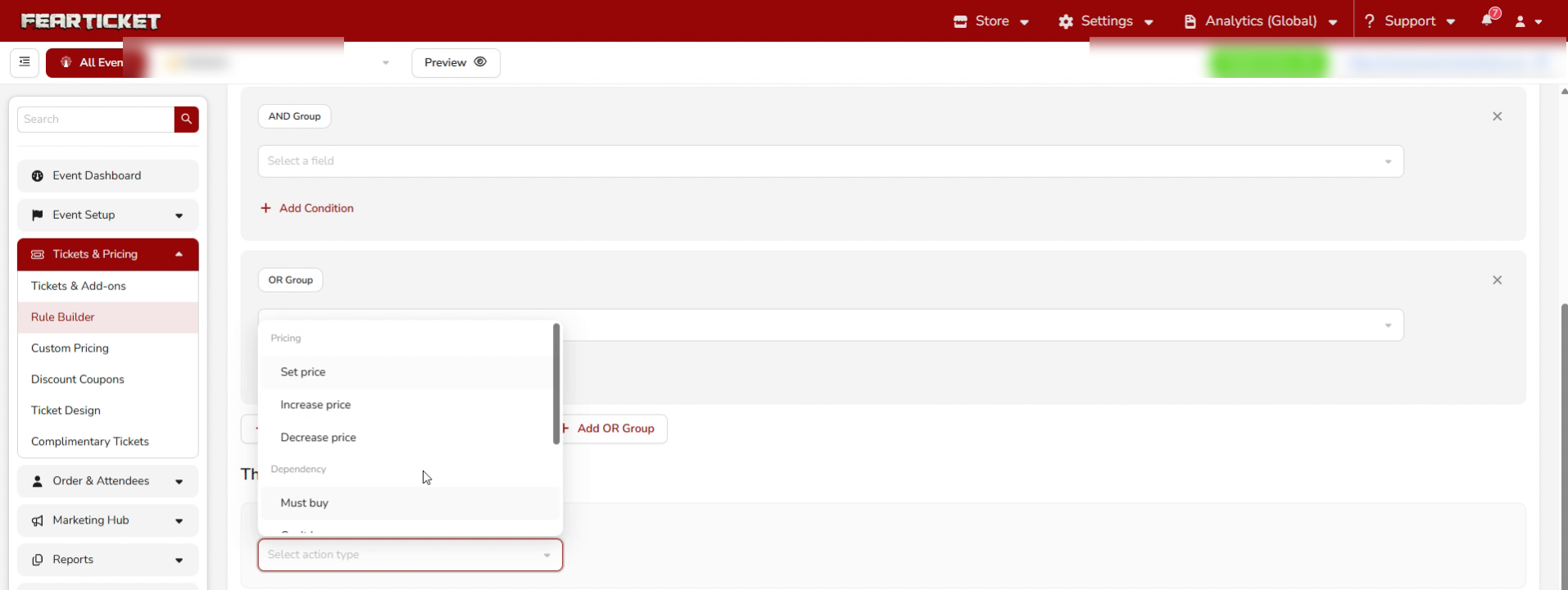
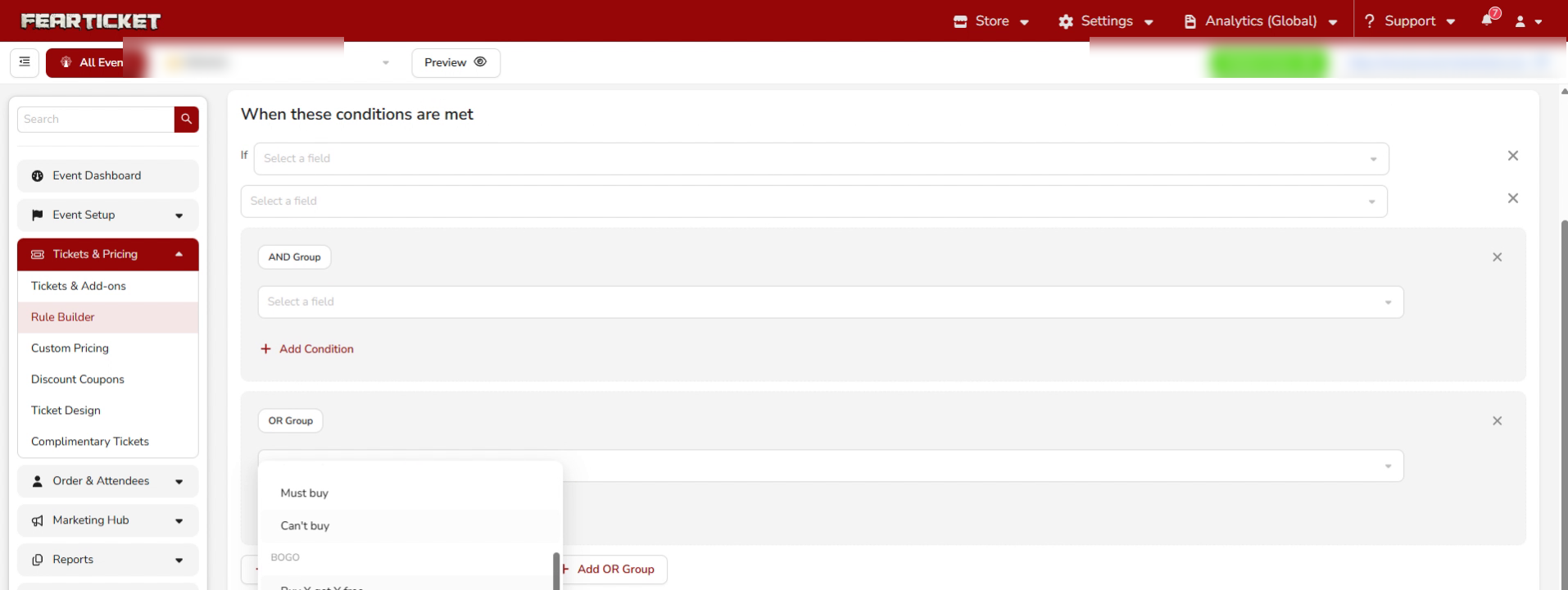
Under Then do this, the Action type dropdown is grouped into categories:
| Category | Action |
|---|---|
| Pricing | Set price |
| Increase price | |
| Decrease price | |
| Dependency | Must buy |
| Can't buy | |
| BOGO | Buy X get Y free |
| Promotional | Promotional tag |
The fields next to Action type change depending on what you pick. A Pricing action asks for an Amount and a single Ticket. Once you choose Set price and fill in the amount and ticket, the fields look like this:
Reading the Preview
As you build out the condition and action, FEARTICKET writes a plain-language sentence at the bottom of the form in real time, for example:
Use this line to sanity check your logic before saving. It always reflects exactly what the rule will do once the placeholders are filled in with your actual selections.
Saving
Once your rule name, conditions, and action are filled in, click Save in the bottom right. Click Cancel to discard the rule and return to the template list.
Example Walkthrough
Goal: Raise General Admission to $25 on Fridays and Saturdays, OR once 50 GA tickets have sold, whichever comes first.
- Rule Name:
GA Weekend or 50 Sold Price Bump - Condition Row 1: Ticket → Is → General Admission
- Add AND Condition, Row 2: Day of week → Any of → Friday, Saturday
- Add OR Group, Condition: Ticket Sold → Greater than or Equal to → 50
- Action: Set price → Amount 25.00 → Ticket General Admission
- Confirm the green preview reads as expected, then click Save.
Tips:
- Custom Conditions is the right choice whenever a scenario needs more than one factor at once, like combining timing with quantity, since the ready-made templates each only cover a single trigger.
- Use Add AND Group when a whole set of conditions needs to be true together, and Add OR Group when you want an alternate path that can trigger the same action.
- Check the preview sentence every time you add or change a condition. It's the fastest way to catch a logic mistake before it goes live.
- If two Custom Conditions rules could both apply to the same ticket, use Stop processing further rules if this matches on the one that should take priority.
Was this article helpful?
That’s Great!
Thank you for your feedback
Sorry! We couldn't be helpful
Thank you for your feedback
Feedback sent
We appreciate your effort and will try to fix the article