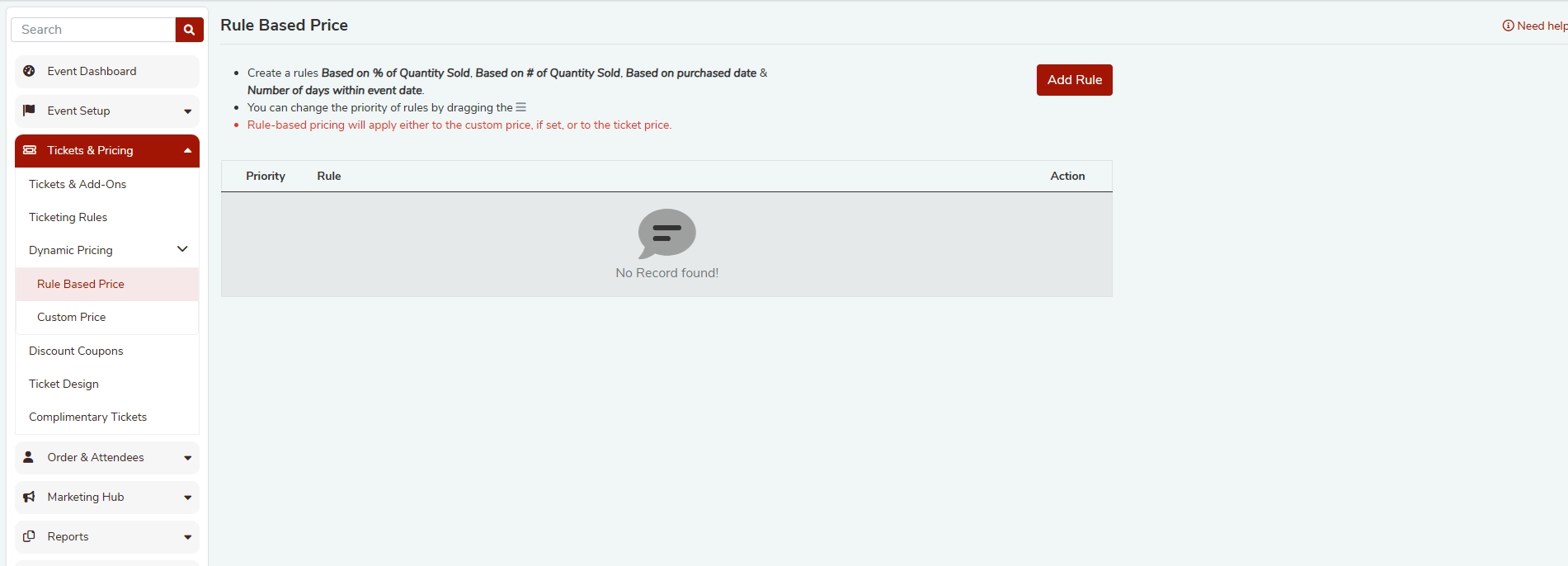
Rule Based Price is a powerful dynamic pricing tool in FEARTICKET that allows event organizers to automatically adjust ticket prices based on predefined conditions. This feature is located under Tickets & Pricing > Rule Based Price in your Event Setup panel.
Rule-based pricing will apply either to the custom price, if set, or to the ticket price.
Overview
With Rule Based Price, you can create rules that trigger price changes based on:
% of Quantity Sold - when a percentage of tickets have been sold
# of Quantity Sold - when a specific number of tickets have been sold
Based on purchased date - on or before a specific calendar date
Number of days within event date - within a certain number of days before the event
You can set multiple rules and control their order of priority by dragging them up or down in the list.
Frequently Asked Questions
What is Rule Based Price in FEARTICKET?
Rule Based Price lets you automatically change ticket prices when certain conditions are met, such as when a set number of tickets have sold, when a purchase date threshold is reached, or when the event date is approaching. This helps organizers maximize revenue and incentivize early purchases.
How do I add a new rule?
Go to Event Setup > Tickets & Pricing > Rule Based Price.
Click the Add Rule button in the top-right corner.
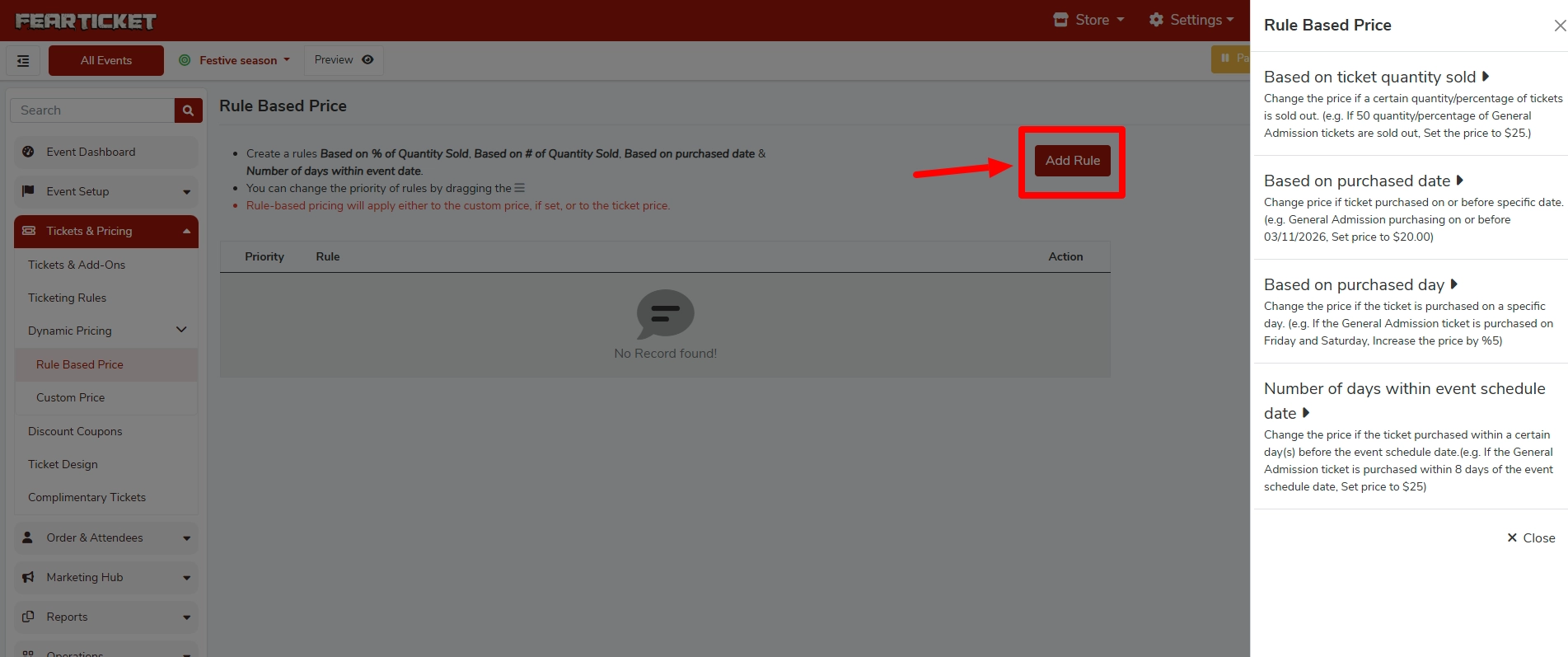
A panel will slide open on the right side with four rule types to choose from.
Select the rule type that matches your pricing strategy.
Configure the rule parameters and save.
What are the available rule types?
Rule Type | Description | Example |
|---|---|---|
Based on ticket quantity sold | Change the price when a certain quantity or percentage of tickets is sold out. | If 50 General Admission tickets are sold out, set the price to $25. |
Based on purchased date | Change the price if a ticket is purchased on or before a specific date. | General Admission purchasing on or before 03/11/2026, set price to $20.00. |
Based on purchased day | Change the price if the ticket is purchased on a specific day of the week. | If a General Admission ticket is purchased on Friday or Saturday, increase the price by 5%. |
Number of days within event schedule date | Change the price if the ticket is purchased within a certain number of days before the event schedule date. | If a General Admission ticket is purchased within 8 days of the event schedule date, set the price to $25. |
How does rule priority work?
When multiple rules are active, FEARTICKET evaluates them in the order listed. You can drag and reorder the rules using the drag handle to control which rule takes precedence. The rule at the top has the highest priority.
Tip: Always review your rule priority after creating multiple rules to make sure the intended rule applies first.
Which price does the rule apply to the ticket price or a custom price?
Rule-based pricing will apply to the custom price if one has been set for the ticket type. If no custom price exists, the rule will apply to the standard ticket price.
Can I create rules for individual ticket types?
Yes. When configuring a rule, you can target a specific ticket type (e.g., General Admission, VIP) so that the price adjustment only applies to that ticket type.
Can I use multiple rules at the same time?
Yes. You can add as many rules as needed. Use the priority ordering to control which rule applies when multiple conditions are met simultaneously.
Where is Rule Based Price located in FEARTICKET?
Navigate to your event, then go to:
Event Setup > Tickets & Pricing > Rule Based Price
If no rules have been created yet, the table will show "No Record found!" - simply click Add Rule to get started.
Best Practices
Use quantity-based rules to create urgency, e.g., increase prices after 50% of tickets are sold.
Use date-based rules to reward early bird buyers with lower prices that expire on a specific date.
Use day-based rules for weekend or peak-day surcharges.
Use proximity rules (days within event date) to capture last-minute buyers at a premium price.
Always test your rules in preview mode before the event goes live to confirm the correct price is displayed.
Was this article helpful?
That’s Great!
Thank you for your feedback
Sorry! We couldn't be helpful
Thank you for your feedback
Feedback sent
We appreciate your effort and will try to fix the article