Note: To ensure a smooth ticket purchasing process, it is important to first make the event live. This can be done by going to the event info section and clicking on the "MAKE IT LIVE" option. Once all necessary testing has been completed, the event can be paused.

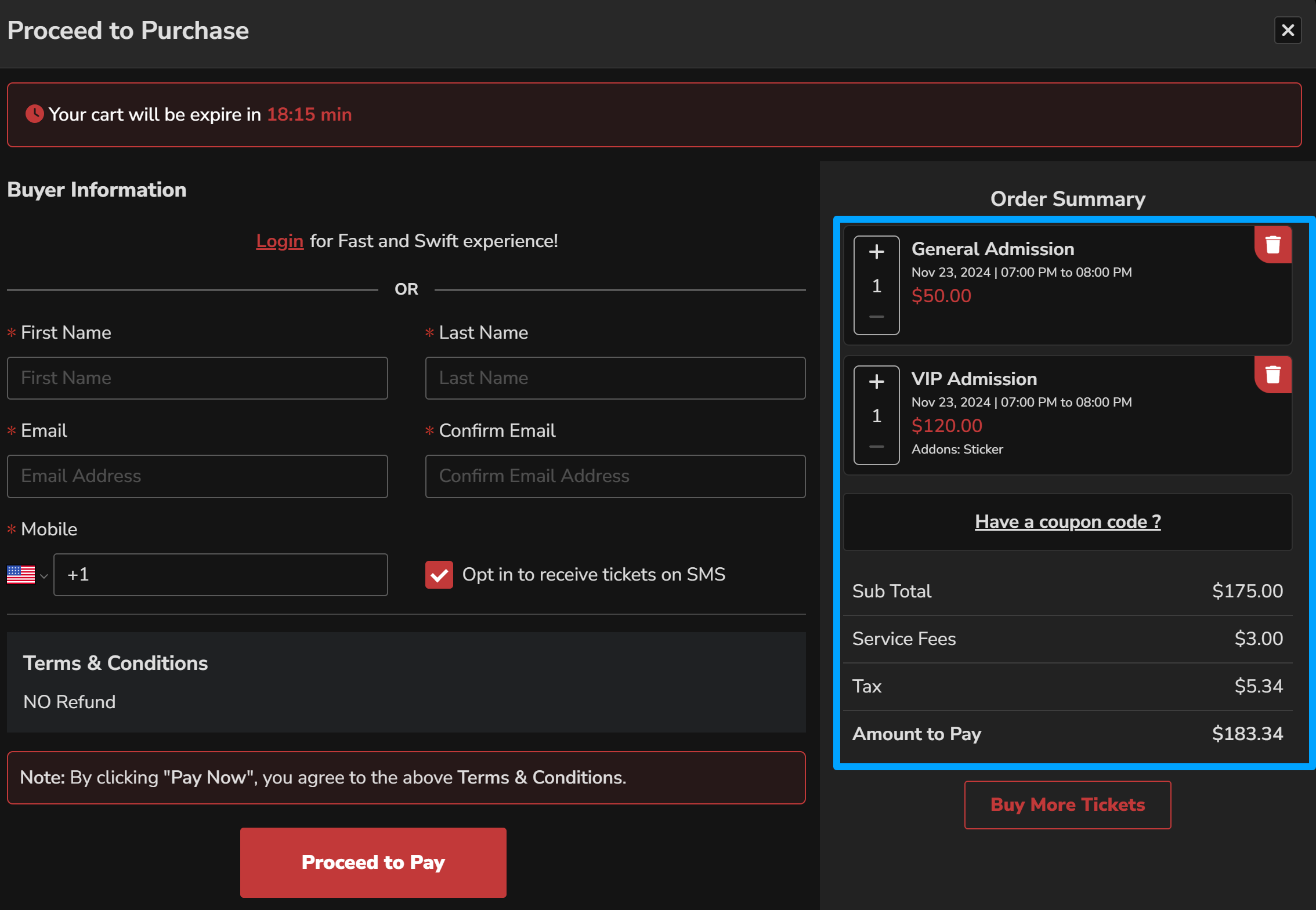
To double-check the ticket price, service fee, and order cart calculation, follow these steps:
1. Visit the event page or ticket-selling page as a user.
2. Select the desired tickets by clicking on the ticket type or section.
3. Choose the number of tickets you want to purchase.
4. Click on the "Add to Cart" button.
5. Locate the cart on the right side of the page.
6. Check the "Your Cart" section for the following details:
a. Tickets Name: Ensure that the selected tickets are displayed correctly.
b. Quantity: Verify that the quantity of tickets is accurately shown.
c. Service Fee: Note the service fee charged for the transaction.
d. TAX Amount: Check if any taxes are applied and the corresponding amount.
e. Subtotal: Verify the subtotal amount before taxes and fees.
f. Total: Confirm the total amount including taxes and fees.
7. Use a calculator or manually calculate the price amounts to double-check their accuracy.
a. Add up the ticket price multiplied by the quantity to calculate the subtotal.
b. Include the service fee and tax amount to calculate the total.
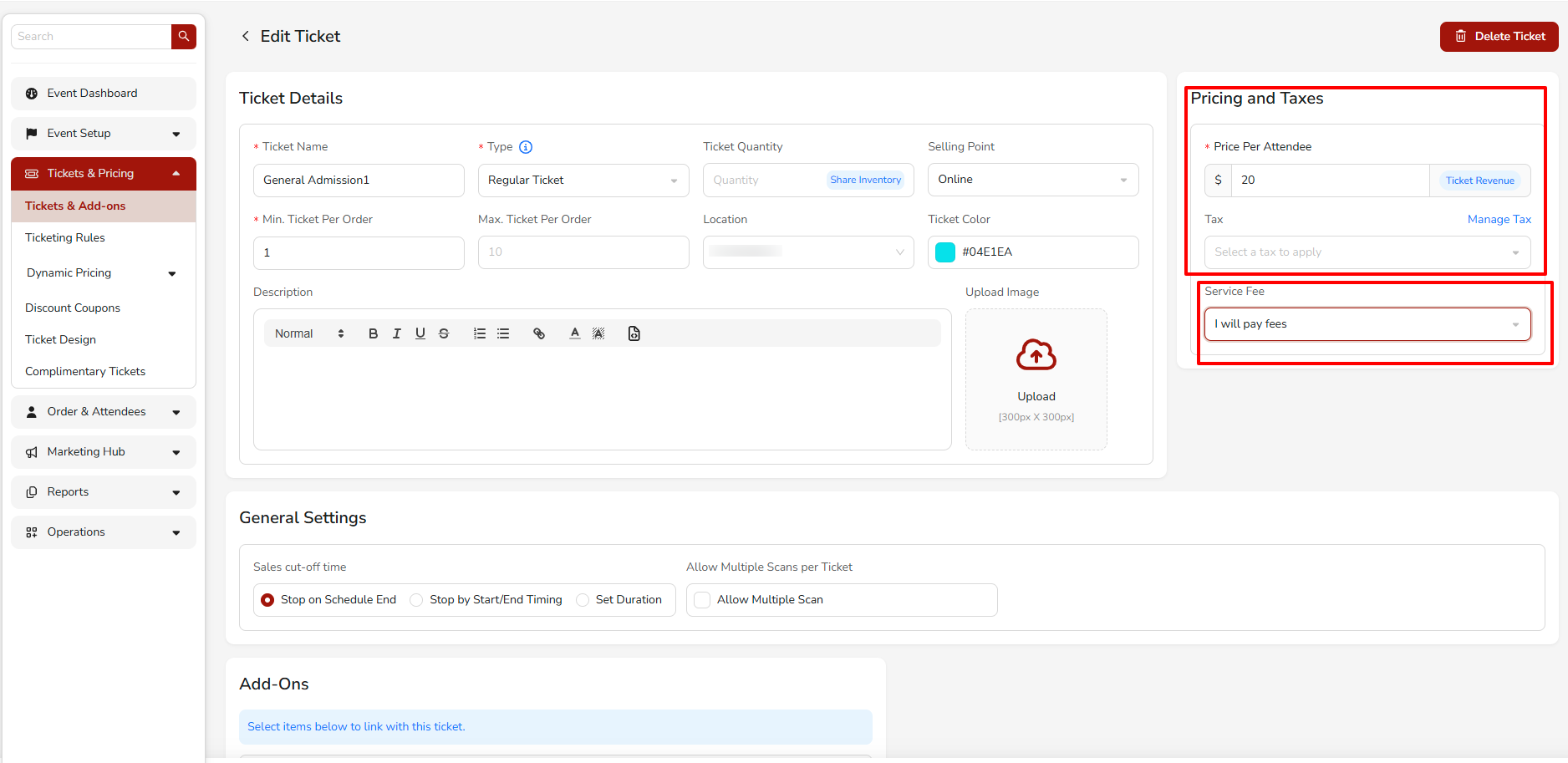
To make any changes to the ticket price, service fee, or tax, follow the steps below:
- Go to Tickets & Pricing → Tickets & Add-ons from the left-side event menu.
- Locate the ticket you want to modify and click the Edit icon to open the Edit Ticket page.
- In the Pricing and Taxes section, you can update the following details:
- Price Per Attendee – Set or update the ticket price.
- Tax – Select an applicable tax from the dropdown. If you need to create or modify a tax rule, click Manage Tax.
- Service Fee – Choose how service fees are applied.
- Custom Fees – Enter the fee amount if using custom fees.
- Fees Applicable On – Select where the fee applies (for example, Online).
- After making the required changes, click Save at the bottom of the page.
Once done click on the "Close" button located at the bottom of the specific ticket window.
Click on  button on the ticket listing page to save
Manage Tax Settings
If you need to configure or modify tax settings for tickets:
1. In the Pricing and Taxes section of the ticket, click Manage Tax next to the Tax field.
2 This will open the Tax Management settings where you can create or edit tax rules.

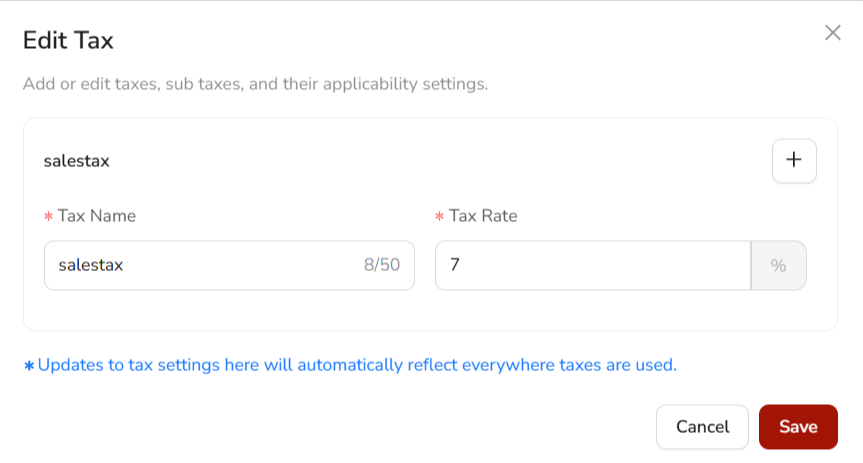 3. After creating or updating a tax rule, return to the ticket and select the appropriate tax from the Tax dropdown.
4. Click Save to apply the tax to the ticket.
Click Next Point > Printed Tickets Information & Design
Previous Point > Venue Address, City & Zip
Was this article helpful?
That’s Great!
Thank you for your feedback
Sorry! We couldn't be helpful
Thank you for your feedback
Feedback sent
We appreciate your effort and will try to fix the article