The Content Management section (found under Event Setup) allows event organizers to customize the messaging attendees see at key touchpoints after a purchase, when an event is paused, and when an event is closed or completed.
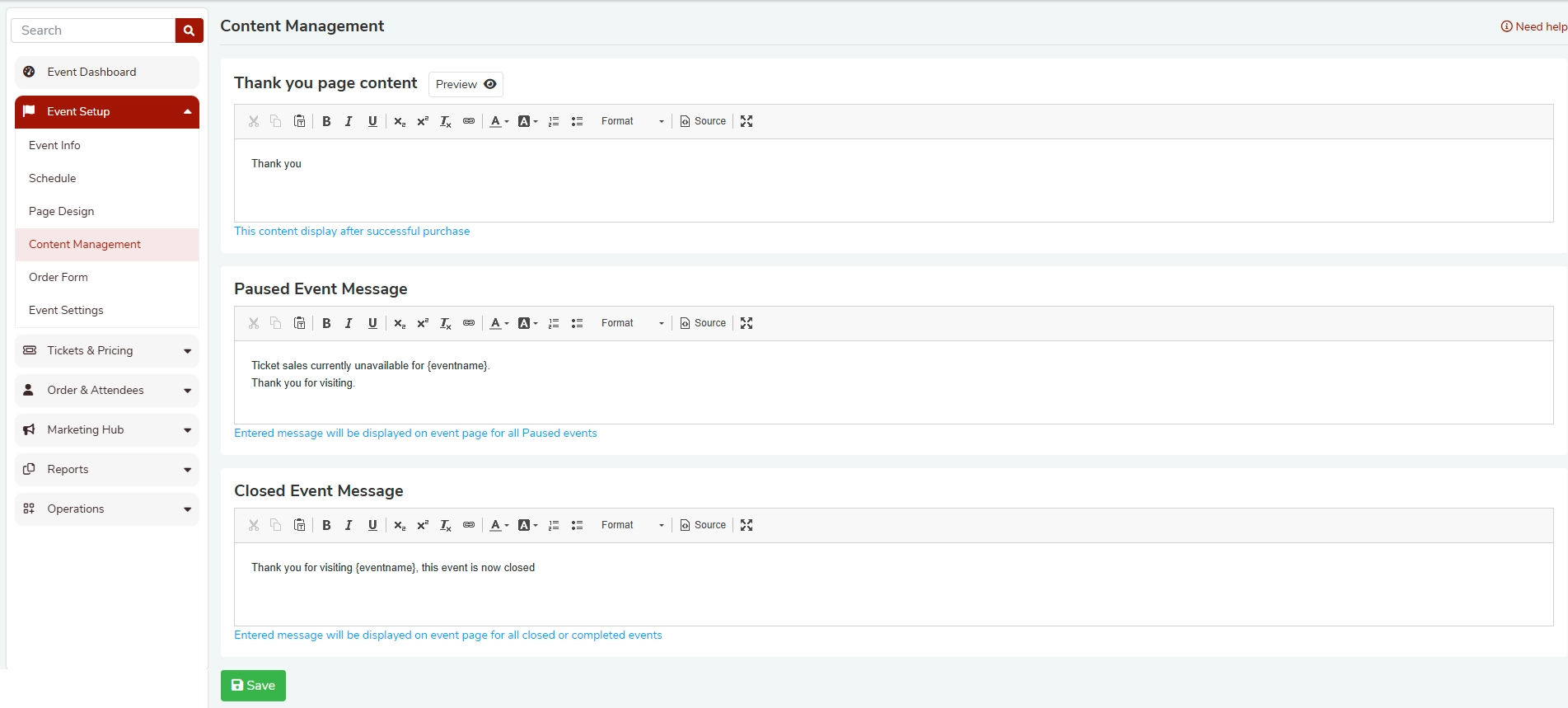
Thank You Page Content
What is the Thank You Page?
The Thank You Page is displayed to attendees immediately after they complete a successful ticket purchase. It's your opportunity to confirm the transaction and leave a positive impression.
What should I write in the Thank You Page content?
Keep it warm and confirming. The default message is:
"Thank you"
You can customize this to include:
- A personalized thank-you note
- Event-day instructions (e.g., parking, entry times)
- Links to social media or event pages
- Any special reminders for attendees
How do I edit the Thank You Page content?
- Go to Event Setup in your event dashboard.
- Click on Content Management.
- Locate the Thank You Page Content section.
- Use the rich text editor to type or paste your message.
- Click Save to apply your changes.
- Use the Preview button to see how it will appear to buyers.
When does this content appear?
This content is displayed only after a successful purchase is completed by the attendee.
Paused Event Message
What is a Paused Event?
A Paused event is one where ticket sales have been temporarily stopped by the organizer. The event page remains visible, but attendees cannot purchase tickets while the event is paused.
What is the Paused Event Message?
This is a custom message shown to visitors on your event page while ticket sales are paused. The default message is:
"Ticket sales currently unavailable for {eventname}. Thank you for visiting."
The {eventname} placeholder is automatically replaced with your actual event name.
When would I pause an event?
Common reasons to pause an event include:
- Temporarily holding sales while making updates
- Managing capacity or waitlists
- Addressing a technical or logistical issue
How do I customize the Paused Event Message?
- Go to Event Setup → Content Management.
- Find the Paused Event Message section.
- Edit the message in the rich text editor. You can use
{eventname}to dynamically insert your event's name. - Click Save.
Note: The message you enter here will be displayed on the event page for all paused events under your account.
Closed Event Message
What is a Closed Event?
A Closed event is one that has ended or been marked as completed. The event page may still be accessible, but ticket sales are no longer available.
What is the Closed Event Message?
This message is shown to visitors when they land on the page of a closed or completed event. The default message is:
"Thank you for visiting {eventname}, this event is now closed."
How do I customize the Closed Event Message?
- Go to Event Setup → Content Management.
- Find the Closed Event Message section.
- Update the text using the rich text editor. Use
{eventname}as a dynamic placeholder for your event name. - Click Save.
Note: This message will appear for all closed or completed events associated with your account.
Tips for Writing Effective Messages
Was this article helpful?
That’s Great!
Thank you for your feedback
Sorry! We couldn't be helpful
Thank you for your feedback
Feedback sent
We appreciate your effort and will try to fix the article