Once your event is created, it's time to customize the event webpage to reflect your brand and attract ticket buyers. Here's how you can effortlessly design your event webpage:
Accessing Template Design and choose Event Template Type:
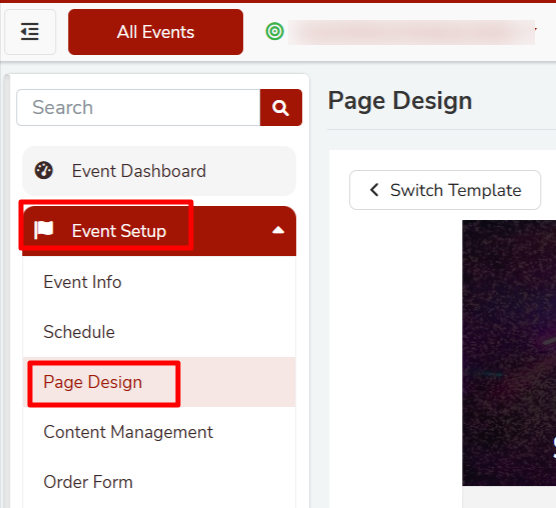
- Navigate to Manage Events from the left side event menu and click on Template Design.
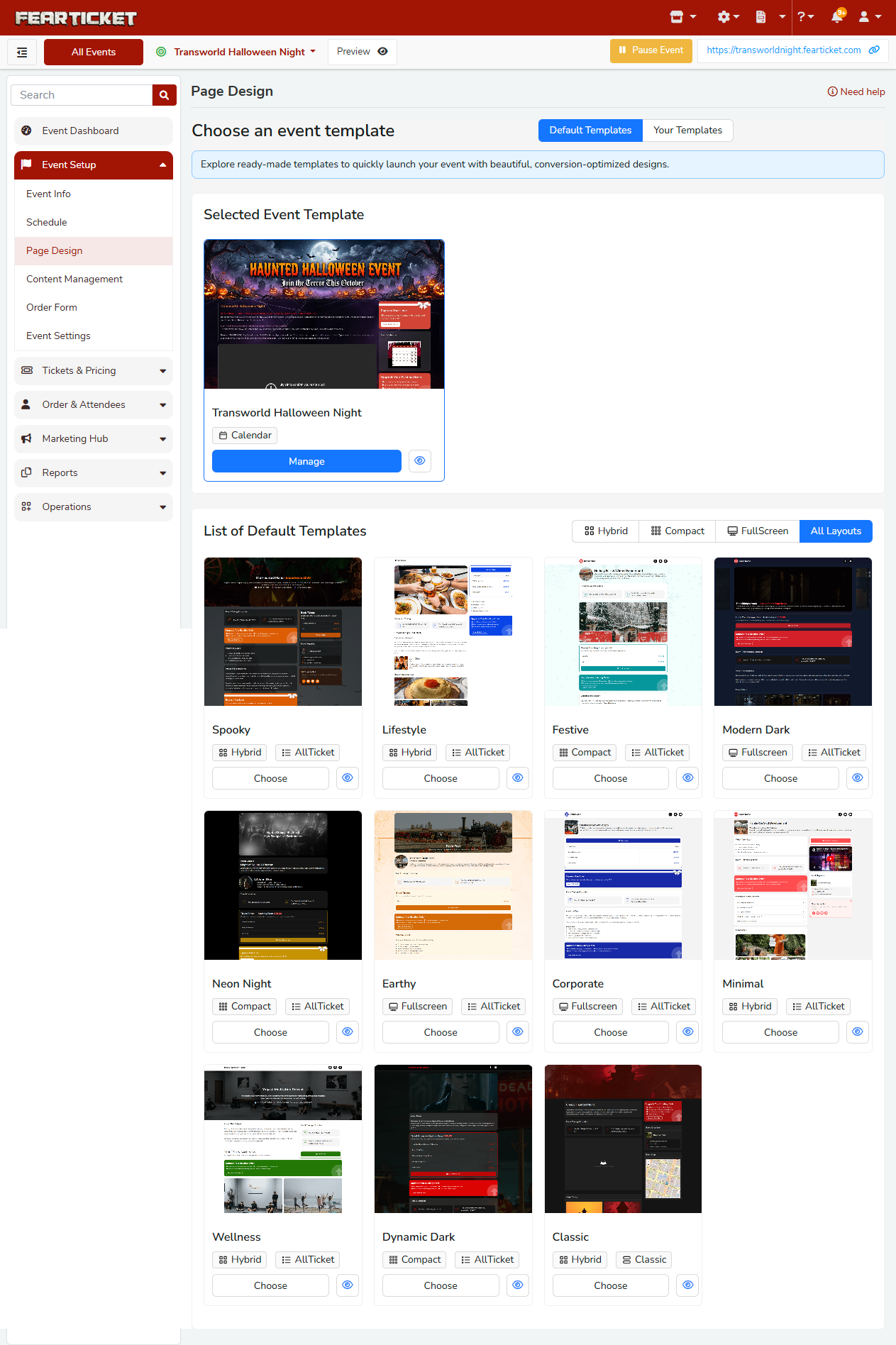
Default Template Overview:
When you open Page Design, you will see the template selection screen, where all available templates are displayed.
Each template is shown with a preview, allowing you to quickly understand the layout and design before applying it.
The currently selected template is highlighted, and you can choose a different one by clicking Select on any template.
You can also reuse templates from your existing events to maintain a consistent design across multiple events.
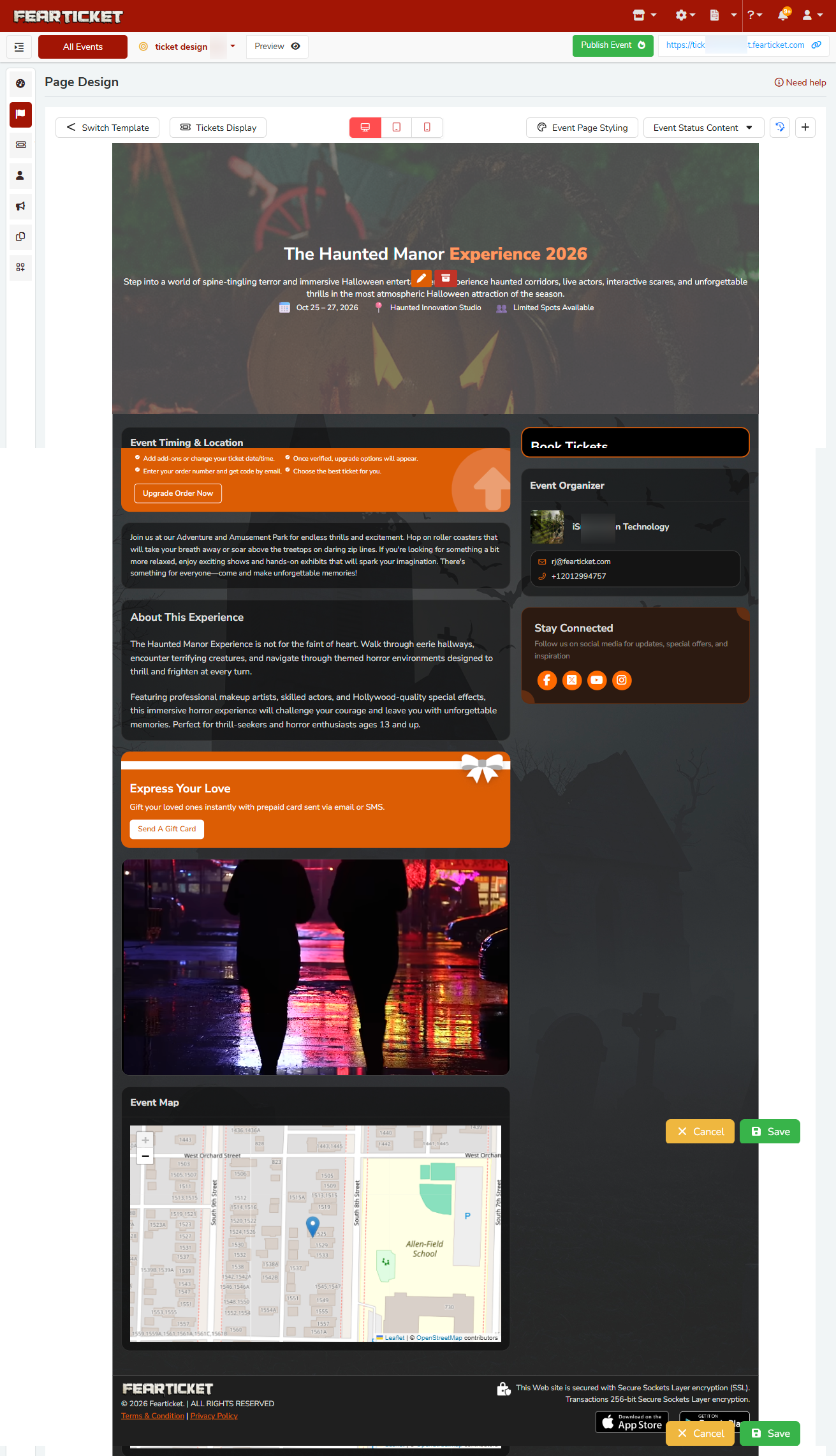
Page Design Editor - Overview: Once you open Page Design, you will see a live preview of your event page along with a toolbar at the top. All customization options are available through this toolbar. This editor shows a real-time preview of your event page, allowing you to instantly see how your changes will appear to ticket buyers. All updates are applied visually, without requiring manual layout adjustments.
Toolbar includes:
Switch Template → Change layout
Device Preview (Desktop / Tablet / Mobile) → Preview responsiveness
Event Page Styling → Customize colors and theme
Event Status Content → Configure messages
+ Add Component → Add extra content sections
At the bottom right:
Cancel → Discard changes
Save → Publish changes
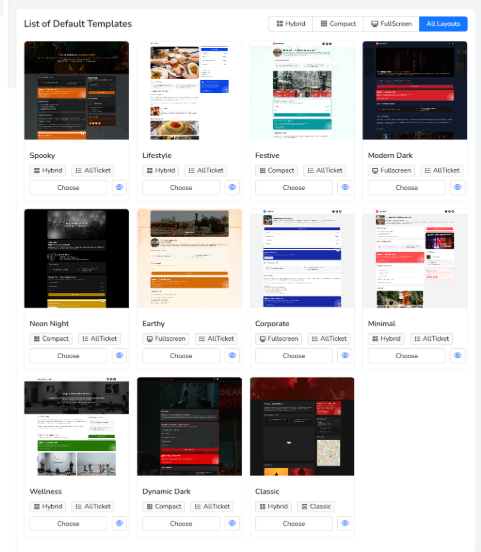
- Switching Templates: Click Switch Template to change your event page layout.
- Event Page Styling: Click Event Page Styling to customize your page appearance.
Theme Mode
Light
Dark
Colors
Primary
Secondary
Background
Color OR Image
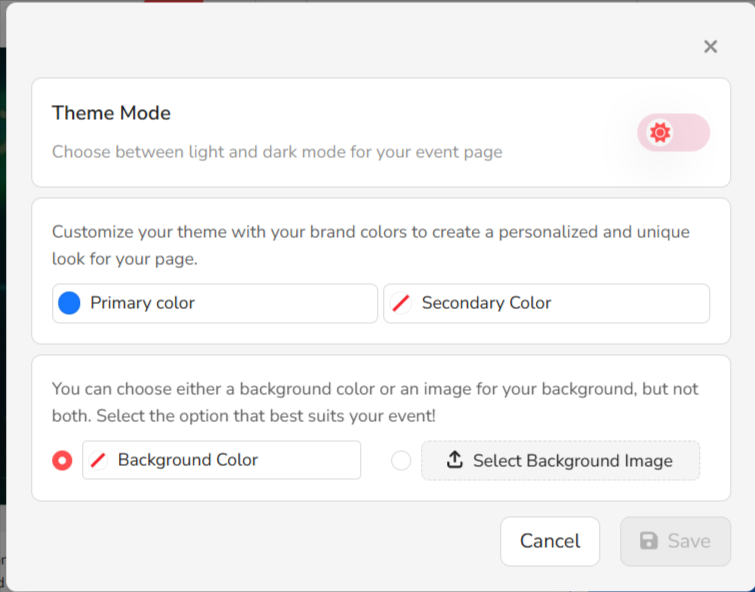
- Note: You can select either a background color or a background image, but not at the same time.
- Adding Components: Click the + button to add content blocks to your event page.
- Components:
Single Image
Gallery
FAQ
Video
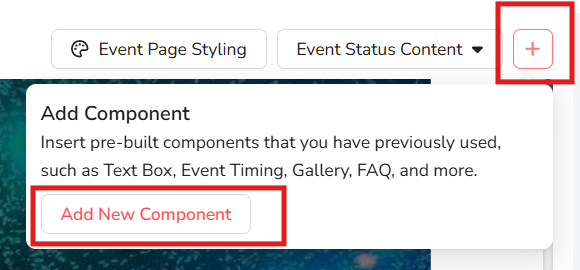
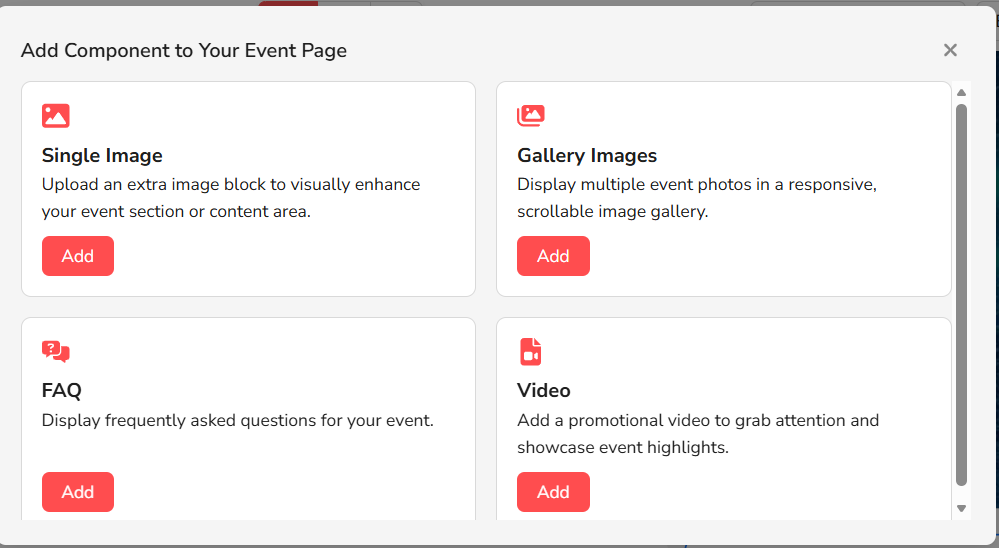
Once added, the component will appear directly in your event page preview, where you can configure its content.
- Components:
7. Toolbox and Modules: Use the device icons to preview your page
Desktop
Tablet
Mobile

Always review all three views before saving, as layout and spacing may change across different screen sizes.
8. Event Status Content: Click Event Status Content ▼ to manage messages.
Thank You Page
Paused Message
Closed Message
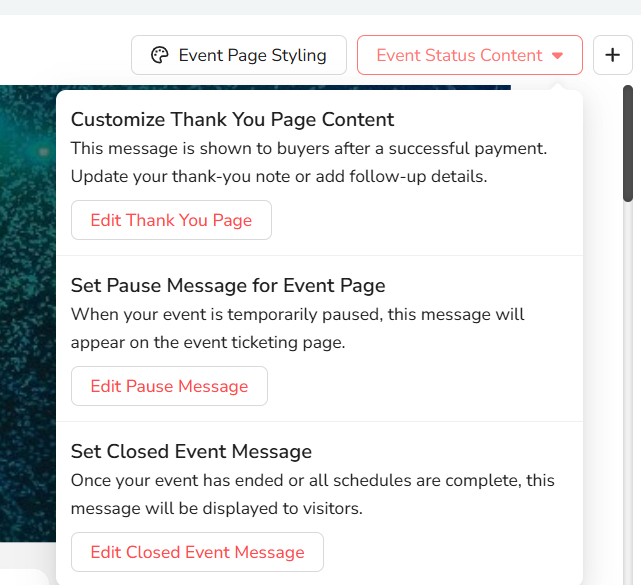
Selecting any option will redirect you to the Content Management page, where these messages can be edited.
9. Saving Your Changes: Click Save (bottom right) to publish changes.
Was this article helpful?
That’s Great!
Thank you for your feedback
Sorry! We couldn't be helpful
Thank you for your feedback
Feedback sent
We appreciate your effort and will try to fix the article