The Compliance / Tax Verification section is where you upload your W-9 or W-8 form so FEARTICKET can send payouts to you. Completing this is mandatory for all organizers. If this step is not done, payouts will be blocked.
Why Tax Verification Is Required
FEARTICKET must follow IRS rules and collect tax data for organizers.
Your tax details are required before FEARTICKET can legally pay out your earnings.
Verified information protects both you and FEARTICKET if there is a tax audit.
How to Access the Tax Verification Form
Log in to FEARTICKET.
Click Account & Billing.
Click the Compliance tab.
You will see the tax verification section and your current status.
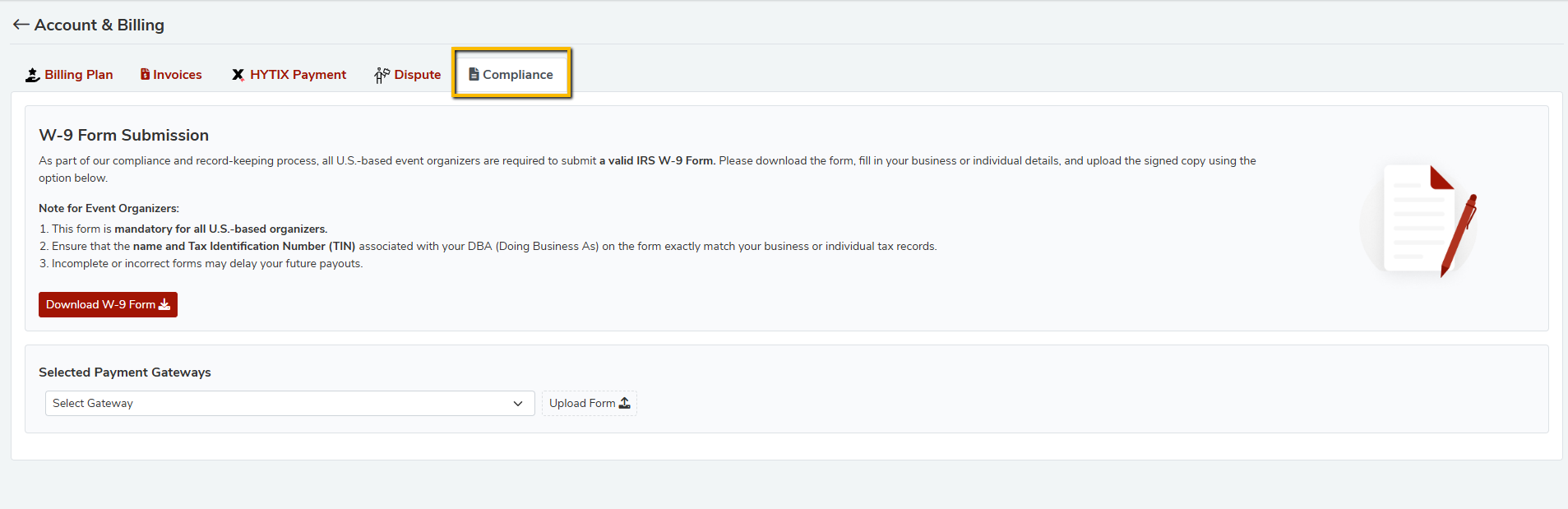
For U.S. Based Organizers – W-9 Form
You must submit Form W-9 if you are a U.S. individual or business.
What W-9 is:
Official IRS form
Gives FEARTICKET your legal name and Taxpayer Identification Number (SSN or EIN)
Key requirements:
Name and TIN on W-9 must match IRS records.
Form must be fully filled, signed, and clearly readable.
How to submit W-9:
Click Download W-9 Form.
Fill in your legal name, business name (if any), address, and SSN or EIN.
Choose your tax classification (Individual, Corporation, LLC, etc.).
Sign and date the form.
Scan or take a clear photo (PDF preferred).
Upload the completed file in the Compliance tab.
Wait for status to update to Approved.
For Non U.S. Organizers – W-8 Forms
If you are not based in the U.S., you must submit a W-8 form.
W-8BEN for individuals.
W-8BEN E for businesses or entities.
The submission steps are similar to W-9:
Download the correct form.
Fill all fields accurately.
Sign and date.
Upload through the Compliance tab.
Wait for review and approval.
Form Status Indicator
On the right side you will see a status display such as:
Pending – Form uploaded and under review.
Approved – Form accepted and payouts enabled.
Rejected – Form had errors and needs corrections.
Incomplete – No form submitted yet.
If rejected, check your email for the reason, correct the issue, and upload the form again.
Best Practices
Use your official legal and tax documents when filling the form.
Double check spelling of names and all numbers.
Make sure your uploaded file is clear and readable.
Keep a local copy of your signed form for your own records.
Was this article helpful?
That’s Great!
Thank you for your feedback
Sorry! We couldn't be helpful
Thank you for your feedback
Feedback sent
We appreciate your effort and will try to fix the article