The Tax Verification Form process is a mandatory identity and compliance step required to activate payouts on FEARTICKET. This flow ensures that the account owner is securely authenticated, tax information is reviewed, and payment gateway details are verified before funds can be released.
Completing this process correctly allows uninterrupted payouts and ensures compliance with financial and regulatory requirements.
Why This Process Is Important
Confirms the identity of the account owner
Protects your payouts from fraud or unauthorized changes
Verifies tax information required for payment processing
Activates or restores payout eligibility
Ensures your payment gateway is correctly linked
Without completing this flow, payouts may remain blocked or delayed.
How to access Tax Verification form
Log in to your FEARTICKET account
Navigate to Settings
Go to Account & Billing
Click Tax Verification Form
Select your Payment Gateway
This opens the secure verification flow shown in the screens below.
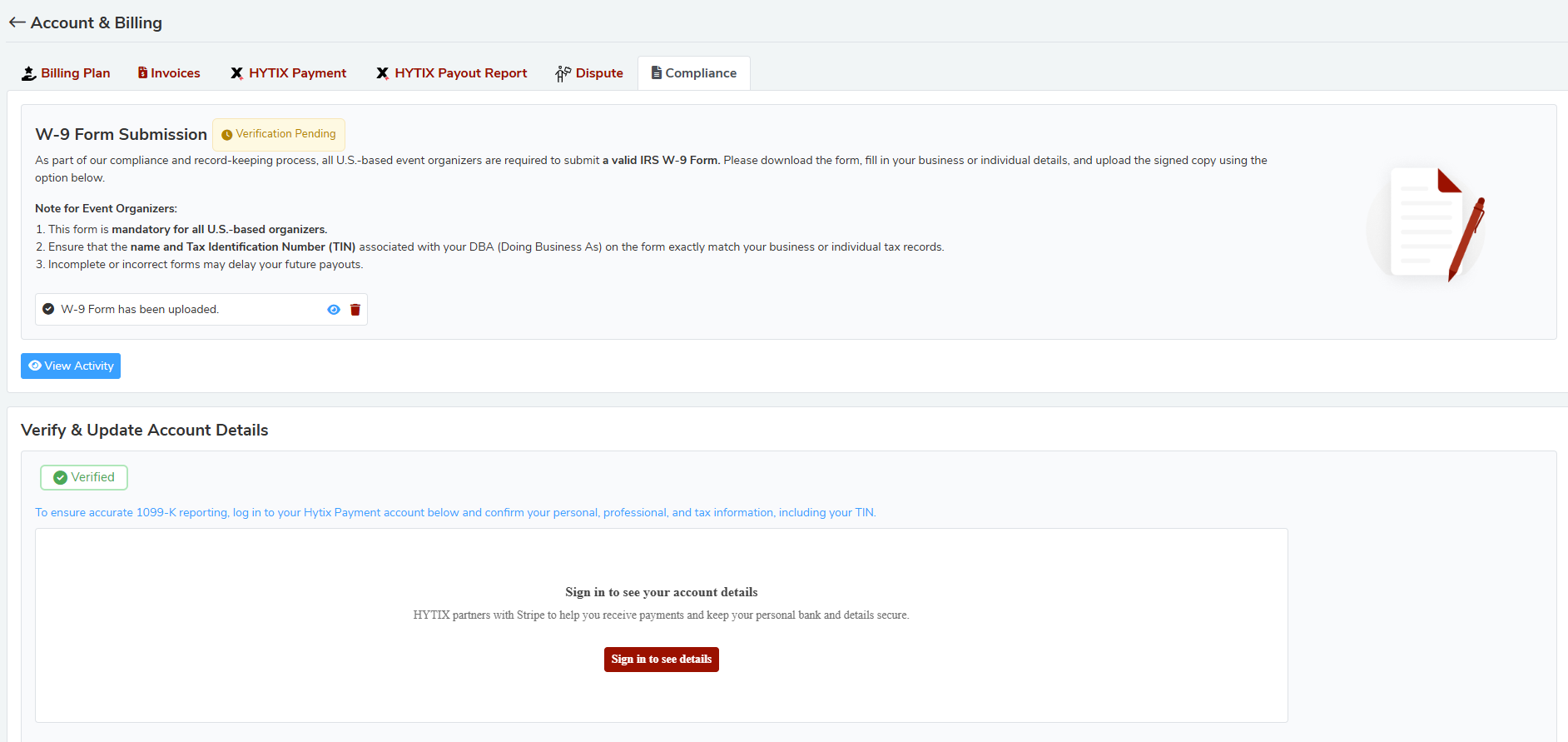
Step by Step Verification Process
1. Verification Landing Page
What You See
The initial compliance screen prompting you to begin verification.
What This Means
FEARTICKET requires you to authenticate your identity before allowing access to tax and payment information.
What To Do
Proceed to sign in using the secure verification method.
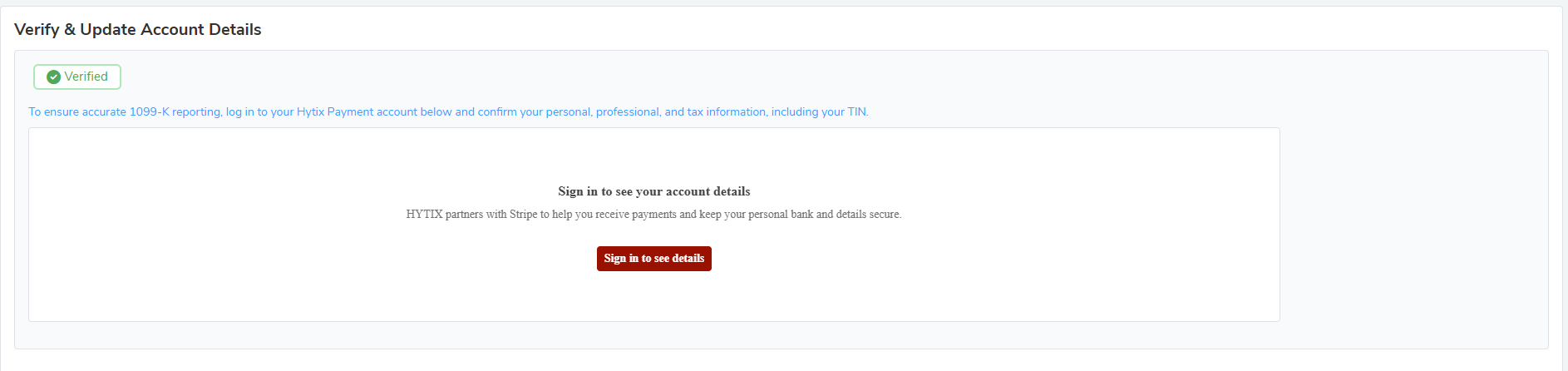 Tax Verification Form landing screen prompting secure sign in
2. Click to Sign In
What You See
A Sign In button to begin identity verification.
What This Means
This step confirms that the person accessing the form is the authorized account owner.
Action Required
Click Sign In to continue.
3. Send Code
What You See
A prompt to send a verification code.
What This Means
FEARTICKET uses a one time passcode (OTP) to securely verify your identity.
What Happens Next
• A verification code is sent to your registered email or phone
• This code is time sensitive and expires shortly
Action Required
Click Send Code.
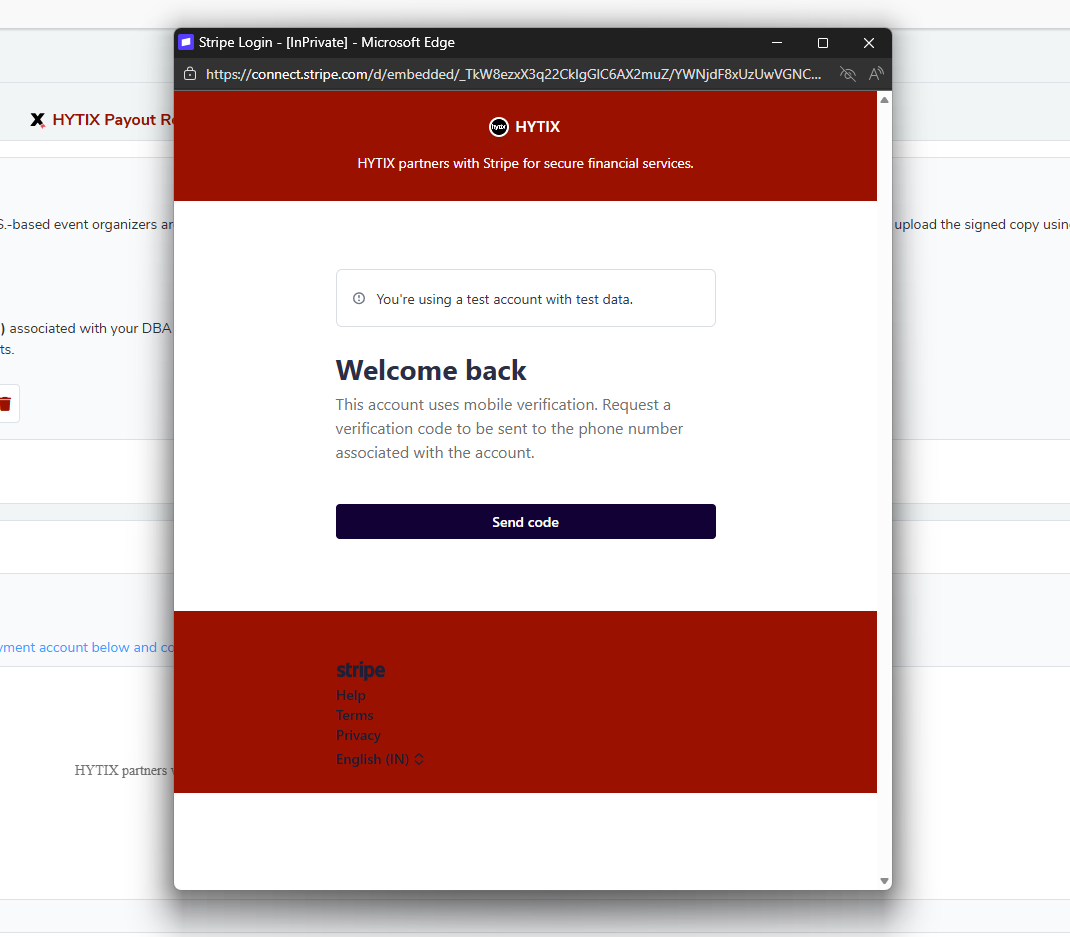 4: Entered Code
What You See
A field to enter the verification code you received.
What This Means
Entering the correct code confirms that you have access to the registered contact information on the account.
Tips
• Enter the code exactly as received
• Do not refresh the page while entering the code
• If the code expires, request a new one
Action Required
Enter the code and continue.
5: Verification Successful
What You See
Confirmation that your identity verification was successful.
What This Means
You now have secure access to review and manage your tax verification details.
Next Step
Proceed to review or edit your information.
6: Click to Edit Details
What You See
An option to Edit Details.
What This Means
You can review and update your tax or business information before final submission.
When To Edit
• Business name has changed
• Address is outdated
• Tax ID needs correction
• Payment related details are incorrect
Important
Ensure all information matches official records to avoid payout delays.
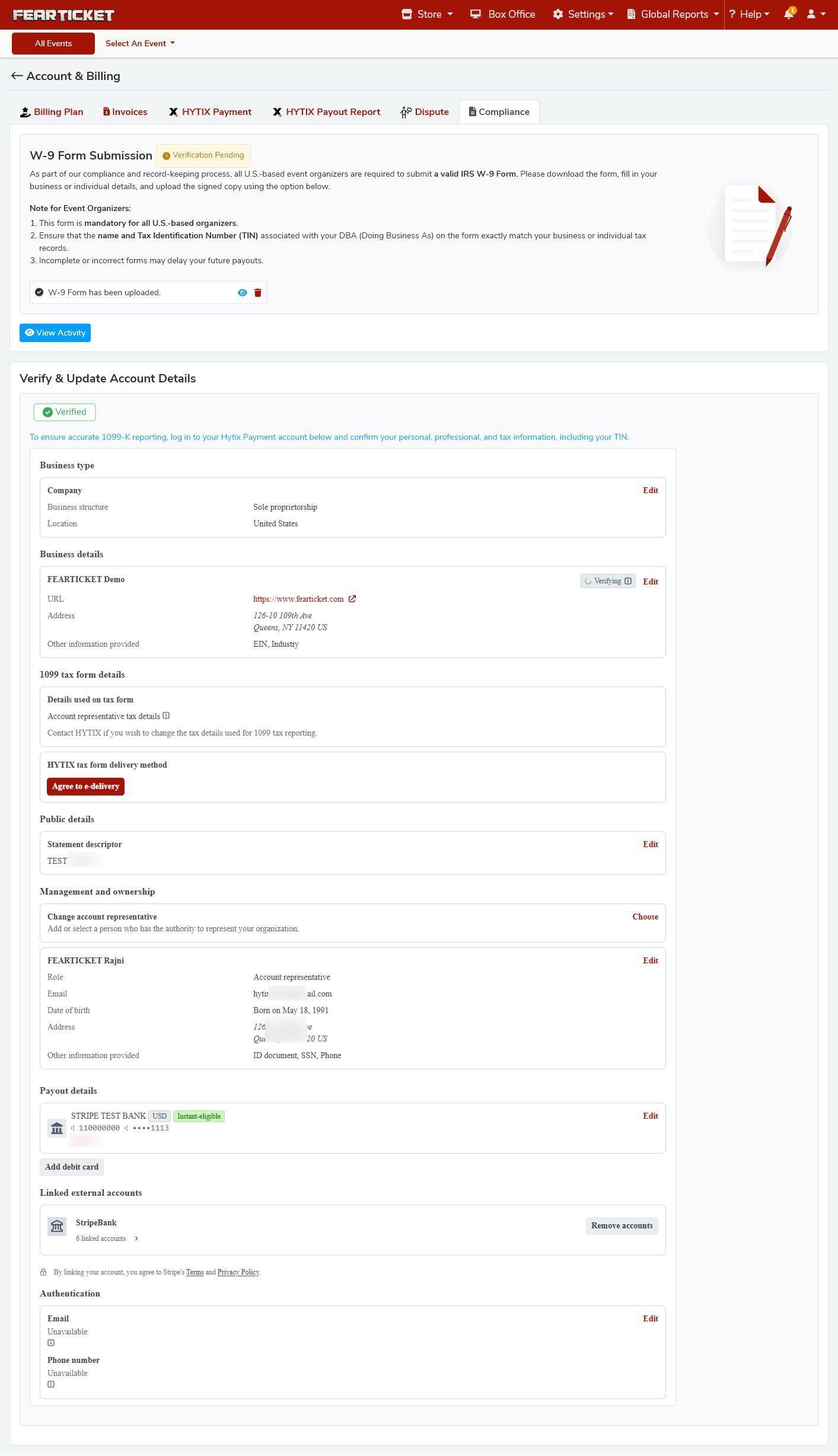
7: Select Payment Gateway
Navigation Path
Settings > Account & Billing > Tax Verification Form
What You See
An option to select your Payment Gateway.
What This Means
Your tax information must be linked to the correct payment gateway to process payouts.
Action Required
Select the payment gateway you use for receiving payouts.
Why This Matters
Incorrect gateway selection can result in payout failures or delays.
8: Final Confirmation
What You See
Two options:
• Yes, My information is verified
• Edit (to make changes)
Option 1: Yes, My Information Is Verified
Choose this if:
• All information is correct
• Details match official tax records
• Payment gateway selection is accurate
Result
• Tax verification is completed
• Payouts are enabled or resumed
Option 2: Edit
Choose this if:
• Any information is incorrect
• You notice missing or outdated details
Make corrections and review again before final submission.
What Happens After Submission?
FEARTICKET/Hytix Team will reviews your verification. If additional information is required, you will be notified.
Was this article helpful?
That’s Great!
Thank you for your feedback
Sorry! We couldn't be helpful
Thank you for your feedback
Feedback sent
We appreciate your effort and will try to fix the article