FEARTICKET lets you change the price of a ticket automatically based on how many days are left before your event. This is useful for early bird pricing, or for increasing the price as the event date gets closer.
In Tickets & Pricing, click on Rule Builder. Under the template list, find Number of Days Within Event and click Use this rule, as shown in the image below.
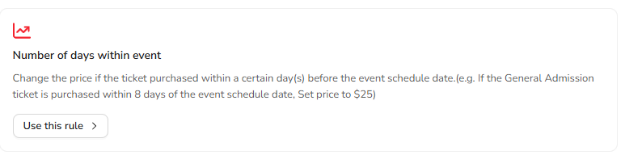
The Number of Days Within Event template, found in the Rule Builder template list.
What Happens When You Open This Rule
Clicking Use this rule opens the rule builder with a condition already started for you. The screen is split into two parts: When these conditions are met, where you tell FEARTICKET what to check for, and Then do this, where you tell it what to change once that condition is true.
Setting the Ticket
The first row lets you choose which ticket the rule should check. Set the field to Ticket, then choose an operator. Is means the rule only checks a single ticket type. Any Of lets you select more than one ticket type at once, so the same rule can apply to several tickets together. After choosing the operator, select the ticket or tickets from the dropdown.
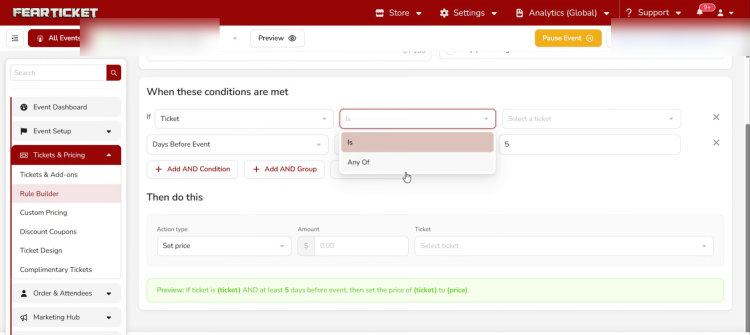
Choosing Is or Any Of when setting the Ticket condition.
Setting Days Before Event
The second row is where this rule gets its name. Set the field to Days Before Event, then choose an operator to define the window:
Greater than or Equal to applies the price from that many days out until the event, and keeps applying as the event gets closer.
Less than or Equal to applies the price only once you're inside that many days of the event, for example the final week before it starts.
Greater than and Less than work the same way but exclude the exact number you enter.
Enter the number of days into the value box next to the operator. For example, setting Days Before Event, Greater than or Equal to, 5 means the rule takes effect starting 5 days before the event and stays active until the event begins.
Adding More Conditions (Optional)
If you want the rule to depend on more than just the ticket and the days remaining, you can add another condition. Use Add AND Condition when the new requirement must also be true at the same time. Use Add AND Group when you want to nest a few related conditions together. Use Add OR Group when you want an alternate path, so the rule still applies even if the main condition isn't met but this other group is.
The extra fields you can choose from include Purchase Date, Day of Week, Ticket Quantity, Cart Quantity, Ticket Sold, and Ticket Sold (%), in case you want to combine the days-before-event condition with something like how many tickets have already sold.
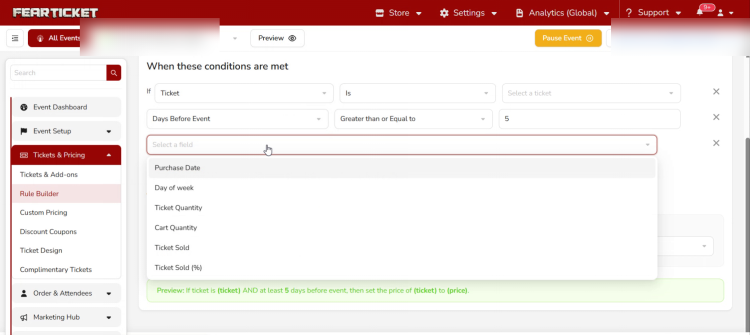
Additional fields available if you want to combine Days Before Event with another condition.
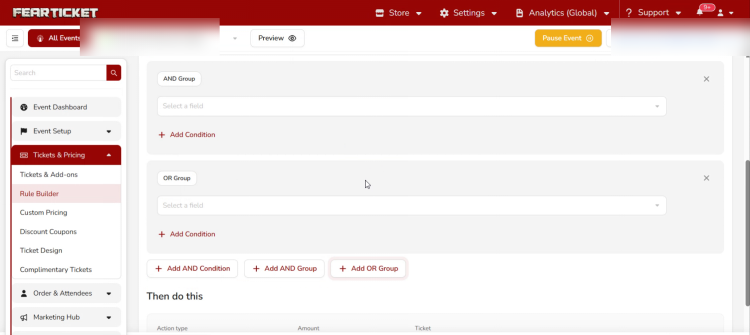
Adding an AND Group or OR Group to build a more specific version of this rule.
Setting the Price
Under Then do this, set the Action type to Set price, enter the Amount you want to charge, and choose the Ticket the new price should apply to. This is usually the same ticket you selected in the condition above, but it doesn't have to be.
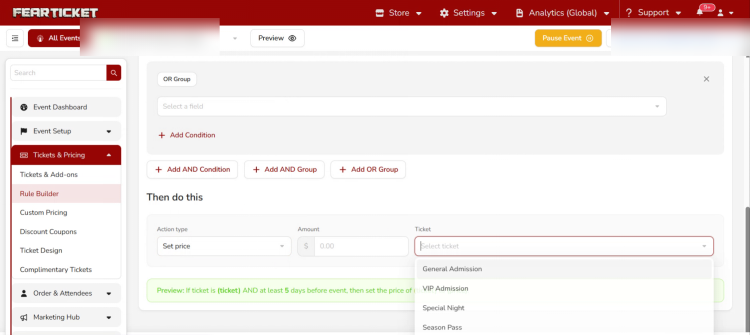
Choosing which ticket the new price applies to.
Reading the Preview Before You Save
FEARTICKET writes out a plain English summary of the rule right above the Save button. It's worth reading before saving, since it's the easiest way to catch a mistake. For the setup described above, it would read:
If ticket is (ticket) AND at least 5 days before event, then set the price of (ticket) to (price).
Example
If the General Admission ticket is purchased within 8 days of the event schedule date, set price to $25. Once saved, anyone buying General Admission inside that 8-day window automatically pays $25. Outside of that window, the ticket goes back to its regular price unless another rule says otherwise.
Note: This rule only affects the ticket type you select in it. Other ticket types keep their regular pricing unless a separate rule is created for them.
Was this article helpful?
That’s Great!
Thank you for your feedback
Sorry! We couldn't be helpful
Thank you for your feedback
Feedback sent
We appreciate your effort and will try to fix the article