FEARTICKET lets you automatically change a ticket's price based on the day, or date range, it's purchased. With a Based on Purchased Day rule, you can raise or lower a price for purchases made on specific days of the week, or within a specific date window, without touching the price manually. This is useful for weekend surcharges or promotional windows, for example increasing General Admission by 5% for anyone buying on a Friday or Saturday.
In Tickets & Pricing, click on Rule Builder. Under the template list, find Based on purchased day and click Use this rule, as shown in the image below.
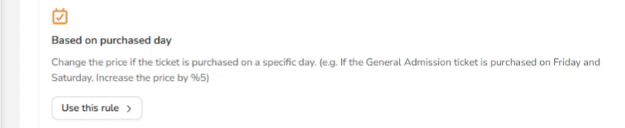
The Based on Purchased Day template, found in the Rule Builder template list.
Setting the Condition
At the top you can still name the rule, and there's a checkbox for Stop processing further rules if this matches if you don't want other rules to run once this one applies.
This template comes pre-built with three condition rows, so you can see the full range of what the rule can check in one place.
The first row lets you pick which ticket the rule watches, using an Is or Any of operator and a Select a ticket dropdown of your event's ticket types.
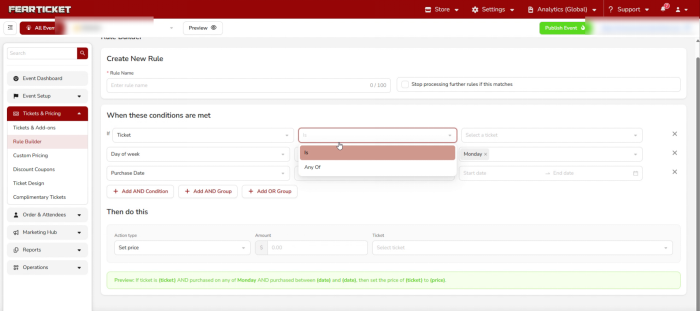
Choosing the operator and which ticket the rule watches.
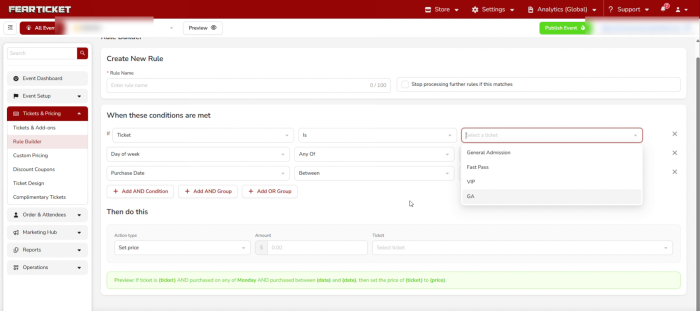
The Select a ticket dropdown, showing your event's ticket types.
The second row is Day of week. Its operator dropdown gives you Is or Any Of, so you can target a single day or several at once, for example Friday and Saturday together.
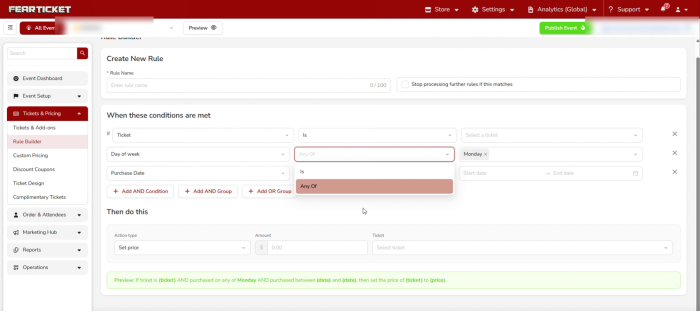
Setting the operator for Day of week, with Any Of selected to allow multiple days.
The third row is Purchase Date. Its operator dropdown gives you On, Before, After, On or Before, and Between, so you can target a single date or a whole range.
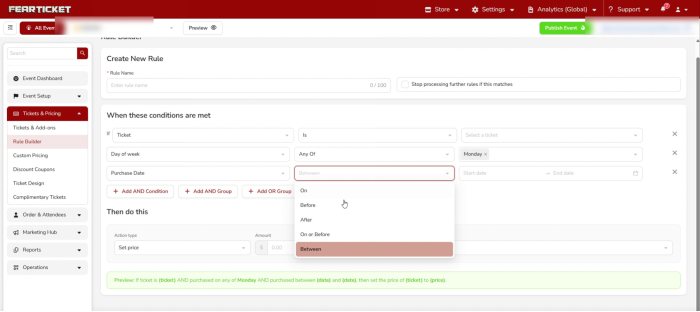
Setting the operator for Purchase Date.
Choosing Between opens a two month calendar so you can pick a start date and an end date for the promotional window.
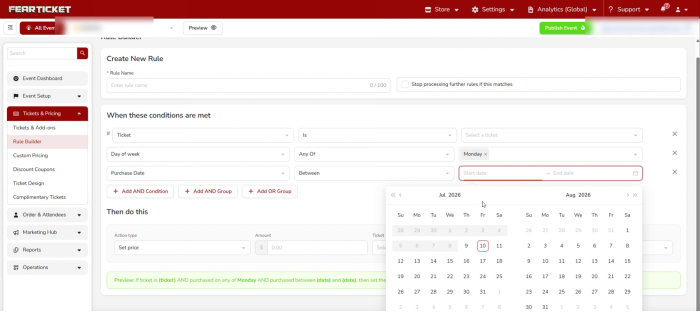
Picking a start and end date using the calendar when Between is selected.
If you need more than these three rows, use Add AND Condition, Add AND Group, or Add OR Group below them to layer in extra logic.
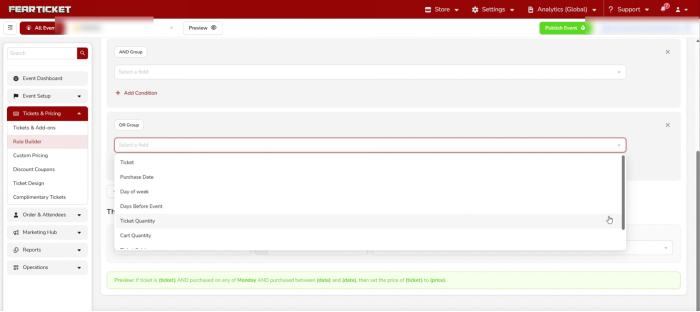
AND Group and OR Group blocks, used to combine or branch conditions further.
Setting the Action
Everything for what happens next lives in the Then do this section. Choose an Action type: Set price, Increase price, or Decrease price are the options you'll use most often for a day-based rule. Then fill in the Amount and pick the Ticket the action applies to.
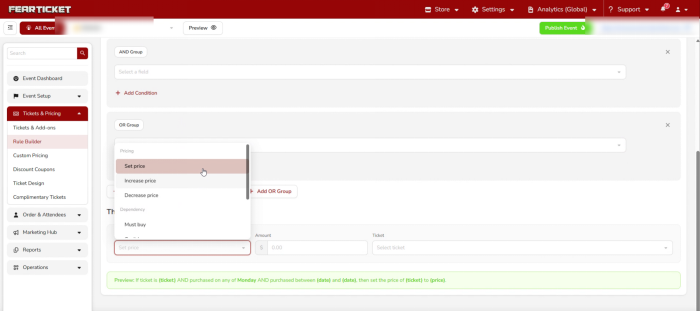
Choosing the action type that runs once the day or date condition is met.
Reading the Preview Before You Save
FEARTICKET writes a plain English summary of the rule right above the Save button, and it updates automatically as you make your selections. For this rule it would read:
If ticket is (ticket) AND purchased on any of Monday AND purchased between (date) and (date), then set the price of (ticket) to (price).
Once the preview matches what you intended, click Save.
Example
If General Admission is purchased on a Friday or Saturday, increase the price by 5%. Purchases made on any other day of the week keep the standard price, and the rule only applies within the date range you set if a Purchase Date condition is included.
Note: Day of week and Purchase Date conditions can be combined in the same rule, so you can restrict a day-based price change to a specific promotional window instead of applying it for the entire on-sale period.
Was this article helpful?
That’s Great!
Thank you for your feedback
Sorry! We couldn't be helpful
Thank you for your feedback
Feedback sent
We appreciate your effort and will try to fix the article