Payment Processing is where you connect the payment gateways that collect money from your ticket sales. You can see the gateways already available to you, add a new one, and choose which gateway each event uses for online and box-office card payments. This makes sure every event routes its sales to the right processor.
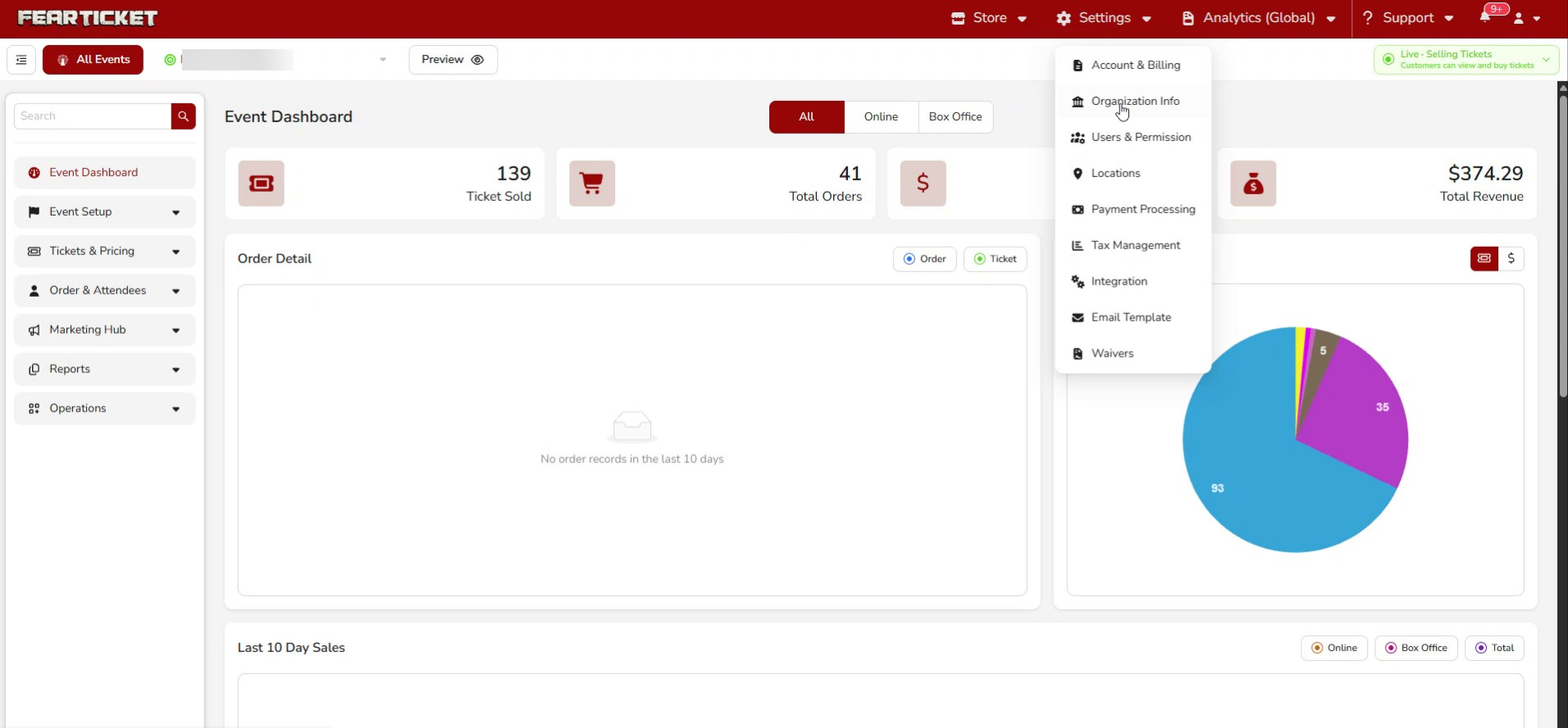
Settings in the top bar and choose Payment Processing.What you'll learn
- How to view your available payment gateways
- How to add a new gateway with Hytix Payments
- How to set the gateway each event uses for online and box-office sales
- How to edit or remove an existing gateway
Opening Payment Processing
Click Settings in the top navigation and select Payment Processing.
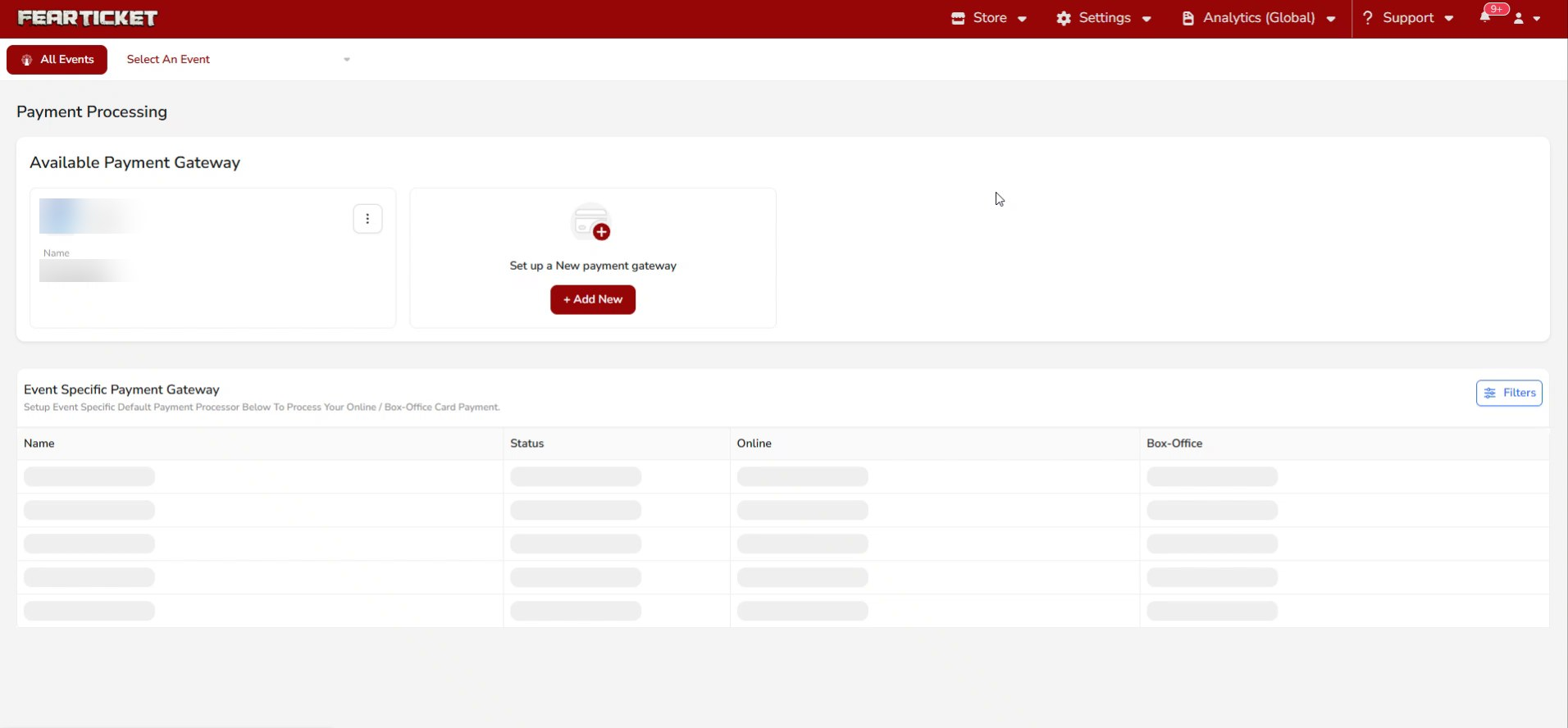
The Payment Processing page
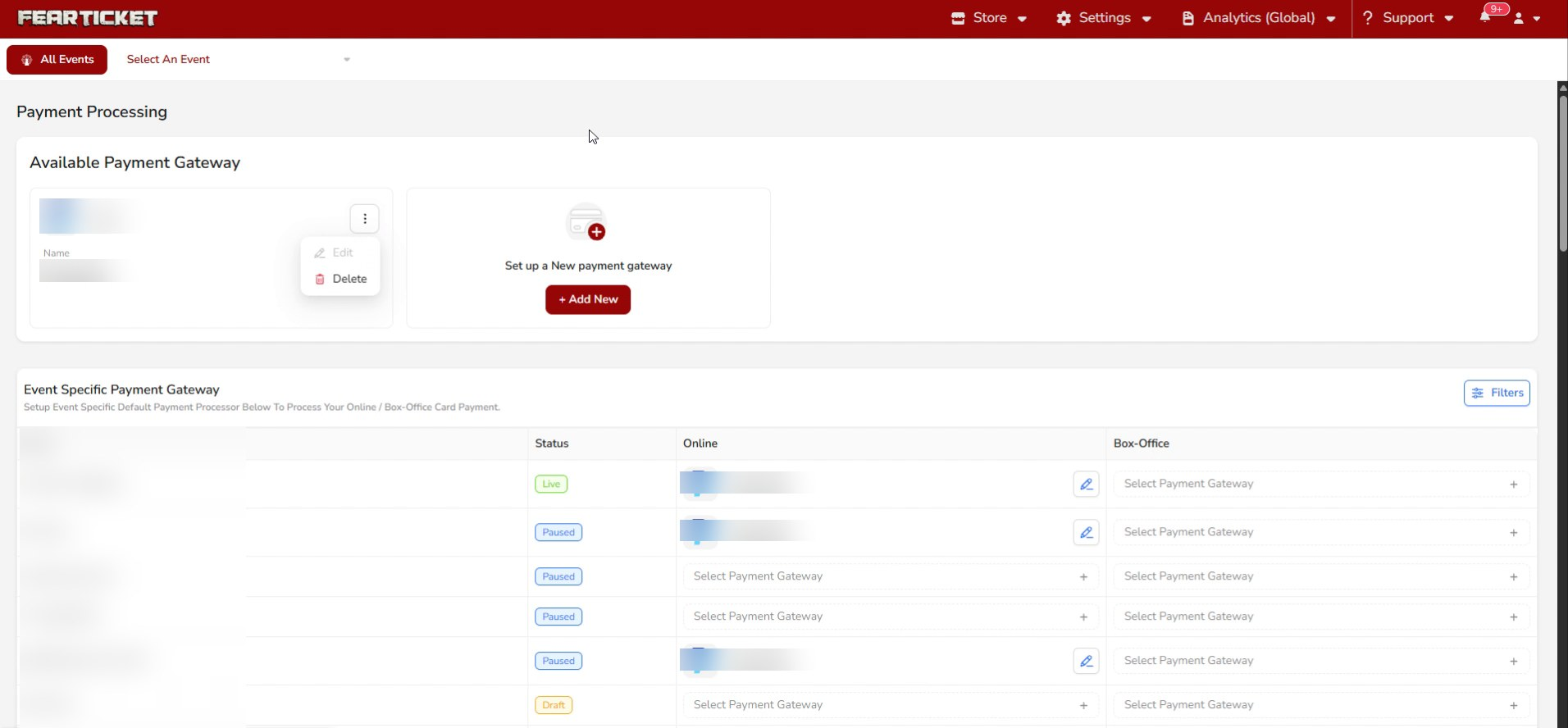
The page has two parts. Available Payment Gateway at the top shows the gateways connected to your account, such as HYTIX. Below it, Event Specific Payment Gateway lets you set the default processor for each event's online and box-office payments.
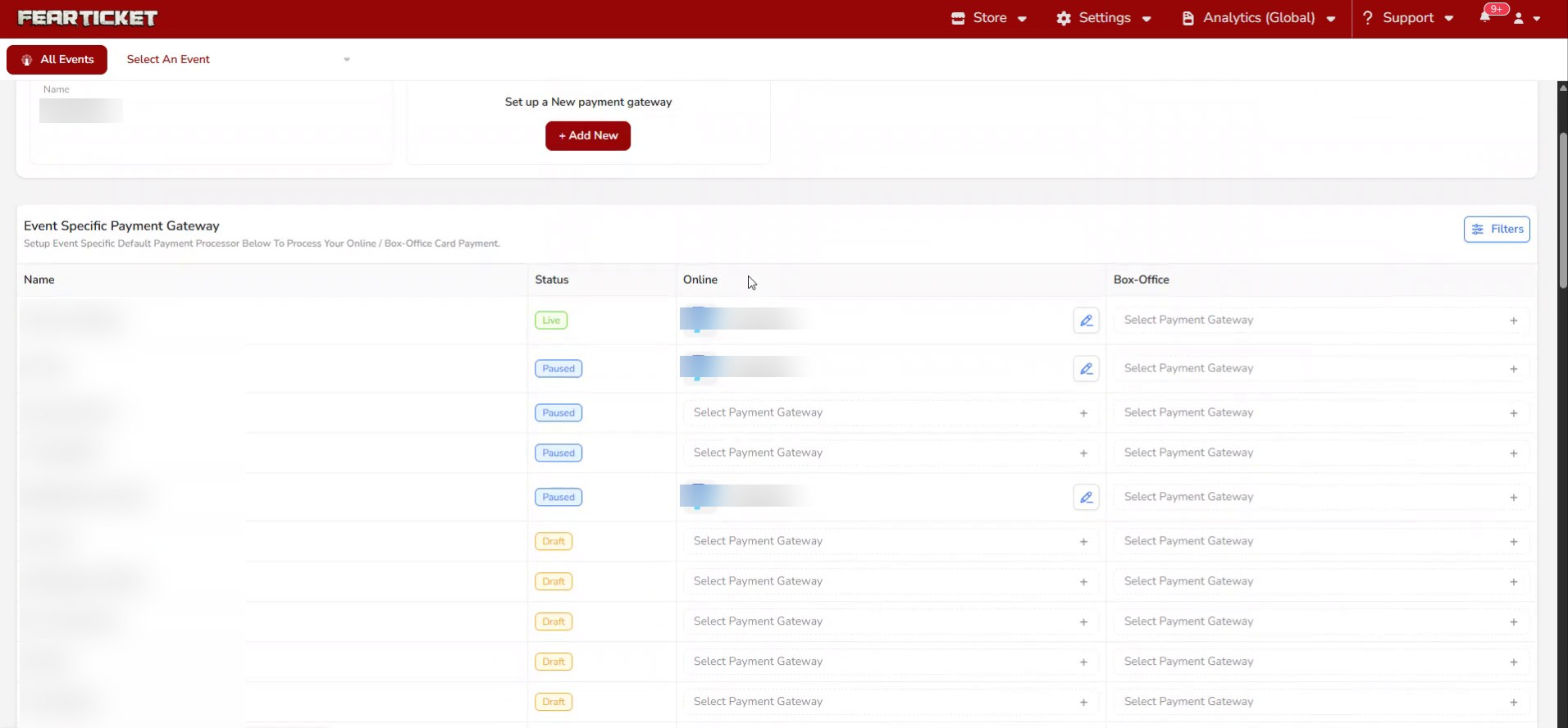
Assigning a gateway to each event
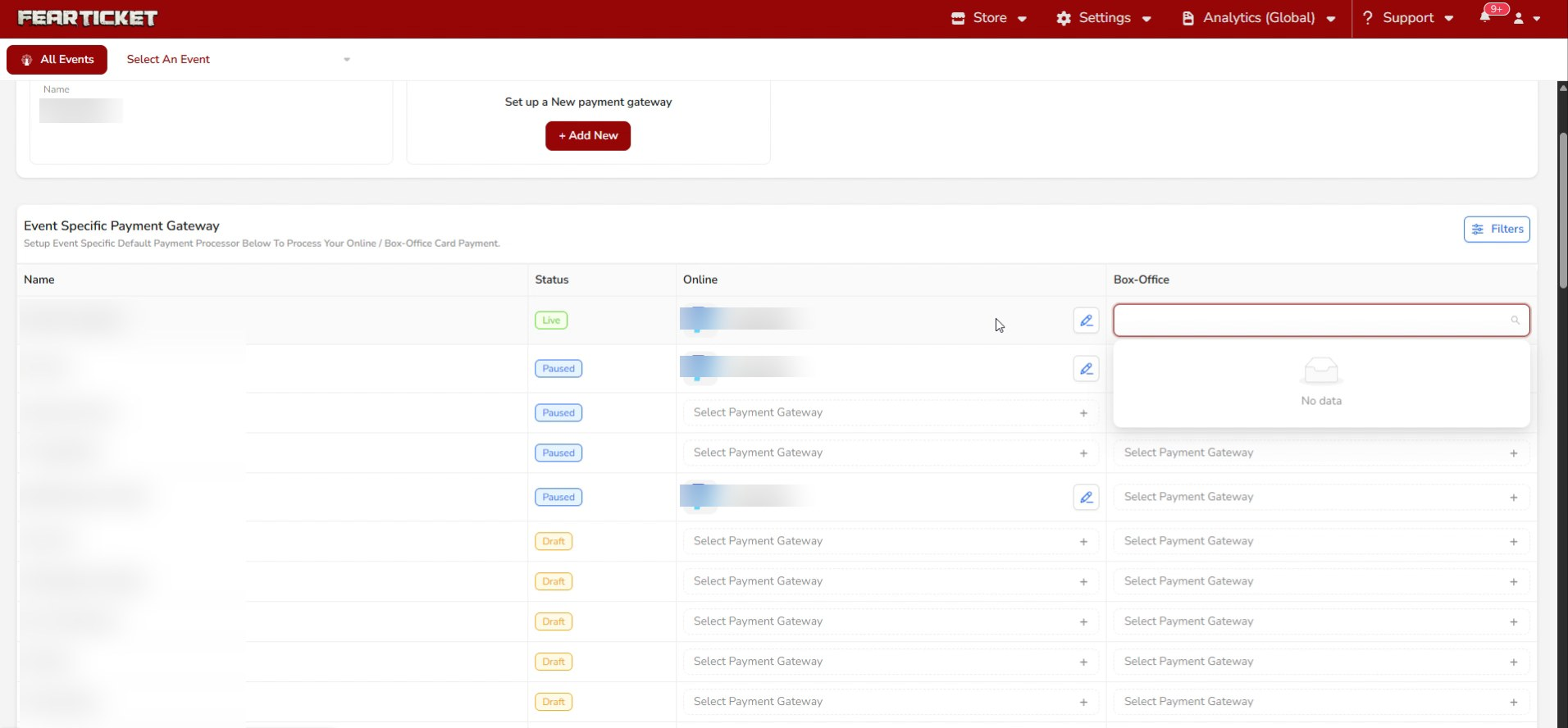
In the Event Specific Payment Gateway table, each row is one of your events with its current status. Set the Online and Box-Office columns to the gateway that event should use. Where a gateway is already set, use the edit icon to change it; where it's blank, click Select Payment Gateway to choose one.
Adding a new gateway with Hytix Payments
To add a processor, click Add New in the Set up a New payment gateway card. This opens the Hytix Payments page, which walks you through a fast, paperless setup. You'll need a Social Security Number, a W9 tax form, and your bank account details.
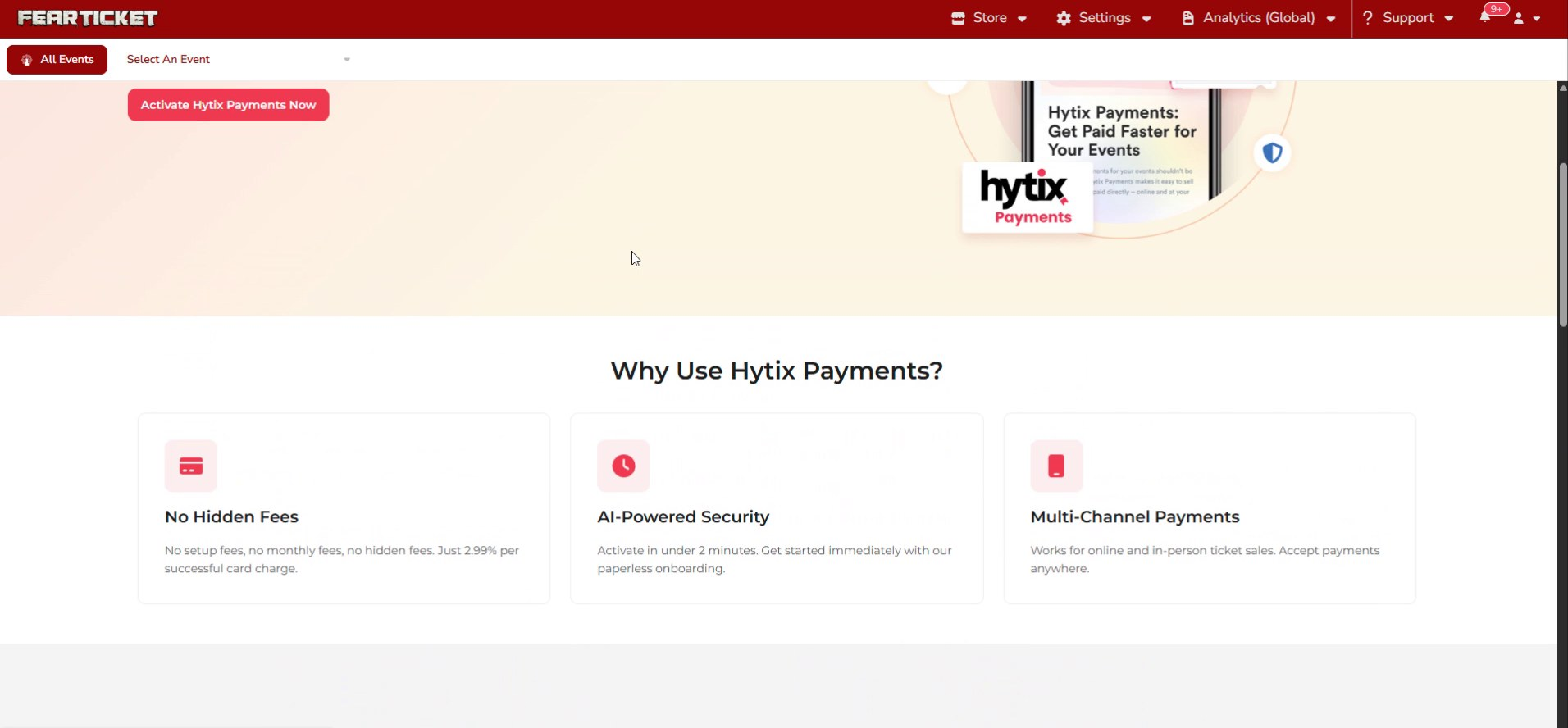
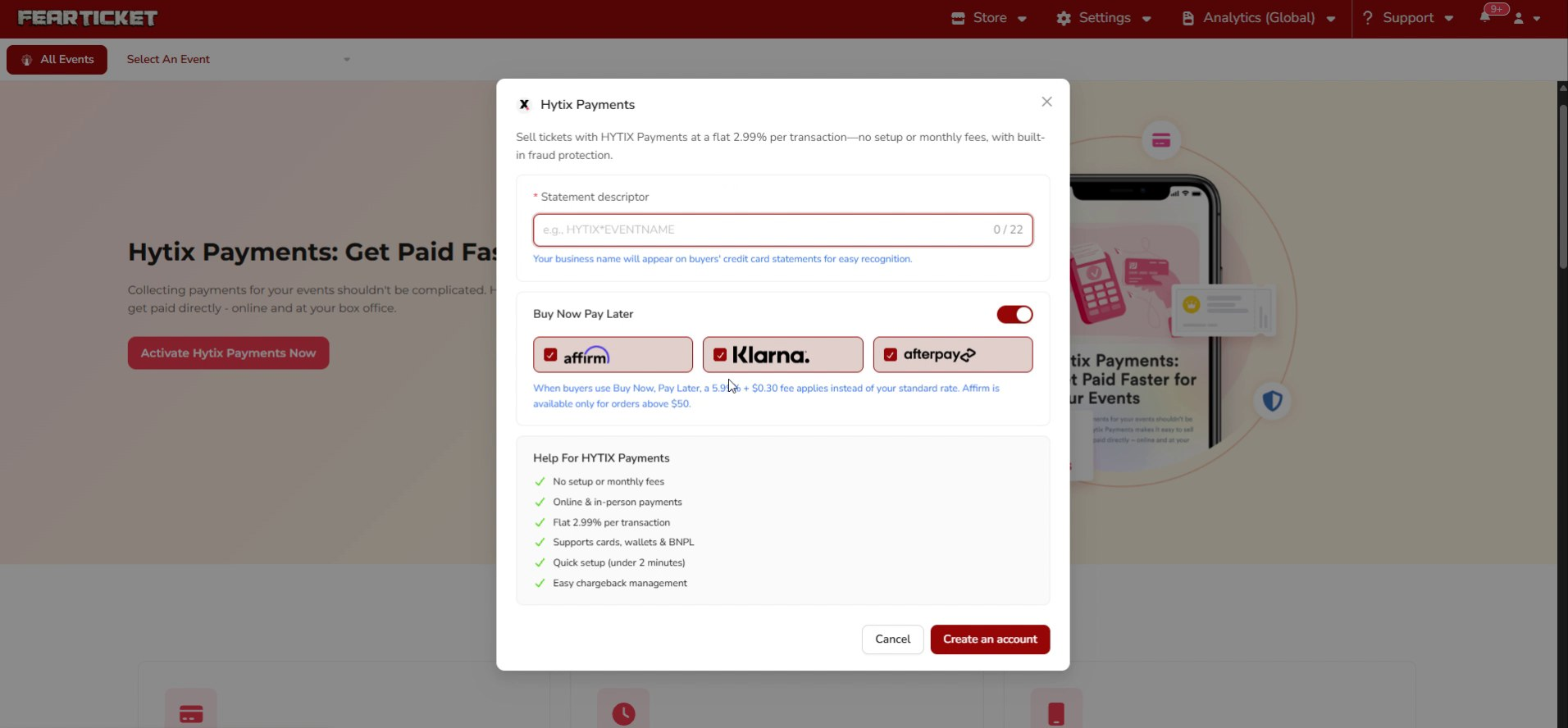
Click Activate Hytix Payments Now to open the setup form. Enter a Statement descriptor, which is the business name that appears on your buyers' credit card statements. You can also turn on Buy Now Pay Later options like Affirm, Klarna, and Afterpay. When you're ready, click Create an account.
Editing or removing a gateway
On any gateway card in the Available Payment Gateway section, click the three-dot menu to Edit its details or Delete it.
Was this article helpful?
That’s Great!
Thank you for your feedback
Sorry! We couldn't be helpful
Thank you for your feedback
Feedback sent
We appreciate your effort and will try to fix the article