The Attendee List is a powerful reporting and management tool inside FEARTICKET that gives event organizers a complete, real-time view of all ticket holders for their event. Use it to monitor check-in statuses, filter attendees, and export data for operations.
Frequently Asked Questions
1. What is the Attendee List?
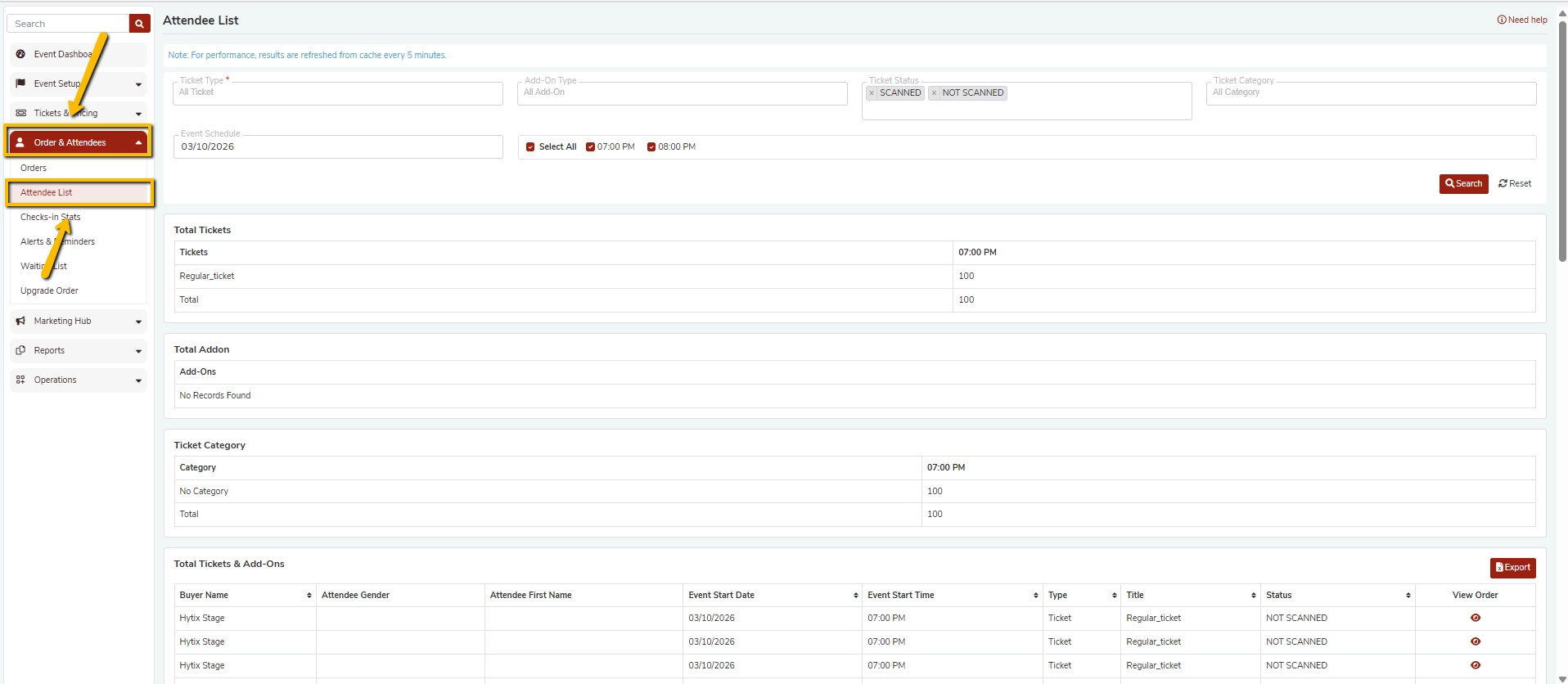
The Attendee List is a section under Orders & Attendees in your FEARTICKET dashboard. It displays a consolidated list of all ticket buyers and their associated ticket details for a specific event date and time slot.
It includes summary breakdowns for:
- Total Tickets sold per ticket type and time slot
- Total Add-Ons sold
- Ticket Category distribution
- Individual attendee rows with buyer name, gender, event start date/time, ticket type, title, and scan status
2. How do I access the Attendee List?
- Log in to your FEARTICKET organizer account.
- From the left sidebar, navigate to Orders & Attendees.
- Click on Attendee List.
3. How do I search for attendees?
You can filter the Attendee List using the following fields at the top of the page:
| Filter | Description |
|---|---|
| Ticket Type | Filter by a specific ticket type (e.g., Regular_ticket) |
| Add-On Type | Filter by any associated add-on |
| Ticket Status | Filter by scan status: Scanned or Not Scanned |
| Ticket Category | Filter by ticket category |
| Start Date | Select the event date to view (e.g., 03/10/2026) |
| Time Slot | Select one or more time slots (e.g., 07:00 PM, 08:00 PM) |
Once your filters are set, click the Search button. To clear all filters, click Reset.
Note: For performance, results are refreshed from cache every 5 minutes.
4. What does the "Ticket Status" filter do?
The Ticket Status filter allows you to narrow the list based on whether a ticket has been scanned at entry:
- Scanned - The ticket has been scanned and the attendee has checked in.
- Not Scanned - The ticket has not yet been scanned; the attendee has not checked in.
By default, both statuses are shown. You can select one to focus on checked-in or pending attendees.
5. What information is shown in the Attendee List table?
Each row in the Total Tickets & Add-Ons table shows:
| Column | Description |
|---|---|
| Buyer Name | Name on the order (e.g., Hytix Stage) |
| Attendee Gender | Gender of the ticket holder (if collected) |
| Attendee First Name | First name of the individual attendee |
| Event Start Date | The date of the event (e.g., 03/10/2026) |
| Event Start Time | The scheduled time slot (e.g., 07:00 PM) |
| Type | Whether it's a Ticket or an Add-On |
| Title | The ticket title (e.g., Regular_ticket) |
| Status | Scanned or Not Scanned |
| View Order | Quick-access icon to view the full order details |
6. What are the summary sections at the top of the Attendee List?
Before the individual attendee table, FEARTICKET displays three summary panels:
Total Tickets
Shows a breakdown of tickets sold per ticket type, grouped by time slot. For example:
- Regular_ticket to 07:00 PM: 100 tickets
Total Add-Ons
Shows any add-ons sold alongside tickets. If no add-ons were purchased, it displays No Records Found.
Ticket Category
Shows the number of tickets grouped by category. If no custom categories are set, tickets appear under No Category.
7. Can I select multiple time slots at once?
Yes. In the time slot filter area, you can use Select All to include all available time slots, or individually select specific time slots (e.g., 07:00 PM or 08:00 PM) using the checkboxes.
8. Can I export the Attendee List?
Yes. Click the Export button in the top-right corner of the Total Tickets & Add-Ons table to download the attendee data. This is useful for:
- Printing door lists
- Sharing with on-site staff
- Post-event analysis and reporting
9. Can I view an individual order from the Attendee List?
Yes. Each attendee row has a View Order icon in the last column. Clicking it takes you directly to the full order details for that ticket holder.
10. How often is the Attendee List updated?
The Attendee List is updated in near real-time, with results refreshed from cache approximately every 5 minutes. This ensures strong performance even during high-traffic events.
Best Practices
Before your event: Use the Attendee List filtered by date and time slot to get an accurate headcount for each session.
On the day of the event: Export the list and share it with your door staff as a backup check-in sheet.
After your event: Filter by Not Scanned to identify no-shows. This data can help you plan waitlist releases or future capacity decisions.
Was this article helpful?
That’s Great!
Thank you for your feedback
Sorry! We couldn't be helpful
Thank you for your feedback
Feedback sent
We appreciate your effort and will try to fix the article