The Transactions Report shows a detailed list of payment activity for your event, including:
- Successful payments (captures)
- Cash transactions (if enabled)
- Refunds
- Disputes and dispute fees
- Order details tied to each transaction
It is typically used for reconciliation, buyer support, and payout review.
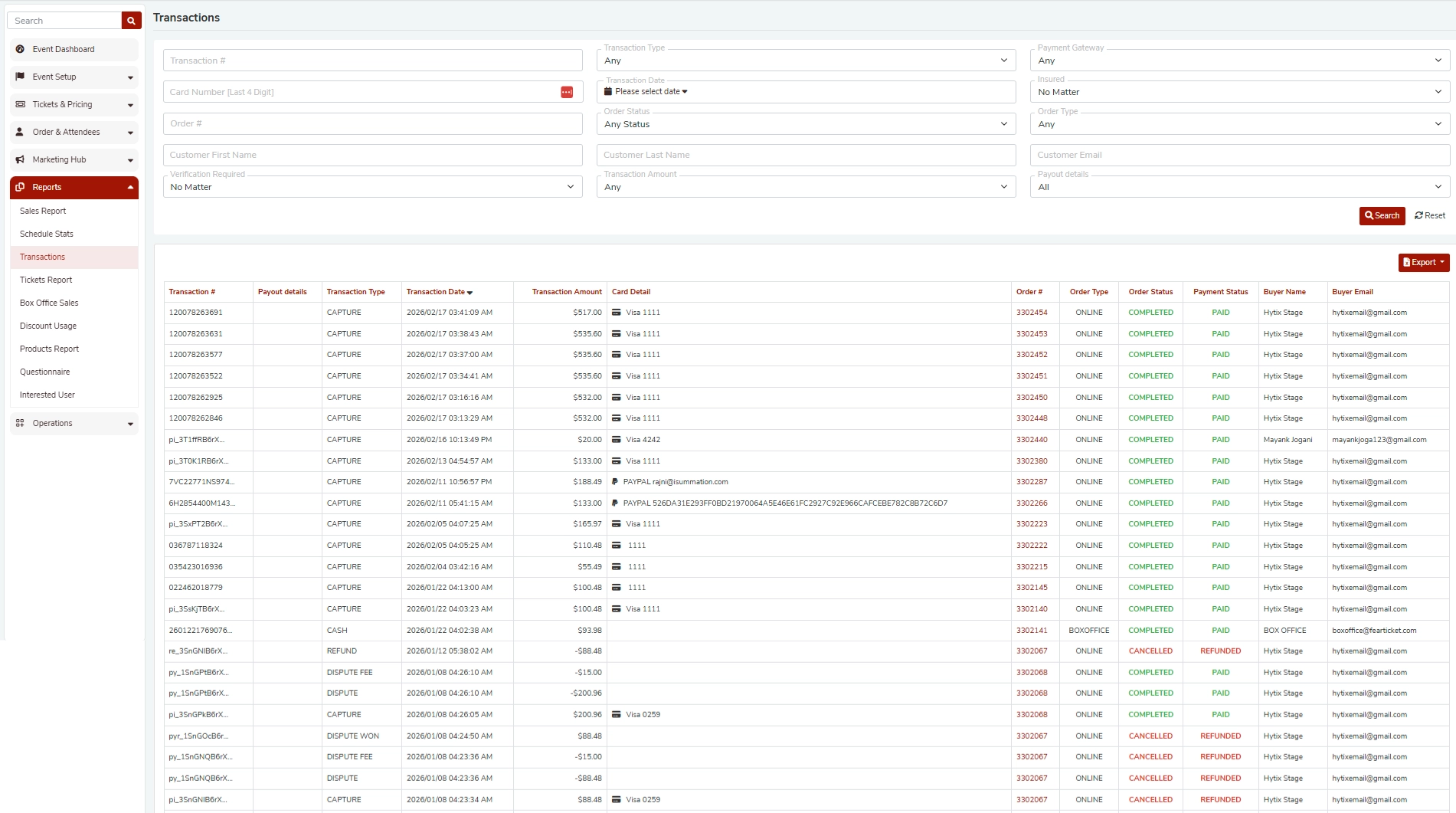
Filters (Top Section)
What can I search by on this page?
From the screenshot, you can filter transactions using fields like:
- Transaction #
- Card Number (Last 4 digits)
- Order #
- Customer First Name / Last Name
- Customer Email
- Transaction Type
- Order Status
- Transaction Date
- Transaction Amount
- Payment Gateway
- Payment Category (for example, insurance-related category)
- Order Type
- Payout Details
- Verification Required (Yes / No Matter)
What does “Transaction Type” mean?
This filter lets you narrow results based on how the transaction was recorded, such as:
- CAPTURE (a successful card payment)
- CASH (cash sale recorded at box office)
- REFUND (refunded amount)
- DISPUTE / DISPUTE FEE / DISPUTE WON (chargeback-related activity)
Exact labels may vary slightly depending on gateway events and your configuration.
What does “Order Status” mean?
Order Status refers to the order lifecycle (for example, completed vs cancelled). This is separate from whether the payment is paid or refunded.
What is “Payment Status” vs “Order Status”?
- Order Status = what happened to the order (completed, cancelled, etc.)
- Payment Status = what happened to the payment (paid, refunded, etc.)
It is possible to see a completed order with a paid payment, or a cancelled order with a refunded payment, depending on what actions were taken.
Why do I see a “Verification Required” filter?
This helps identify orders that were flagged for verification (depending on your risk rules or internal settings). Use it to quickly review transactions that may need attention before fulfillment or entry.
Table Columns (Results Section)
What information is shown in the transactions table?
Based on the screenshot, the table includes columns such as:
- Transaction #
- Payout details
- Transaction Type
- Transaction Date
- Transaction Amount
- Card Detail
- Order #
- Order Type
- Order Status
- Payment Status
- Buyer Name
- Buyer Email
What does “Card Detail” show?
It typically shows the card brand and masked identifier (for example, Visa 1111). This helps you match a buyer’s payment method without exposing full card details.
What are “Payout details”?
This section indicates how/when the funds relate to payouts or settlement, depending on your payment setup. If you need to confirm what a specific status means in your setup, share one example row and the payout label shown there.
Common Questions / Troubleshooting
I refunded an order. Why do I still see the original CAPTURE transaction?
Refunds usually appear as separate transactions (for example, CAPTURE + REFUND). This is normal and helps with accounting accuracy.
Why is a transaction marked as DISPUTE or DISPUTE FEE?
A DISPUTE indicates a chargeback was opened by the cardholder through their bank.
A DISPUTE FEE may be charged by the payment processor as part of that process.
If a dispute is resolved in your favor, you may see DISPUTE WON.
Why do I see CANCELLED orders with PAID status?
This can happen when:
- The order was cancelled after payment was captured.
- A refund was not issued (or was issued later).
To confirm, filter by Order # and review related transaction lines (CAPTURE / REFUND).
The buyer says they paid, but I cannot find the order. What should I search?
Try searching by:
- Buyer Email (fastest)
- Last 4 digits (if provided)
- Transaction Date range
- Transaction Amount
If the buyer used a different email at checkout, searching by Last Name can help.
Exporting
Can I download this report?
Yes. The screenshot shows an Export button, which lets you download transaction data for offline reconciliation or accounting.
What should I do if my export does not include what I expect?
Before exporting:
- Apply your filters first (date range, order status, payment status, etc.)
- Confirm the table shows the results you want
Then export.
Was this article helpful?
That’s Great!
Thank you for your feedback
Sorry! We couldn't be helpful
Thank you for your feedback
Feedback sent
We appreciate your effort and will try to fix the article