FEARTICKET gives you a detailed record of every payment tied to your event in the Transactions Report. It lists captures, refunds, disputes, and other payment activity, each linked to its order, which makes it the place to go for reconciliation, buyer support, and payout review. This article walks through the page and its filters.
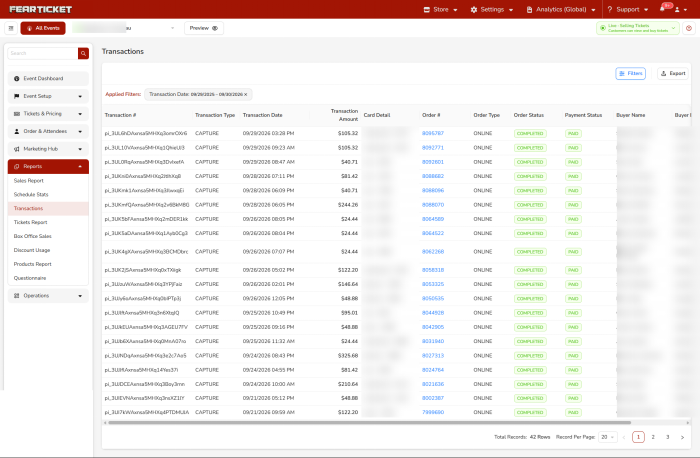
To open it, go to Reports in the left-hand menu of your event and click Transactions. The page loads a table of transactions, with Applied Filters shown as chips at the top and Filters and Export buttons on the right.
Filtering the Report
The Filters button opens the Transaction Filters window, where you can narrow the list by a wide range of fields. Set as many as you need, then click Apply to update the table, or Reset to clear them.
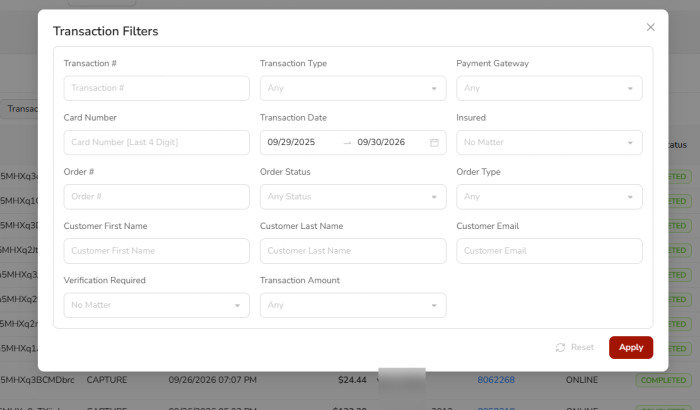
The filter fields are:
Transaction # and Order #
Search for a specific transaction by its processor ID, or find every transaction tied to a particular order number. Order # is useful when a buyer gives you their order reference.
Transaction Type
Narrow by how the payment was recorded. The options include Cash, Card, CC Offline, Check, Gift Voucher, Google Pay, and more, so you can isolate, for example, only cash sales taken at the box office.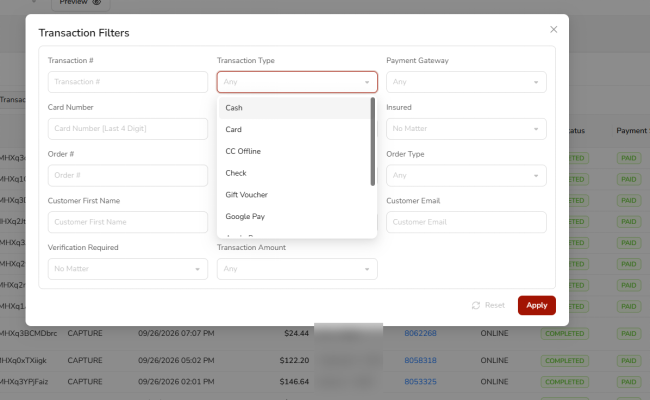
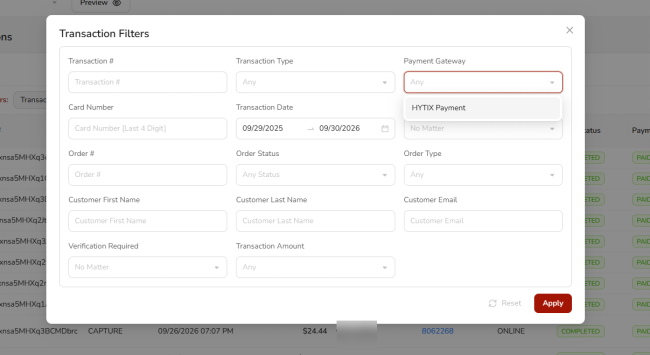
Payment Gateway
Filter by the gateway that processed the payment, so you can look at activity from one processor at a time.
Card Number
Search by the last four digits of a card. This helps you match a transaction to a buyer's payment method without exposing full card details.
Transaction Date
Set the period to report on. You can type a start and end date or use the calendar with quick presets such as Today, Yesterday, Last 7 Days, Last 30 Days, This Month, Last Month, or a Custom Range.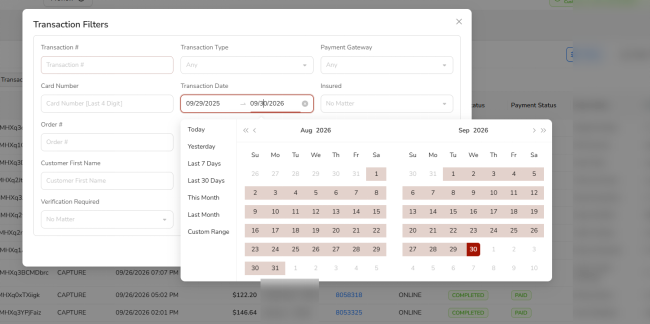
Insured
Filter to orders that did or did not include ticket insurance, using Yes or No.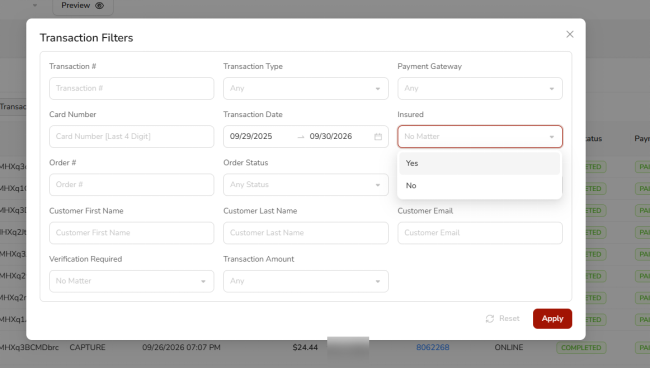
Order Status
Filter by the state of the order: Completed, Cancelled, or In Review. This is separate from whether the payment was paid or refunded.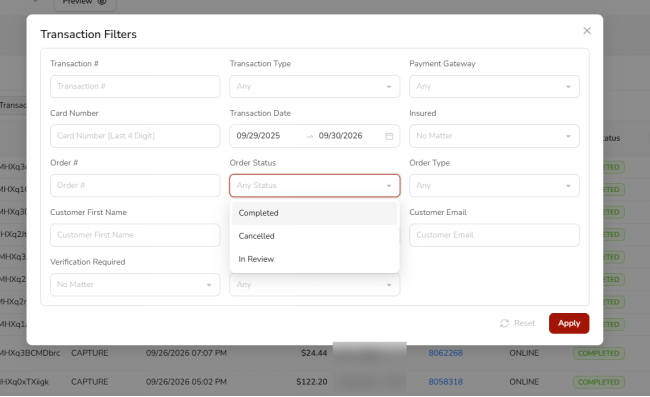
Order Type
Filter by where the order originated: Online, Box Office, or Gift Card.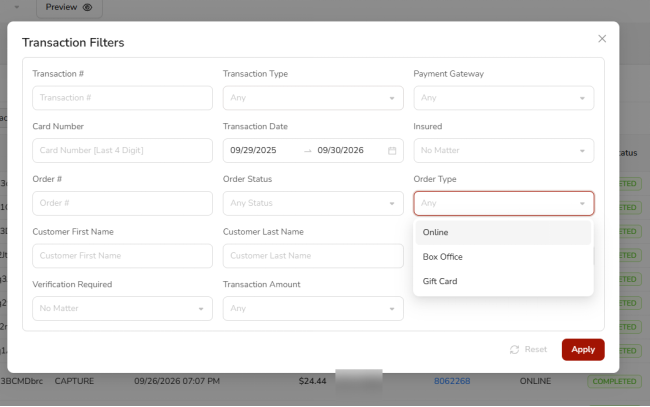
Customer First Name, Last Name, and Email
Search by the buyer's details. Email is usually the fastest way to find someone's transactions, and last name helps when a buyer checked out with a different email.
Verification Required
Filter to orders that were flagged for verification, using Yes or No. This helps you quickly review transactions that may need attention before fulfillment or entry.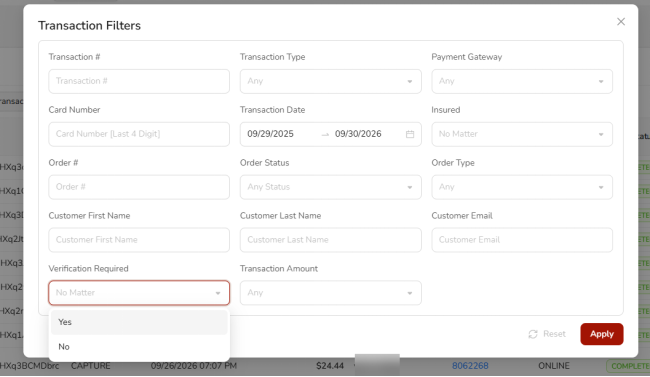
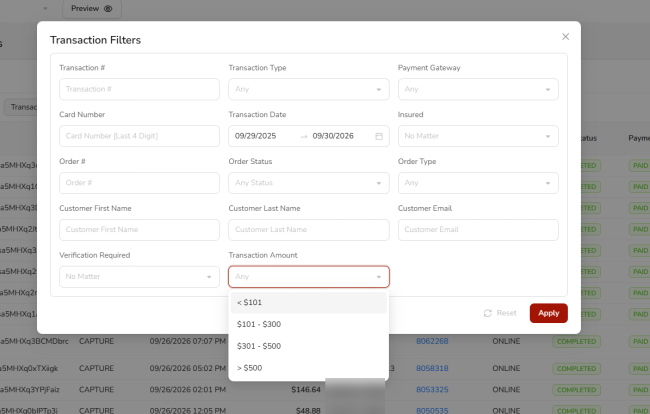
Transaction Amount
Filter by amount range, using bands such as under $101, $101 to $300, $301 to $500, or over $500.
Understanding the Table
Each row in the table is a single transaction. The columns are:
Column | What It Shows |
Transaction # | The payment processor's unique ID for the transaction |
Transaction Type | How the payment was recorded, such as CAPTURE, CASH, or REFUND |
Transaction Date | When the transaction happened |
Transaction Amount | The dollar amount of the transaction |
Card Detail | The card brand and its last four digits |
Order # | The order the transaction belongs to |
Order Type | Where the order came from, such as Online or Box Office |
Order Status | The state of the order, such as Completed or Cancelled |
Payment Status | The state of the payment, such as Paid or Refunded |
Buyer Name | The name on the order |
Buyer Email | The email on the order |
Use the pager and Record Per Page control at the bottom to move through longer results.
A Note on Refunds and Disputes
A refund usually appears as its own row separate from the original payment, so you may see a CAPTURE and a REFUND for the same order. That's normal and keeps the accounting accurate. Chargeback activity can show as a dispute, a dispute fee, and, if it's resolved in your favor, a dispute won.
Exporting the Report
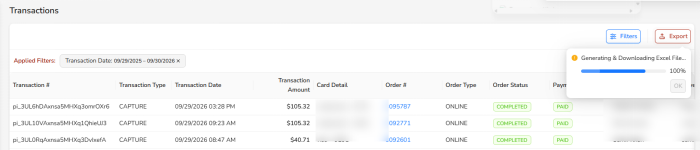
The Export button downloads the transaction list as an Excel file for offline reconciliation or accounting. Apply your filters first and confirm the table shows what you want, since the export reflects the current results. A short progress indicator appears while the file is generated.
Note: Order Status and Payment Status describe different things. Order Status is what happened to the order (completed, cancelled), while Payment Status is what happened to the payment (paid, refunded). It's possible to see a completed order with a paid payment, or a cancelled order with a refunded payment, depending on what actions were taken.
Was this article helpful?
That’s Great!
Thank you for your feedback
Sorry! We couldn't be helpful
Thank you for your feedback
Feedback sent
We appreciate your effort and will try to fix the article