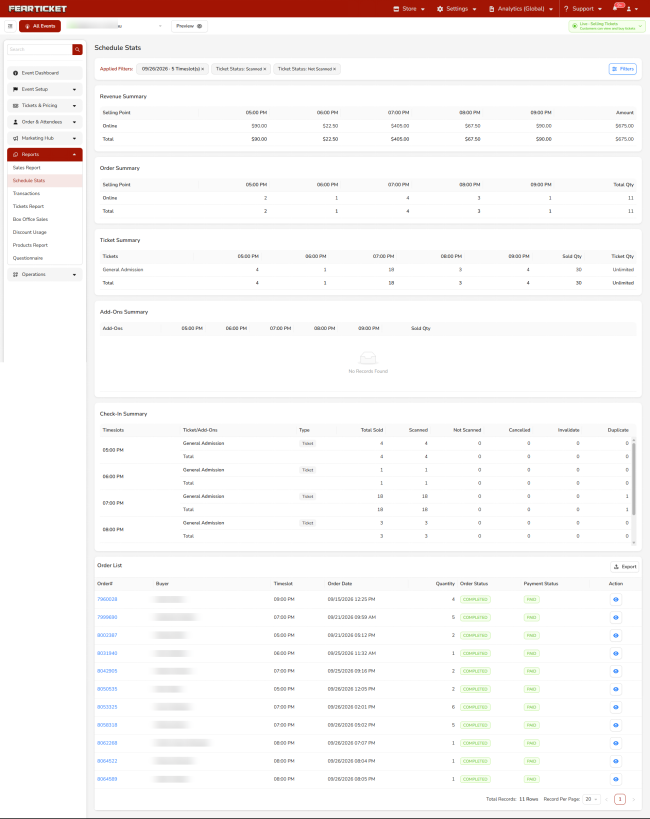
FEARTICKET helps you understand sales and check-in performance for a specific event schedule and time slot. Schedule Stats brings revenue, orders, tickets sold, add-ons, and check-in status together in one place, broken down by timeslot, which makes it especially useful on the night of an event. This article walks through the page and its filters.
To open it, go to Reports in the left-hand menu of your event and click Schedule Stats.
Filtering the Report
At the top, Applied Filters shows which filters are currently active as removable chips, and the Filters button opens the full set of options. The report only loads once you choose a date and time, so the filters are where you start.
Ticket Type
Narrow the report to a specific ticket, such as General Admission or a VIP option, or leave it on All Ticket to include everything. This is handy when you want the numbers for just one ticket type.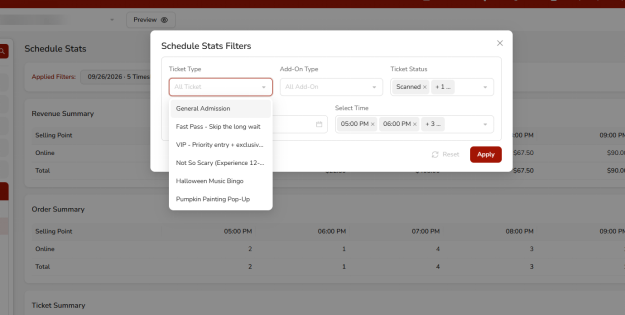
Add-On Type
Filter by a specific add-on, such as a FastPass, T-shirt, or Hat, or leave it on All Add-On. This is useful for reviewing how a particular add-on is selling.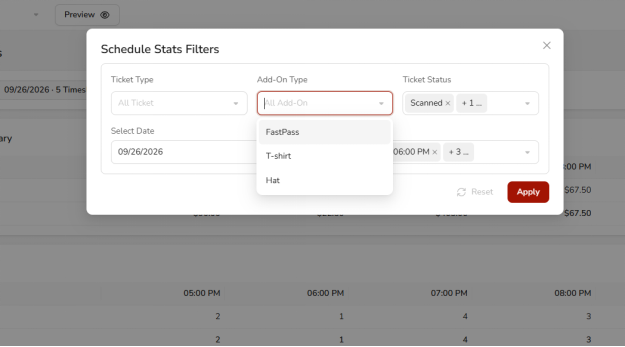
Ticket Status
Focus on tickets in a particular state. You can select more than one at once from Scanned, Not Scanned, and Cancelled, which lets you compare checked-in and not-yet-checked-in guests side by side.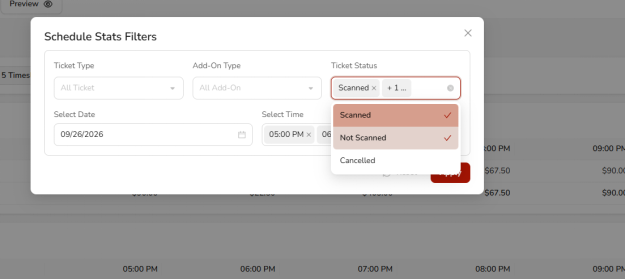
Select Date
Pick the event schedule date you want to report on using the calendar.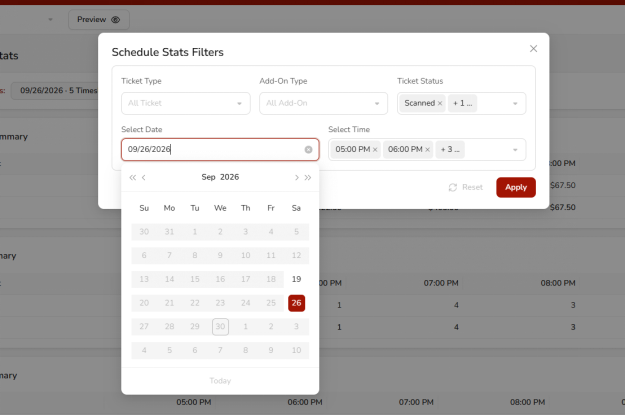
Select Time
Choose one or more timeslots for that date. You can select several at once, and each selected timeslot becomes its own column across the summary tables.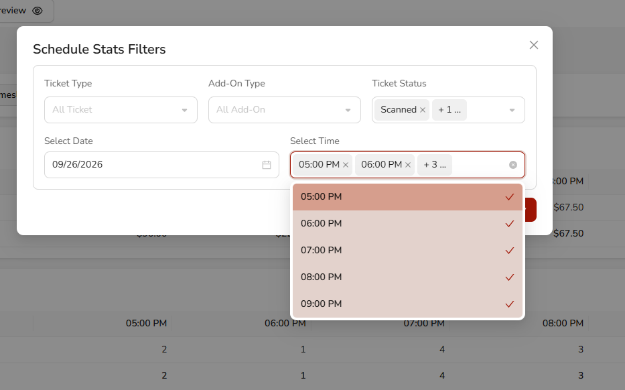
After setting the filters, click Apply to load the report, or Reset to clear them and start over.
Revenue Summary
The Revenue Summary breaks down revenue by selling point, such as Online, with a column for each timeslot you selected and a Total row at the bottom. It gives you a quick read on how much money each time slot brought in.
Order Summary
The Order Summary counts orders by selling point across the same timeslot columns, with a total quantity on the right. It helps you confirm how many purchases came through each channel and time slot.
Ticket Summary
The Ticket Summary shows a ticket-level breakdown, listing each ticket type with the quantity sold in each timeslot. Sold Qty is the number sold, and Ticket Qty is the configured capacity for that type, which can read as a number or as Unlimited when there's no cap.
Add-Ons Summary
The Add-Ons Summary shows which add-ons sold and how many, again across your timeslot columns. If no add-ons were sold for the selection, it simply shows no records.
Check-In Summary
The Check-In Summary is the section to watch on event night. For each timeslot, it lists the tickets and add-ons with their check-in figures:
Column | What It Shows |
Total Sold | Tickets sold for that timeslot |
Scanned | Guests who have checked in |
Not Scanned | Guests who have not checked in yet |
Cancelled | Tickets that were cancelled |
Invalidate | Tickets no longer valid for entry |
Duplicate | Repeat scans the system flagged as already used |
Together these let you track arrivals in real time and spot issues like repeat scans at the gate.
Order List
The Order List at the bottom is a table of the individual orders that match your filters. Each row shows the order number, buyer, timeslot, order date, quantity, order status, and payment status, with an action to view the full order. The Export button downloads this list, which is useful for auditing or handing off to operations.
Note: Schedule Stats can use cached data for performance and may refresh every few minutes, so numbers might not update the instant a sale or scan happens. If something looks off right after a change, wait a moment and reload, or run the report again.
Was this article helpful?
That’s Great!
Thank you for your feedback
Sorry! We couldn't be helpful
Thank you for your feedback
Feedback sent
We appreciate your effort and will try to fix the article