Email Template is a centralized place to control the emails your attendees receive, such as order confirmations, reschedule and cancellation notices, reminders, and waiting-list messages. The content you set here is saved at the account level, and you can override it for a specific event when you need event-specific wording.
Settings in the top bar and choose Email Template.What you'll learn
- Which emails you can customize
- How to edit a template's subject and body
- How merge tags work and why not to remove them
Opening Email Templates
Click Settings in the top navigation and select Email Template.
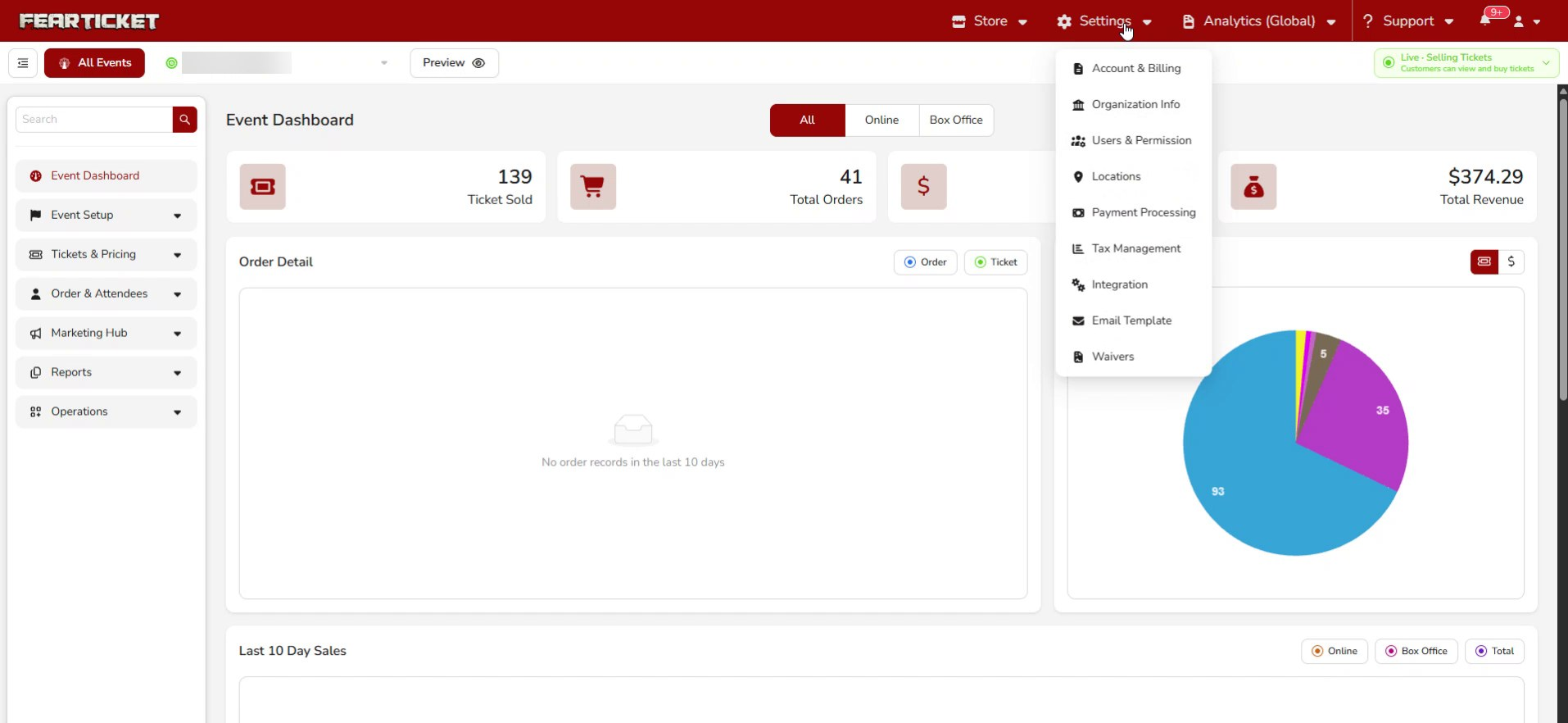
The template list
The Customized Email Templates page lists every email the system can send, each with a short description of when it goes out. Click the edit icon on any row to customize that template.
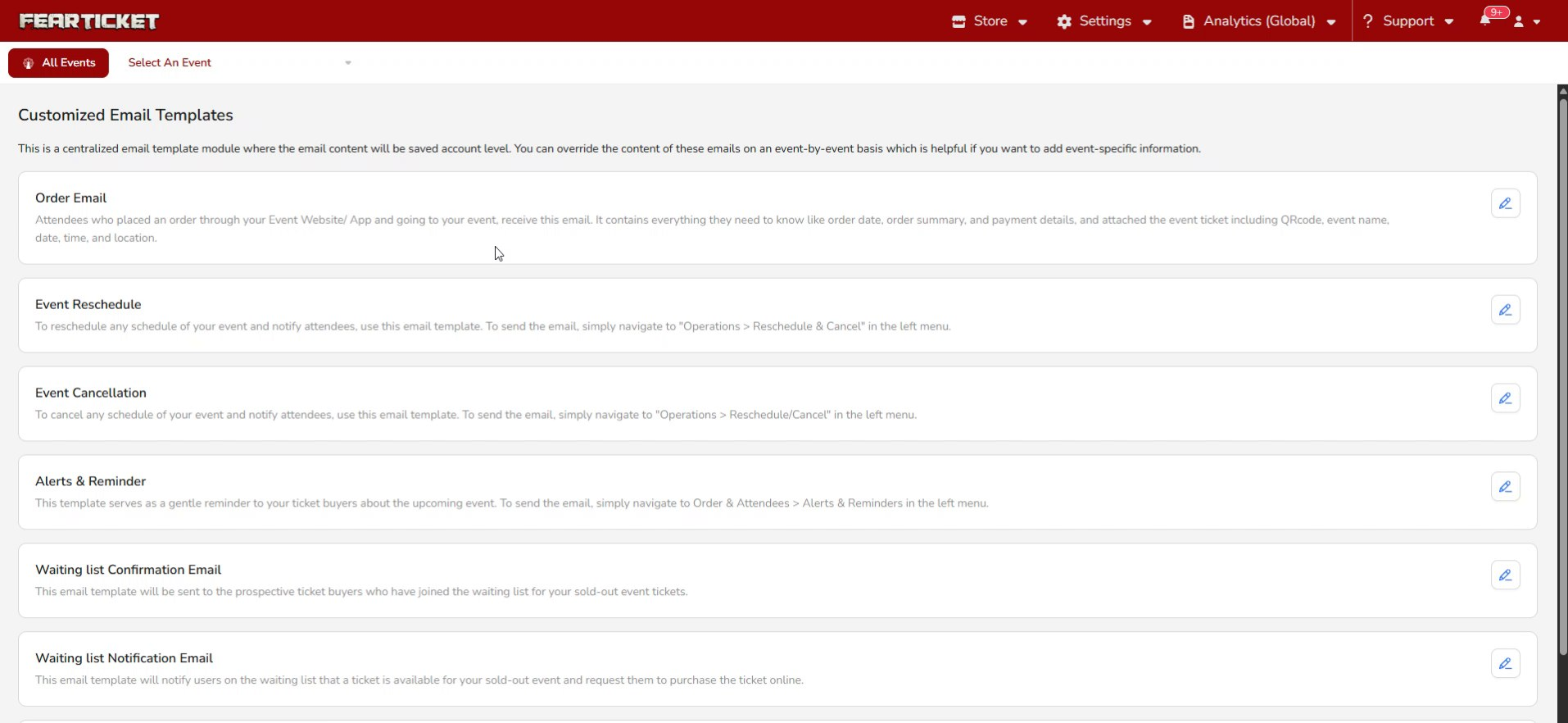
| Template | When it's sent |
|---|---|
| Order Email | To attendees after they place an order, with their order details and ticket. |
| Event Reschedule | When you reschedule an event and notify attendees. |
| Event Cancellation | When you cancel an event and notify attendees. |
| Alerts & Reminder | As a reminder to ticket buyers about an upcoming event. |
| Waiting list Confirmation / Notification | To people on the waiting list for a sold-out event. |
| Thank you email | To attendees after their ticket is scanned at the event. |
| Event Cancellation & Refund | When you cancel and refund, notifying the buyer. |
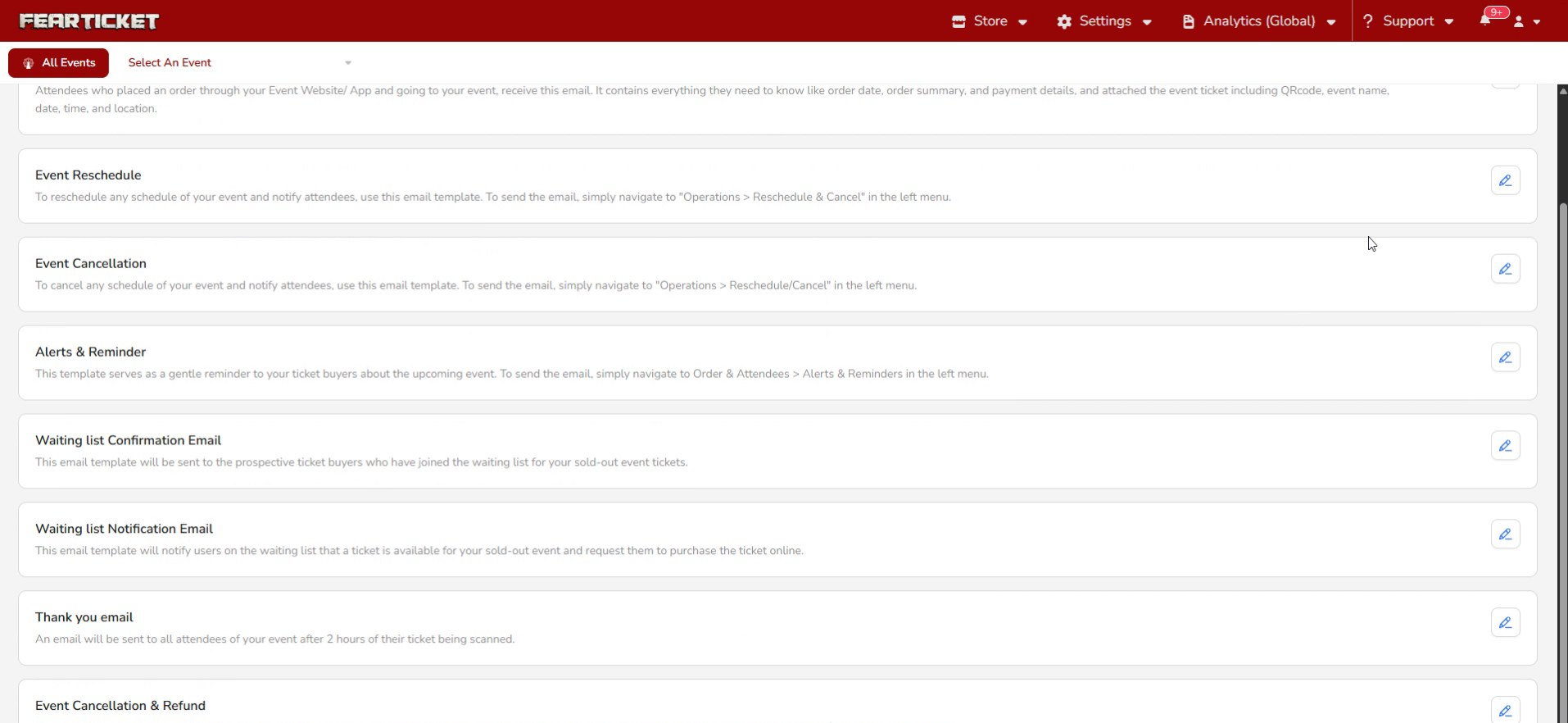
Editing a template
Clicking edit opens the Edit Email Template screen. Set the Email Subject and use the Description editor to change the body. The editor has standard formatting tools, and you can insert links or switch to the code view.
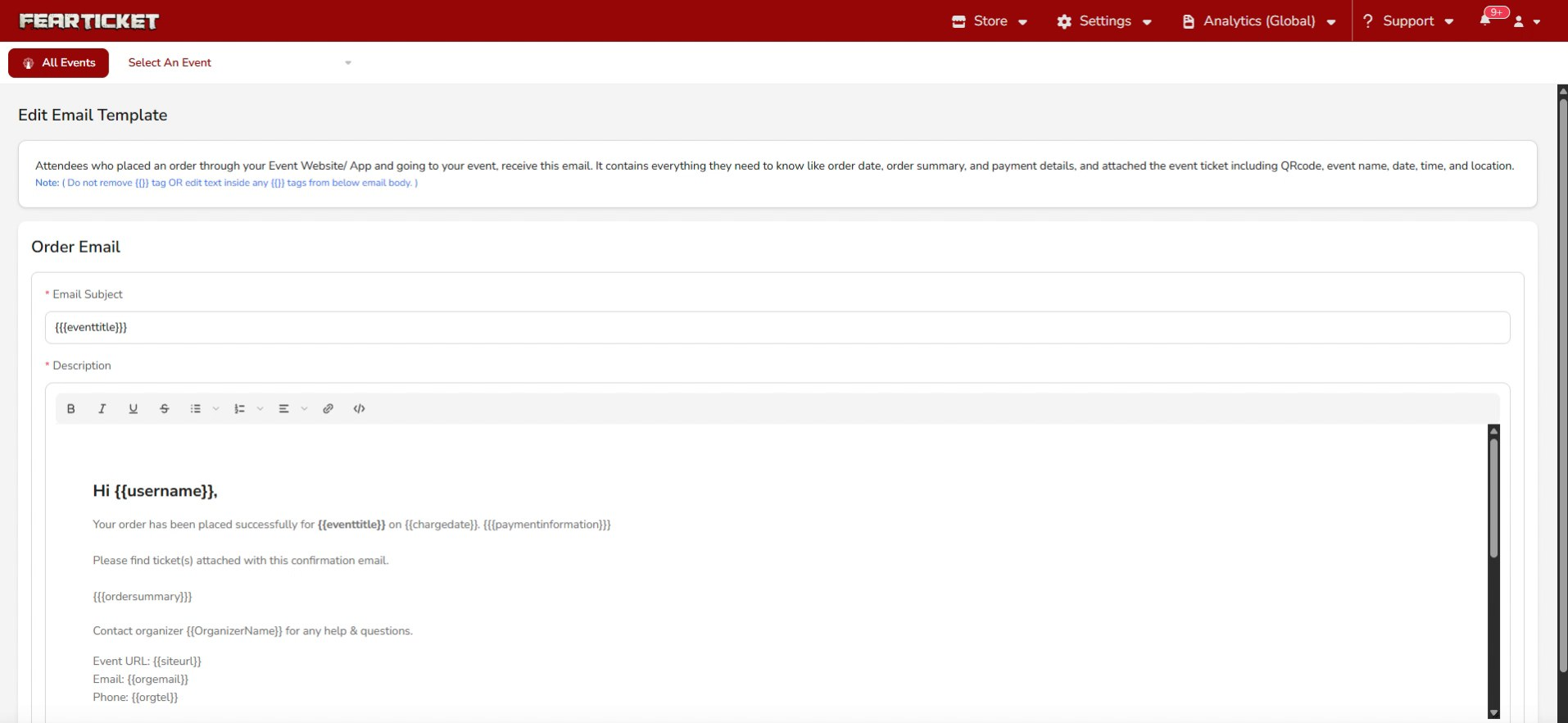
The body includes buttons and a footer, such as a Print Tickets link and your organizer details. Use the toolbar to adjust alignment, images, and spacing, then click Save when you're done.
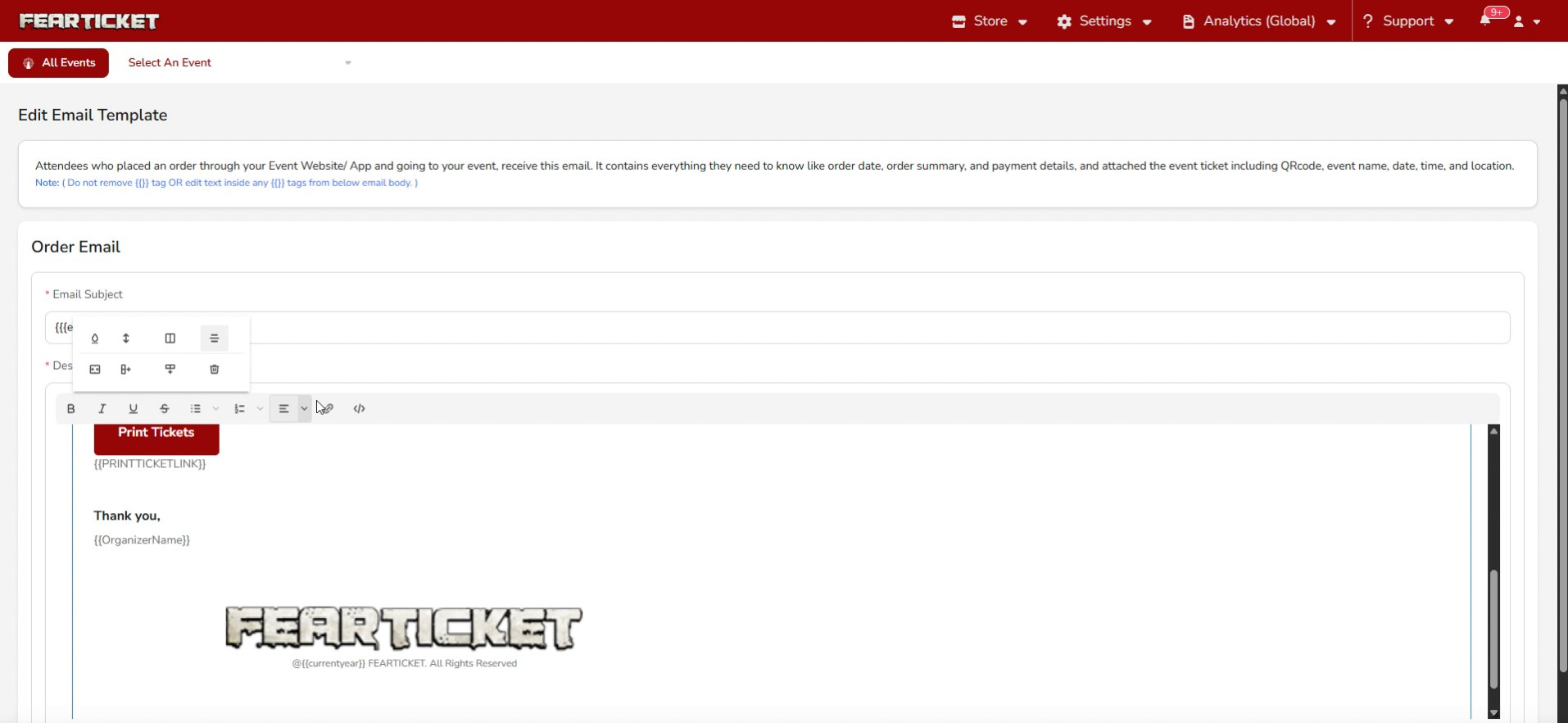
{{username}} or {{eventtitle}}, are merge tags that get replaced with real details when the email is sent. Don't remove these tags or edit the text inside them, or that information won't appear in the email.Was this article helpful?
That’s Great!
Thank you for your feedback
Sorry! We couldn't be helpful
Thank you for your feedback
Feedback sent
We appreciate your effort and will try to fix the article