What is the Alerts & Reminders page?
The Alerts & Reminders page lets you set up automatic reminder emails that go out to attendees before your event starts. You can control which tickets the reminder applies to, when it sends, and how the email itself is worded.
How do I access Alerts & Reminders?
1. Log in to your FEARTICKET organizer account.
2. Navigate to your event.
3. In the left sidebar, click Order & Attendees.
4. Select Alerts & Reminders from the dropdown.
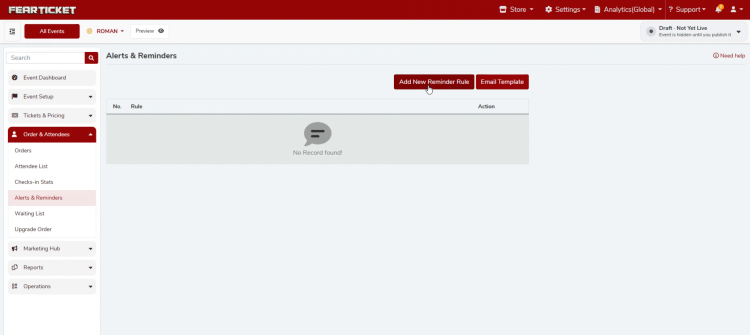
If you haven't created a reminder rule yet, the table will show No Record found! along with two buttons in the top right: Add New Reminder Rule and Email Template.
Creating a Reminder Rule
How do I create a new reminder rule?
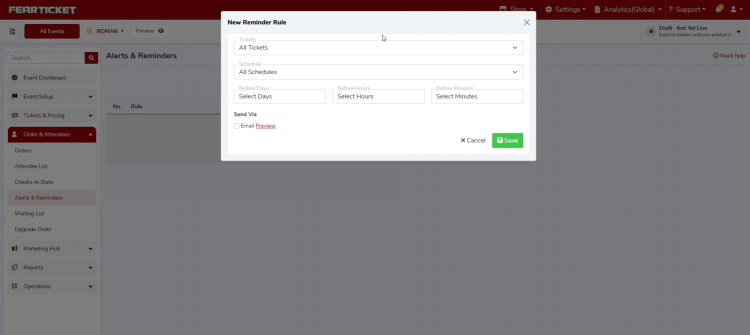
Click Add New Reminder Rule. A window opens where you can set up the rule.
What fields do I need to fill in?
Field | Description |
Tickets | Choose which ticket types the reminder applies to, or leave it set to All Tickets. |
Schedule | Choose which event schedule the reminder applies to, or leave it set to All Schedules. |
Before Days | How many days before the event the reminder should go out. |
Before Hours | How many hours before the event the reminder should go out. |
Before Minutes | How many minutes before the event the reminder should go out. |
You can combine Days, Hours, and Minutes to fine tune the exact send time. At least one of these three fields needs a value before you can save the rule.
What does the Send Via section do?
Check the Email box to have the reminder sent by email. Next to it, the Preview link lets you see exactly what the email will look like before you save the rule.
What does the email preview show?
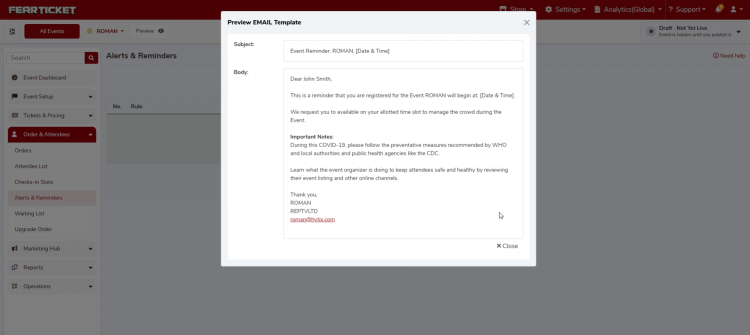
Clicking Preview opens a read only window with the Subject line and full Body text of the reminder email, using sample placeholder details so you can check the wording and layout.
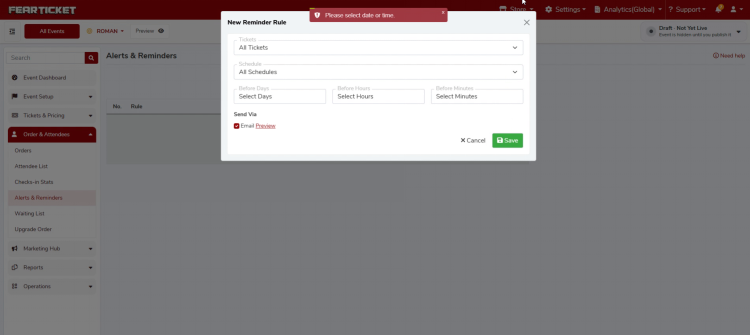
Why am I getting a "Please select date or time" error when I click Save?
This means none of the Before Days, Before Hours, or Before Minutes fields have a value. The rule needs at least one of these set so the system knows when to send the reminder. Fill in one or more of these fields and click Save again.
Customizing the Reminder Email Template
How do I edit the wording of the reminder email?
From the Alerts & Reminders page, click Email Template in the top right. This opens the editable version of the template, with a Subject field and a Body field.
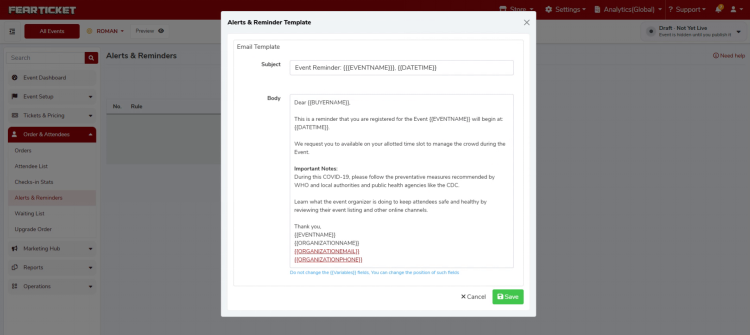
What are the curly bracket fields like {{BUYERNAME}} or {{EVENTNAME}}?
These are merge fields. The system automatically replaces them with the real attendee and event details when the email is sent, for example the buyer's name, the event name, and the date and time. You can move these fields around in the template or add your own text around them, but you should not rename or delete the merge fields themselves, since that will stop the system from filling them in correctly.
Which merge fields are available?
Merge Field | What it inserts |
{{BUYERNAME}} | The name of the ticket buyer |
{{EVENTNAME}} | The name of your event |
{{DATETIME}} | The date and time the event begins |
{{ORGANIZATIONNAME}} | Your organization's name |
{{ORGANIZATIONEMAIL}} | Your organization's contact email |
{{ORGANIZATIONPHONE}} | Your organization's contact phone number |
Troubleshooting
My reminder rule won't save. What am I missing?
Double check that at least one of Before Days, Before Hours, or Before Minutes has a value. Saving with all three left blank triggers the "Please select date or time" error and the rule will not be created.
I saved a rule but the list still shows "No Record found!"
Reopen Add New Reminder Rule and confirm the timing fields were actually filled in before you clicked Save. If the validation error appeared, the rule was not saved, and you will need to fill in the timing fields and save again.
Can I have more than one reminder rule?
Yes. You can create multiple rules to send reminders at different times, for example one a week before the event and another the day of, or target different ticket types with different timing.
Was this article helpful?
That’s Great!
Thank you for your feedback
Sorry! We couldn't be helpful
Thank you for your feedback
Feedback sent
We appreciate your effort and will try to fix the article