To view the order report for an event:
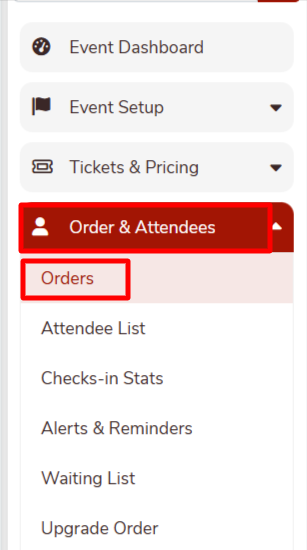
- Select your event from the event dropdown.
- Navigate to Order & Attendees in the left menu.
- Click Orders.
This will open the Orders report page, where all ticket orders for the selected event are listed:
Searching and Filtering Orders:
You can search for specific orders using the filters at the top of the Orders page.
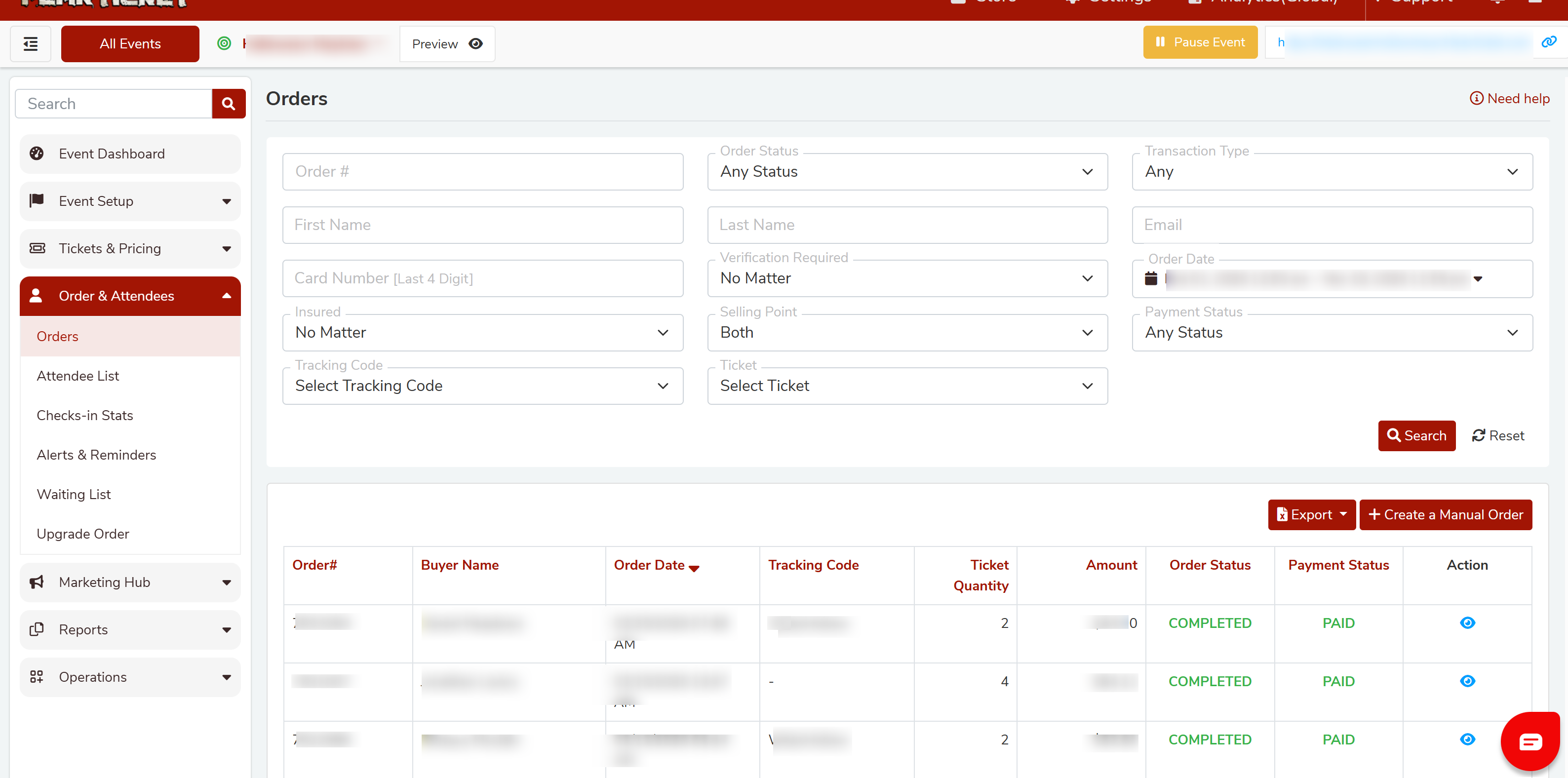
Available search filters include:
- Order Number
- Buyer First Name
- Buyer Last Name
- Card Number (Last 4 digits)
- Order Status
- Transaction Type
- Verification Required
- Issued Status
- Select Print Type
- SmartWaiver
- Tracking Code
- Ticket Type
- Payment Status
- Order Date Range
After entering one or more search filters, click Search to display matching orders.
To clear the search filters, click Reset.
Now, if any orders match within search criteria then the default order list will be reloaded with a filtered order list.
Click on the "eye" icon as shown below image that located on the far right side to view order details
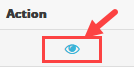
Clicking on the "eye" icon will show order details.
---------------------------------------------------------------------------------------------------
Click here for help on > View Order and Resend Tickets with order email
Was this article helpful?
That’s Great!
Thank you for your feedback
Sorry! We couldn't be helpful
Thank you for your feedback
Feedback sent
We appreciate your effort and will try to fix the article