FEARTICKET · Order & Attendees
Upgrade Order lets your customers update their own orders after purchase, without having to contact you. They can add or swap add-ons, change their ticket time slot, move up to a different ticket type, or swap merchandise. You decide exactly which of these are allowed, when the window closes, and whether a processing fee applies. Once it's set up, it runs on its own.
Order & Attendees and click Upgrade Order.What you'll learn
- How to turn on Upgrade Order for your event
- How to choose which changes customers can make
- How to set an upgrade cutoff time and an optional fee
- Where to find the shareable upgrade link
Step 1: Enable Upgrade Order
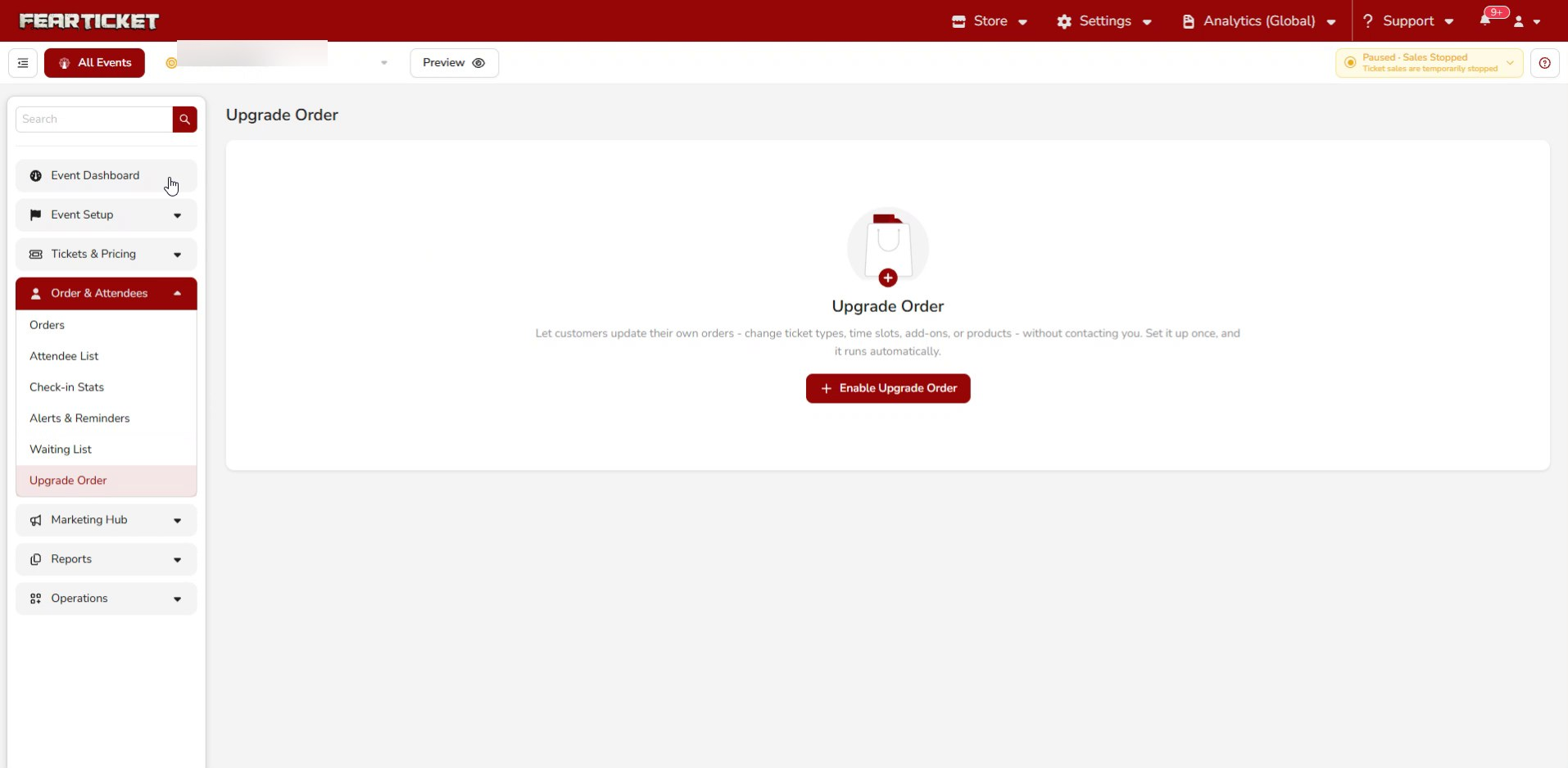
The first time you open the page, the feature is off. Click Enable Upgrade Order to get started.
Step 2: Set the upgrade window
Once enabled, you'll see the main settings. At the top, the Allow to Upgrade Order section controls whether customers can self-modify their orders at all. When it's disabled, none of the options below apply.
Use the Stop order upgrade setting to decide how close to the scheduled time customers can still make changes. Pick Before or After, then choose the amount of time.
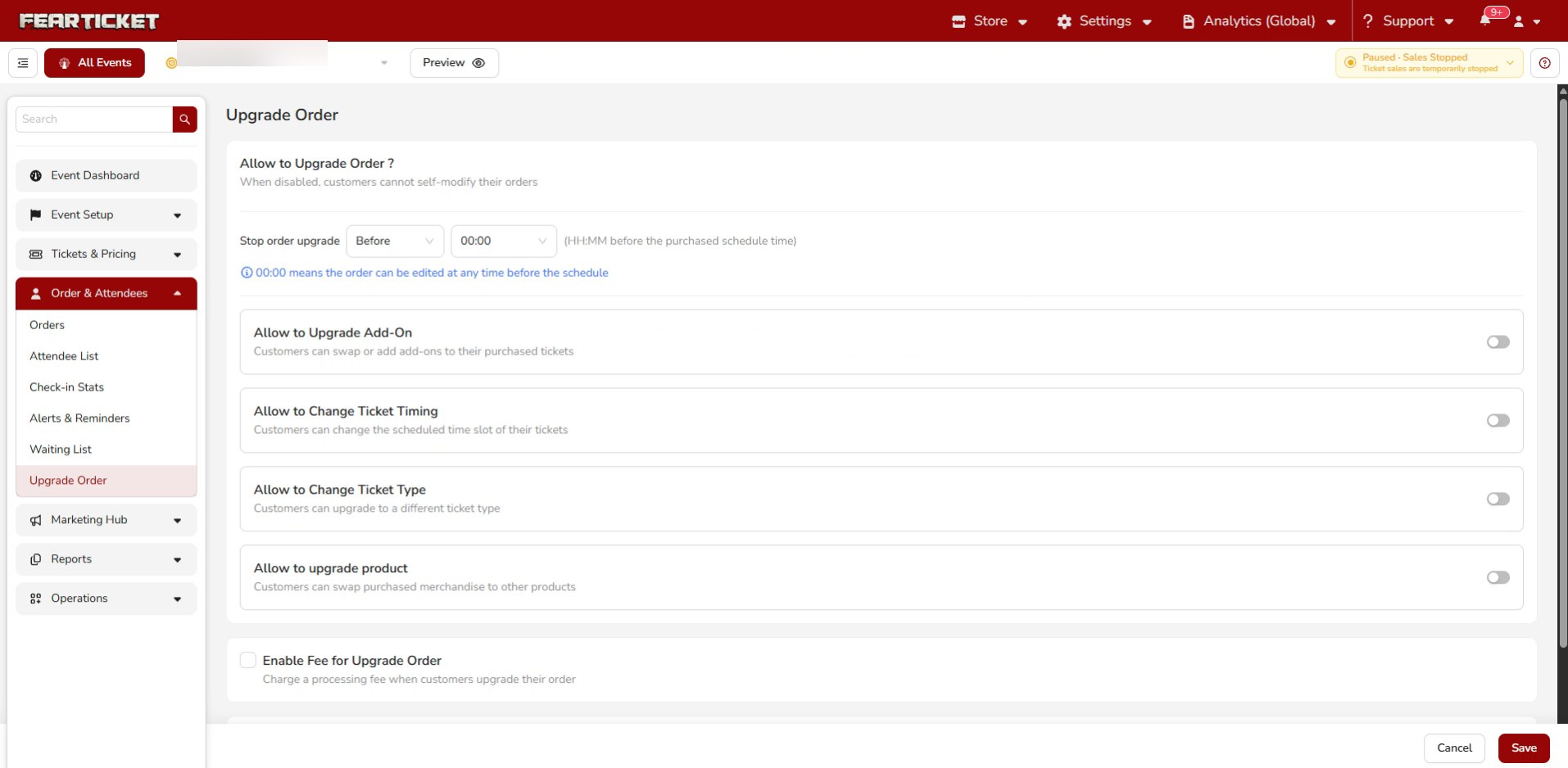
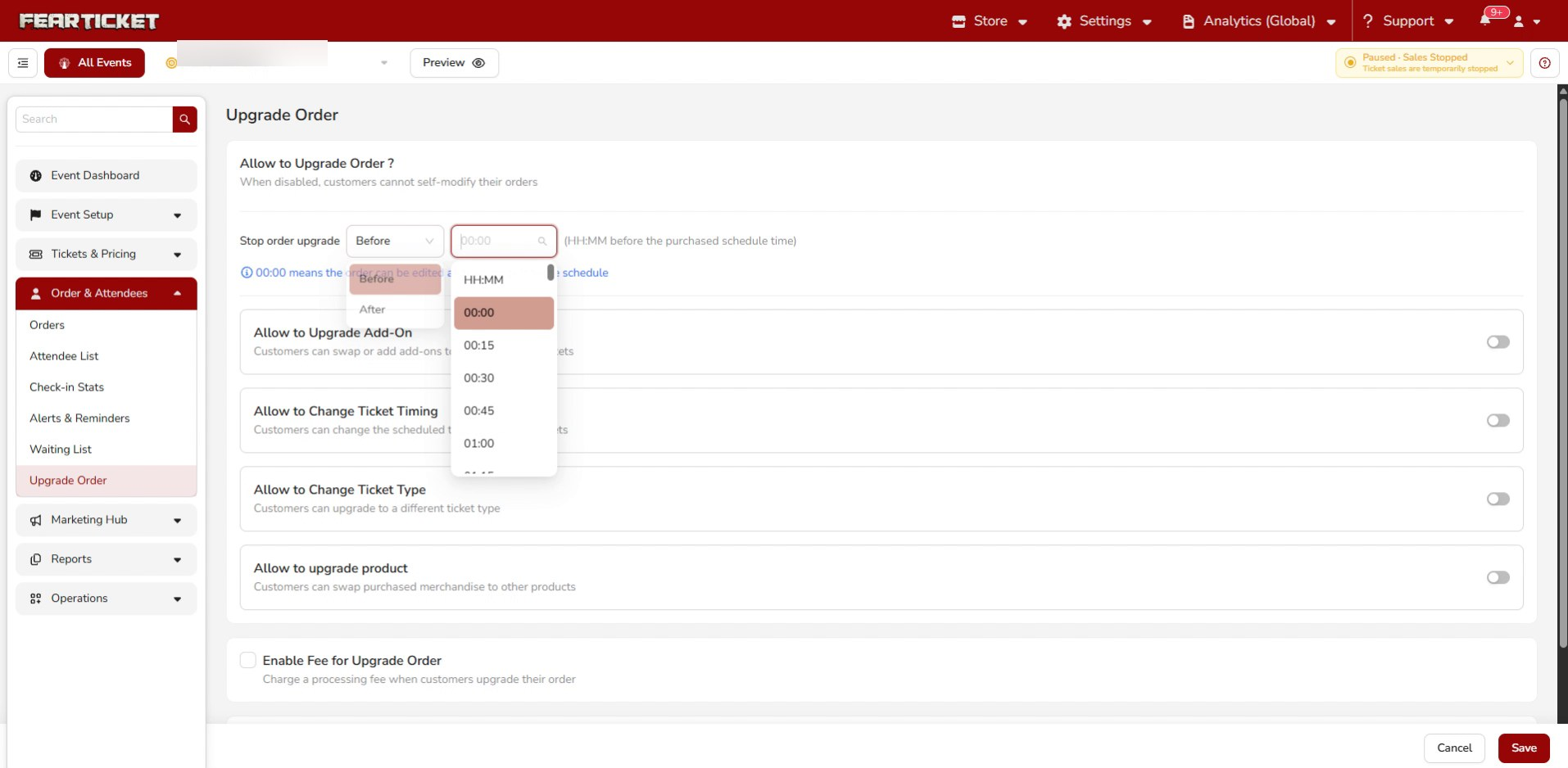
00:00 means the order can be edited any time before the schedule.Step 3: Choose what customers can change
Turn on any combination of the four upgrade types using the toggles. Each one controls a different kind of change.
| Toggle | What it lets customers do |
|---|---|
| Allow to Upgrade Add-On | Swap or add add-ons to their purchased tickets. |
| Allow to Change Ticket Timing | Change the scheduled time slot of their tickets. |
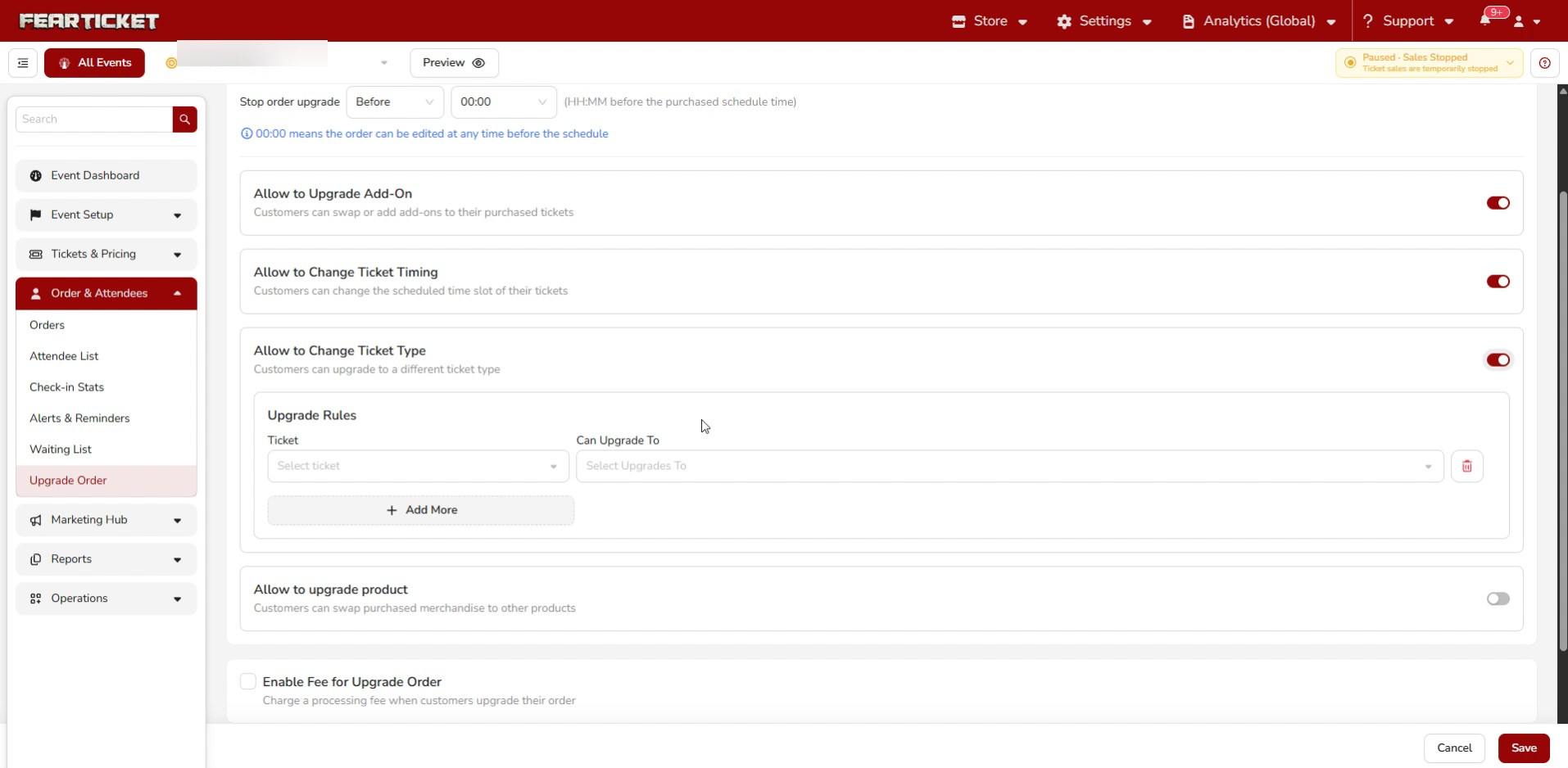
| Allow to Change Ticket Type | Move up to a different ticket type. |
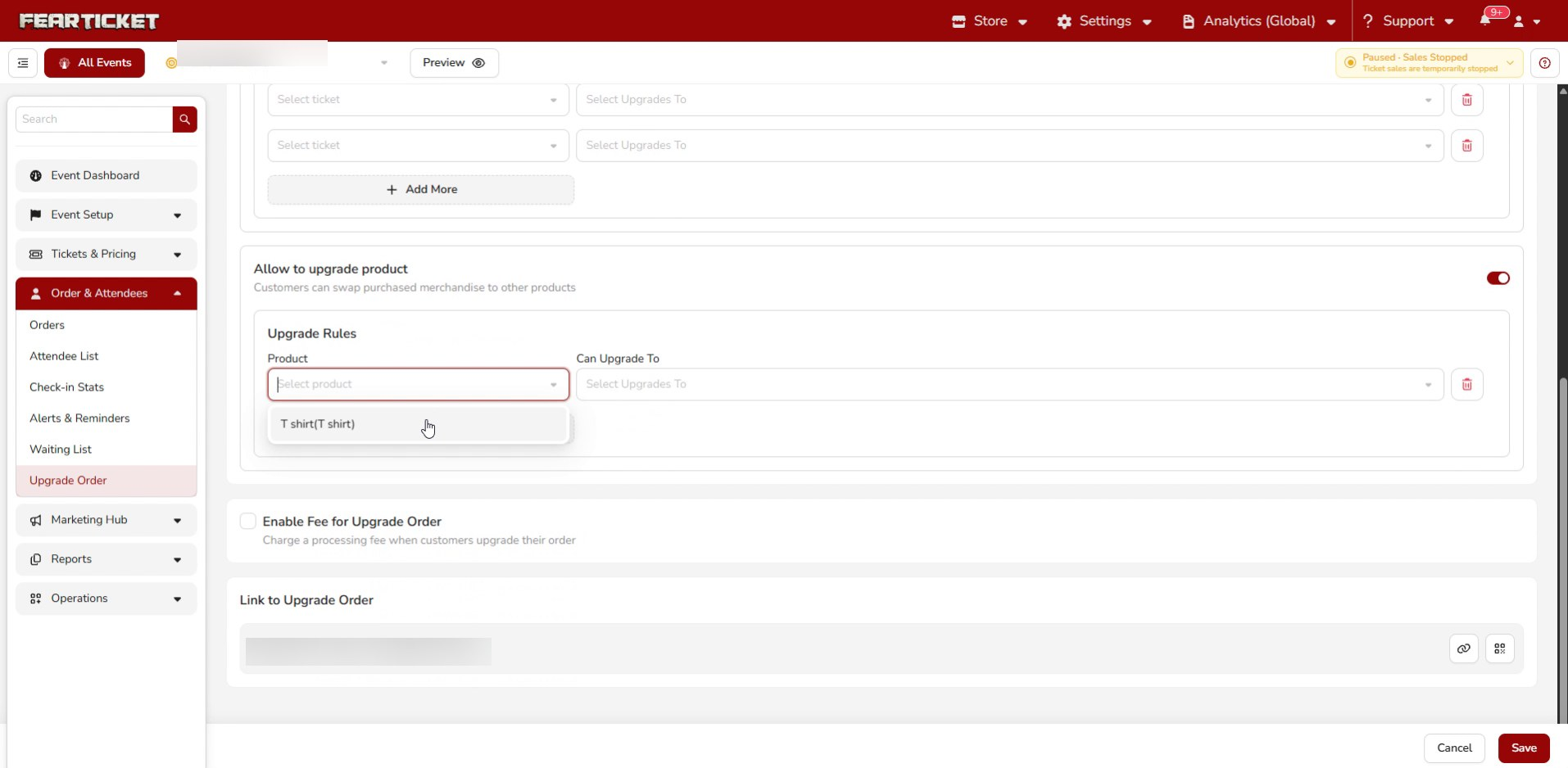
| Allow to upgrade product | Swap purchased merchandise for other products. |
Setting upgrade rules for ticket type
When you turn on Allow to Change Ticket Type, an Upgrade Rules section appears. For each rule, pick the starting Ticket and the ticket it Can Upgrade To. Click Add More to create additional rules.
Setting upgrade rules for products
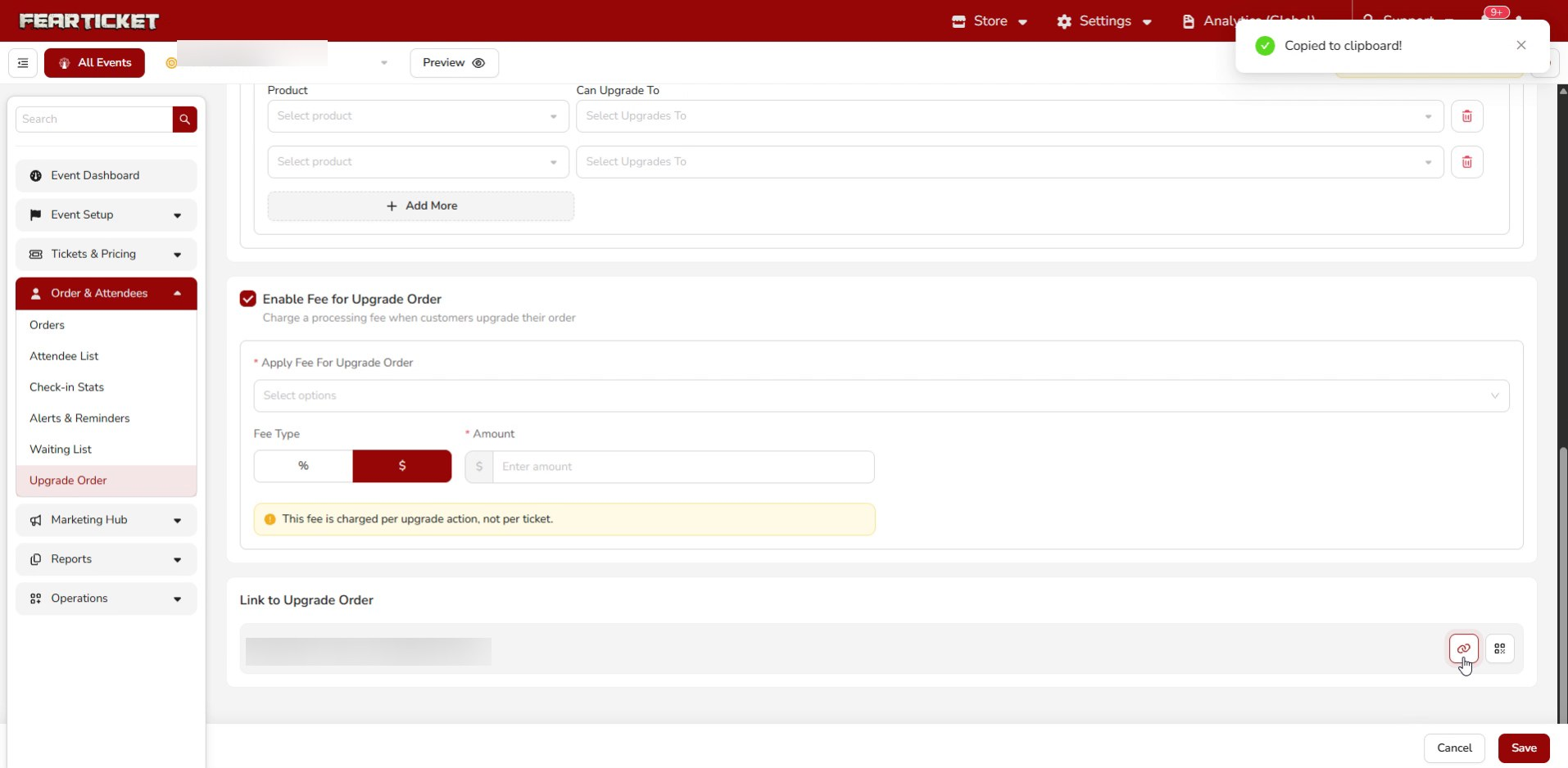
Allow to upgrade product works the same way. Choose the Product a customer bought and the product it Can Upgrade To, and add more rows as needed.
Step 4: Add a fee (optional)
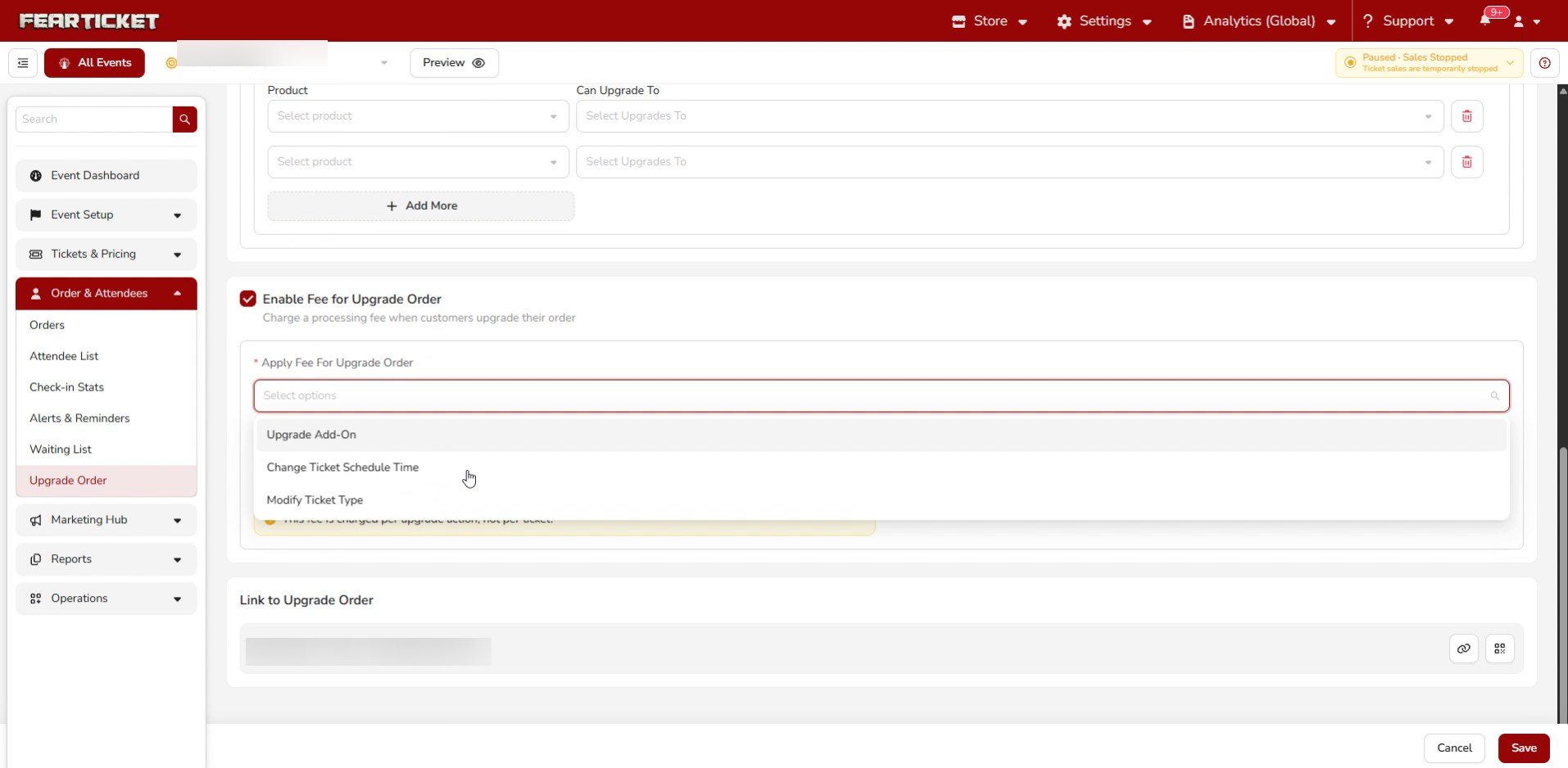
If you want to charge for upgrades, check Enable Fee for Upgrade Order. Then use Apply Fee For Upgrade Order to pick which actions the fee applies to, such as Upgrade Add-On, Change Ticket Schedule Time, or Modify Ticket Type.
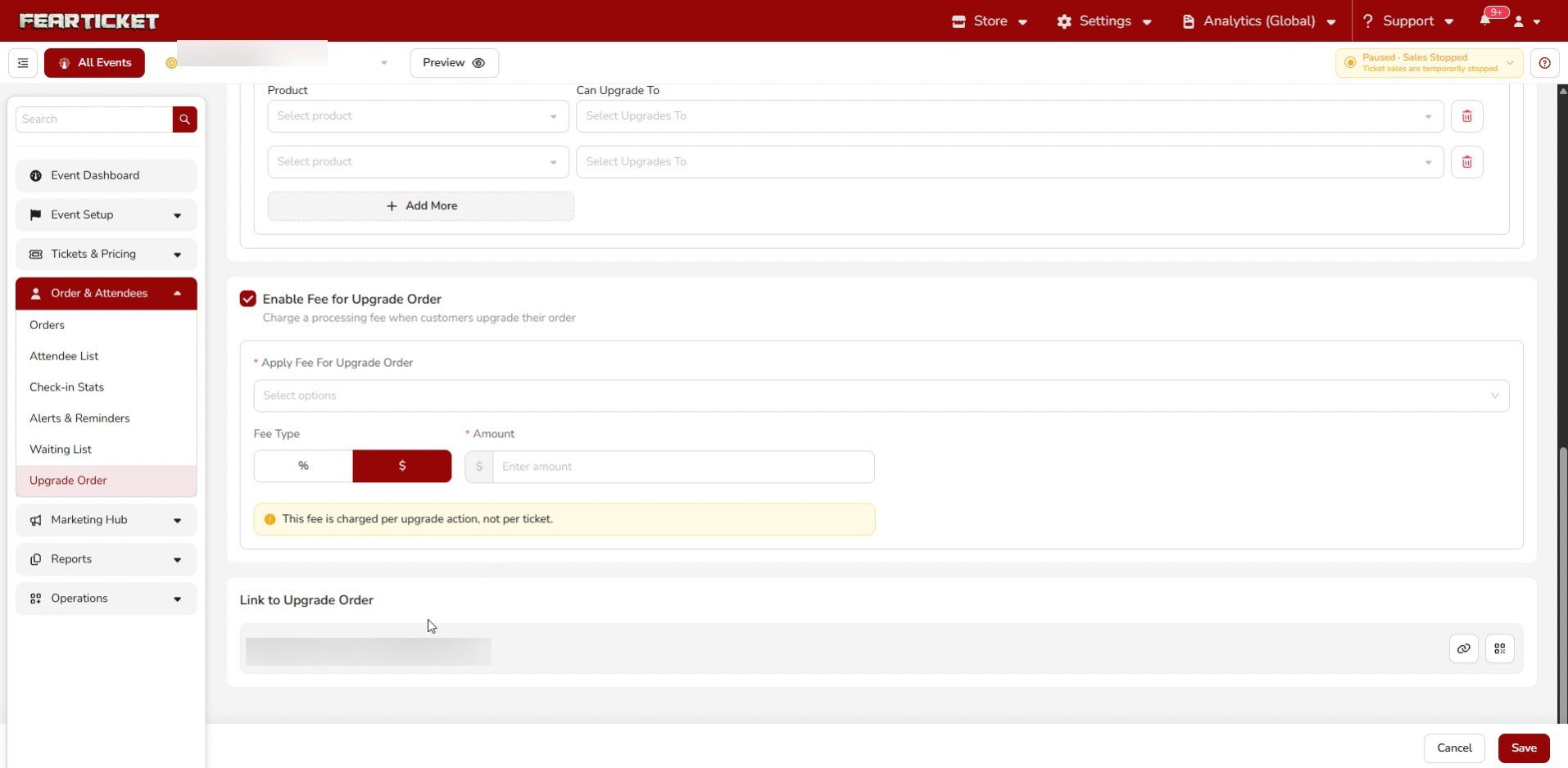
Set the Fee Type to either a percentage or a flat dollar amount, then enter the Amount.
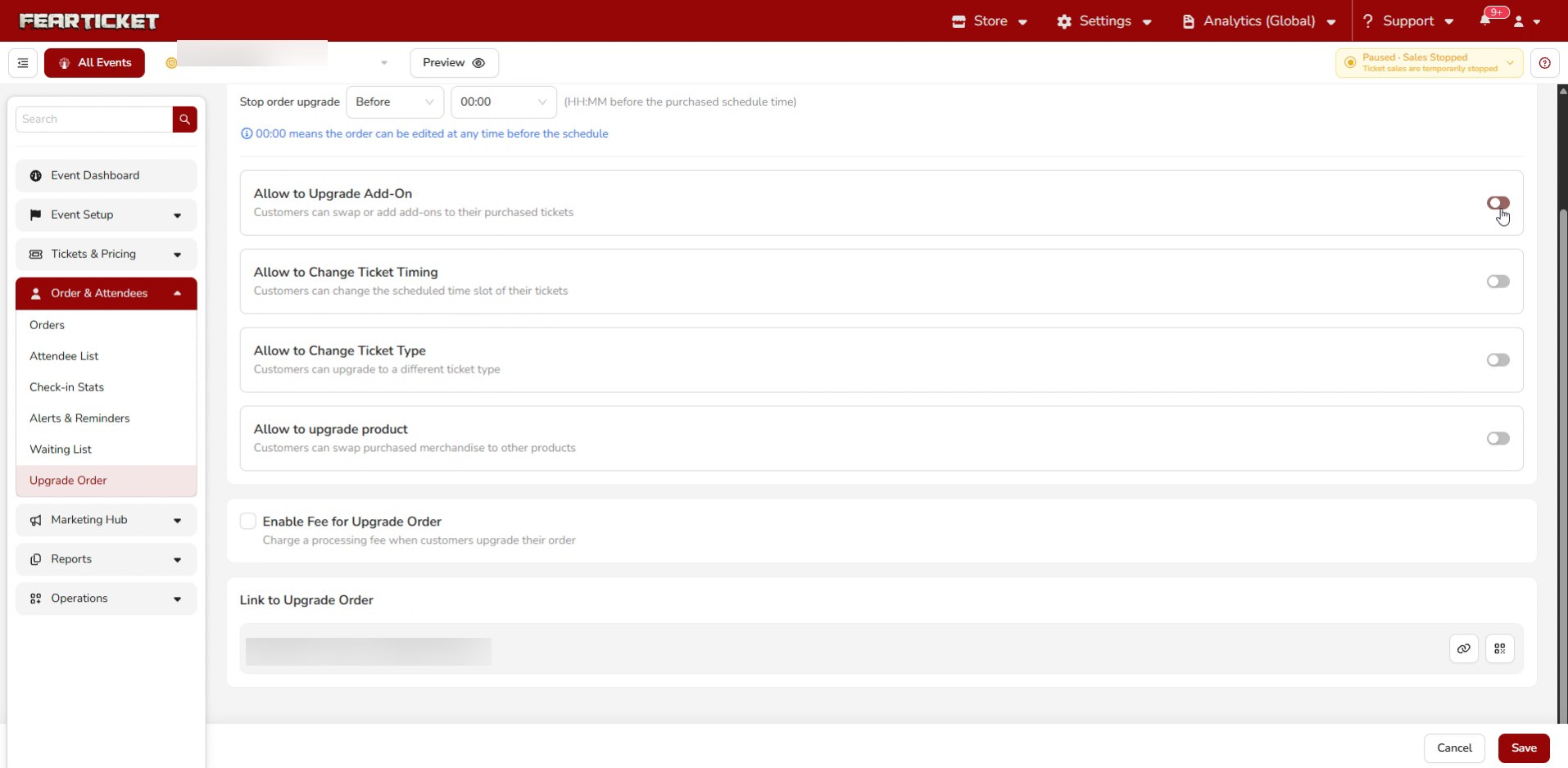
Step 5: Save and share the link
Click Save to apply your settings. At the bottom of the page, the Link to Upgrade Order section gives you a direct link customers can use to upgrade their order. Click the link icon to copy it, or use the QR code option to share it another way.
Was this article helpful?
That’s Great!
Thank you for your feedback
Sorry! We couldn't be helpful
Thank you for your feedback
Feedback sent
We appreciate your effort and will try to fix the article